

How to style your affiliate portal
The affiliate portal is where partners get their link, follow their sales and check payouts. A portal with your logo and color looks like part of your brand, not a third-party tool, so partners know at a glance which program it is.
What you’ll set up
Section titled “What you’ll set up”- Your brand color on the portal’s buttons and links
- A portal title for the browser tab
- Your logo and favicon
- Optional: custom CSS or JavaScript
What each setting changes
Section titled “What each setting changes”| Setting | Where affiliates see it | What to use |
|---|---|---|
| Portal primary color | Buttons, links, badges and the heading on the sign-in and sign-up pages. Default #001584 |
Your store’s main button color, dark enough that white text on it stays readable |
| Portal title | The browser tab, and the title when someone shares a portal link. Left empty, the tab says “Affiliate”, which is easy to lose among a partner’s other tabs | Your program’s name, for example “Acme Partner Program” |
| Portal logo | Top of the portal sidebar, and the sign-in, sign-up and password reset pages | A square logo or icon |
| Portal favicon | The browser tab icon. Left empty, the portal uses your logo | The square icon your store already uses |
Logo and favicon must be .jpeg or .png, under 20 MB and 20 MP. Other formats, such as .svg, .ico or .webp, aren’t accepted. Use PNG if you want a transparent background.
How to style your portal
Section titled “How to style your portal”-
Open Portal style
-
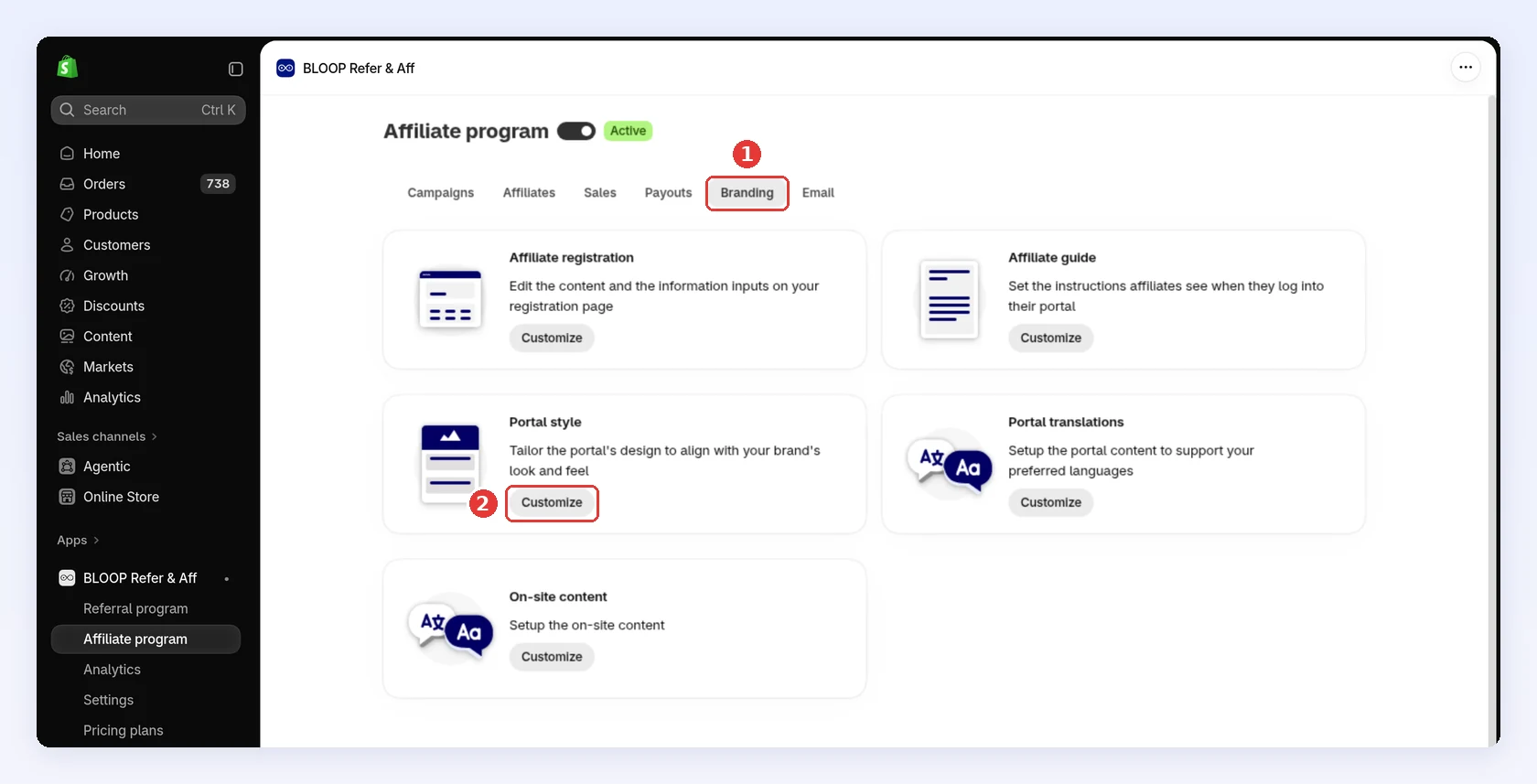
In your Shopify admin, open BLOOP Refer & Aff → Affiliate program, then the Branding tab.
-
On Portal style, click Customize:
-
-
Set your brand on the Design tab
-
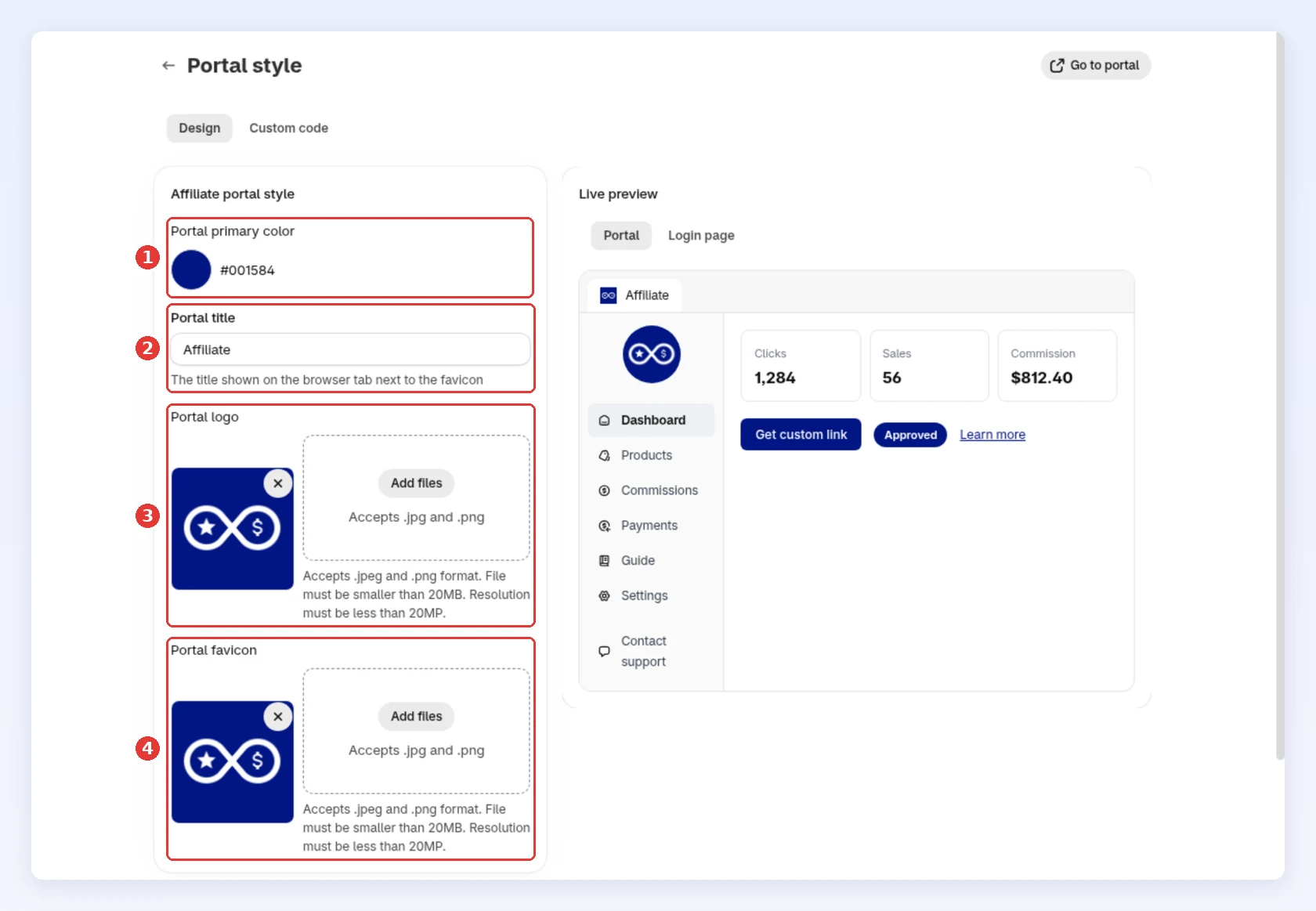
Pick your Portal primary color.
-
Enter a Portal title.
-
Under Portal logo, click Add files and choose your logo.
-
Under Portal favicon, click Add files and choose your icon. To remove an image, click the X on it:
-
-
Preview, save and check the live portal
-
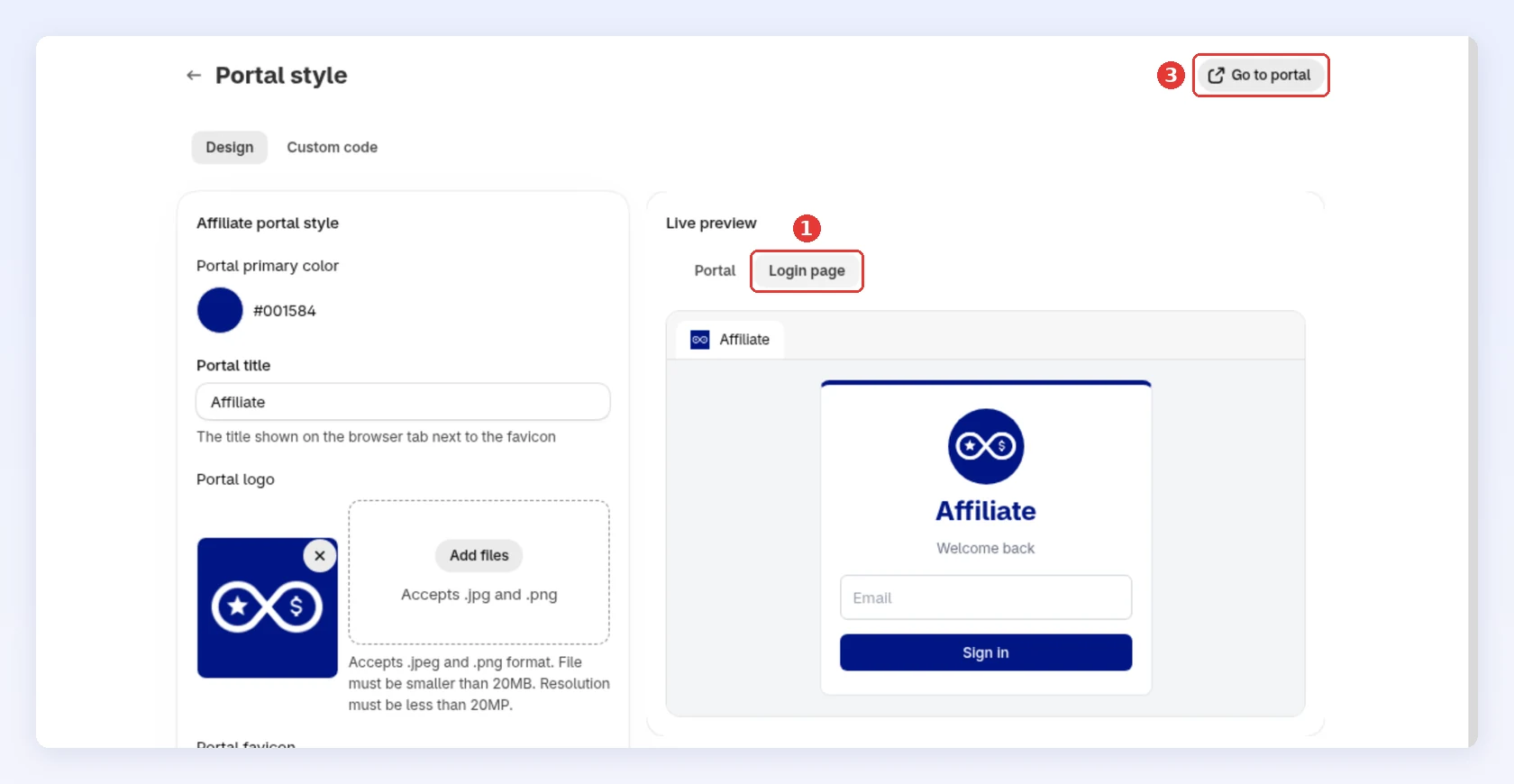
In Live preview, switch between Portal and Login page to see both screens with your changes.
-
Click Save in the bar at the top of the page.
-
Click Go to portal to open your live portal in a new tab:
-
The Live preview uses sample numbers and doesn’t run custom code. It also differs from the live portal in two small ways: it colors the selected menu item with your primary color, and it shows your title on the sign-in card. Check color and contrast on the live portal.
Add custom CSS or JavaScript
Section titled “Add custom CSS or JavaScript”For styling the Design tab can’t do, such as a different font, use custom code. It runs on every portal page, including sign-in and sign-up.
-
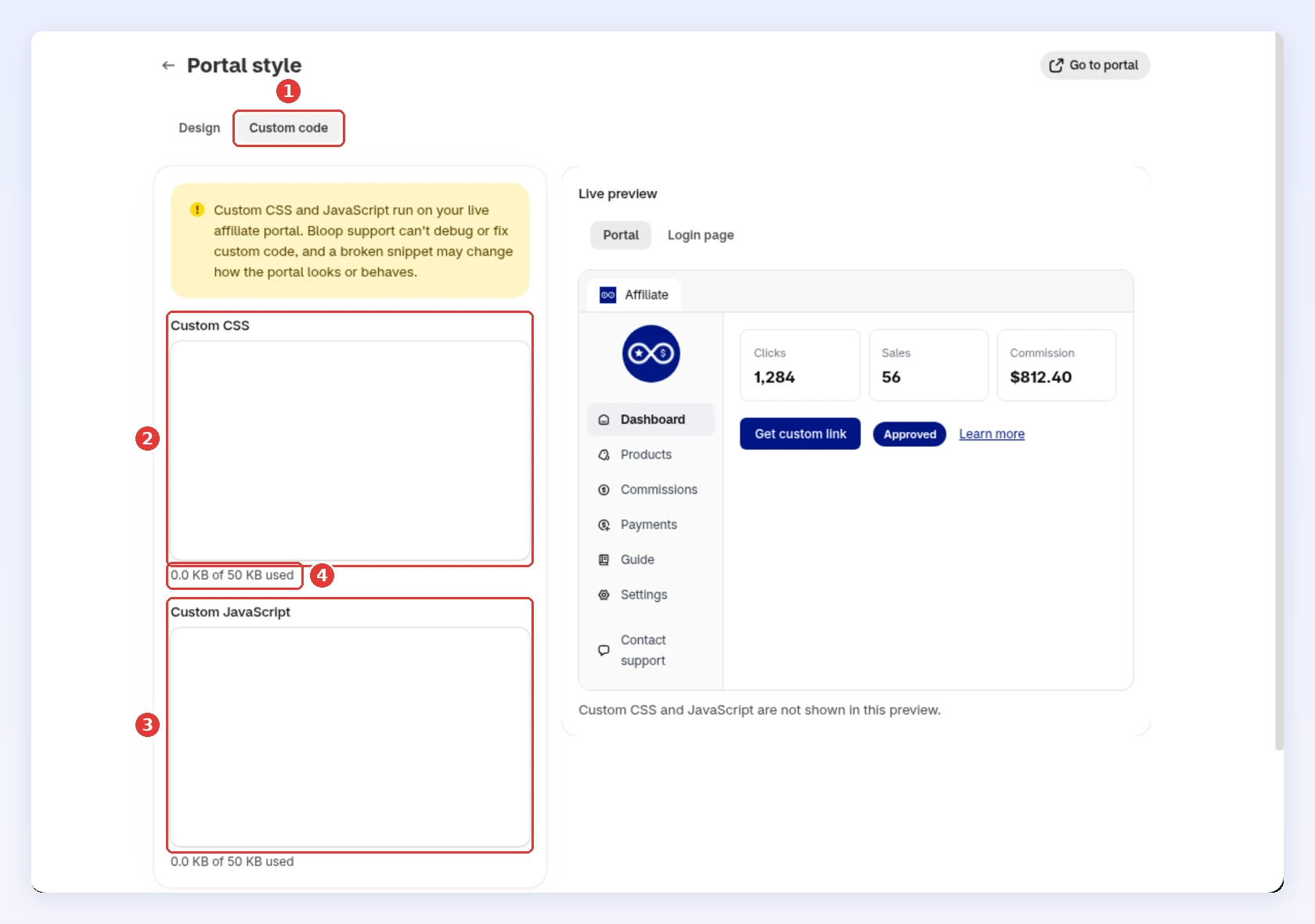
Open the Custom code tab.
-
Paste your styles into Custom CSS.
-
Paste scripts into Custom JavaScript.
-
Each field holds up to 50 KB, and the counter below it shows how much you’ve used. Over the limit, you can’t save until you shorten the code:
-
Click Save, then check the live portal. The Live preview doesn’t show custom code.
How it looks to affiliates
Section titled “How it looks to affiliates”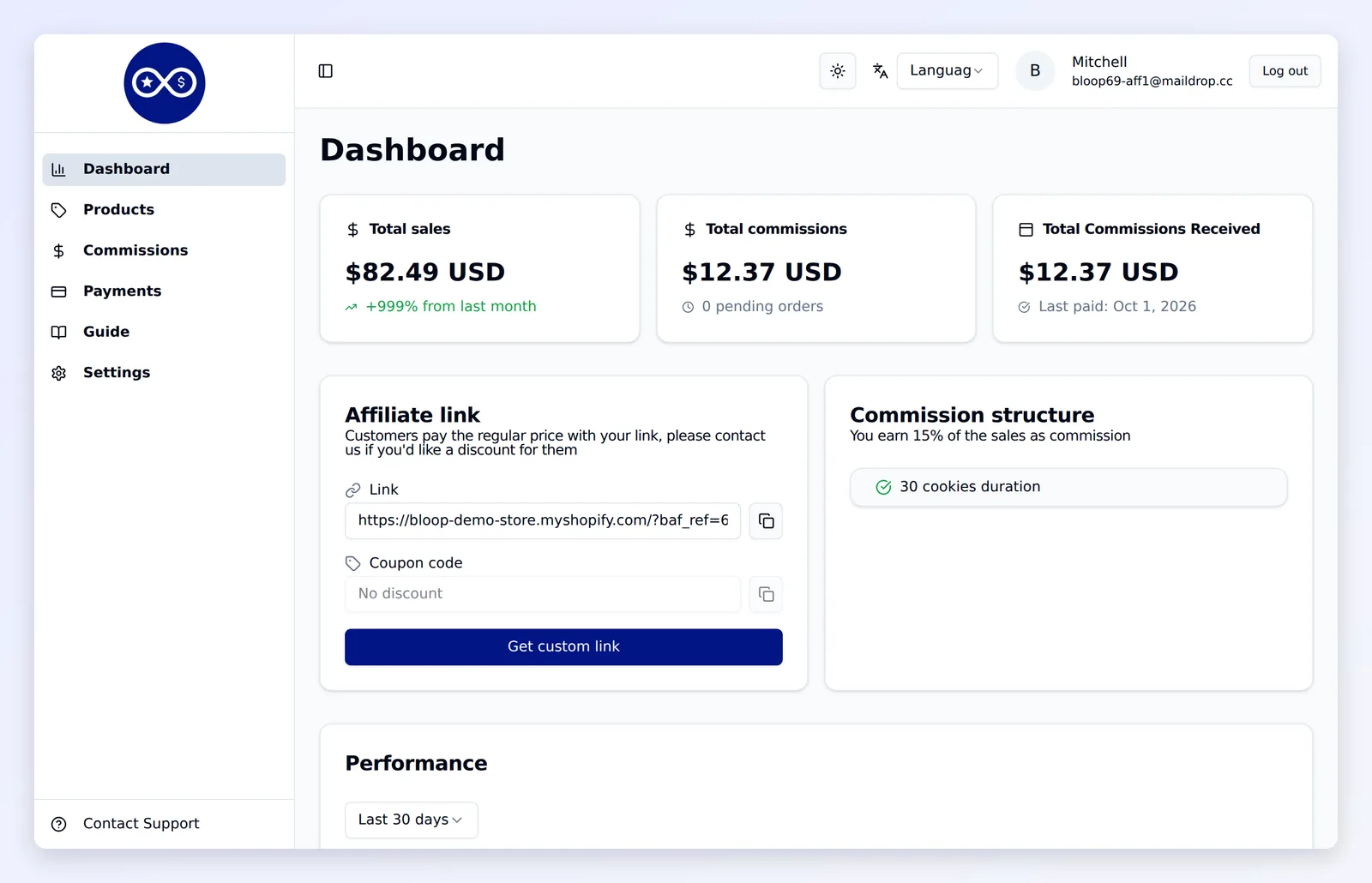
Related
Section titled “Related”- Build your affiliate registration form - brand the sign-up page partners see before the portal
- Portal translations - translate the portal into your affiliates’ languages
- Portal guide - write the help affiliates read inside the portal
- Managing affiliates - log in as an affiliate to check the portal