

How to configure affiliate settings
These settings decide how your affiliate program works: when a commission is earned, when it is taken back, how partners get paid, and how the program presents itself. Set them before you recruit. A partner who earns commission but can’t be paid, or whose commission disappears without explanation, stops promoting you.
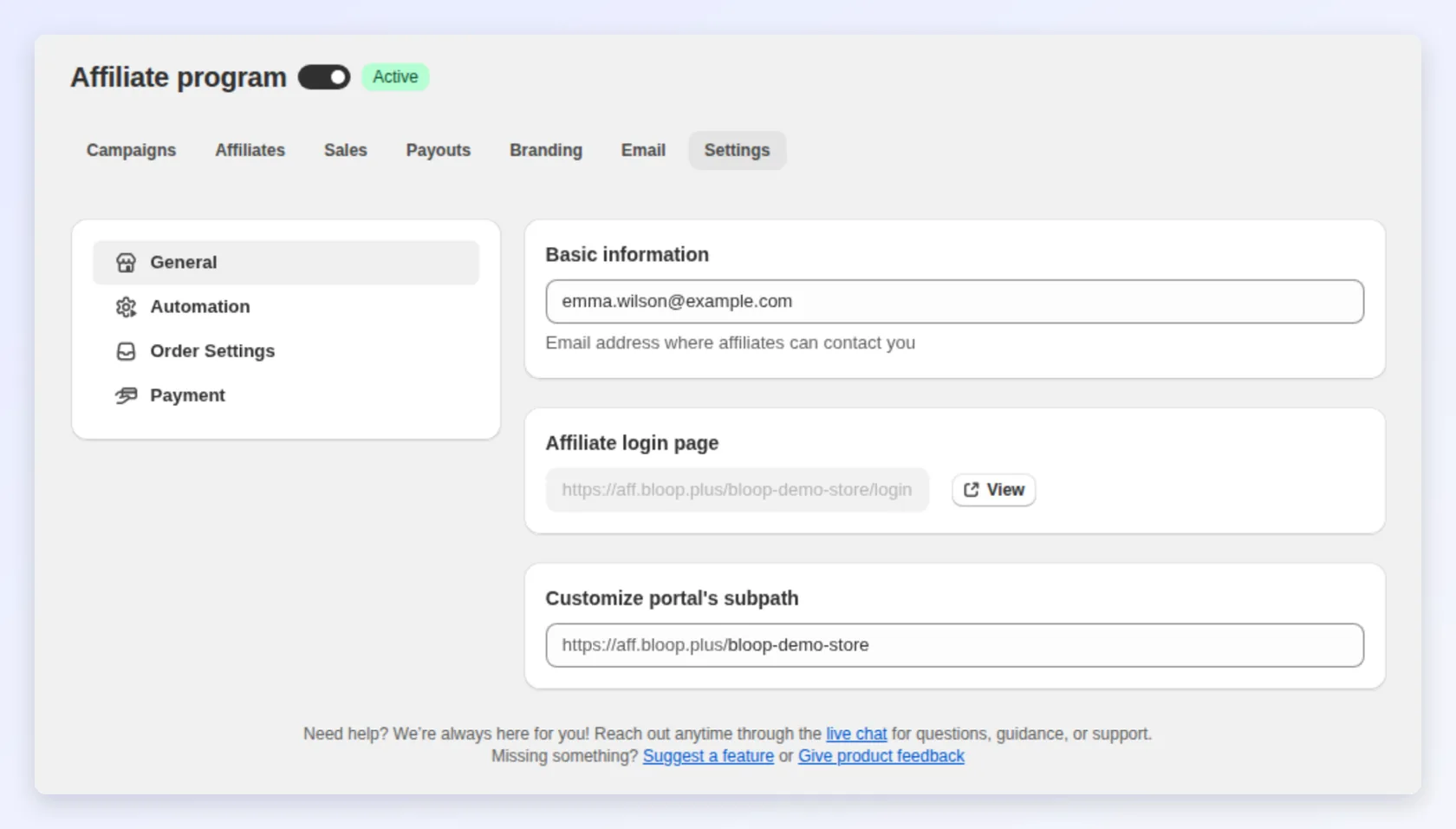
Open Settings in the app menu and look under Affiliate. It has four sections: General, Automation, Order settings, and Payment. The Affiliate group appears once you finish setting up the affiliate program.
General
Section titled “General”| Setting | What it does |
|---|---|
| Contact email | The address affiliates use to reach you. It appears behind Contact Support in the portal. Bloop’s emails to affiliates use your email sender settings instead |
| Affiliate login page | The portal URL, with a custom subpath. Bloop checks availability as you type. See portal link |
Automation
Section titled “Automation”These settings decide how much of the program runs without you.
| Setting | Options | Default | What it means |
|---|---|---|---|
| Affiliate approval automation | Manually · Immediately | Manually | Whether a new registration waits for your review, or is approved at signup |
| Order approval automation | Manually · Immediately | Manually | Whether sales wait as Pending in the Sales tab, or are approved as they arrive |
| Assign tags on Shopify | Customer · Order | Both off | Tags the customers and orders affiliates bring, so you can segment them in Shopify |
Immediately on Order approval automation removes your review step, so odd sales and possible fraud are approved without you checking. It doesn’t pay anyone: approving only adds the commission to the affiliate’s unpaid balance, and a canceled or refunded order’s commission is still revoked automatically until you mark the sale as paid. So Immediately is safe as long as you pay only sales past your return window. Read when to approve and when to reject before you turn this on.
Order Settings
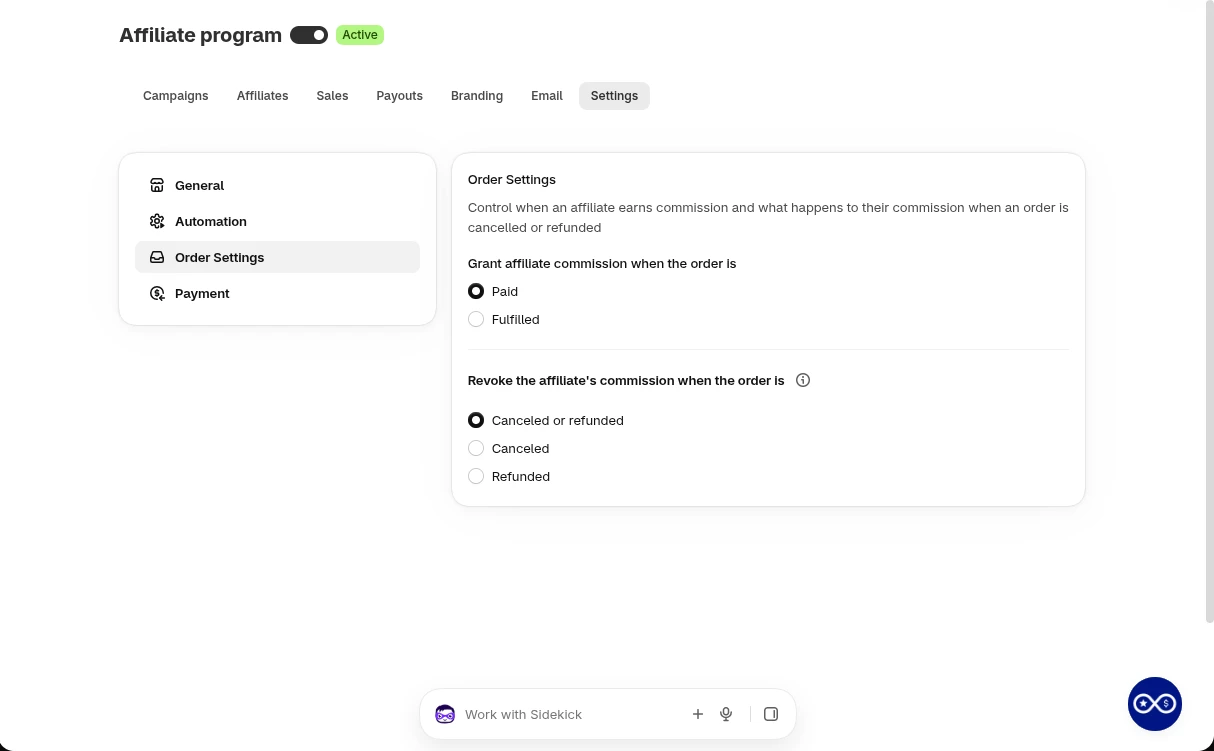
Section titled “Order Settings”This section controls two things: when an affiliate earns commission, and what happens to it if the order goes away.
-
In Settings → Affiliate, open Order settings.
-
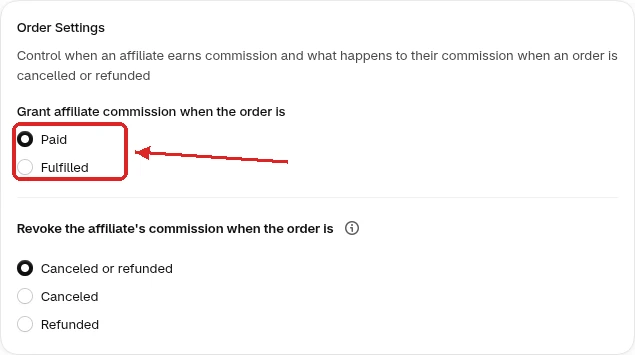
Under Grant affiliate commission when the order is, choose Paid or Fulfilled.
-
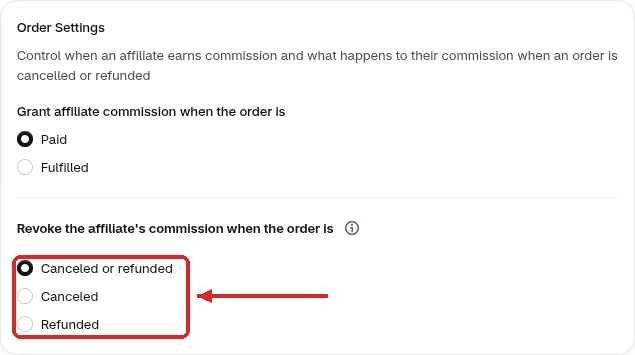
Under Revoke the affiliate’s commission when the order is, choose one option: Canceled or refunded (default), Canceled, or Refunded.
-
Click Save in the bar at the top of the page.
When commission is granted
Section titled “When commission is granted”| Option | Commission is created when | Suits |
|---|---|---|
| Paid (default) | The order is paid | Most stores. The affiliate’s work is done at checkout |
| Fulfilled | The order is fulfilled | Pre-orders, made-to-order items, long lead times, or stores where paid orders often don’t ship straight away |
- One sale per order. A sale is never created twice.
- Unpaid orders are skipped: canceled orders, and payments that are refunded, voided, expired or still pending (for example cash on delivery). With Paid, the sale is created once payment arrives. With Fulfilled, a fulfilled order gets its sale even if payment is still pending.
- Self-referrals wait for you. If the buyer’s email is the affiliate’s own, the sale stays Pending with a note, even with Immediately. Review it before you approve.
When commission is revoked
Section titled “When commission is revoked”When the order event you chose in step 3 happens, Bloop sets a Pending or Approved sale to Rejected. Revoking can’t be turned off. The affiliate sees why on their Commissions page, for example “Commission revoked because the order was canceled”, so they don’t need to ask you.
Three situations change what a revoke does:
| Situation | What happens | What to do |
|---|---|---|
| Part of an order is refunded, and your setting includes refunds | Bloop recalculates the commission on what the customer kept, using the campaign rule saved on the sale. A capped sale keeps its cap. The commission goes down, never up | Nothing. Refunding one line of a five-line order lowers the commission instead of removing it |
| The sale is already paid | Bloop never revokes or recalculates it, even if the order is later canceled or refunded | Pay only after your return window closes. Approved but unpaid sales are still revoked |
| The sale is already rejected | The reason stays as it is and isn’t overwritten | Nothing |
If you move a revoked sale back to Approved or Pending yourself, Bloop clears the revoke reason. The affiliate then stops seeing an explanation for something that is no longer true.
Payment
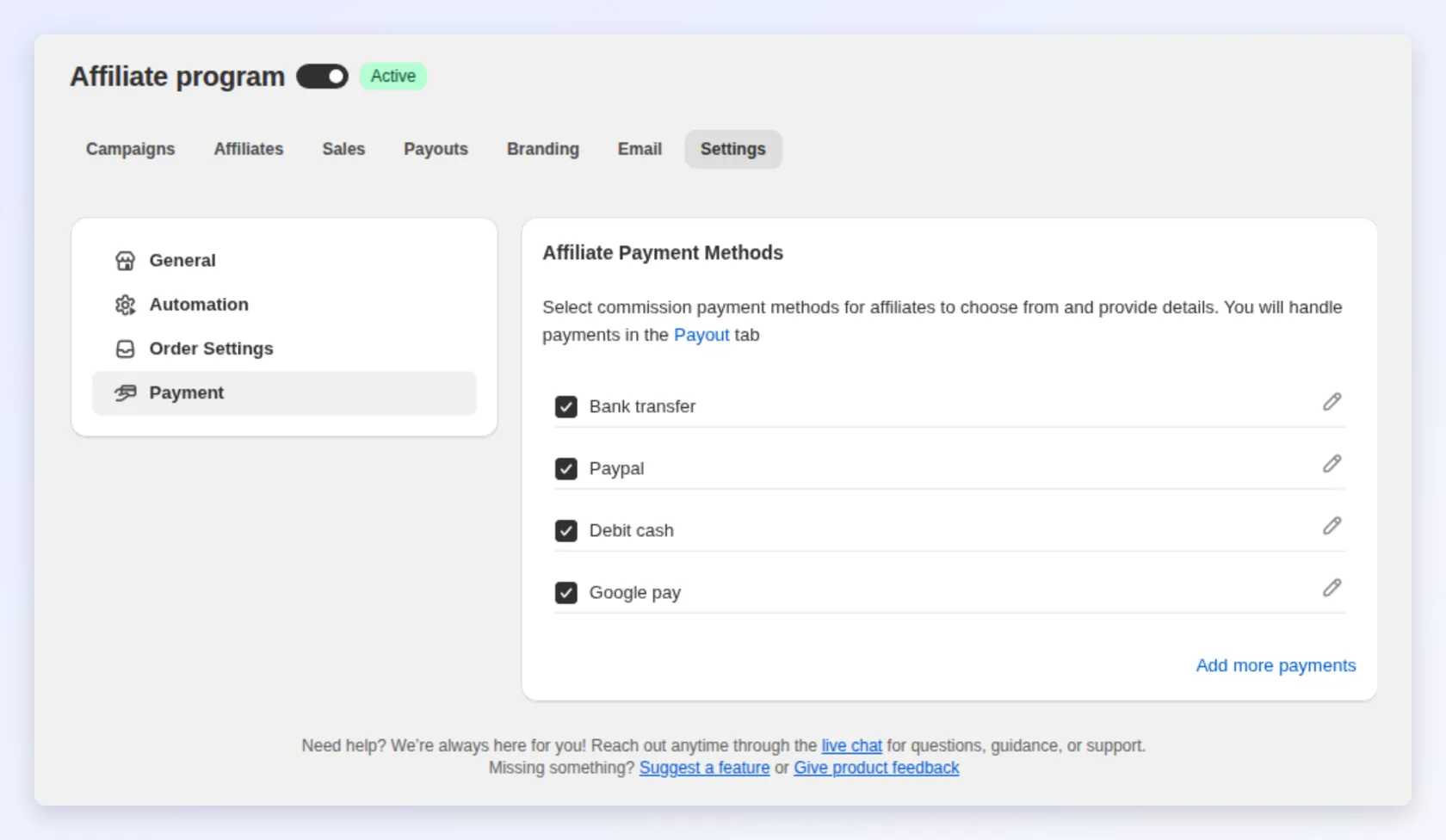
Section titled “Payment”Payment methods define how you pay affiliates and which details you collect from them.
-
In Settings → Affiliate, open Payment.
-
Turn each method on or off. Only enabled methods are offered to affiliates.
-
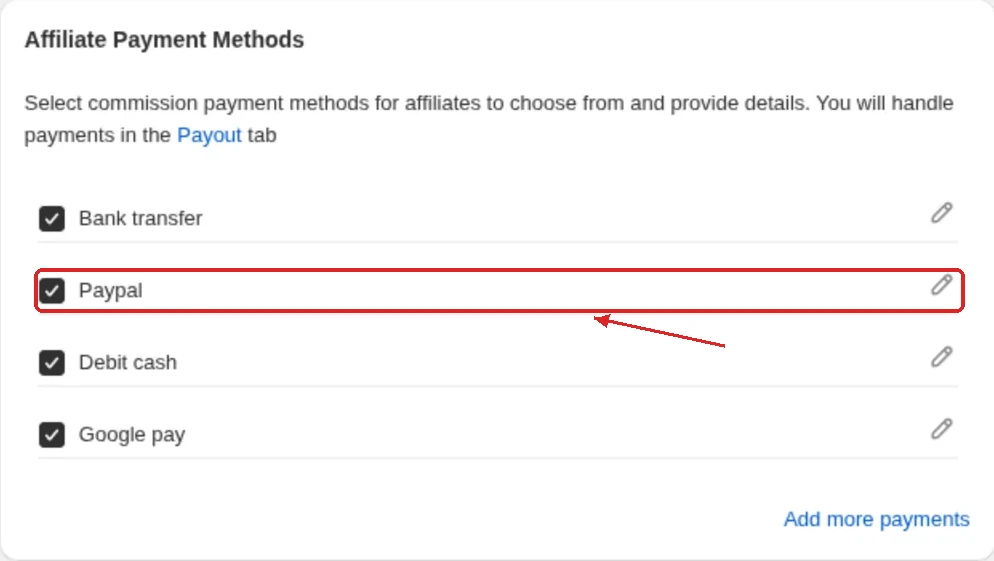
To change a method’s fields, edit its label, its type (Text or Email), and whether it’s required.
-
To add your own method, click Add payment method, give it a payment name, and define its fields.
You only decide which methods and fields exist. Each affiliate enters their own details in the portal, under Settings → Payment information. The details show read-only on the affiliate’s record and when you pay them out. An affiliate with no payment details on file can’t be paid: Process to pay stays disabled until they add them.
Choosing which methods to offer
Section titled “Choosing which methods to offer”Bloop ships with four methods. Offer the one or two that suit your partners, and turn off the rest. Every extra method is another choice for the affiliate and another payout flow for you to reconcile.
| Method | Fields collected | Best for | Watch out for |
|---|---|---|---|
| Bank transfer | Bank name, account name, account number (required). Agency code and BIC code (optional) | Businesses, agencies, high-volume or local partners | Many fields to collect and verify. Details vary by country |
| Paypal | Email (required) | Individual creators, influencers, and international partners | Partners need a PayPal account. Fees may apply on their end |
| Debit cash | Name, debit card number (required) | Programs that pay straight to a card | Card-number fields are sensitive. Enable only if you actually use it |
| Google pay | Email (required) | Partners who use Google Pay | Narrower availability than PayPal |
Editing a method’s fields
Section titled “Editing a method’s fields”- Require only what you can’t pay without. For bank transfer, the account name and number are needed. The agency code and BIC may be optional, depending on the country. A required field that isn’t needed stalls the partner before they finish, and an unfinished profile is an affiliate you can’t pay.
- Label fields the way the partner’s bank or wallet does. A partner copying details from their bank app then knows which number goes where.
Integrations
Section titled “Integrations”Set up integrations once for the whole app, under Settings → Store-wide → Integrations, not from the affiliate settings. Klaviyo has its own Affiliate program section. It syncs affiliate profiles and events, and keeps a “BLOOP - All affiliates” segment up to date. See Klaviyo and Mailchimp.
Email notifications
Section titled “Email notifications”To get alerts for new registrations and sales, turn on New affiliate registration and New sales under Store owner (You) in the Email tab of Affiliate program. Both are off by default. See Affiliate email notifications.
Related
Section titled “Related”- Affiliate sales: where the grant and revoke rules show up.
- Affiliate payouts: where payment methods are used.
- Affiliate email notifications: every email type, its variables, and how to edit it.
- Managing affiliates: registration and statuses that trigger emails.
- Recruiting affiliates: getting the right partners into a program that’s ready to pay them.