

How to configure affiliate email notifications
Partners keep promoting when they know where they stand. Bloop emails them at each stage, from application to payout, and emails you when there’s work to review. Turn each email on or off, and edit its subject and body.
Quick steps
Section titled “Quick steps”-
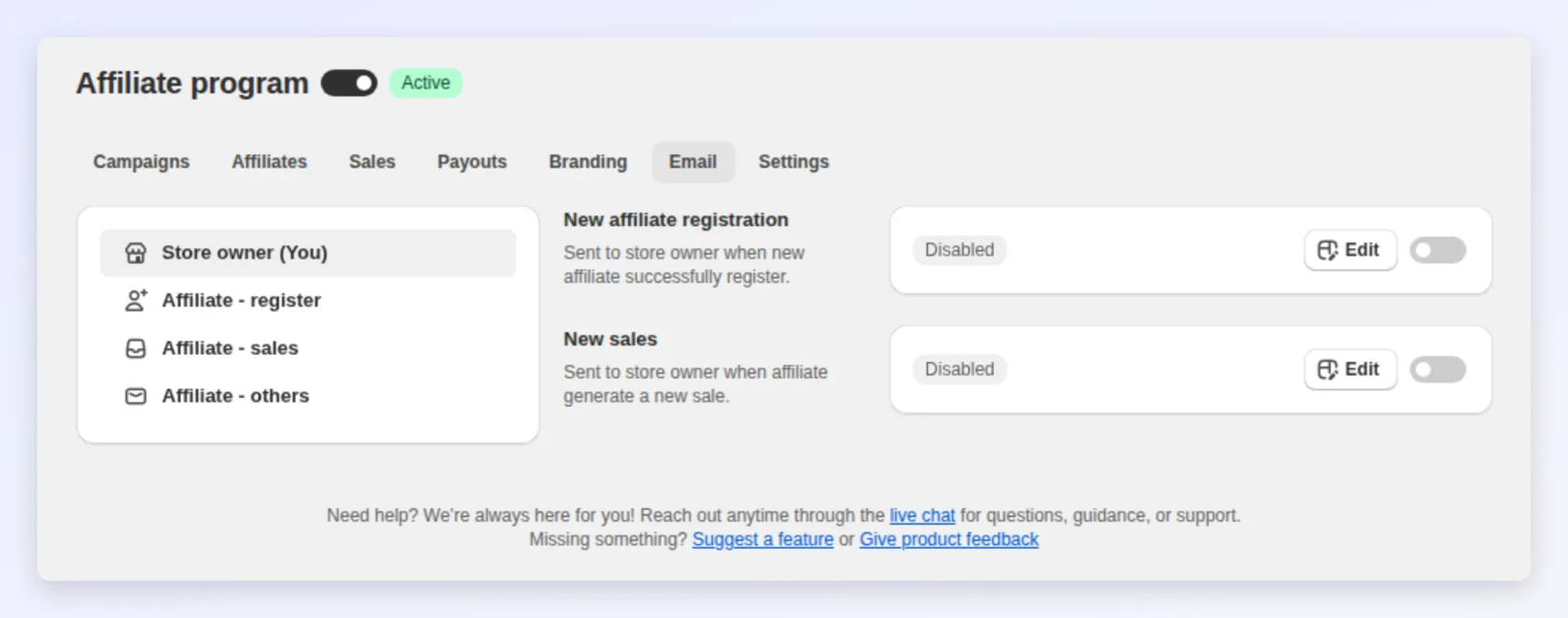
In BLOOP Refer & Aff → Affiliate program, open the Email tab.
-
Click Edit on the email you want to change. The editor opens in a full-screen window over the Email tab.
-
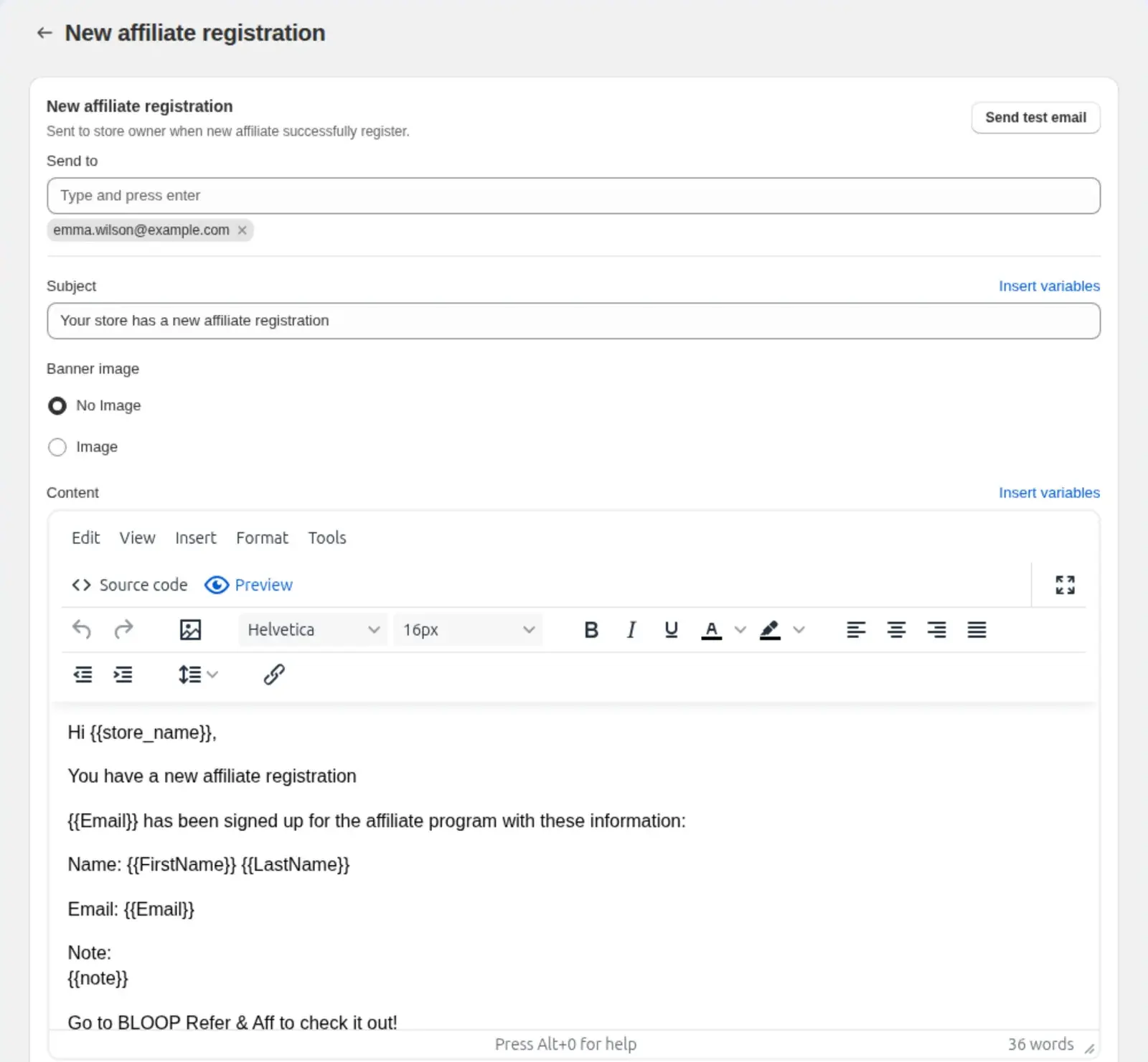
Edit the subject or body:
-
Turn the email on or off, and save with the save bar in that window.
-
Click Send test email and check the layout and wording:

Which emails to enable
Section titled “Which emails to enable”Several emails ship disabled. Review this list before launch. The Email tab groups them in four sections, shown in the first column. Two different emails are both called New sales: one goes to the affiliate, the other to you.
| Section | Sent when | Default | Recommendation | |
|---|---|---|---|---|
| Store owner (You) | New affiliate registration | A new affiliate applies. Sent to you | Off | Turn on and set a recipient for alerts |
| Store owner (You) | New sales | An affiliate generates a sale. Sent to you | Off | Turn on and set a recipient for alerts |
| Affiliate - register | Reset password | An affiliate requests a password reset | On | Keep on. Partners can’t log in without it |
| Affiliate - register | Approved | You approve an affiliate. Includes the activation link | On | Keep on |
| Affiliate - register | Pending | An affiliate applies and waits for review | On | Keep on |
| Affiliate - register | Rejected | You reject an application | Off | Turn on to email rejections |
| Affiliate - register | Manually added - by store owner | You add an affiliate manually. Includes the activation link | On | Keep on. It’s the invitation |
| Affiliate - sales | New sales | A referral order is tracked | On | Keep on |
| Affiliate - sales | Sales approved | You approve a tracked sale | On | Keep on |
| Affiliate - sales | Sales declined | You reject a tracked sale | Off | Turn on to explain rejections |
| Affiliate - others | New assigned coupon | You assign a coupon code | On | Keep on |
| Affiliate - others | New commission payout | You click Mark as paid on a payout | On | Keep on |
- Send to: both owner emails share this list. Type an address and press Enter. You can add up to 3 addresses.
- Locked field: if the field is locked, your plan doesn’t include custom recipients. Contact [email protected] to check your options.

Emails your affiliates receive
Section titled “Emails your affiliates receive”| Preview | |
|---|---|
| Approved | 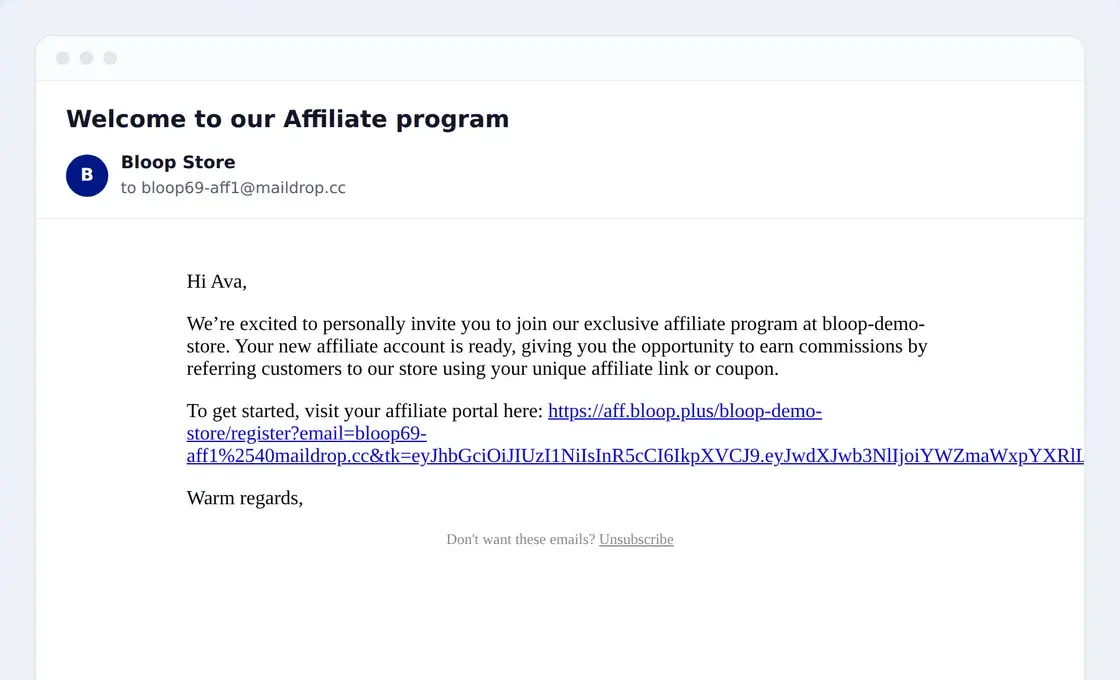 |
| New sales | 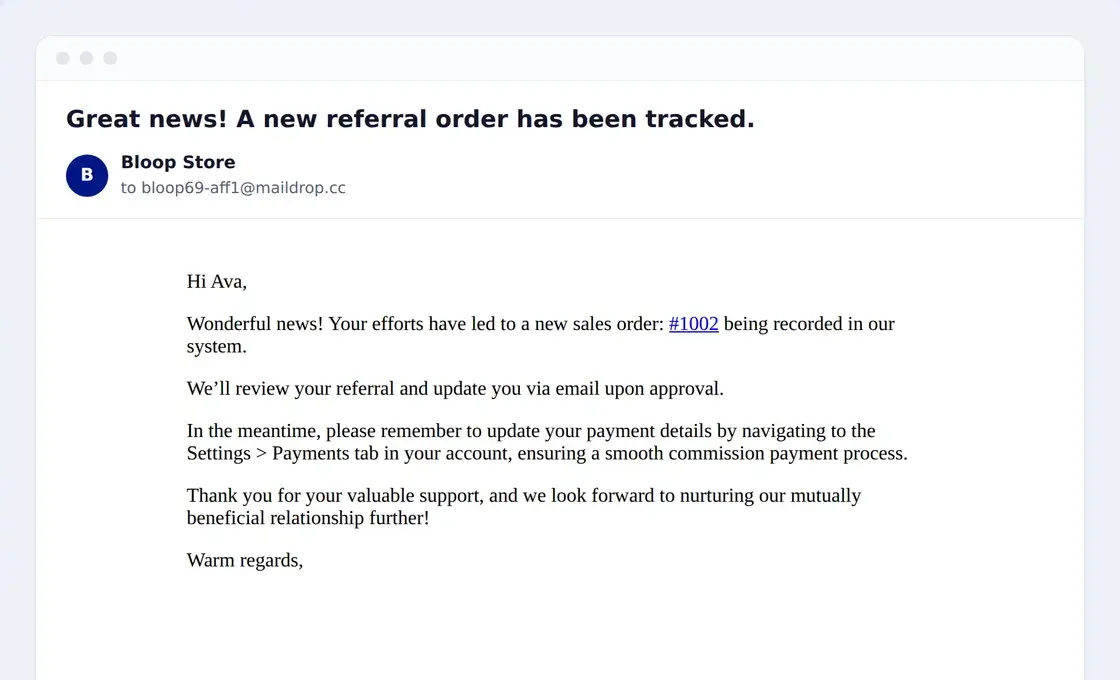 |
| Sales approved | 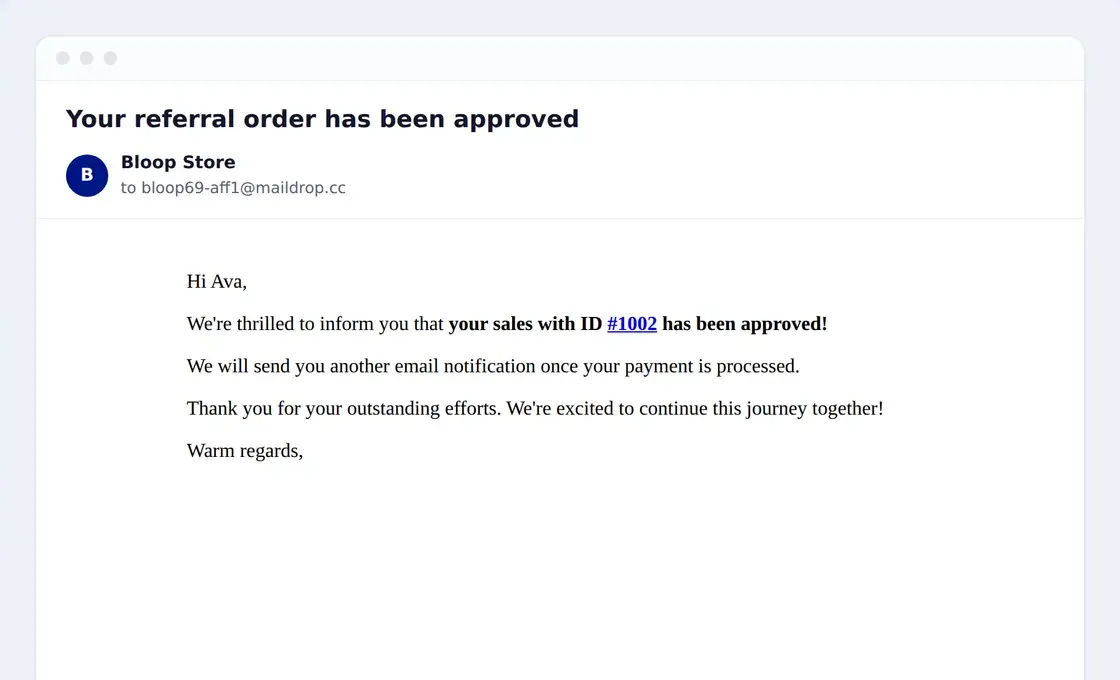 |
| New commission payout | 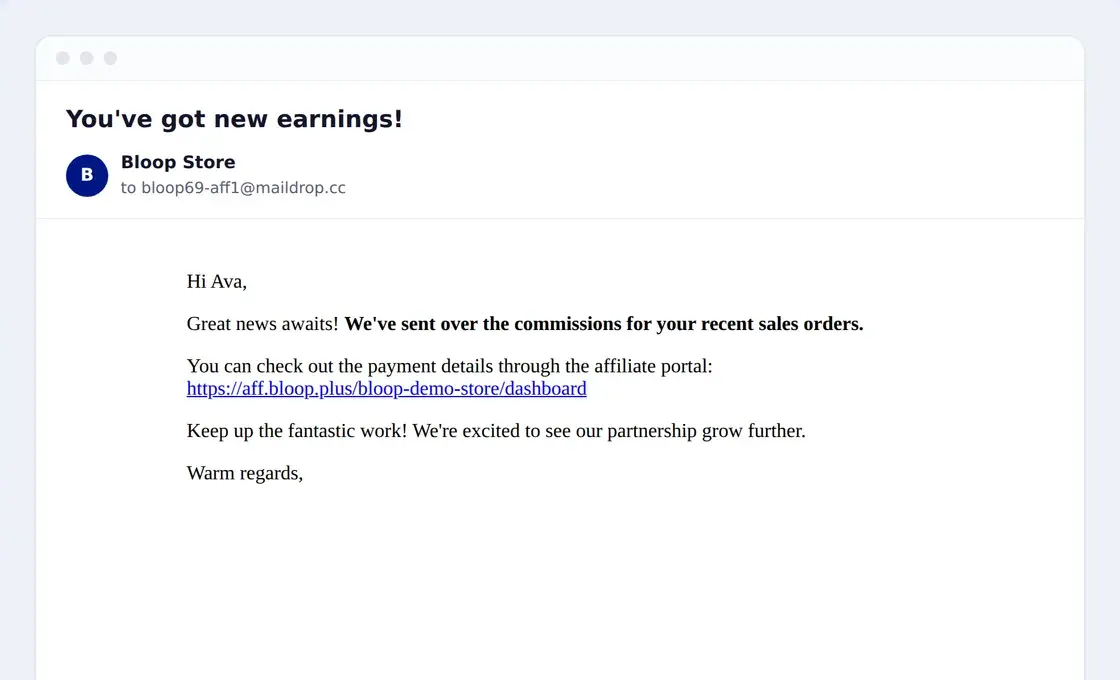 |
What to know before launch
Section titled “What to know before launch”| Situation | What happens | What to do |
|---|---|---|
| Activation and reset links | The Approved and Manually added - by store owner links work once and expire after 3 days. The Reset password link expires after 1 hour. An expired link stops working | Keep these emails on. The affiliate can request a new link from the same page |
| Sale approved or declined | These emails send only when you change a sale’s status in the Sales tab. If Order approval automation is Immediately, or a sale is canceled or refunded, no email is sent, and the partner doesn’t hear about that decision | To tell partners about every decision, approve and decline sales manually. See settings |
| Immediate approval | The Pending email is skipped. The applicant gets Approved right away, without your review | To review applicants first, set Affiliate approval automation to Manually |
| Sign-up burst | Extra applications are held as pending, and no email goes to the applicant or to you | Check the Affiliates tab regularly |
| Unsubscribe | Only the Manually added - by store owner email has an unsubscribe link and a one-click header. Someone who unsubscribes stops receiving Bloop marketing emails from your store | Don’t resend the invitation to them. Contact them another way |
Editing an affiliate email
Section titled “Editing an affiliate email”| Field | What it does |
|---|---|
| Subject | Supports variables |
| Body | The message, with formatting and variables |
| Button | Text, color and font. Only Reset password has a button. Other emails carry their link in the body |
| Banner image | An optional header image |
Changes save per store and apply to every future send of that email.
Writing partner emails that work
Section titled “Writing partner emails that work”- Rewrite the approval and payout emails first. They matter most, and generic templates read as automated. Use your brand voice and open with
{{FirstName}}. - Lead with the news. The approval email should say “you’re in” before anything procedural. The payout email should confirm the amount first.
- Put the next step on its own line. Use
{{AffiliateActivationLink}}for approval and manual-add emails, and{{AffiliatePortalLink}}for other emails.
Template variables
Section titled “Template variables”Variables are placeholders in double braces, such as {{FirstName}}. Bloop replaces them when the email sends.
| Variable | Fills in | Used in |
|---|---|---|
{{FirstName}} |
The affiliate’s first name | Most partner emails, including New assigned coupon |
{{LastName}} |
The affiliate’s last name | Optional, with {{FirstName}} |
{{Email}} |
The affiliate’s email | New affiliate registration (to you) |
{{CouponCode}} |
The coupon code assigned to the affiliate | New assigned coupon |
{{SalesOrderId}} |
The tracked order, linked to the order in the portal | New sales, Sales approved, Sales declined |
{{AffiliateActivationLink}} |
The link to activate the account | Approved, Manually added - by store owner |
{{AffiliatePortalLink}} |
The affiliate’s portal dashboard | Sales and payout emails |
{{store_name}} |
Your store name | Owner emails |
{{note}} |
The note submitted with a registration | New affiliate registration (to you) |
Test before you go live
Section titled “Test before you go live”- Test sends are limited to 10 per minute. Wait a minute if you hit the limit.
- A single test can go to at most 20 recipients. Split a longer list into batches.
- A test fills in your store details, such as
{{store_name}}, but not the affiliate’s. To check real values, add yourself as an affiliate with an address you control.
A new partner’s lifecycle
Section titled “A new partner’s lifecycle”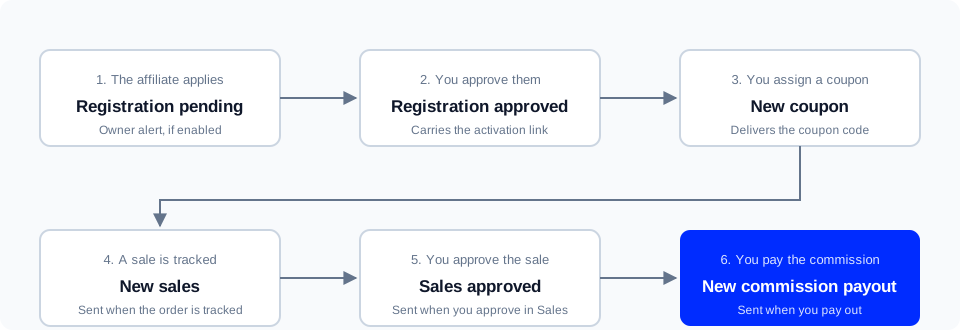
Related
Section titled “Related”- Affiliate settings: payment methods and broader email configuration.
- Affiliate sales: approving and declining the sales these emails announce.
- Affiliate payouts: paying commissions, which triggers the payout email.
- Email sender domain: send these emails from your own branded domain.
- Affiliate program setup: approving registrations and assigning coupons.
- Recruiting affiliates: how a clear email lifecycle helps keep good partners.