

How to set up affiliate campaigns and commissions
A campaign decides what your affiliates earn. Every affiliate belongs to one campaign, and when a customer buys through their link, Bloop uses that campaign’s rules to calculate the commission. Get the rate right and partners promote you without eating into your margin.
What you’ll set up
Section titled “What you’ll set up”- A campaign with a name, status and tracking window
- A commission type and rate, paid the same on every order or rising with order size
- Optional: richer rates on selected products
- Optional: more campaigns for different groups of partners
Bloop creates one campaign when you install, called Default Campaign, at 15% of each sale. A campaign you create yourself starts at 10%.
How to set up a campaign
Section titled “How to set up a campaign”-
Open or create a campaign
-
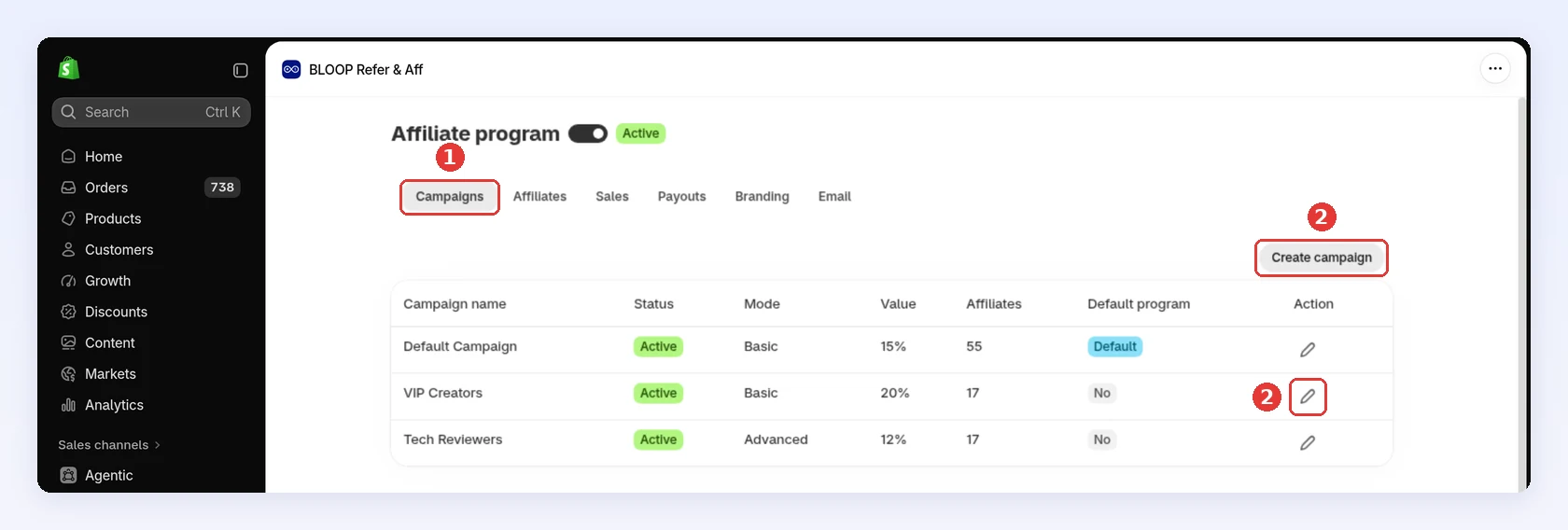
In your Shopify admin, open BLOOP Refer & Aff → Affiliate program, then the Campaigns tab.
-
Click Create campaign, or the edit icon next to a campaign you want to change:
-
-
Fill in General settings
-
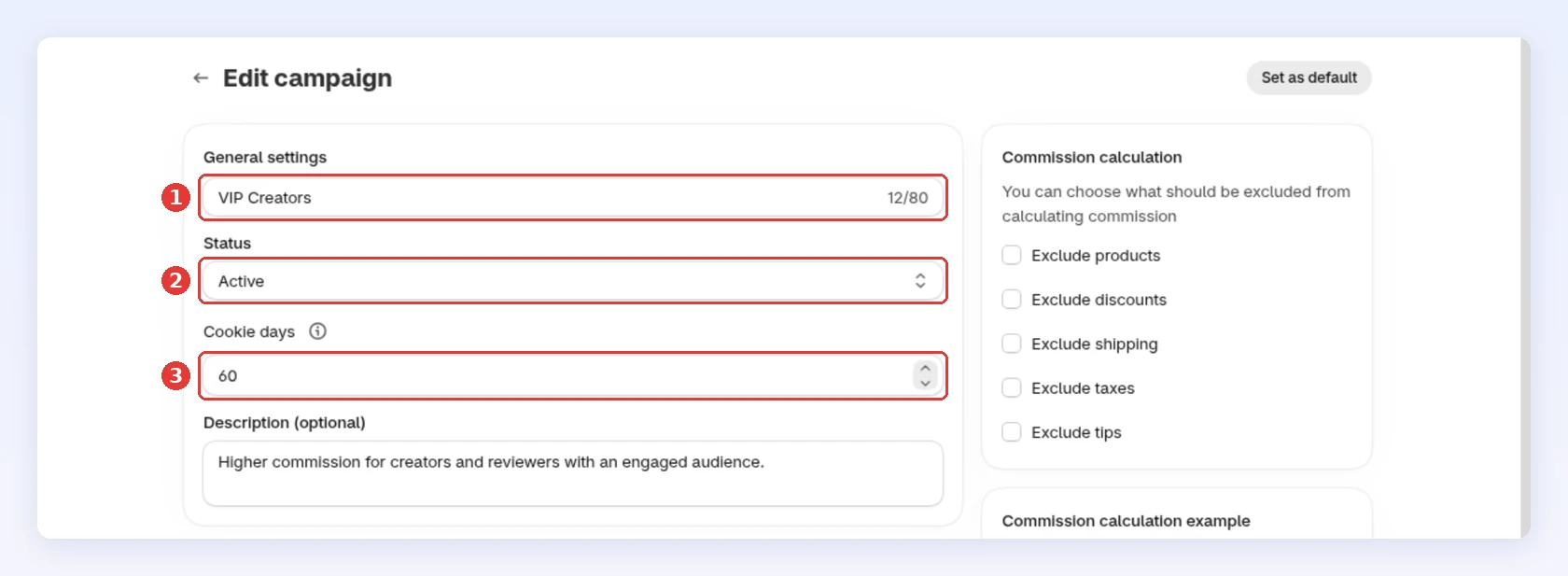
Enter a Campaign name that tells your campaigns apart, for example “VIP Creators”.
-
Keep Status on Active. Affiliates on an Inactive campaign earn nothing.
-
Set Cookie days: how long after clicking a link a purchase still counts for the affiliate. The default is 30:
-
-
Choose how commission is paid
-
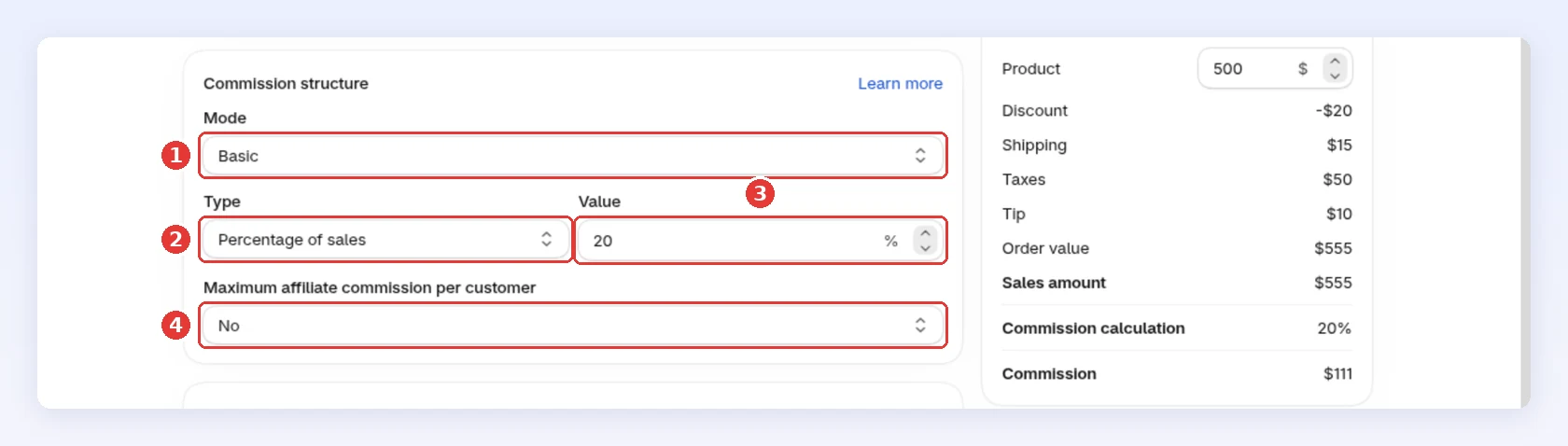
Pick a Mode: Basic pays one rate on every order, Advanced raises the rate on bigger orders. See Basic vs Advanced.
-
Pick a Type. See Commission types to choose.
-
Enter the Value, as a percent or an amount in your store currency.
-
Optional: set Maximum affiliate commission per customer to Yes to cap what one customer’s orders can earn an affiliate:
-
-
Check what counts, then save
-
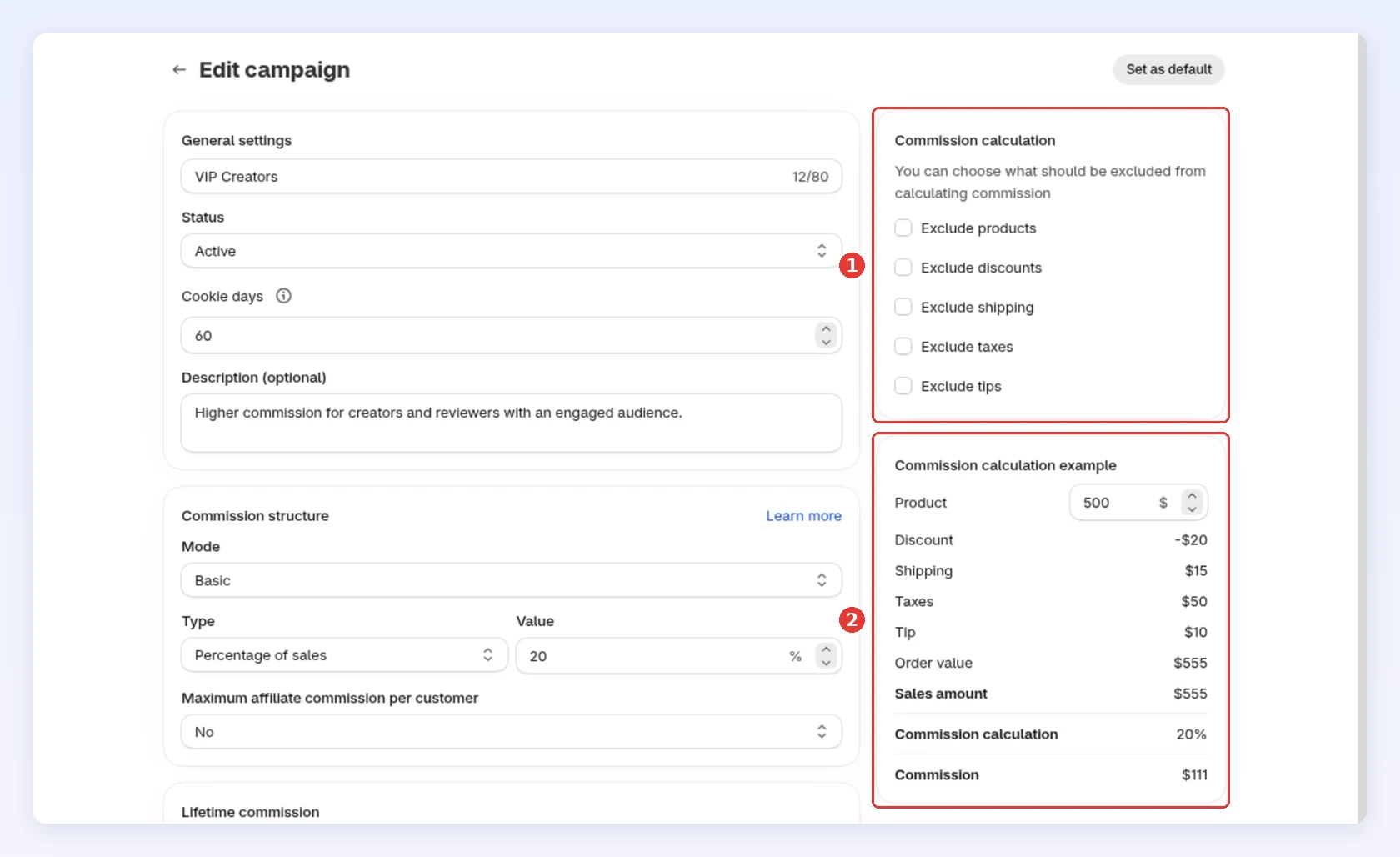
In Commission calculation, tick anything that shouldn’t earn commission, such as shipping or taxes.
-
Check the Commission calculation example. It shows the commission on a sample order as you change settings:
-
Click Save in the bar at the top of the page.
-
The exclusions, the per-customer maximum and the tracking window are explained in How to set what a commission is calculated on.
Commission types
Section titled “Commission types”| Type | How it pays | On a $100 order of 2 items | Best for |
|---|---|---|---|
| Percentage of sales | A percent of the sale | 15% pays $15 | Most stores. The payout grows with the basket and your margin is similar across products |
| Fix per order | One fixed amount per order | $10 pays $10 | Thin margins or high-ticket items, where you need a known cost per sale |
| Fix per item | A fixed amount for each item bought | $5 pays $10 (2 × $5) | One product or a tight range with a known profit per unit |
The “sale” is the order after anything you excluded in Commission calculation. With Percentage of sales, shipping and tips earn commission unless you exclude them. With the two fixed types, they never do.
How to set the rate from your margin
Section titled “How to set the rate from your margin”- Find the profit on an average affiliate order. Example: a $50 product that costs $20 to make and ship leaves $30 profit.
- Decide what share of that profit to give away. A quarter to a third is common. Example: $7.50 to $10.
- Turn it into a rate. Example: $7.50 on $50 is 15%, $10 is 20%.
The same rate can be healthy or a loss. 20% on that $50 order costs $10 and leaves $20. 20% on a $400 item with a 12% margin costs $80, more than the $48 the order earned. That order needs Fix per order or a much lower percentage. For rates by store type, see Commission-structure best practices.
Basic vs Advanced (tiered) commission
Section titled “Basic vs Advanced (tiered) commission”Basic pays one rate on every order. Advanced pays more on bigger orders. Switch Mode to Advanced (1), set each level’s Order minimum requirement (2), and use Add level (3) for more. The example on the right (4) shows which level a sample order reaches:
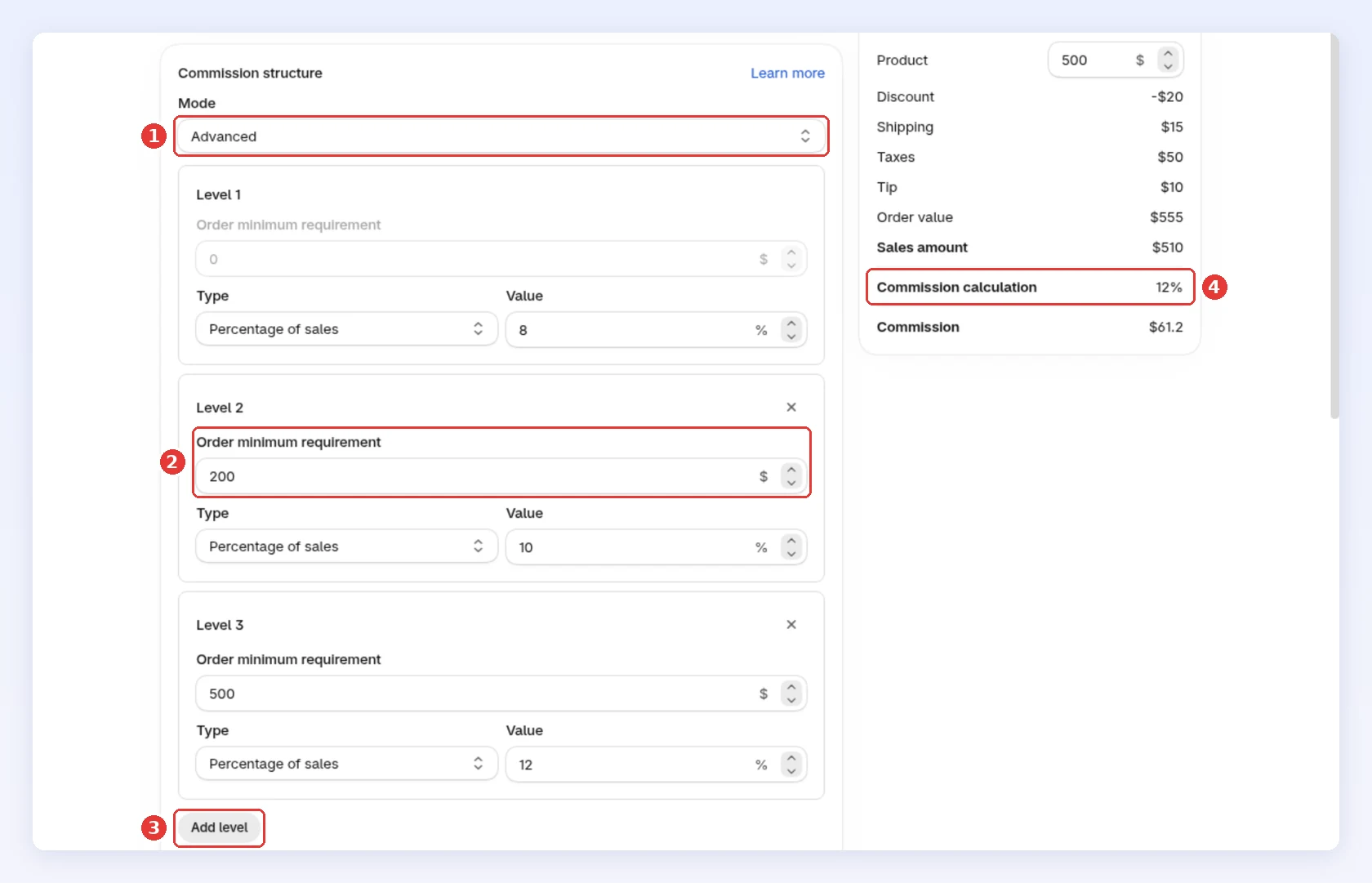
An order earns the rate of the highest level it reaches:
| Level | Order minimum requirement | Rate | Example order | Earns |
|---|---|---|---|---|
| 1 | $0 (fixed) | 10% | $80 | 10% |
| 2 | $100 | 15% | $180 | 15% |
| 3 | $250 | 20% | $300 | 20% |
Each level can use its own type, and each minimum must be higher than the one before. If you enter a lower one, Bloop raises it.
Keep the top level inside your margin: 20% on a $250 order is only safe if that order makes more than $50 profit.
Product-specific commissions
Section titled “Product-specific commissions”Give selected products their own rate, and keep the campaign rate for everything else. This lets one campaign cover a catalog with mixed margins: a modest rate everywhere, richer rates where you can afford them.
-
Add products with their own rate → Click Save
-
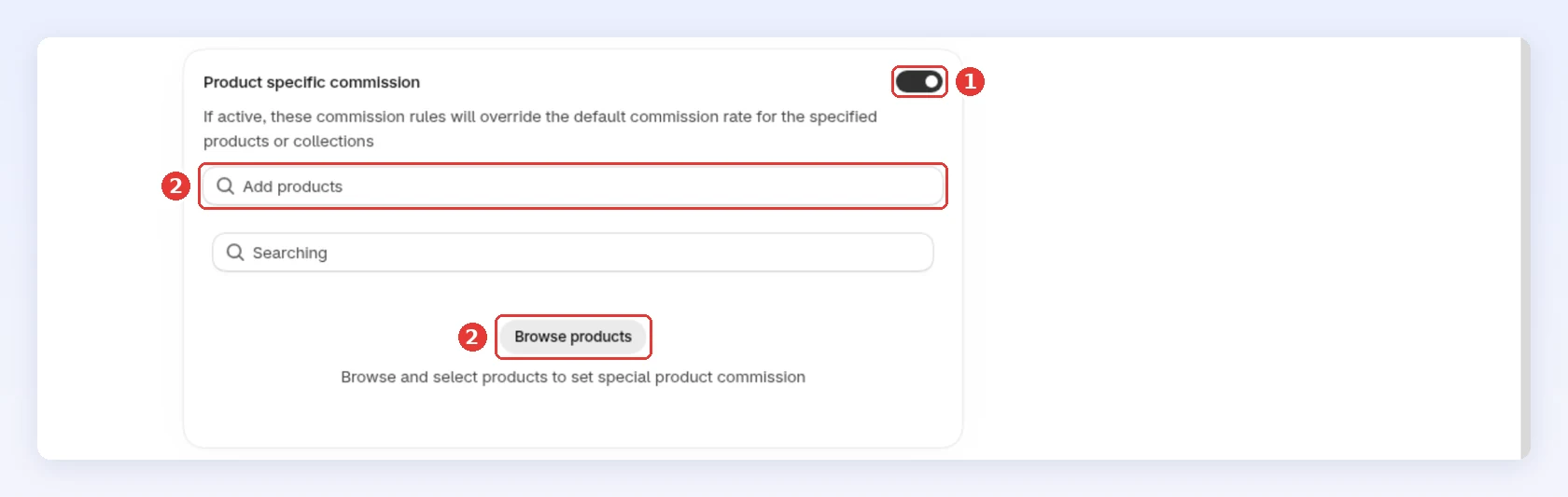
Turn on Product specific commission.
-
Click Add products, or Browse products if the list is empty:
-
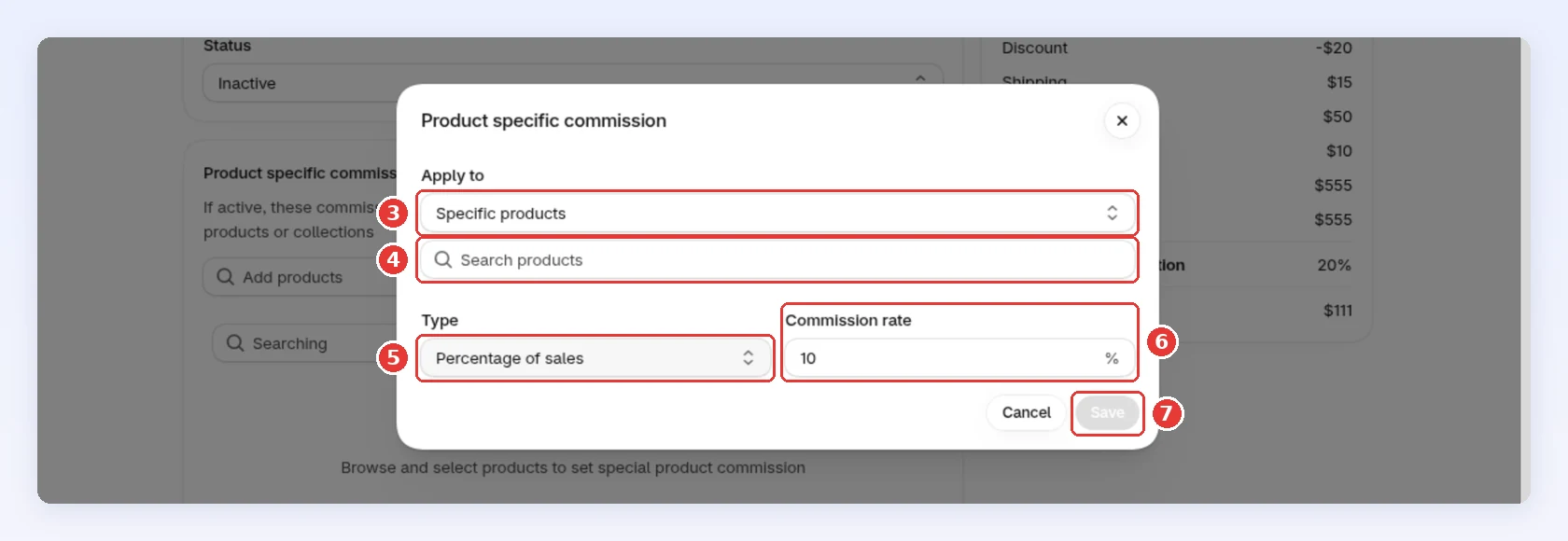
In Apply to, choose Specific products or Specific collections.
-
Search for and select the products or collections.
-
Pick a Type: Percentage of sales or Fix per item.
-
Enter the Commission rate.
-
Click Save, then Save the campaign:
-
You can change each product’s type and rate later in the table, or select rows to delete them.
Product-specific commissions are included on the Free and Premium plans. Some older plans lock the switch, and then the campaign rate applies to every product even if you saved product rates.
Which rate applies
Section titled “Which rate applies”For each product in an order, Bloop uses the first rule that matches:
| Rule | Rate used |
|---|---|
| Fix per order | When the campaign or the matching level is Fix per order: the fixed amount for the whole order. Product-specific rates are ignored |
| Product on list | When the product is on the product-specific list: its own rate |
| Other products | The campaign rate, or the rate of the level the order reaches |
A repeat order from a customer linked to an affiliate by lifetime commission skips this table: it pays the campaign’s flat Commission for repeat orders rate.
Shipping and tips always use the campaign or level rate, never a product-specific one.
The default campaign and multiple campaigns
Section titled “The default campaign and multiple campaigns”You can create as many campaigns as you need. Common reasons:
- A higher rate for proven creators, and a standard one for everyone else
- A richer rate for a short product launch
- A longer Cookie days window for partners whose customers take longer to decide
One campaign is the default. It decides two things:
- Who joins it: with Affiliate approval automation set to Immediately, every new affiliate joins the default campaign while it is Active, even one you add yourself and assign to another campaign. With Manually, an affiliate you add keeps the campaign you pick, and one you approve from the list joins the campaign you choose for them.
- What your registration form quotes: the form shows the default campaign’s rate.
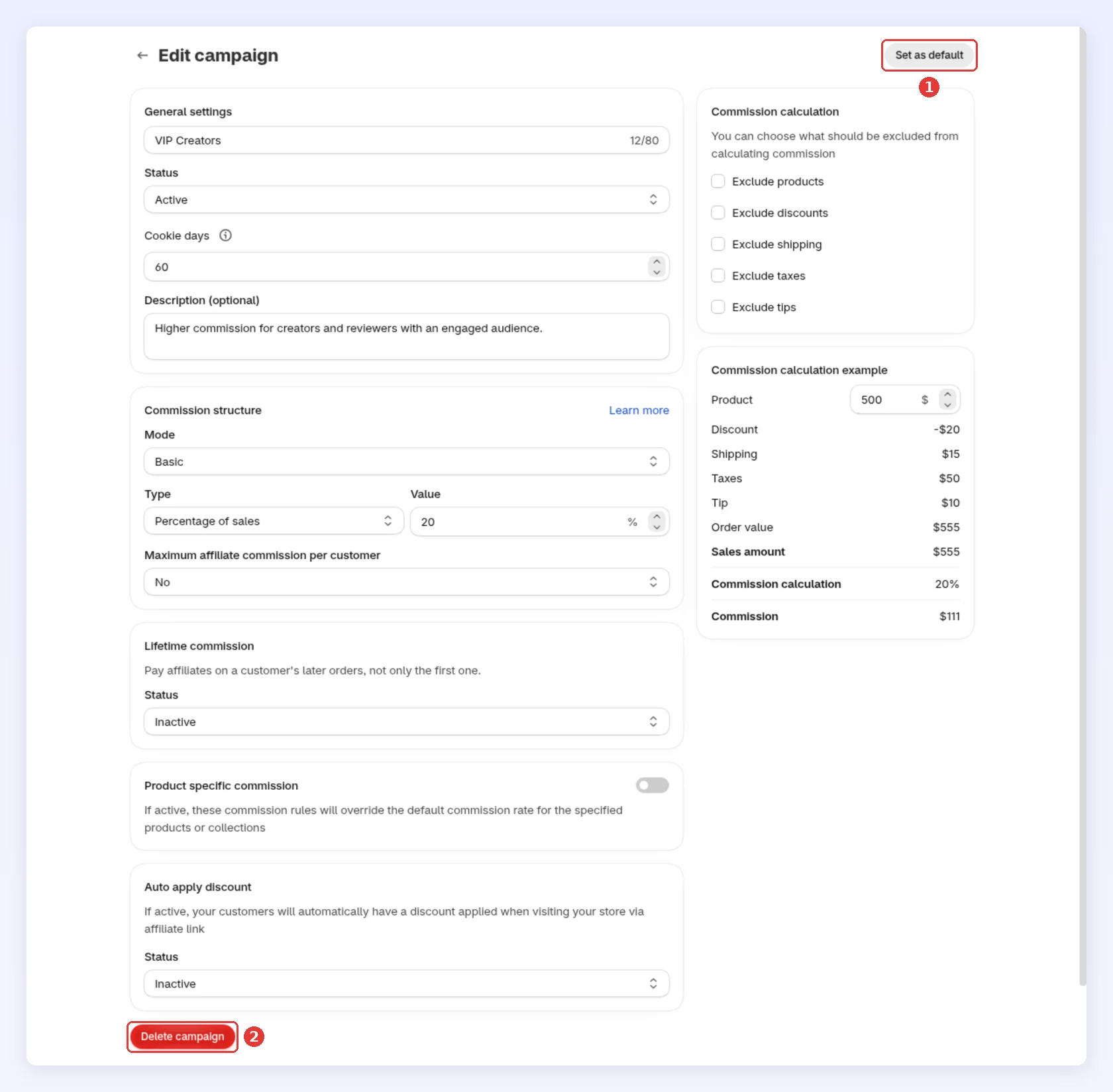
To make another campaign the default, open it and click Set as default (1). Affiliates already on a campaign stay where they are. Delete campaign (2) is at the bottom of every campaign except the default, and it can’t be undone:
Auto apply discount
Section titled “Auto apply discount”Give shoppers who arrive through an affiliate link a discount without typing a code. This helps affiliates convert, because their audience gets an instant reason to buy. It’s off (Inactive) on every campaign until you turn it on.
- Create the discount code in your Shopify admin under Discounts, if it doesn’t exist yet. Bloop only applies codes that already exist there.
- Open the campaign, and in the Auto apply discount card set Status to Active.
- Enter the code in Discount code to apply.
- Click Save in the bar at the top of the page.
If the code doesn’t exist in Shopify, Bloop won’t save it and asks you to create it under Shopify Admin > Discounts first. The discount lowers what the customer pays, so commission is calculated on the discounted amount unless you tick Exclude discounts. See What counts toward the sale.
Related
Section titled “Related”- How to set what a commission is calculated on - exclusions, the per-customer maximum and the tracking window
- Managing affiliates - move an affiliate to another campaign
- Commission-structure best practices - which model suits your store
- Affiliate sales tracking - see how each commission was calculated