

How to build your affiliate registration form
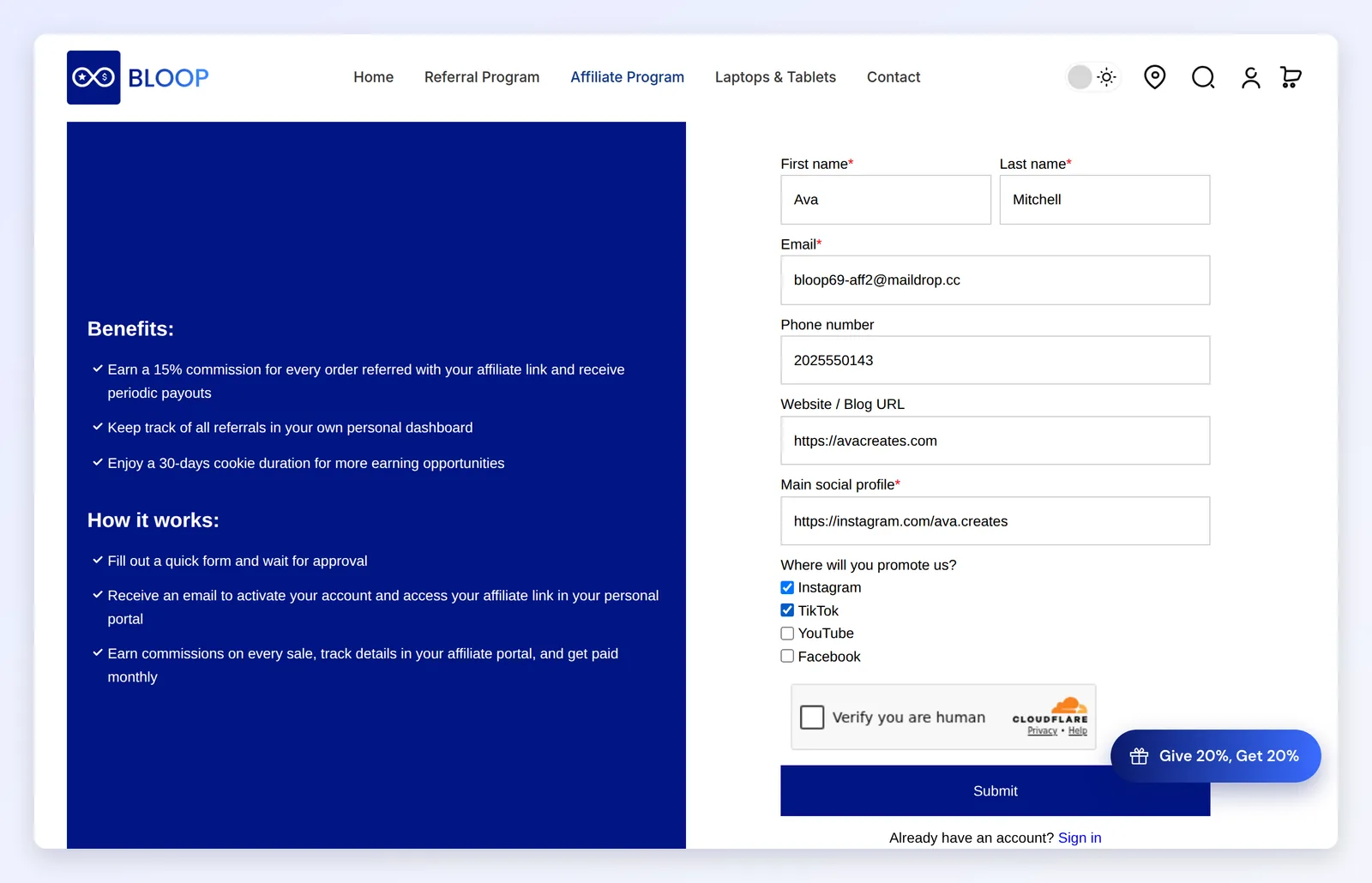

The registration form is the first thing a potential affiliate sees from your program. It should convince good partners that joining is worth their time, and collect what you need to vet them. Every store starts with a working default form, so you can launch right away and refine it once applications arrive.
Quick steps
Section titled “Quick steps”-
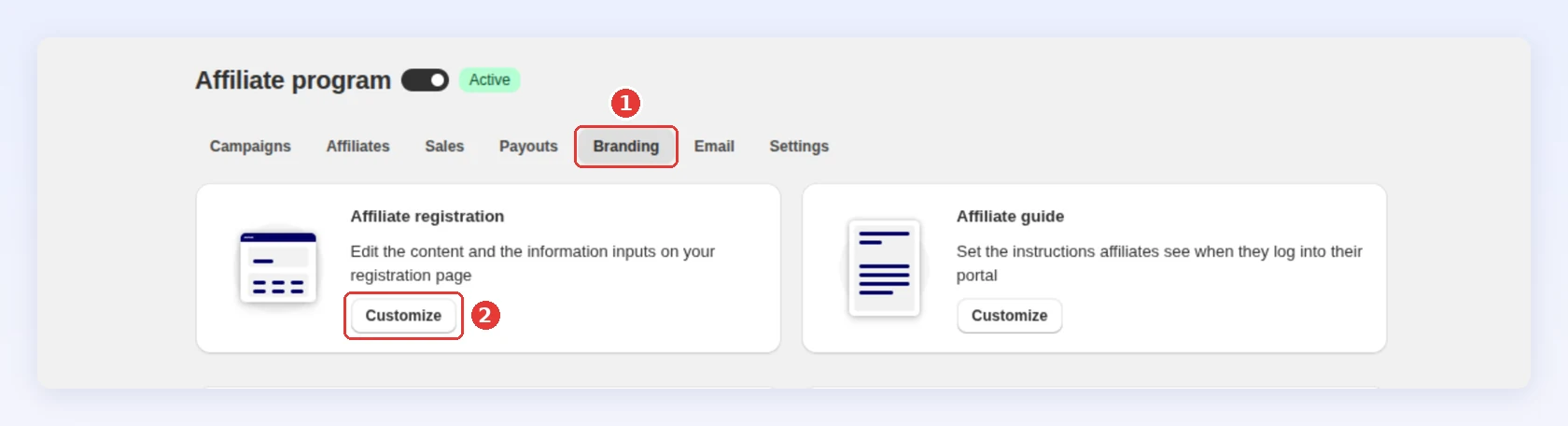
In BLOOP Refer & Aff → Affiliate program, open the Branding tab and click Customize on Affiliate registration:
-
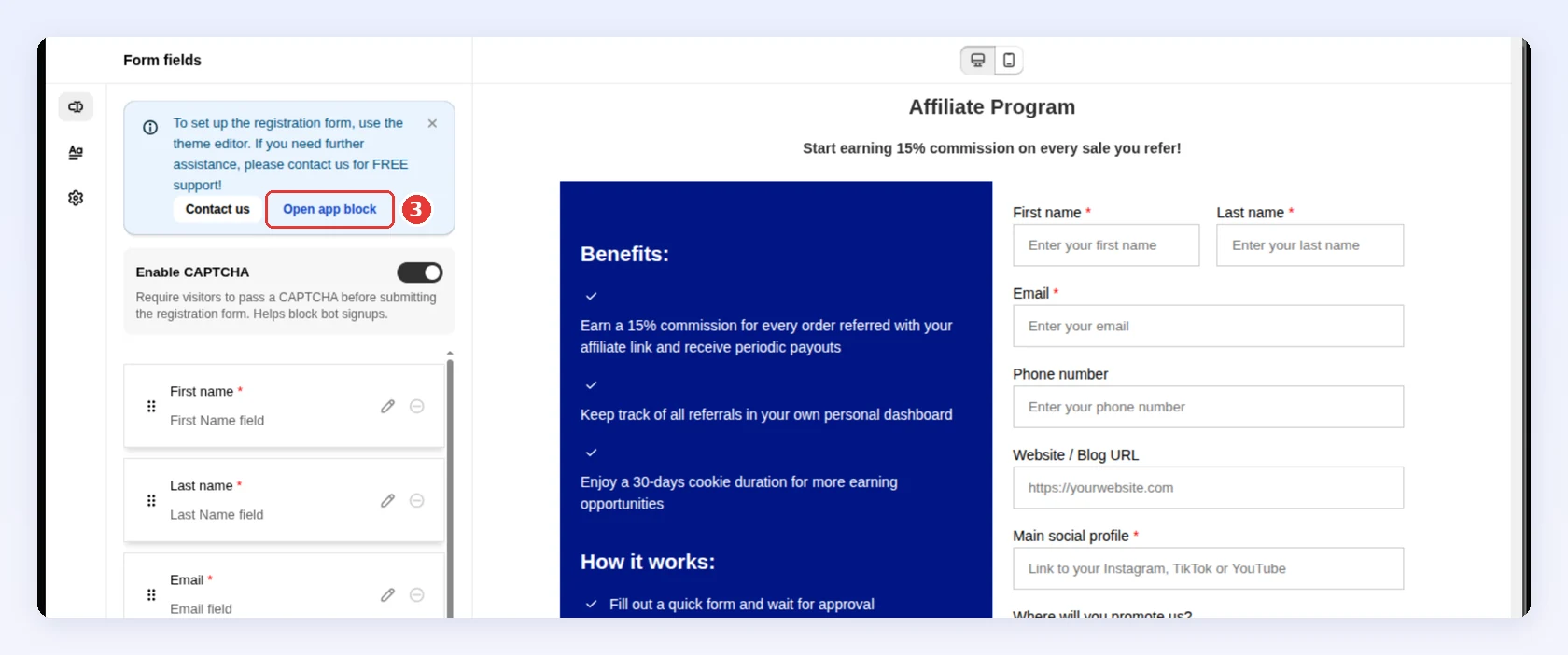
In the Form fields tab, review the three default fields, then click Add field to ask for more.
-
Pick a Field type.
-
Enter a Label.
-
Turn on Required if you need the answer to approve or contact the applicant.
-
Click Save in the bar at the top of the page.
-
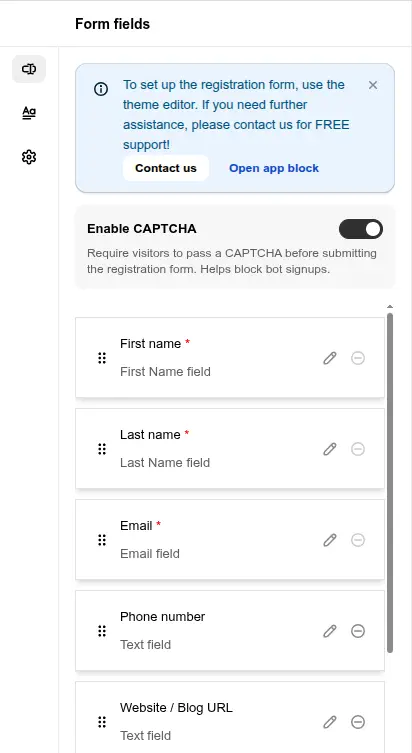
In the blue banner of the Form fields tab, click Open app block:
-
Shopify opens the theme editor for your live theme with the Aff registration form block added. Move it where you want it, usually on its own page, and click Save.
The form doesn’t appear on your store until you add the block, so there is no link to share before then. The block is only available while the affiliate program is turned on. If the banner shows Update and View old version instead of Open app block, your form still uses the old version: click Update first.
Keep the form short
Section titled “Keep the form short”Every field costs the applicant time, so each one should answer a question you’ll use: what decision does this help me make?
| If you’re tempted to ask for… | Do this instead | Why |
|---|---|---|
| Phone numbers, addresses, tax details or essays | Let affiliates add payout details in their portal after approval. You choose which methods they see in Payment settings | Good creators drop off, and you don’t need these details to approve anyone |
| Only an email address | Add one screening question | An email-only form admits bots and people with no relevant audience |
For most stores, the right form is a name, an email, one screening question and a terms agreement.
Default fields
Section titled “Default fields”Three fields are required: first name, last name and email. You can rename their labels or change the placeholder text, but you can’t make them optional or delete them.
Field types
Section titled “Field types”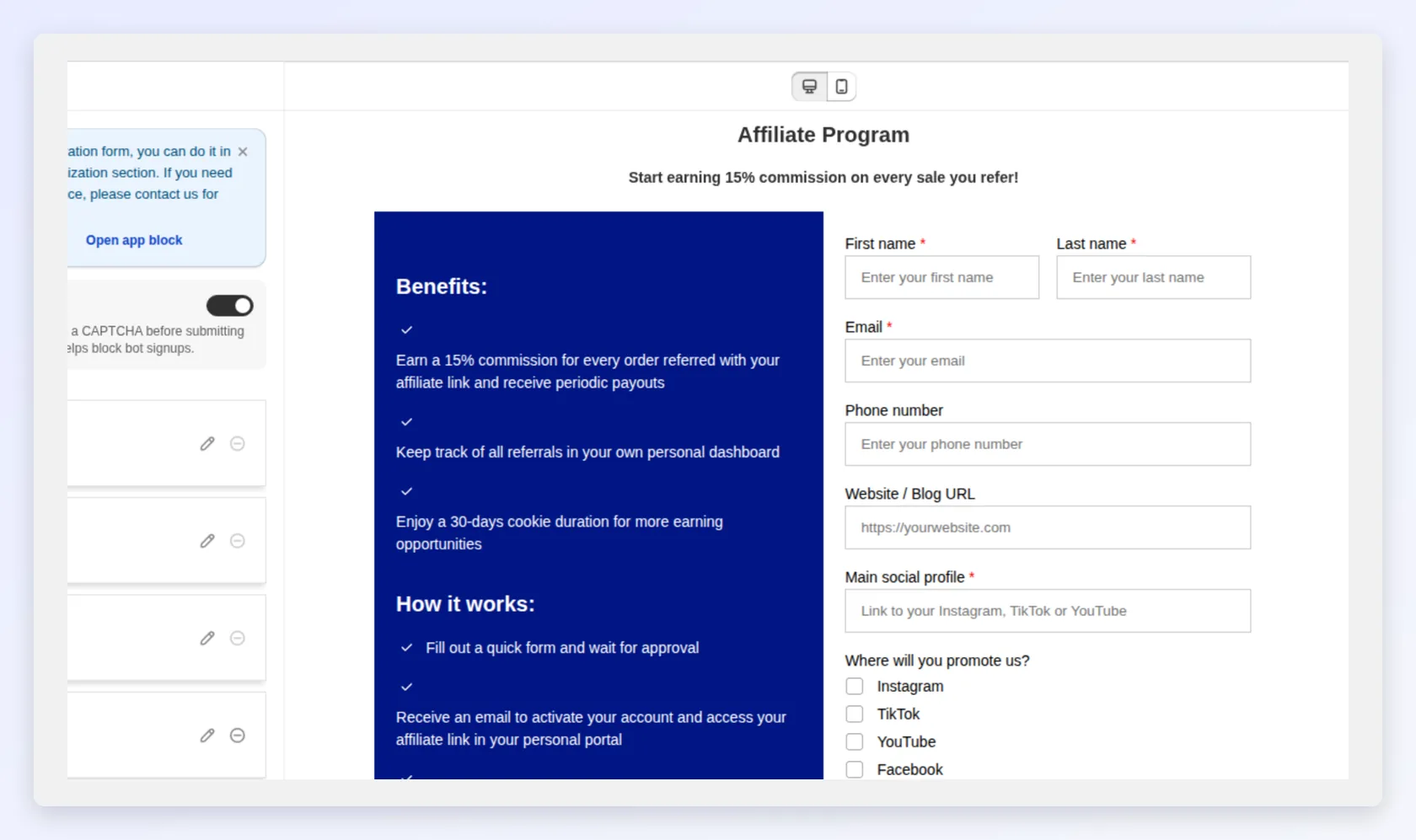
| Field type | What it collects | Use it for |
|---|---|---|
| Text field | One line of free text | A name, social handle or website, when the answer is short |
| Radio button | One option from a list | A single category, such as niche, platform or audience size |
| Multiple-checkbox | Several options from a list | Channels or product lines |
| File upload | One file: JPEG or PNG, up to 5 MB each | A screenshot of a profile or audience stats |
| Terms agreement | One checkbox linked to your terms | Explicit agreement to your program terms |
Builder rules
Section titled “Builder rules”- Unique labels: labels must be unique, and case doesn’t matter. If you see “Label is duplicated”, rename one of the fields.
- Required settings: a field’s label and options can’t be blank. Fill them in before you save.
- One Terms agreement: a form has at most one. Once you add it, other fields can’t use that type.
- Multiple-checkbox: always optional. If you need the answer, use a Radio button instead.
Field settings
Section titled “Field settings”| Field type | Setting | Notes |
|---|---|---|
| Text field | Placeholder | A hint about what to type |
| Radio button, Multiple-checkbox | Options | Add, edit or remove options |
| File upload | Placeholder | For example, “Choose a file” |
| Terms agreement | Term name and term link | Put {terms} in the label where the link should appear, for example I agree to the {terms}. Without {terms}, the field won’t save |
Public uploads have a daily limit per store. It stops abuse and doesn’t affect normal sign-up volume. If the limit is reached, applicants can’t attach files until it resets. Keep the File upload field optional so sign-ups still go through.
Turn screening questions into choices
Section titled “Turn screening questions into choices”Free text is flexible, but you can’t sort it. Choices let you compare applicants in seconds. Asked “What’s your audience size?”, free text gives you “A lot” or “10k ish”, while Radio button bands give you Under 1k, 1k–10k, 10k–50k or 50k+.
Example: a lean screening form
Section titled “Example: a lean screening form”Say you run a skincare store and want creators with a real audience. This form recruits and screens at the same time:
- First name (default, required)
- Last name (default, required)
- Email (default, required)
- Where do you post? Multiple-checkbox with the options Instagram, TikTok, YouTube, Blog and Other. Optional. It shows the channel mix without blocking sign-up.
- Audience size. Radio button, required, with the bands Under 1k, 1k–10k, 10k–50k and 50k+.
- Screenshot of your audience stats. File upload, optional. Serious creators can prove their reach without forcing casual applicants to do the same.
- Terms agreement (required), with the label
I agree to the {terms}and the term name “Affiliate Program Terms”, linked to your policy page.
That’s seven fields: five required and two optional. Each one earns its place. See Managing affiliates to see how these answers show up in review.
Page content
Section titled “Page content”Beyond the fields, you control the wording around the form:
| Part | What to write |
|---|---|
| Header | A title and sub-title that introduce the program |
| Form labels | The submit button text, the “Already have an account?” line and the sign-in link |
| Benefits and How it works | Bulleted lists that sell the program. Lead with the commission. A form with no benefits and no commission number gives a prospect no reason to join |
| Thank-you page | The title, body and button shown after a successful submission |
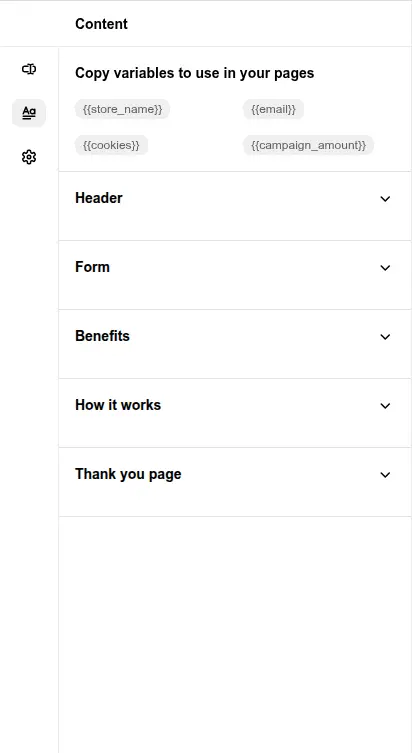
Use dynamic variables so the page shows your real numbers. Supported variables include {{store_name}}, {{email}}, {{cookies}} and {{campaign_amount}}. For example, “Earn a {{campaign_amount}} commission on every sale.”
If the page feels crowded, change Display in the Settings tab:
| Display | What it hides |
|---|---|
| Only form | The header and the information panel (benefits and How it works) |
| Title with form sections | The information panel. The header stays |
Styling the form
Section titled “Styling the form”Match the style to your store theme, so the application page feels like part of your brand. For the portal affiliates see after signup, read Portal style.
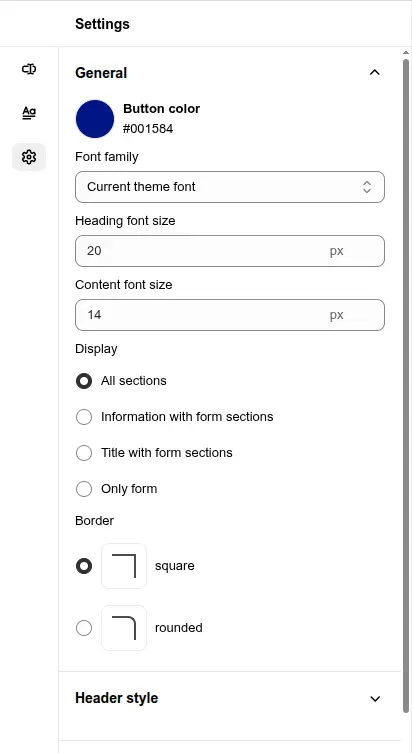
| Style group | What it changes |
|---|---|
| General | Button color, font family, heading and content font sizes, Display, and square or rounded borders |
| Header style | Title and sub-title colors and sizes |
| Information style | Background and text colors for the benefits panel. It shows when Display includes the information section |
| Form style | Background, text and submit button colors for the form |
Protecting the form from bots
Section titled “Protecting the form from bots”Bloop filters the most common bot sign-ups for you:
| Protection | What it does | What you do |
|---|---|---|
| Hidden trap field | Blocks sign-ups that fill in an invisible field. No affiliate is created | Nothing |
| Rate limits | Refuses repeat submissions from one visitor in a short time. An unusual burst of sign-ups is held as Pending with no email, even when approval is automatic | After a launch, check the Affiliates tab for unexpected Pending applicants |
| Own fields only | The form saves only its own fields. Status, campaign, coupon and payment details never come from the form | Nothing. Assign a campaign when you approve, and affiliates add payment details in their portal |
If bots still get through, turn on Enable CAPTCHA at the top of the Form fields tab. CAPTCHA is a quick check that tells people from bots. Applicants complete it (Cloudflare Turnstile) before they can submit. It’s off by default.
Some ad and content blockers stop the check from loading. Test the form in the browsers your partners use before you recruit.
When to revisit your form
Section titled “When to revisit your form”If quality is mixed, add a single-choice screening question. If applications are slow, cut a field and make the commission prominent.
Related
Section titled “Related”- Getting started with affiliates: overview and onboarding.
- Managing affiliates: review and approve applications from this form.
- Portal style: brand the dashboard affiliates see after they join.
- Affiliate settings: the payment methods affiliates can choose from.
- Recruiting affiliates: how to bring the right partners to this form.