

How to customize your email sender domain
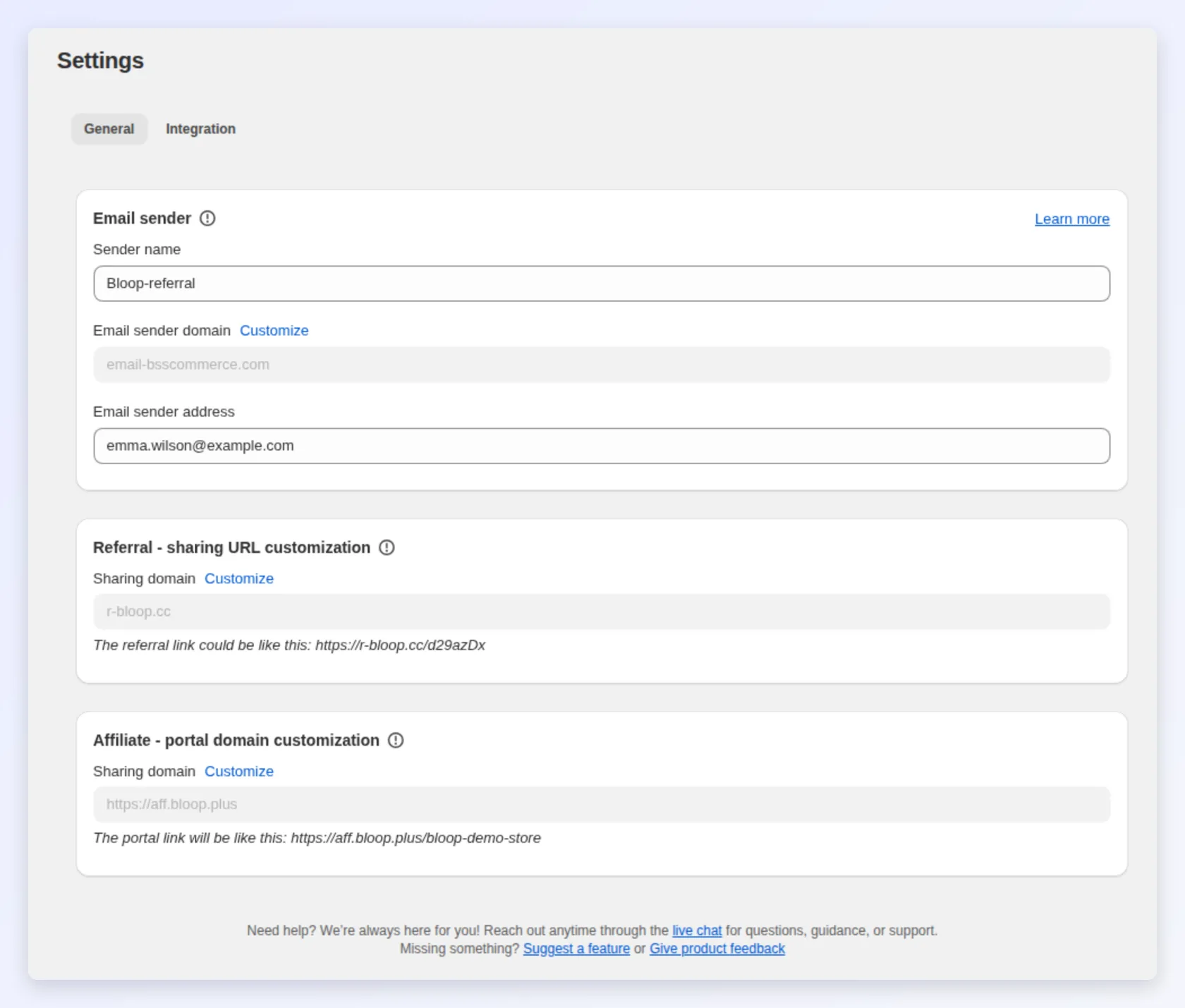
A sender domain you verify yourself keeps program emails out of spam and makes them come from your brand. Set it, with your sender name and sender address, on Settings → Store-wide → General.
Before you start, make sure you have:
- Access to Settings → Store-wide → General in Bloop.
- A domain you own, such as
yourstore.com. Your own domain is needed to verify. - Access to your DNS provider’s control panel, where you add the records.
Sender name
Section titled “Sender name”The sender name is the “from” name recipients see in their inbox. A new store starts with the name Bloop-referral. Change it to your store name: type the new name and save. No verification is needed.
Editing needs a plan that includes email sender customization (Premium). On the Free plan the whole Email sender card is locked, and a banner offers a Contact us link instead. Use that link to ask about upgrading.
Sender address and verification
Section titled “Sender address and verification”The sender address is your store’s contact address for program emails, and where customer replies go. A new store starts with Bloop’s no-reply address, so set your own to receive replies. Bloop verifies the address before it goes live:
- Enter the new sender address in Email sender address.
- Select Verify, which appears once the address differs from the saved one. Bloop emails a confirmation to that address.
- Open the email and complete verification within 20 minutes, when the link expires.
The field shows Verified or Unverified next to it.

- You can’t save until the address is verified. If you’re not ready to switch, change the address back to the one you saved.
- Confirmation email not arriving? Check your spam folder. Resending is limited to once every 30 seconds, so wait before selecting Verify again.
- Link expired? Select Verify again to get a new confirmation email.
Understanding where your emails come from
Section titled “Understanding where your emails come from”Gmail and Outlook check that the From address matches the domain that actually sent the email. An email that shows your store’s address but is sent by Bloop fails that check and is likely to land in spam. So the From address depends on whether you have verified your own sender domain:
| Your sender domain | From address | Where replies go |
|---|---|---|
Default (email-bsscommerce.com) |
Bloop’s own sending address, shown with your sender name | Your sender address |
| Your own verified domain | Your sender address, when it is on that domain; otherwise no-reply@ your domain |
Your sender address, when it differs from the From address |
Either way, customers see your sender name in their inbox, and when they reply, the reply reaches your sender address. To send from your own address and get the inbox benefits described above, verify your own domain below.
How to use your own sender domain
Section titled “How to use your own sender domain”The sender domain is the part after the @. The default is email-bsscommerce.com. Setting your own domain tells inbox providers that your store allows Bloop to send email for you. You do this by adding a few DNS records at your DNS provider.
- In the Email sender card, click Customize next to Email sender domain.
- Type your domain in Enter email domain, then click Add domain. Bloop checks whether the domain is already in use, then shows the DNS records you need to add.
- Add the DNS records. Follow the steps below.
- Click Verify domain. Bloop checks the records.
- When the domain shows Active, click Save on the settings page (see below).
Add the DNS records
Section titled “Add the DNS records”- Copy the records Bloop shows in the table. Each one has a copy button.
- Log in to your DNS hosting provider.
- Open the DNS control panel and add each record exactly as listed. Some providers add your domain automatically. If yours does, enter only the short name shown under each record.
- Save the records.
- Wait for DNS propagation, typically 24 to 48 hours, then return and verify.
Related
Section titled “Related”- Referral email notifications: the emails sent to referrers and friends.
- Affiliate email notifications: the emails sent to affiliates.
- General settings: overview of every store-level setting.