

How to customize your affiliate portal link
Put your affiliate portal on your own subdomain so partners sign in on an address that carries your brand.
The default portal link
Section titled “The default portal link”
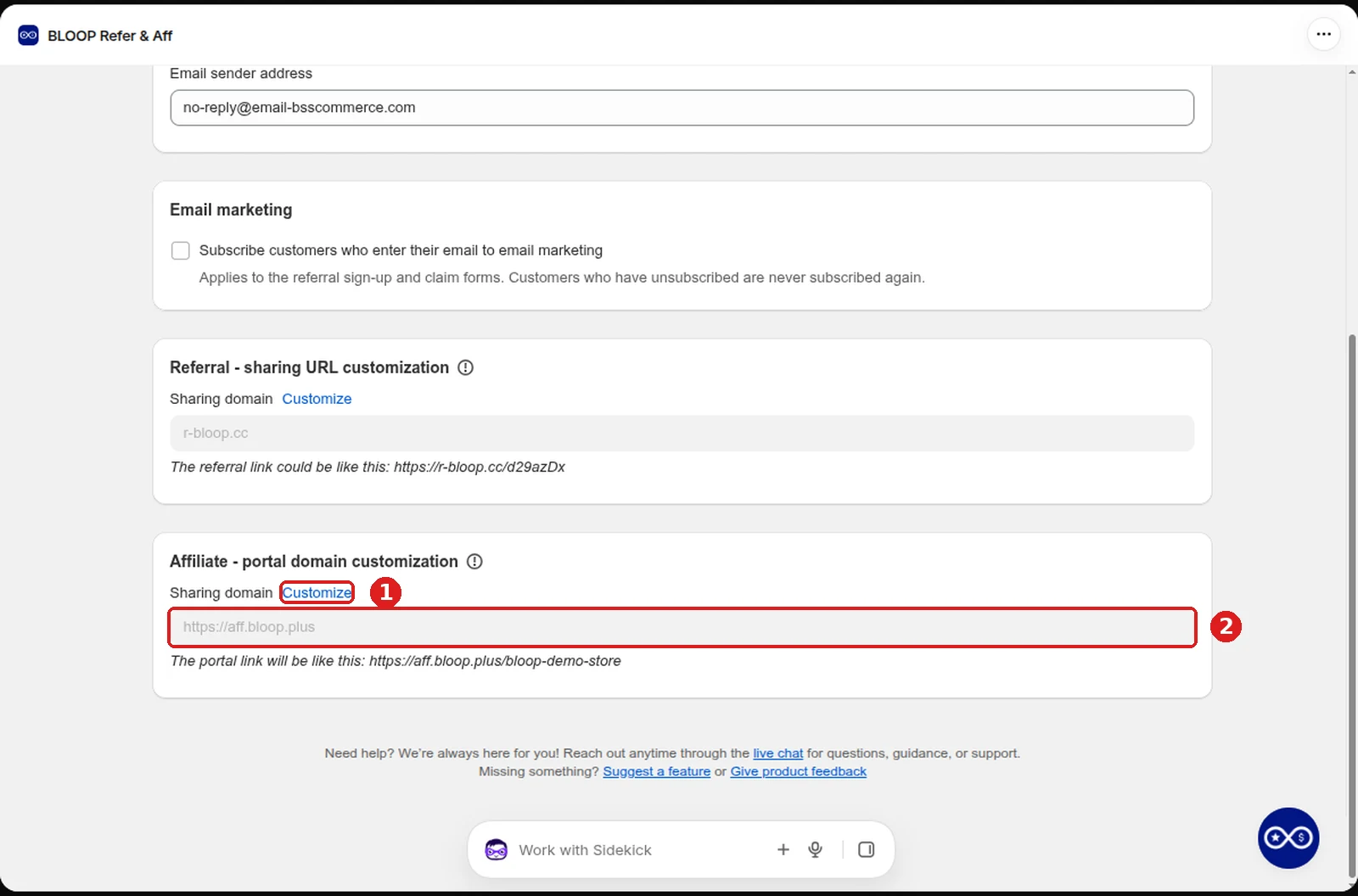
Open Settings → Affiliate → General and find the Affiliate - portal domain customization card. The link combines the shared portal domain with your store’s unique subpath:
https://<portal-domain>/<your-subpath>The subpath is always present, so affiliates can reach your portal even before you set up a custom domain. To change it, edit Customize portal’s subpath in the same Settings → Affiliate → General section. Bloop checks availability as you type and refuses a subpath another store already uses.
The portal domain card is read-only, so you cannot type a new domain into it.
Use your own portal domain
Section titled “Use your own portal domain”Replace the shared portal domain with a branded subdomain such as partners.yourstore.com. Setting one up is a guided request: you add a DNS record, and Bloop activates the domain.
-
On the Affiliate - portal domain customization card, select Customize.
-
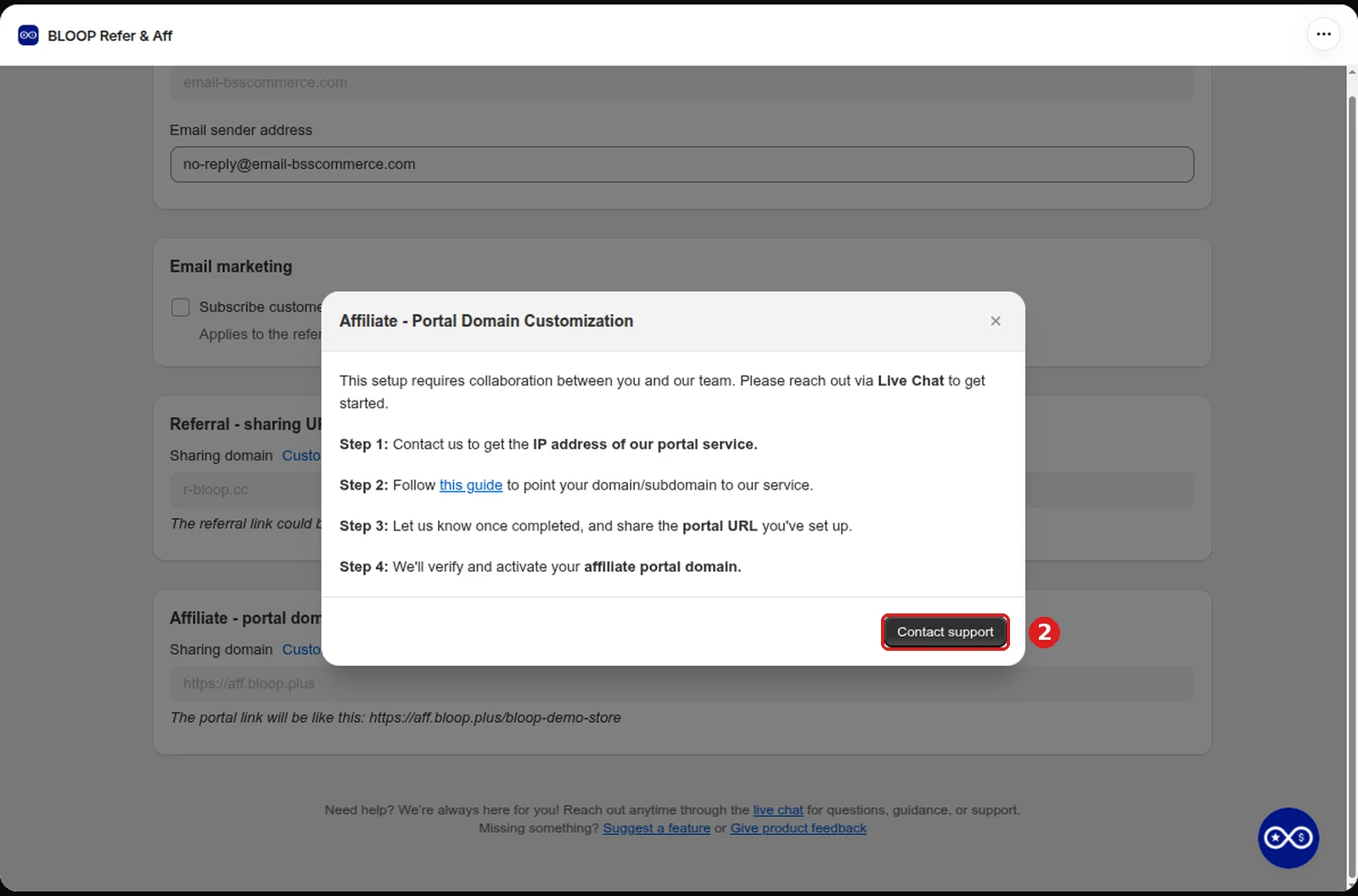
Contact support for the IP address of the Bloop portal service (we share it privately).
-
In your DNS provider, add an A record pointing your subdomain to that IP. If you also want the
www.version to work, add the same record for it. -
Send support your chosen URL. Bloop verifies the DNS and activates it.
Provider-specific fields, all using record type A with your subdomain as the Name:
- Shopify: put the IP in the Points to field.
- Cloudflare: set Proxy status to Proxied. Setup video.
- GoDaddy: leave TTL at the default. Help.
Once active, affiliates reach the portal at your branded address, with your subpath still underneath, for example https://partners.yourstore.com/your-subpath.
A custom portal domain needs a higher paid plan. If you move to a plan without it, Bloop removes your portal domain and the portal falls back to the shared domain. Upgrading again does not restore it: contact support to set it up again.
Related
Section titled “Related”- Affiliate portal branding: customize the look of the portal pages.
- Getting started with affiliates: program overview and onboarding.
- General settings: overview of every store-level setting.