

How to test your referral program before launch
A referral program is a chain of moving parts that only your customers normally see all at once — the sharing widget, the discount, the reward review period, and a sequence of emails. If any link is misconfigured, the cost lands at the worst moment: a referrer is paid the wrong amount, a friend hits a broken discount, or a customer receives an email with a blank coupon. Testing before launch is how you find those gaps while the only person affected is you.
The idea is simple: run one real referral against yourself, end to end, and watch each stage behave the way a customer would experience it. Place a small test order through your own referral link or code, follow it through the Orders tab, confirm the referrer reward is issued correctly, and preview every referral email. This page walks through that dry run step by step.
Before you start
Section titled “Before you start”Make sure these are in place, or the test will not produce a result:
- App embed is on. Bloop widgets only appear on your storefront when the app embed block is enabled in your theme. If it is off, your test referee will not see the popup, landing page, or sharing widgets. See the FAQs for how to enable it.
- A campaign is live with at least one sharing method on. Confirm your referral methods (link, code, or both) and your referrer and referee rewards are configured.
- The review period is known. A referrer reward only issues after the reward review period (Referral → Settings → Reward review period). For a fast test, set it to
0(instant) so you do not wait, then change it back before launch. See referral orders for how the hold works. - A test email inbox you control, ideally one different from your store login, so you can play the part of a referred friend.
1. Become a referrer and get a sharing link or code
Section titled “1. Become a referrer and get a sharing link or code”First you need a referrer with a link or code to share:

- Join your own program the way a real customer would — through the on-site widget, the customer account extension, or the referral landing page.
- Bloop assigns you a unique referral link and referral code. Note both.
- If you enabled only one method, you will only see that one. To test both, turn both on in referral methods first.
2. Place a test order as the referred friend
Section titled “2. Place a test order as the referred friend”Now act as the friend who was referred:

- Open the referral link in a fresh browser (or use the referral code at checkout).
- If you shared a link, enter the friend’s email to receive the discount code, then apply it at checkout. If you shared a code, enter the code directly in the discount field.
- Add the cheapest product you have and complete a real order through Shopify checkout.
Keep the test order small. To avoid spending real money you can create a draft order in Shopify and mark it paid, use a 100%-off internal discount, or use Shopify’s test payment gateway (Bogus Gateway) in test mode. The order still needs to complete for the referral to register.
3. Confirm the order appears in Orders
Section titled “3. Confirm the order appears in Orders”Open the Orders tab in Bloop and find your test order. Check:
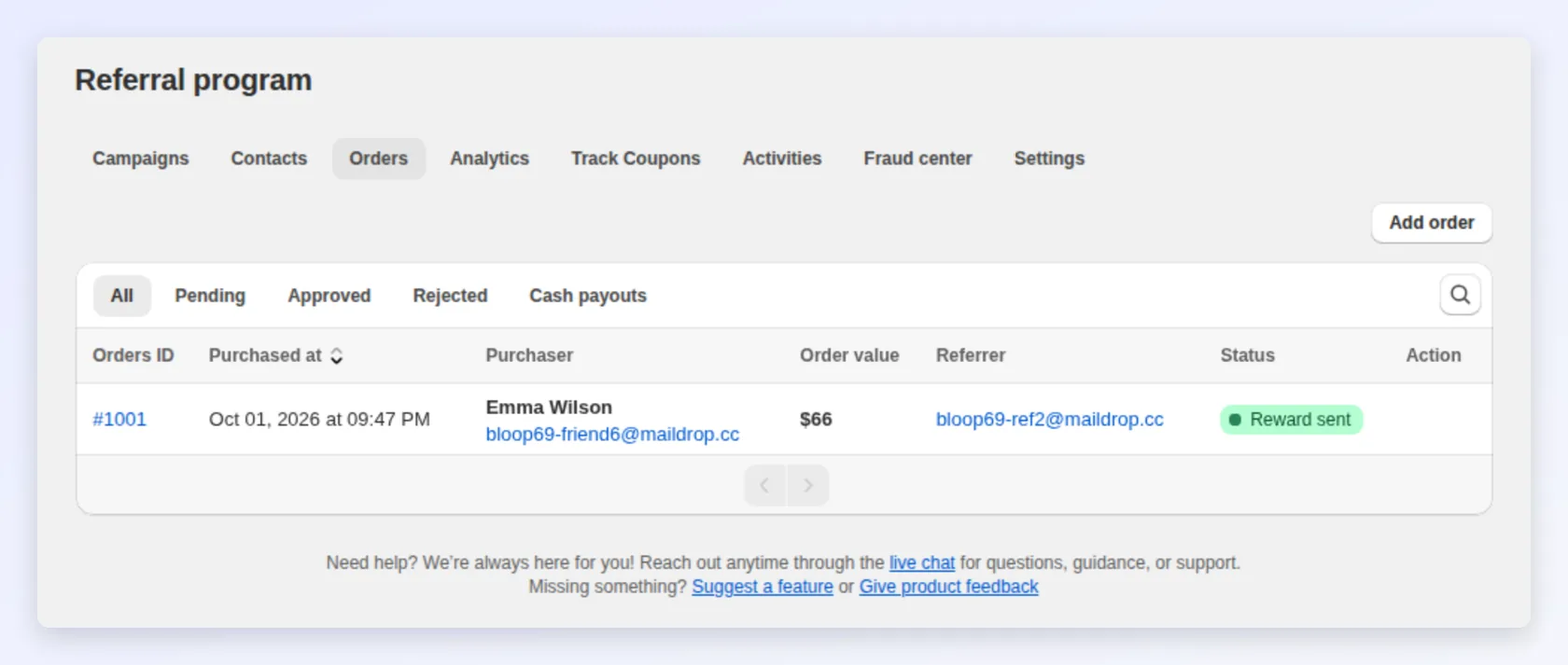
- The order is linked to the right referrer (your step-1 identity).
- The status is correct. With a review period of
0it should approve and issue the reward; with a delay it sits in Pending until the period passes. See referral orders for the full status workflow. - The order value and customer match what you entered.
If the order is missing, the most common causes are: the app embed is off, the order did not complete, the referee used the same identity as the referrer (which Bloop blocks as a self-referral), or the friend’s email already had orders in your store.
4. Test without a storefront purchase (optional)
Section titled “4. Test without a storefront purchase (optional)”If you cannot place a storefront order, you can still test the reward side by adding a referral order by hand:
- In the Orders tab, choose Add order.
- Enter the Shopify order number (such as
#1001) or order ID. Bloop looks the order up and shows its value and purchaser. - Choose the referrer to credit and their campaign, and leave Send reward to referrer ticked to issue the reward on save.
A manually added order is recorded as Approved and credits the referrer, so this is a quick way to verify reward issuance and the success emails without a real checkout. The full rules are in referral orders.
5. Verify the referrer reward was issued
Section titled “5. Verify the referrer reward was issued”Once the order is approved, confirm the reward actually reached the referrer:

- Discount coupon — a new Shopify discount code is created and emailed to the referrer.
- Store credit — the credit is applied to the referrer’s Shopify customer account.
- Cash — the reward is tracked in Bloop for you to pay out manually (cash requires a payment method on your account).
Check the reward type, value, and any minimum requirement behaved as configured in referrer and referee rewards. If you set a minimum-referees threshold, remember the reward only issues on the cycle (for example referee #5), not on the first order.
6. Preview the referral emails
Section titled “6. Preview the referral emails”You do not need to trigger every event to check your emails. Each referral email supports a test send:
- Open the campaign’s Email notifications section and pick the email (see referral email notifications).
- Choose Send test email and enter an address.
For the most accurate result, enter the email of an existing referrer, such as your step-1 identity: Bloop fills the variables from that referrer’s data, while coupon codes use a placeholder like BLOOP123example. You preview the subject, body, button, and layout exactly as a customer would see them, without affecting a real referral. Walk through the invite, sharing, successful-referral, and reminder emails this way, and check your template variables (such as {{ReferrerReward}} and {{ReferralLink}}) fill in correctly.
7. Reset before you go live
Section titled “7. Reset before you go live”After the dry run, undo your test data and settings:
- Reject or delete the test referral order so it does not skew your referral analytics.
- If you set the review period to
0for speed, set it back to the value you want for launch. - Confirm the app embed stays on for real customers.
Once your test referral has flowed cleanly from share to order to reward to email, your program is ready to launch.
Related
Section titled “Related”- Getting started with referrals — the full setup flow this test validates.
- Review and manage referral orders — statuses, holds, and manual orders.
- Referrer and referee rewards — what should be issued in step 5.
- Referral email notifications — the emails you preview in step 6.