

Understanding platform navigation
Bloop adds five entries to the app menu in your Shopify admin, and clicking the app’s name opens Home. This page is the map, so when a doc says “open the campaign’s Branding step”, you already know where that is.
| Menu entry | What it opens |
|---|---|
| Home (the app’s name) | Your overview: setup progress, the status cards and a summary of each program (below). |
| Referral program | Campaigns, contacts, orders and the rest of the referral tools (below). |
| Affiliate program | Campaigns, affiliates, sales, payouts and the rest of the affiliate tools (below). |
| Analytics | Reports on how your referral program performs. See Read your referral analytics. |
| Settings | Every setting that applies beyond one campaign, for your store, the referral program and the affiliate program (below). |
| Pricing plans | Your plan, your attributed revenue against its limit, and where you approve or change plan. See Understanding plans and billing. |
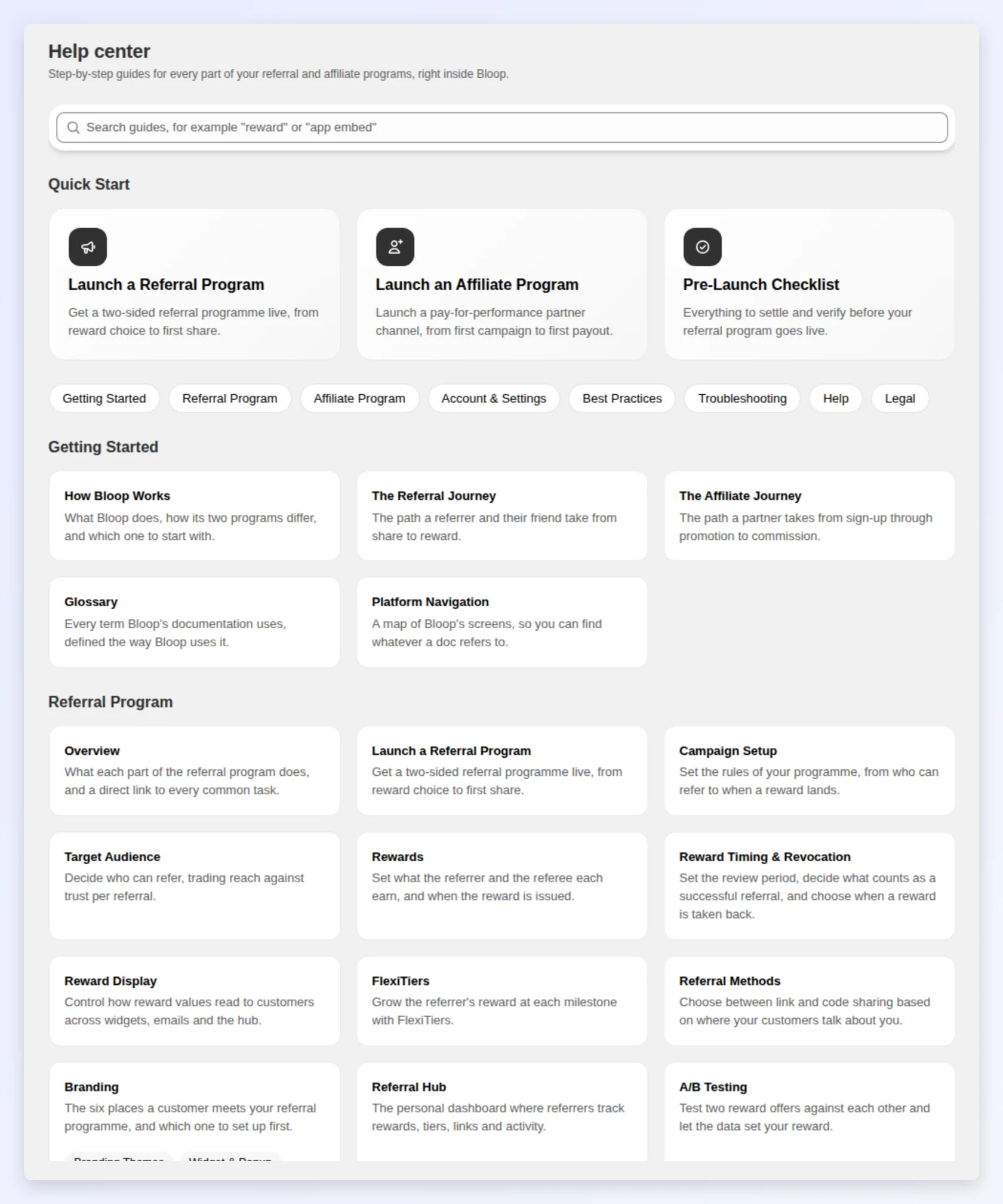
The Help center with step-by-step guides is not in the menu. Open it from Guideline on Home, or from the help links inside the app.
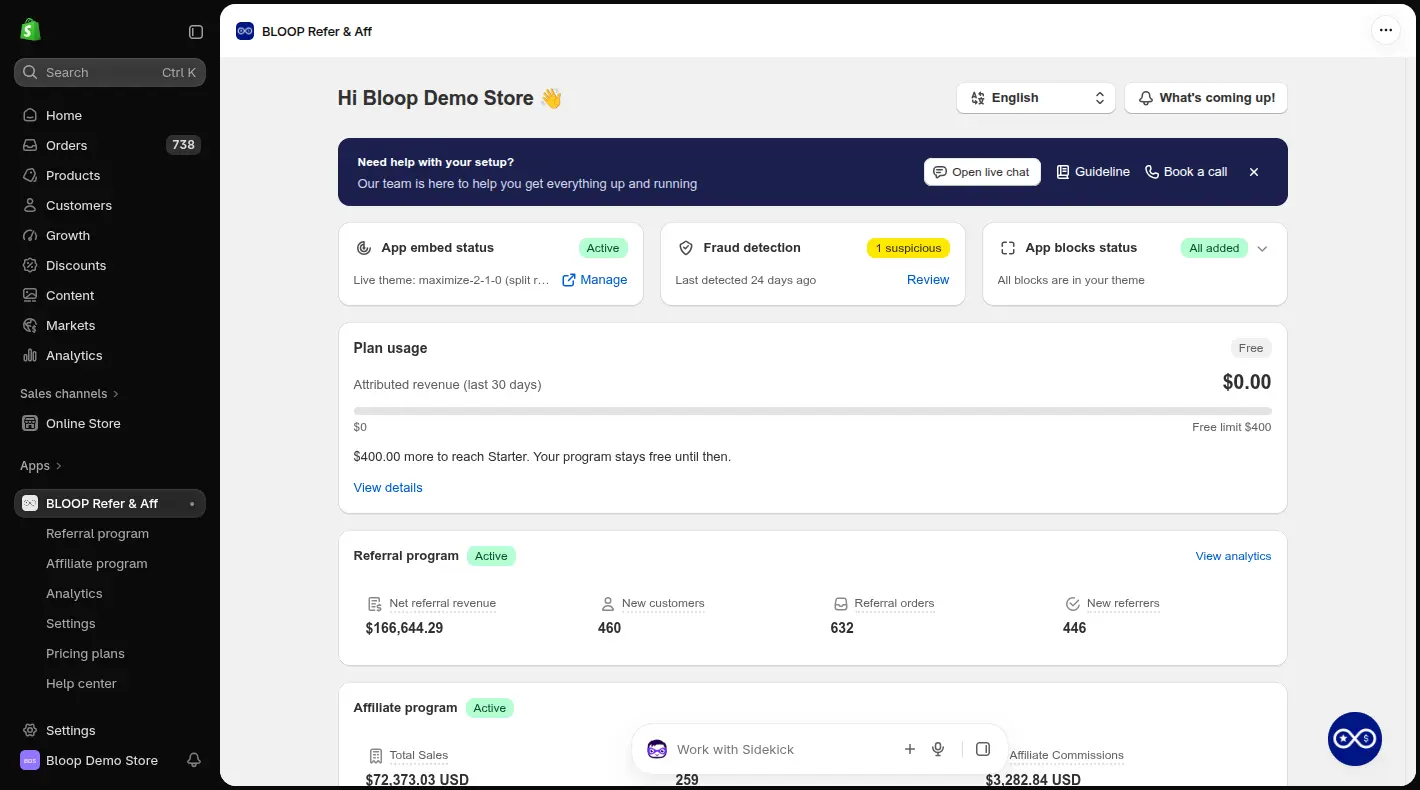
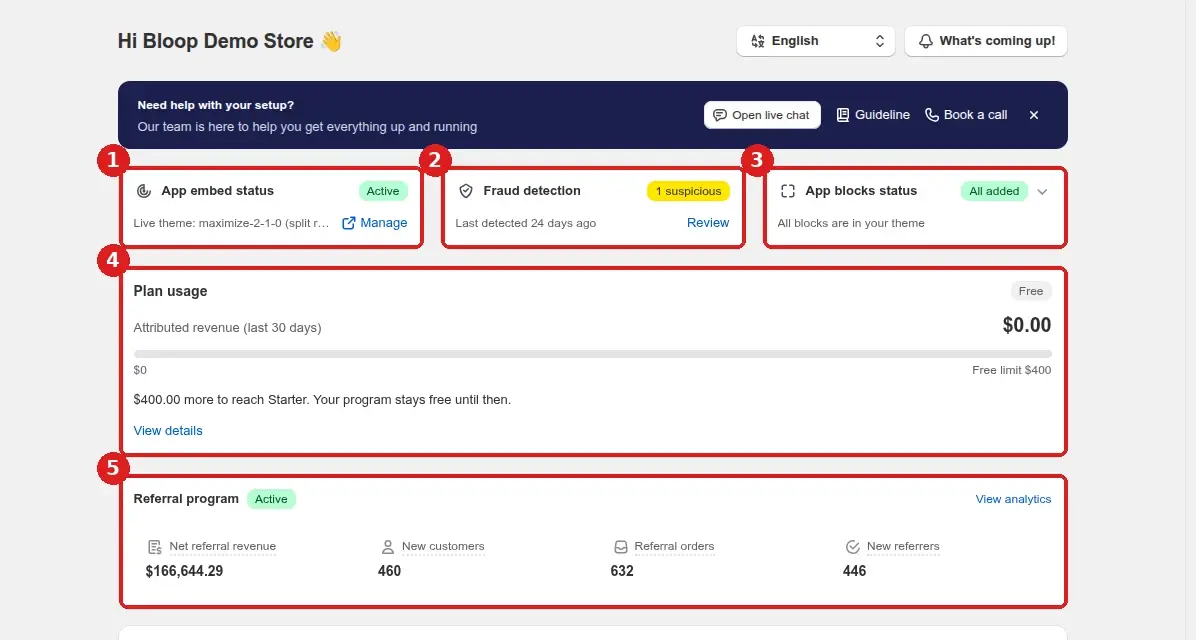
- App embed status: whether the Bloop app embed is on in your live theme. Click Turn on or Manage to change it.
- Fraud detection: how many suspicious referrals are waiting for review. Click Review to open the fraud center.
- App blocks status: whether the Referral page, Referral Share Button and Affiliate registration form blocks are in your live theme.
- Plan usage: the revenue Bloop attributed in the last 30 days, compared with your plan’s limit. Click View details to see your plan options.
- Referral program: four numbers for the last 30 days, up to yesterday: net referral revenue, new customers, referral orders and new referrers. Click any number, or View analytics, to open Analytics.
App blocks status starts collapsed (for example, “2 of 3 added”). Expand it to see which blocks are Added or Not added. Add to theme opens the theme editor, and Check again re-reads your theme. Bloop checks only your published theme, so save your changes first. One block serves every campaign, so you add each block once.
The Referral program
Section titled “The Referral program”Most referral settings belong to a campaign. Each campaign has its own offer, audience, widgets, sharing channels and emails. The top-level tabs cover what spans campaigns: contacts, orders and numbers. For the concepts, read How Bloop works.

Top-level tabs
Section titled “Top-level tabs”| Tab | What lives there |
|---|---|
| Campaigns | The list of your campaigns (up to five), where you create, duplicate and open them. You turn a campaign on or off from its own page. See Campaign setup. |
| Contacts | The customers who joined as referrers, across all campaigns, with search and a Campaign filter. See Contacts. |
| Orders | Referred orders, the rewards tied to them, and the cash payout queue. See Review and manage referral orders. |
| Track Coupons | The discount codes the program has issued. See Track coupons. |
| Activities | A chronological log of program events. See Read the referral activity log. |
| Fraud center | Suspicious referrals held for review. Detection rules opens Settings → Referral → Fraud detection, where you decide what gets flagged or blocked. See Detect referral fraud. |
Your referral numbers live in Analytics in the app menu. Settings that apply to every campaign live in Settings → Referral (below).
Inside a campaign
Section titled “Inside a campaign”Open a campaign and you get one page with a list of steps on the left, under Campaign setup:
| Step | What you set there |
|---|---|
| Overview | The campaign’s headline numbers, its Referrers, and A/B tests |
| General | Campaign name, end date and content language |
| 1 Rewards | Referrer reward and Referee reward |
| 2 Branding | Themes and every storefront surface |
| 3 Emails | Referrer emails and Referee emails |
| 4 Sharing | Link and code (referral methods) and Channels and messages (sharing channels) |
| 5 Audience | Target audience and Customer tagging |
The top of the page has the campaign’s name and status. Disable or Activate turns the campaign on or off, and disabling it stops links and codes, hides branding and pauses most emails. Preview journey shows each step a referrer and friend go through, with links to the matching settings. Duplicate copies the campaign. For these controls, see How to set up a campaign.
A campaign also has its own Referrers view, opened from Overview: the people enrolled in that campaign, with their tier and results. It is narrower than the store-wide Contacts tab.
Settings → Referral
Section titled “Settings → Referral”Four sections, all shared by every campaign:
- General: email marketing sign-up and the referral sharing link. See Customize your referral sharing link.
- Payment method: how you pay out cash rewards. See cash rewards.
- Rewards and orders: the reward review period (the delay before a reward is approved), when a referral counts as successful, and when a reward is revoked. See reward timing.
- Fraud detection: the detection signals, and the fraud prevention checks that block a self-referral outright (same IP address, same browser). See fraud center.
The Affiliate program
Section titled “The Affiliate program”
| Tab | What lives there |
|---|---|
| Campaigns | Commission structures and cookie windows. See Affiliate campaigns and commissions. |
| Affiliates | Add, approve and manage your partners. See Managing affiliates. |
| Sales | The orders affiliates drove, and the commissions to approve. See Affiliate sales tracking. |
| Payouts | Outstanding balances and payment history. See Affiliate payouts. |
| Branding | The registration form, portal style, translations, on-site content, and the portal guide. Start with the registration form. |
| Notifications sent to affiliates. See Affiliate email notifications. |
Affiliate settings (General, Automation, Order settings, Payment) live in Settings → Affiliate. See Affiliate settings.
Settings
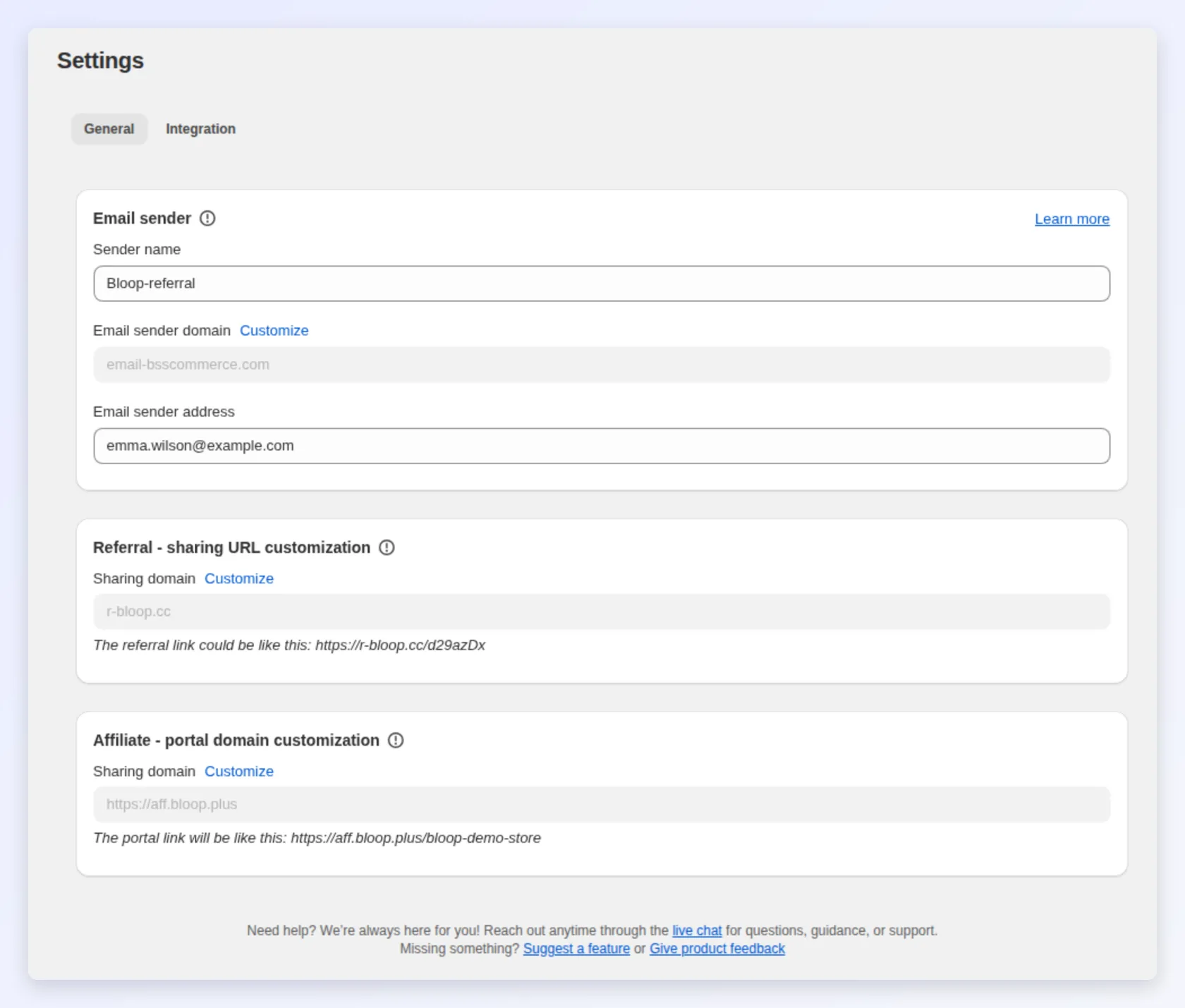
Section titled “Settings”Settings in the app menu is one page with a list on the left, in three groups:
| Group | Sections |
|---|---|
| Store-wide | General: the email sender. See General settings. Integrations: Klaviyo, Mailchimp, and API & Webhooks. See Klaviyo, Mailchimp and the API & Webhooks overview. |
| Referral | General, Payment method, Rewards and orders, Fraud detection (above) |
| Affiliate | General (including the affiliate portal link), Automation, Order settings, Payment. See Affiliate settings. |
The Affiliate group appears once you finish setting up the affiliate program.
A note on finding things
Section titled “A note on finding things”Both programs and all their tabs are always in the menu, even before you set a program up. If a tab looks empty, check that the program’s switch is on. New to either? The two launch guides walk the setup end to end: How to launch a referral program and How to launch an affiliate program.
Where to go next
Section titled “Where to go next”- Learn what each area does conceptually in How Bloop works.
- Look up any unfamiliar tab or term in the glossary.
- Follow the customer and partner experiences in The referral journey and The affiliate journey.