

How to customize your referral sharing link
Put referral links on your own subdomain so friends see your brand, not a generic short link, before they click.
The default sharing domain
Section titled “The default sharing domain”
Open Settings → Referral → General to see the Referral - sharing URL customization card. The sharing domain field shows r-bloop.cc unless you have set a custom one. With the default in place, a referral link reads:
https://r-bloop.cc/d29azDxKThe trailing part is the referrer’s unique 8-character share code, assigned automatically when someone joins your program.
If a friend opens a broken link, they see This referral link isn’t working instead of an error. They can paste the share code or the full link they received to continue. The page shows in English, or in Vietnamese when the browser uses it, and carries no store branding.
Use your own domain
Section titled “Use your own domain”Swap r-bloop.cc for a branded subdomain such as refer.yourstore.com. Setting one up is a guided request: you add a DNS record, and Bloop activates the domain.
-
On the Referral - sharing URL customization card, select Customize.
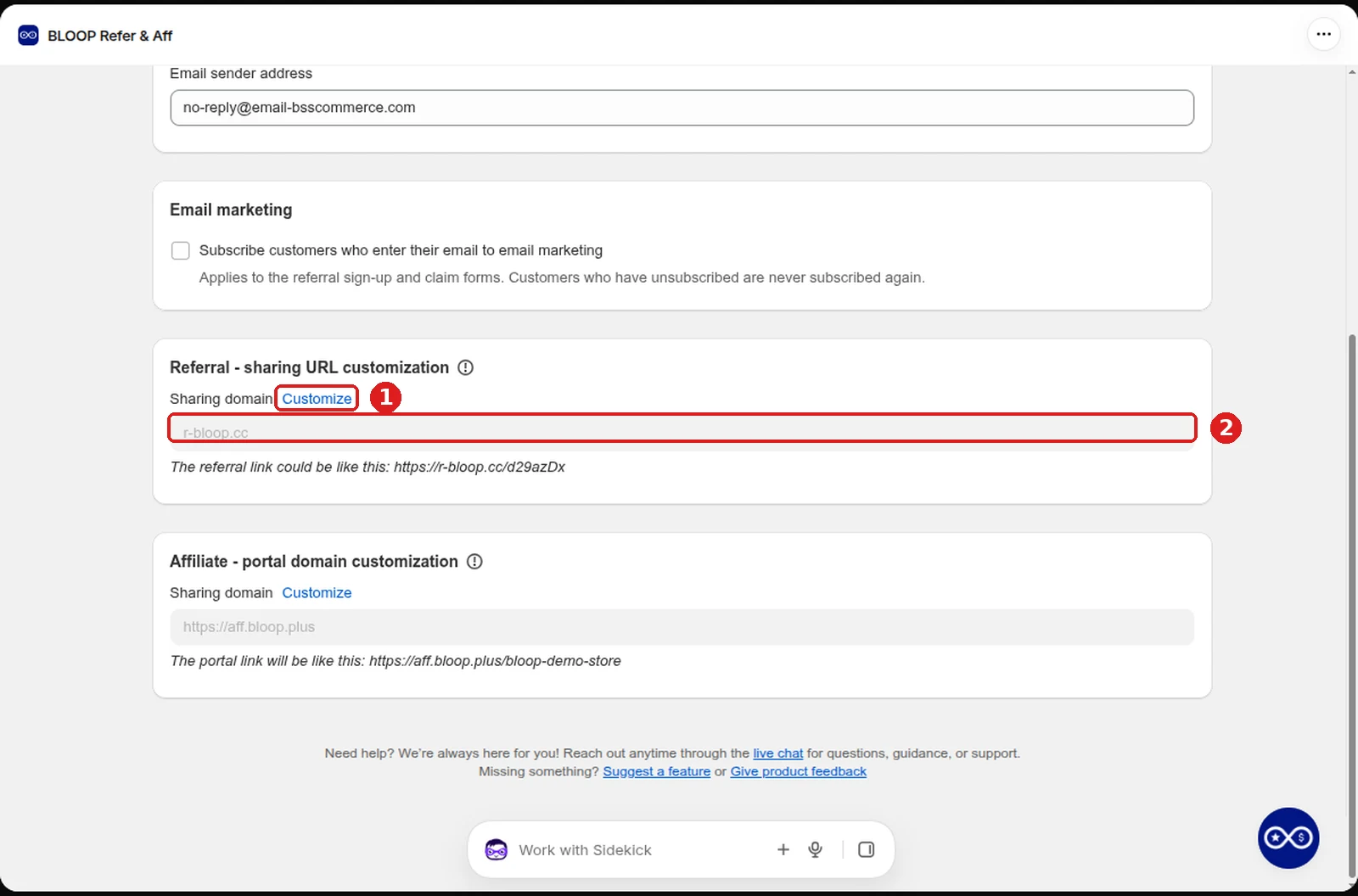
-
Contact support for the IP address of the Bloop sharing service (we share it privately).
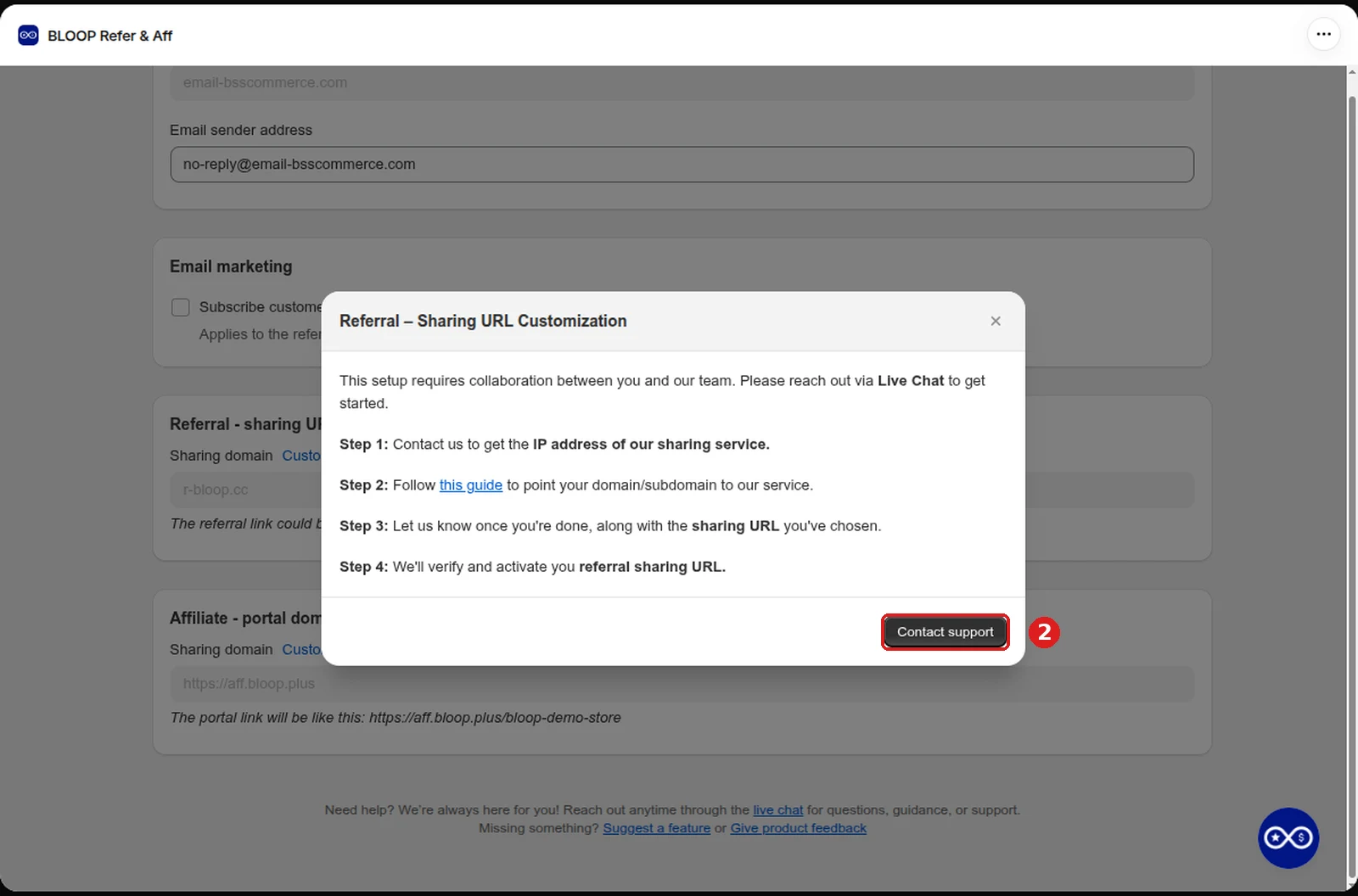
-
In your DNS provider, add an A record pointing your subdomain to that IP. If you also want the
www.version to work, add the same record for it. -
Send support your chosen URL. Bloop verifies the DNS and activates it.
Provider-specific fields, all using record type A with your subdomain as the Name:
- Shopify: put the IP in the Points to field.
- Cloudflare: set Proxy status to Proxied. Setup video.
- GoDaddy: leave TTL at the default. Help.
Once active, every new referral link uses your domain, for example https://refer.yourstore.com/d29azDxK. This includes the Referral Hub links in Bloop’s emails and in your Klaviyo or Mailchimp profiles.
Custom domains need a plan that includes them. If you move to a plan without them, Bloop removes your sharing domain and links fall back to r-bloop.cc. Upgrading again does not restore it: contact support to set it up again.
Related
Section titled “Related”- Choose a referral sharing method: turn the link and code methods on or off.
- Referrer and referee rewards: set what each side earns.
- General settings: overview of every store-level setting.