

How to configure referral email notifications
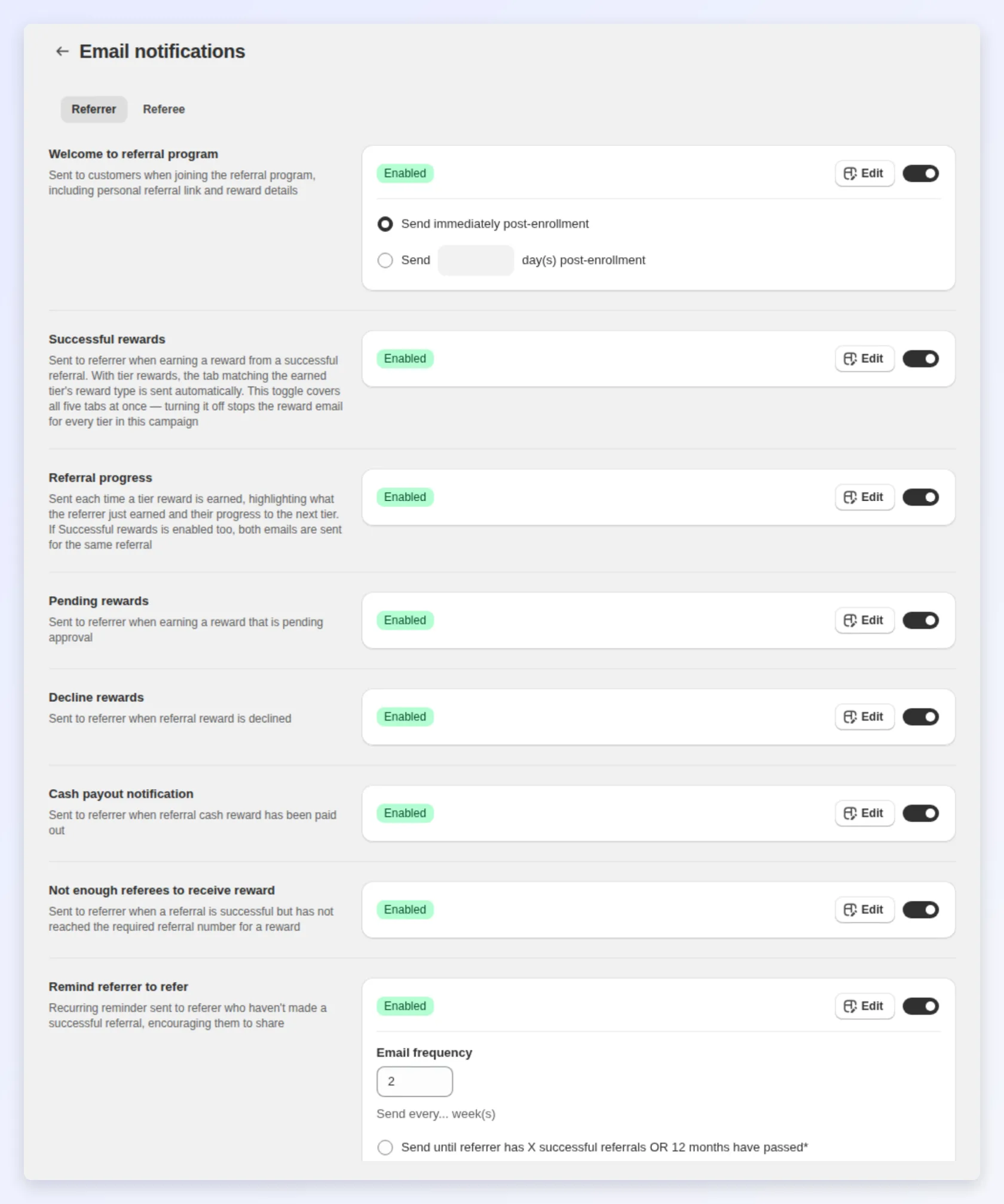
Bloop sends your referral emails automatically: the welcome with a referrer’s link, the confirmation when a reward is earned, and the reminder that rescues an unused code. Each one is a template you can rewrite, time and switch off, so every email sounds like your store.
What you’ll set up
Section titled “What you’ll set up”- Your welcome and successful reward emails, the two that do most of the work
- Subject, body and button text for the emails you change
- Send timing for reminders and expiry warnings
- A test send to your inbox, checked on a phone as well as a desktop
Emails belong to the campaign, so a second campaign gets its own set.
Which emails to edit
Section titled “Which emails to edit”The emails are split into Referrer emails and Referee emails. Start with the emails marked High, then check the rest.
| Sent to | When it sends | Priority | |
|---|---|---|---|
| Welcome to referral program | Referrer | They join, with their referral link and what they’ll earn | High |
| Successful rewards | Referrer | A referral converts. One template per reward type | High |
| Email invitation from referrers | Referee | A referrer invites them by email | High |
| Discount claim | Referee | They enter their email and get the coupon code | High |
| Pending rewards | Referrer | A reward is earned but waiting on review | Keep on |
| Decline rewards | Referrer | A referral didn’t qualify | Keep on |
| Referral progress | Referrer | They earn a tier reward. Shows the reward, their tier and what’s next | If you use FlexiTiers |
| Reward expiry reminder | Both | Before an unused code expires | Optional |
| Reward reminder | Both | An unused code is still waiting | Optional |
| Not enough referees to receive reward | Referrer | A referral succeeded, but the referee minimum isn’t met yet | Optional |
| Cash payout notification | Referrer | You mark their cash payout as paid | Optional |
| Remind referrer to refer | Referrer | A recurring nudge, until its stopping rule ends it | Optional |
| Referral Hub access | Referrer | They ask for a link to their hub, and this email sends the sign-in link | Optional |
The email invitation is the only one partly written by your customer, since it carries their own note. Keep your framing light around it, because the personal line is what makes it work.
To protect your sender reputation, invitations have a daily limit for each referrer and for your store as a whole. If a send would go over either limit, none of the invitations in that send go out, and the count resets 24 hours after it started. If referrers report invitations that never arrived on a busy day, ask them to share their link instead or try again the next day.
See what the high-priority emails look like
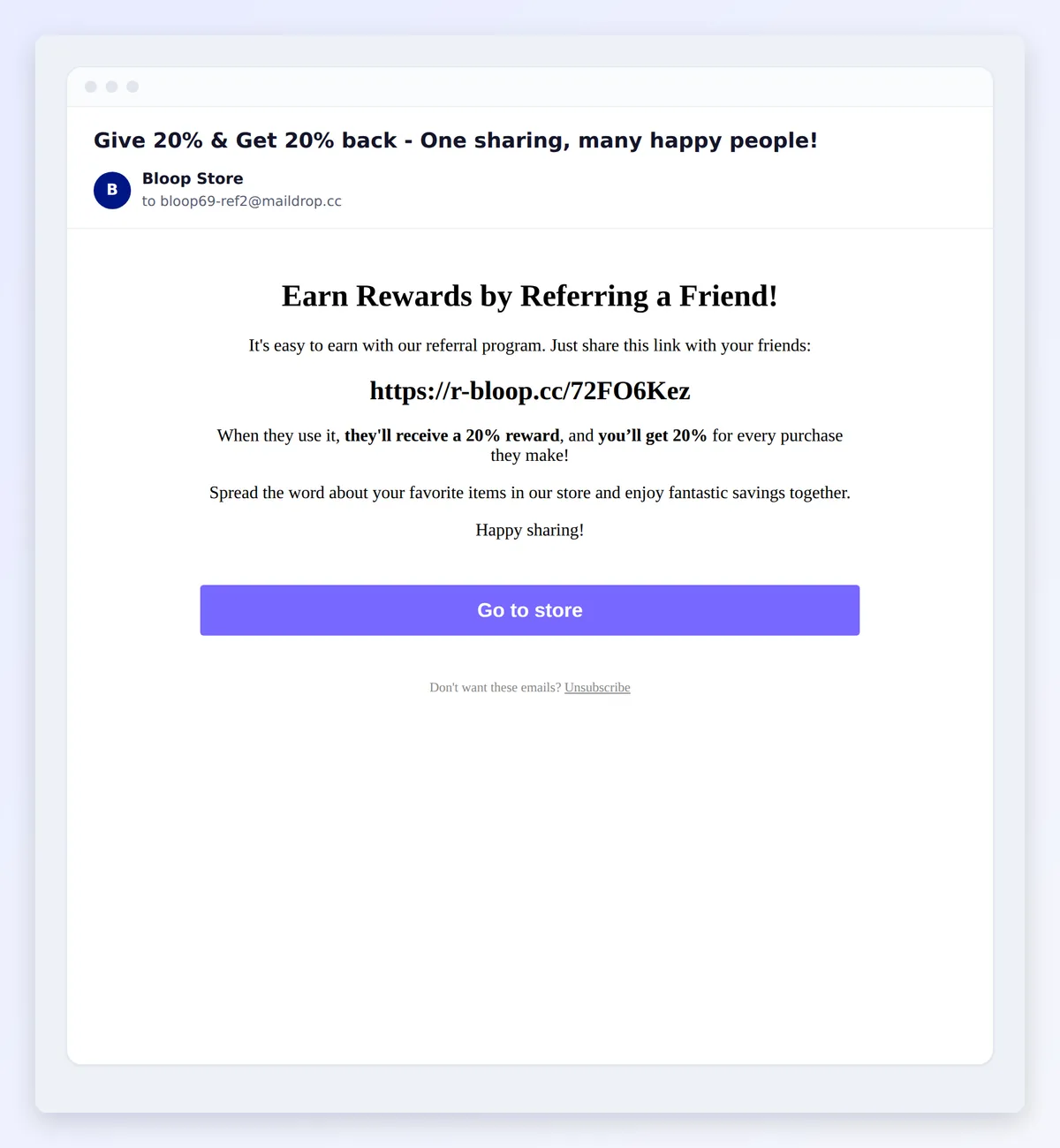
Welcome to referral program, sent to a referrer when they join:
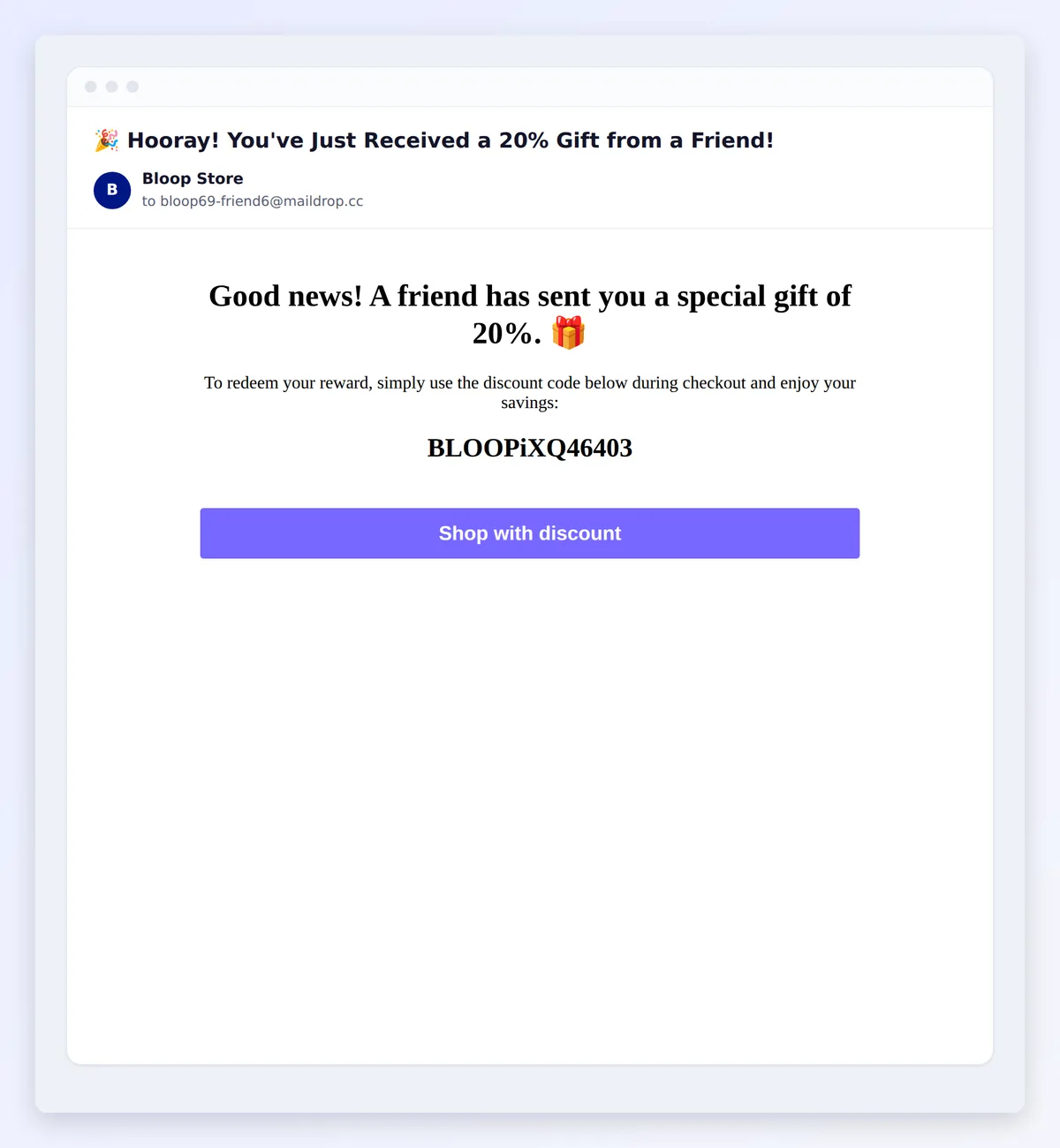
Discount claim, sent to a referred friend with their coupon code:
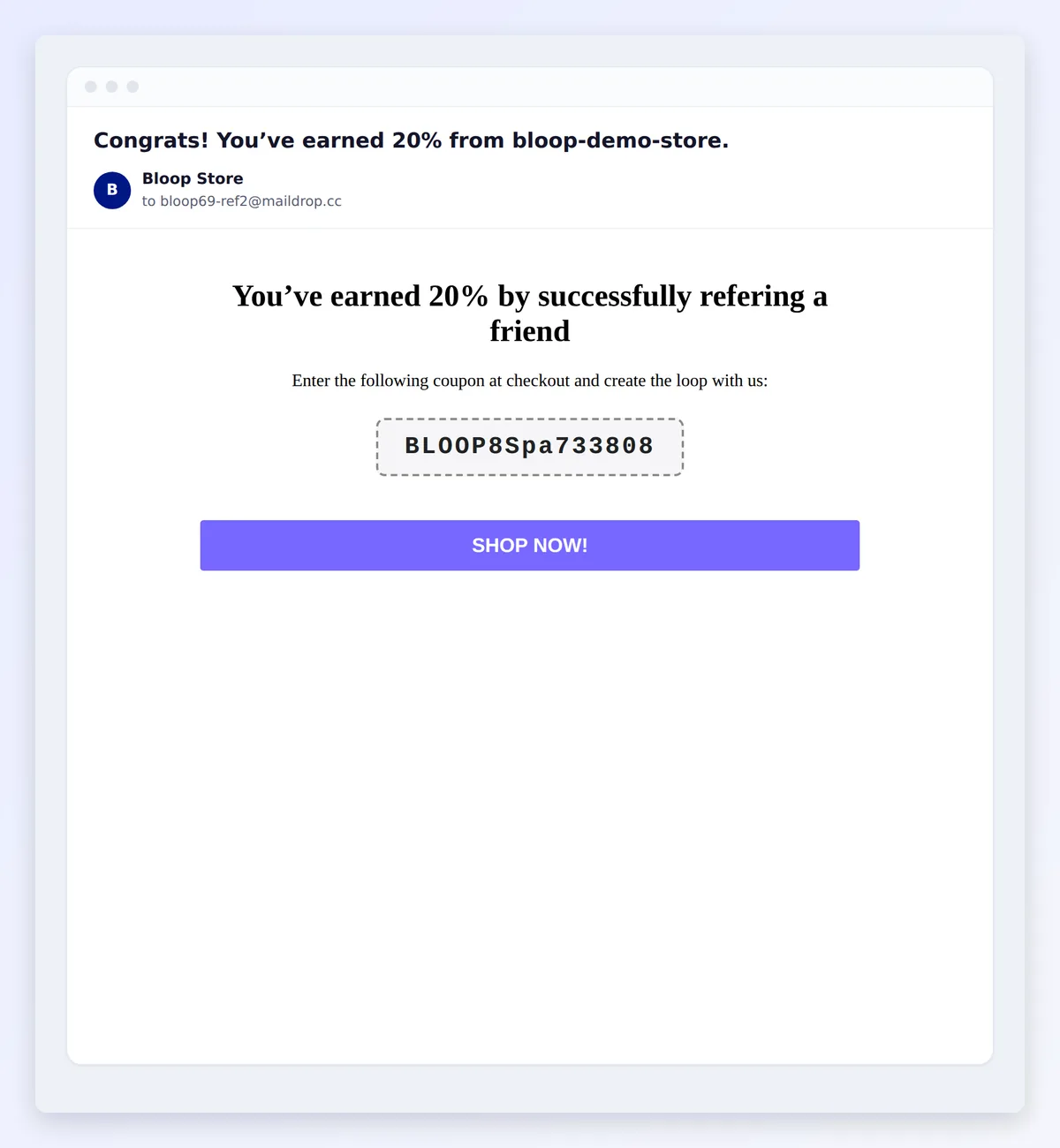
Successful rewards, sent to a referrer when a referral converts:
How to edit and test an email
Section titled “How to edit and test an email”-
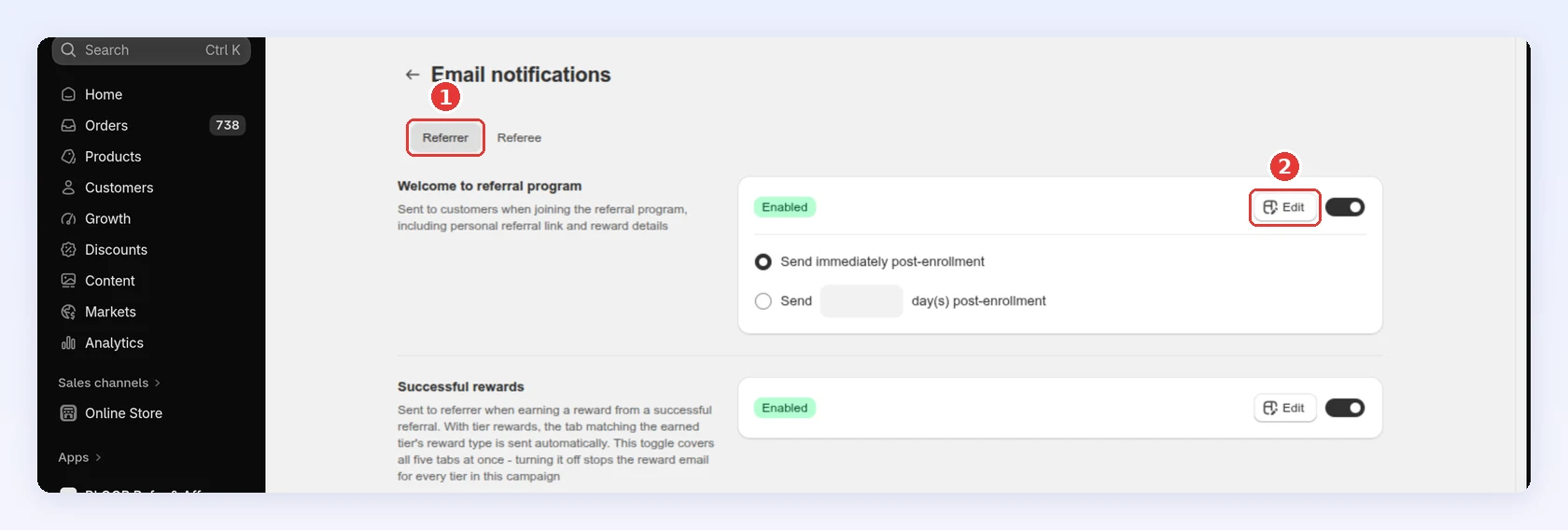
Open your campaign, then click Emails → Referrer emails or Emails → Referee emails.
-
Select Edit on the email you want to change. The editor opens in a full-screen window over the list:
-
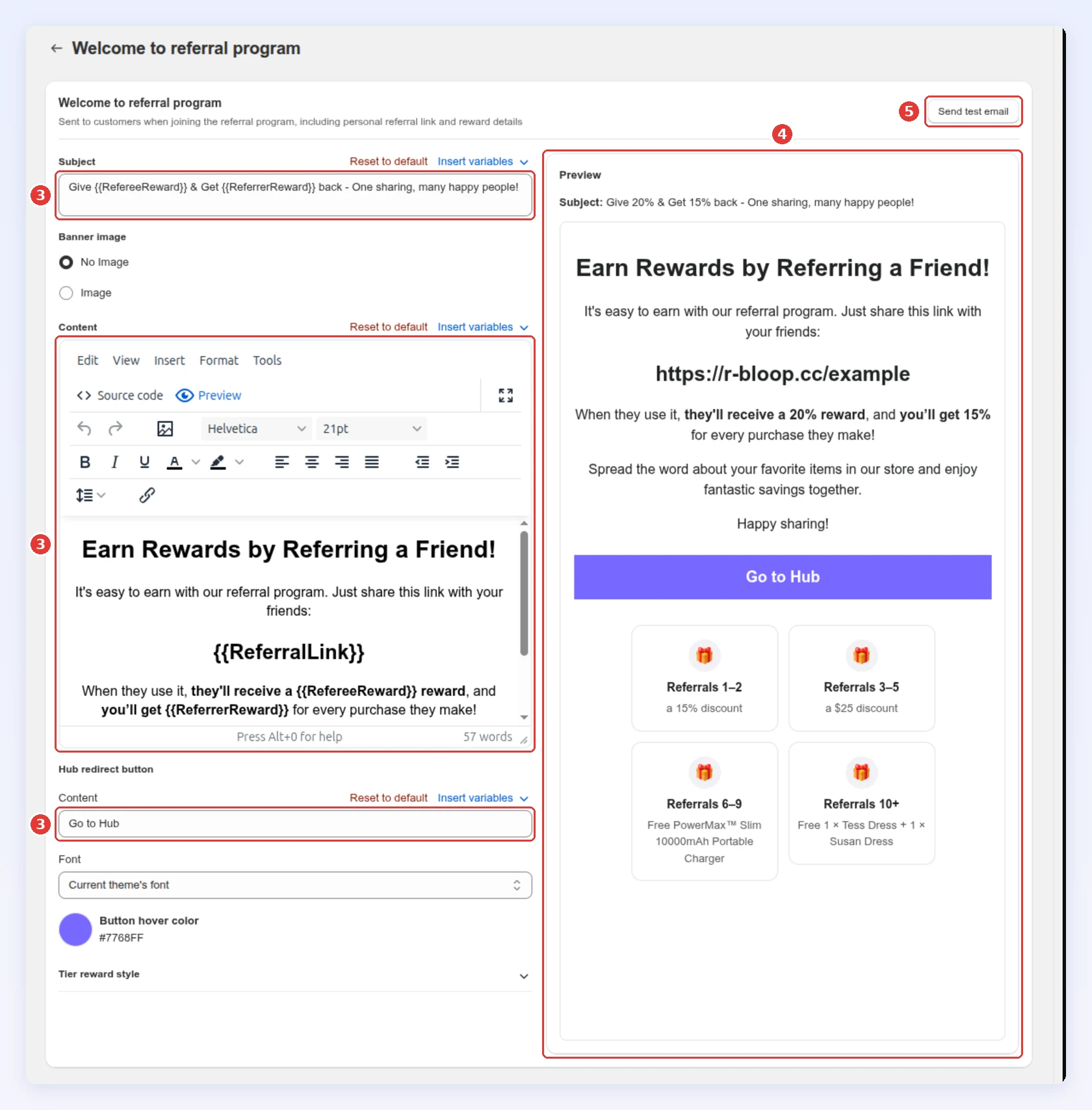
Change the Subject, Content, Banner image or button text. Variables work in the subject too.
-
Check the Preview on the right. It shows the subject and the body as you type, with your reward values and a sample referral link.
-
Select Send test email:
-
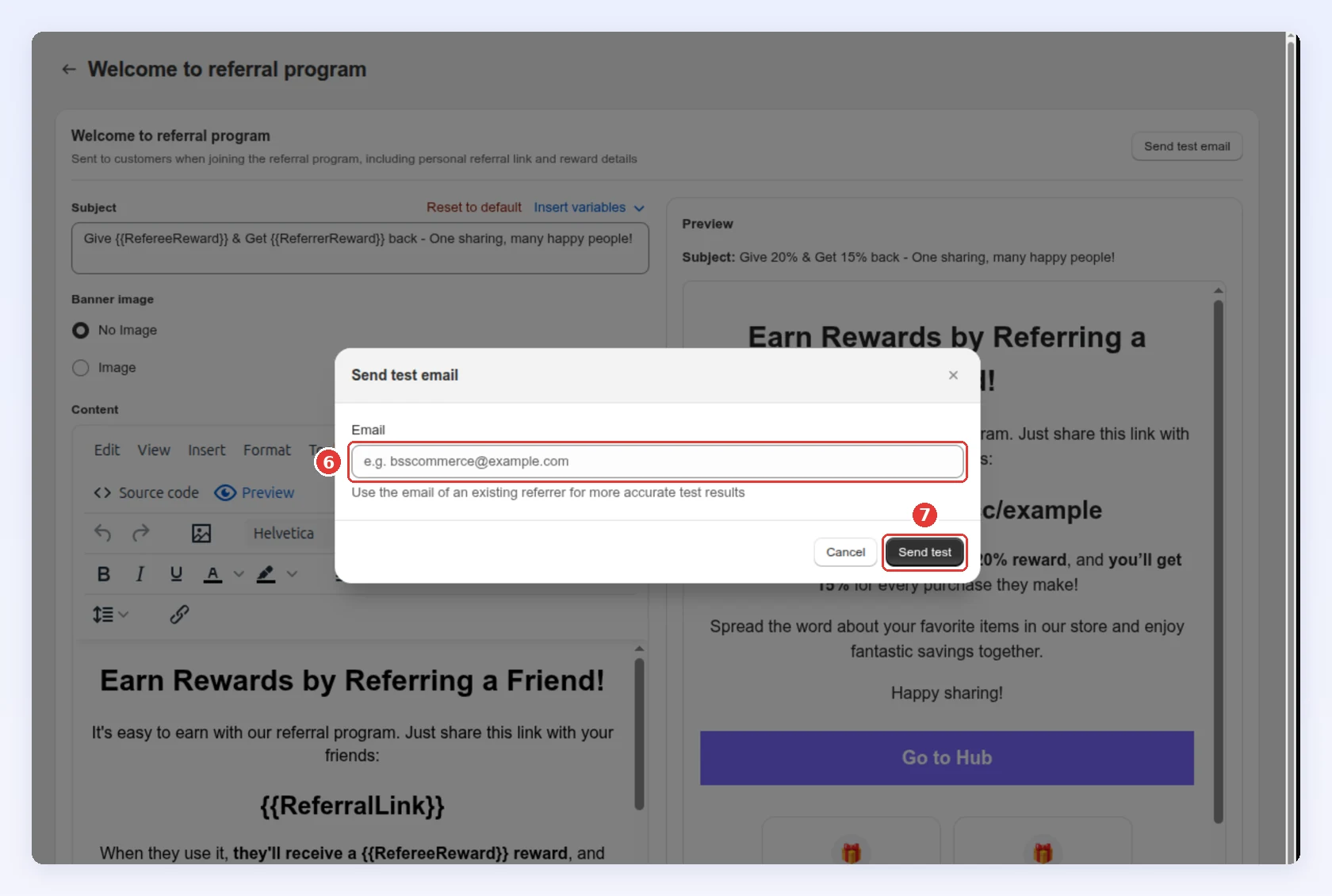
Enter your email address in Email.
-
Select Send test, then open the email on a phone as well as a desktop:
-
Click Save in the save bar of the editor window.
| Field | What it controls |
|---|---|
| Subject | The subject line |
| Content | The body |
| Banner image | .jpeg or .png, under 20 MB and 20 MP, best at 1200 × 704 px. Or No Image |
| Button content | The button’s text, font and hover color. Leave the text empty to hide the button |
| Redirect customers to specific page when clicking on the button | Where the button goes. See Where the button goes |
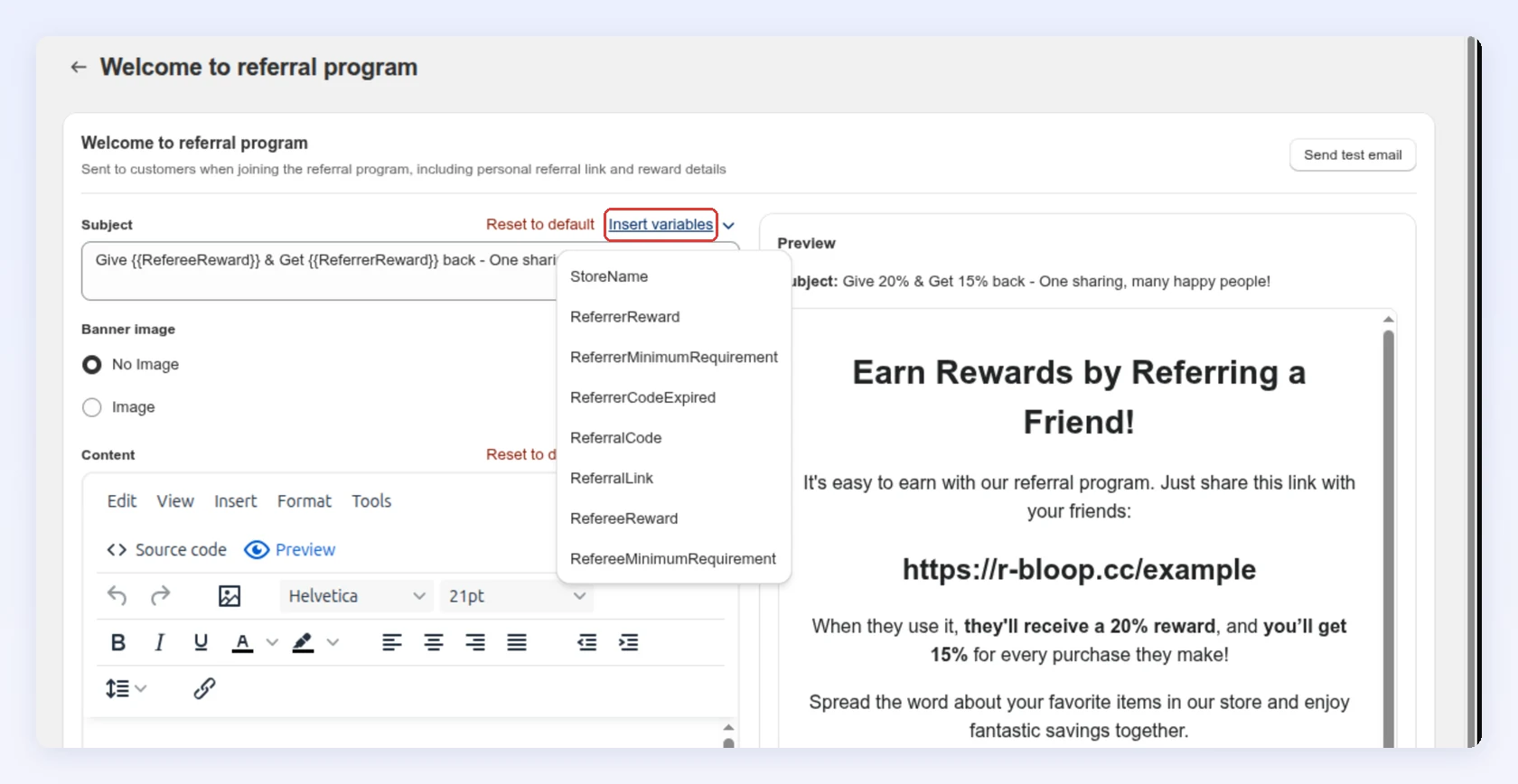
Reset to default puts a template back to Bloop’s copy if an edit goes wrong. If you delete a placeholder such as {{RedirectButton}} or {{TierTable}}, Bloop adds its content to the end of the email rather than dropping it.
Which address emails come from, and where replies go, is set in email sender settings, not in the template.
Where the button goes
Section titled “Where the button goes”In referrer emails other than Successful rewards, the button always opens the referral hub, already signed in. The exception is Cash payout notification, whose button opens your store’s home page. On Successful rewards and referee emails, you can tick Redirect customers to specific page when clicking on the button and enter a path such as /about-us. Use this only when an email has a job the hub can’t do, such as a product launch or a survey.
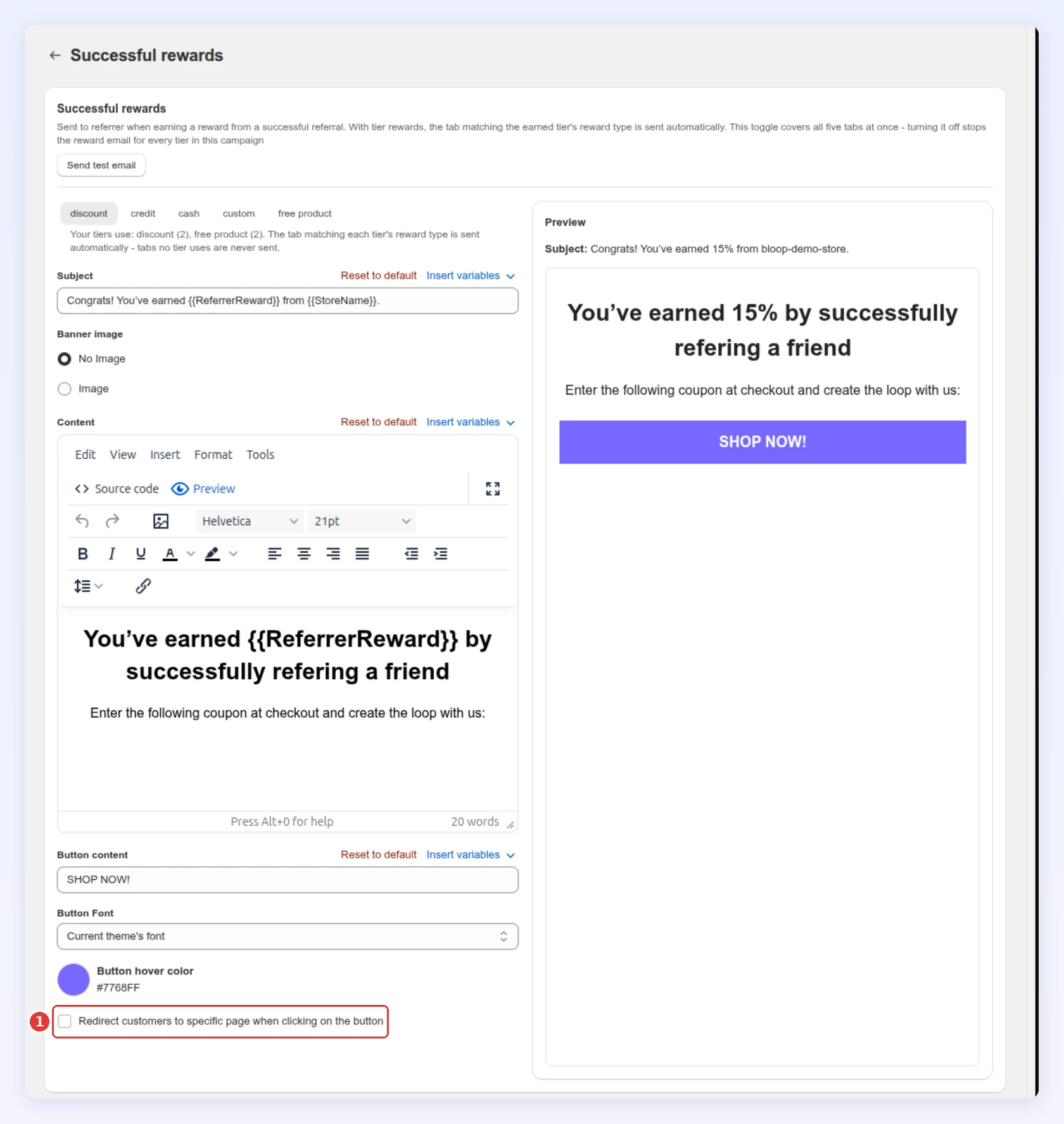
The discount and free product versions of Successful rewards open your store with the reward code already applied, so a custom path doesn’t change them.
Check what a customer receives
Section titled “Check what a customer receives”Send test email delivers the template to any address you name. Bloop uses your campaign’s real reward settings, but the referral link and codes are samples, and variables that depend on a real customer, such as {{ReferrerName}}, are not filled in. To see the hub button signed in as a real referrer, enter that referrer’s address.
On the Referral progress email, the test follows the two Preview as a referrer at selectors (1): the tier and first-or-later referral you have selected. Check the Preview (2), then select Send test email (3). Change a selector and send again to check each version.
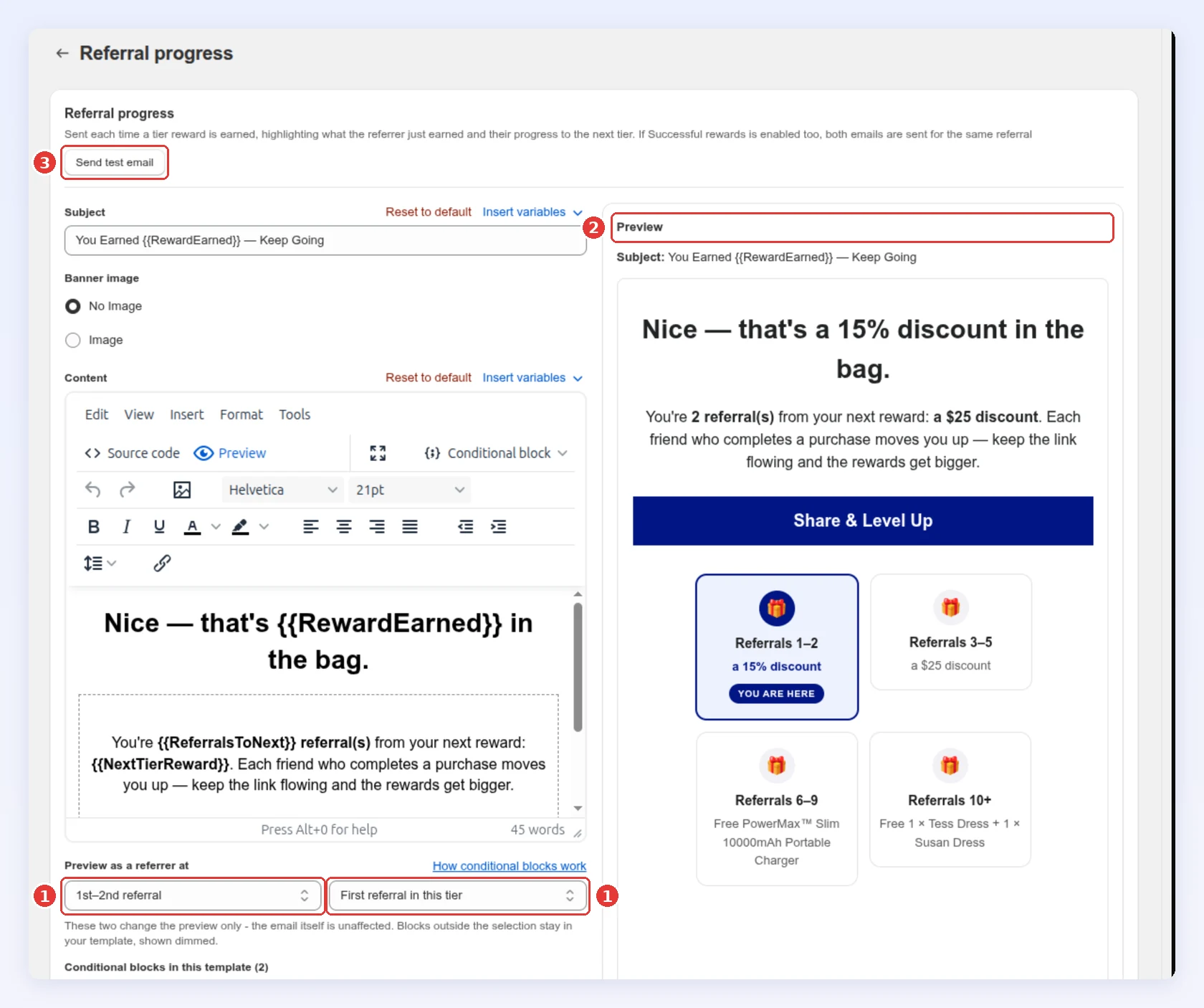
For emails that read differently at each tier, see Write tier-specific text in referral emails. A tier block doesn’t replace the sentence around it: if you add a block without moving the original sentence into blocks, that tier gets both.
When emails send
Section titled “When emails send”Each email has its own schedule, set under the email in the campaign’s Emails list:
| Option | Used for |
|---|---|
| Send immediately post-enrollment | Anything that reacts to an event. This is the default |
| Send N days post-enrollment | Delayed welcomes and onboarding nudges |
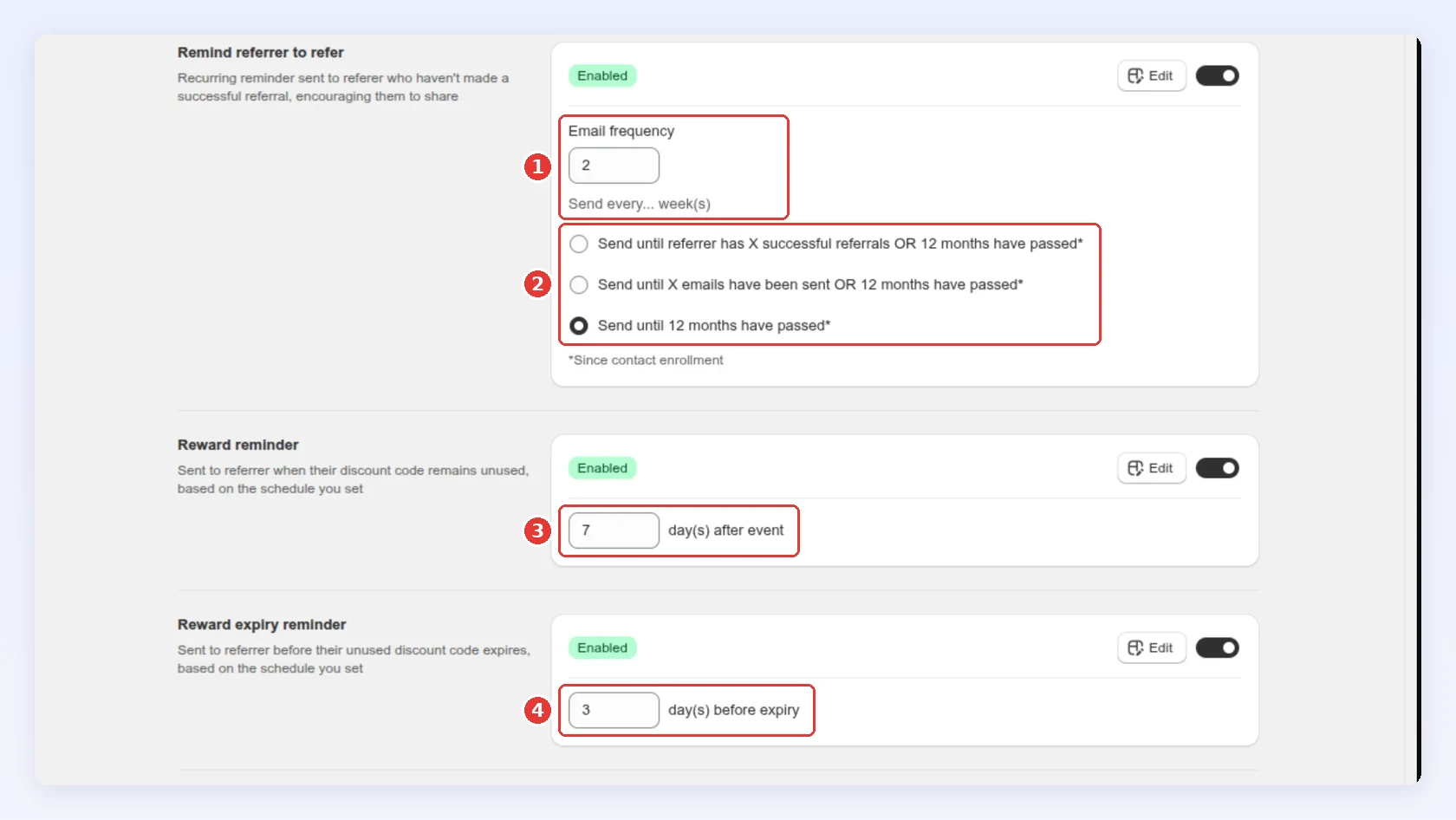
| Recurring, every N weeks (1) | The Remind referrer to refer nudge |
| Send N days after event (3) | Reminders on an unused reward |
| Send N days before expiry (4) | Expiry warnings |
A recurring email needs a stopping rule (2). Choose one of these:
- Stop once the referrer has a set number of successful referrals.
- Stop after a set number of emails.
- Let the 12-month limit end it.
Every recurring email stops 12 months after the contact’s enrollment, whatever rule you pick. A referrer gets at most one recurring reminder in 24 hours. An extra one waits until the next day.
The default rule is the 12-month limit, so a referrer who has already referred keeps getting the nudge. To stop it after they refer, pick the rule based on successful referrals.
Choose a stopping rule you’d be comfortable receiving yourself. A reminder that keeps arriving after someone has clearly opted out in spirit costs more goodwill than the referral is worth.
Turn emails on and off
Section titled “Turn emails on and off”Every email has its own switch. Turning one off keeps your edits and only affects sends from that point on.
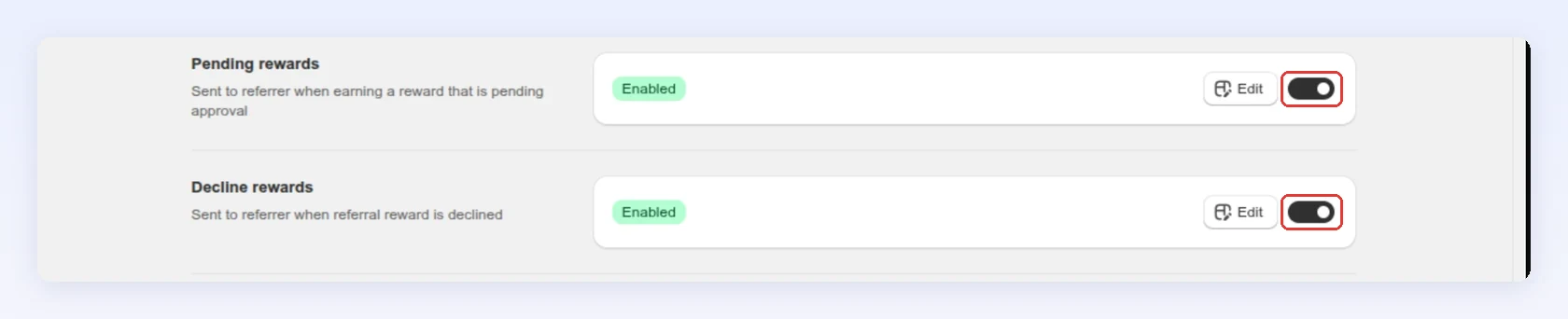
Keep Pending rewards and Decline rewards on. They explain a reward that didn’t arrive. Without them, a referrer only sees silence, and silence creates support tickets.
Unsubscribe links
Section titled “Unsubscribe links”Marketing emails carry a one-click unsubscribe, as Gmail and Yahoo require from bulk senders. Bloop adds an “Unsubscribe” line at the bottom and a matching header that mail apps show as their own button.
- Referrer emails: Welcome to referral program, Not enough referees to receive reward, Reward expiry reminder, Reward reminder, Remind referrer to refer.
- Referee emails: Email invitation from referrers, Reward expiry reminder, Reward reminder.
A customer who unsubscribes stops getting these emails from your store. Transactional emails have no unsubscribe link and keep arriving. These are the discount claim, successful and pending rewards, declines, referral progress, cash payouts and Hub sign-in links.
The footer follows your store’s language when Bloop has a translation for it. Otherwise it’s in English.
Template variables
Section titled “Template variables”Variables are placeholders such as {{StoreName}} that Bloop fills at send time. Insert variables in the editor lists every variable valid for the template you’re editing, since a referee’s template has no referrer reward to show. The table below covers the common ones.
See the common variables
| Variable | Fills in |
|---|---|
{{StoreName}} |
Your store name |
{{ReferrerName}} |
The referrer’s name |
{{ReferrerReward}} / {{RefereeReward}} |
Each side’s reward, shown with your reward display text |
{{ReferralLink}} / {{ReferralCode}} |
The referrer’s link or code |
{{CouponCode}} |
The recipient’s discount code |
{{ReferrerMinimumRequirement}} / {{RefereeMinimumRequirement}} |
The minimum each side must meet |
{{ReferrerCodeExpired}} / {{RefereeCodeExpired}} |
Time until each code expires |
{{RemainQuantityOfReferees}} |
How many more friends the referrer needs |
{{Message}} |
The referrer’s personal note on an invitation |
{{RewardEarned}} |
The reward the referrer just earned, on Referral progress |
{{TierTable}} |
The table of your tiers, on Welcome and Referral progress |
{{RedirectButton}} |
Where the email’s button sits |
Other settings
Section titled “Other settings”- Klaviyo or Mailchimp: If you send lifecycle email through a platform you already use, Bloop can pass the events on instead. See Klaviyo and Mailchimp. Those flows carry a permanent hub link, so an email sent days later still signs the referrer in.
- Watermark: Bloop’s emails carry a Powered by BLOOP Referrals & Affiliates line. To remove it, open any email and select Request to remove in the banner at the top of the editor. Support handles the request. If you closed that banner, ask in chat instead.
- Languages: Each email has one template per campaign. If you sell in several languages, run a campaign per language instead of translating inside one.
Common mistakes to avoid
Section titled “Common mistakes to avoid”- Writing a receipt, not a recommendation. The welcome and invitation emails should read like a tip from a friend.
- Two asks in one email. One email, one button, one action.
Next steps
Section titled “Next steps”- Set the rewards these emails announce in Referrer and referee rewards.
- Control how the reward value reads in reward display.
- Give referrers somewhere to land in the referral hub.
- Write tier-specific text in Write tier-specific text in referral emails.