

How to manage contacts
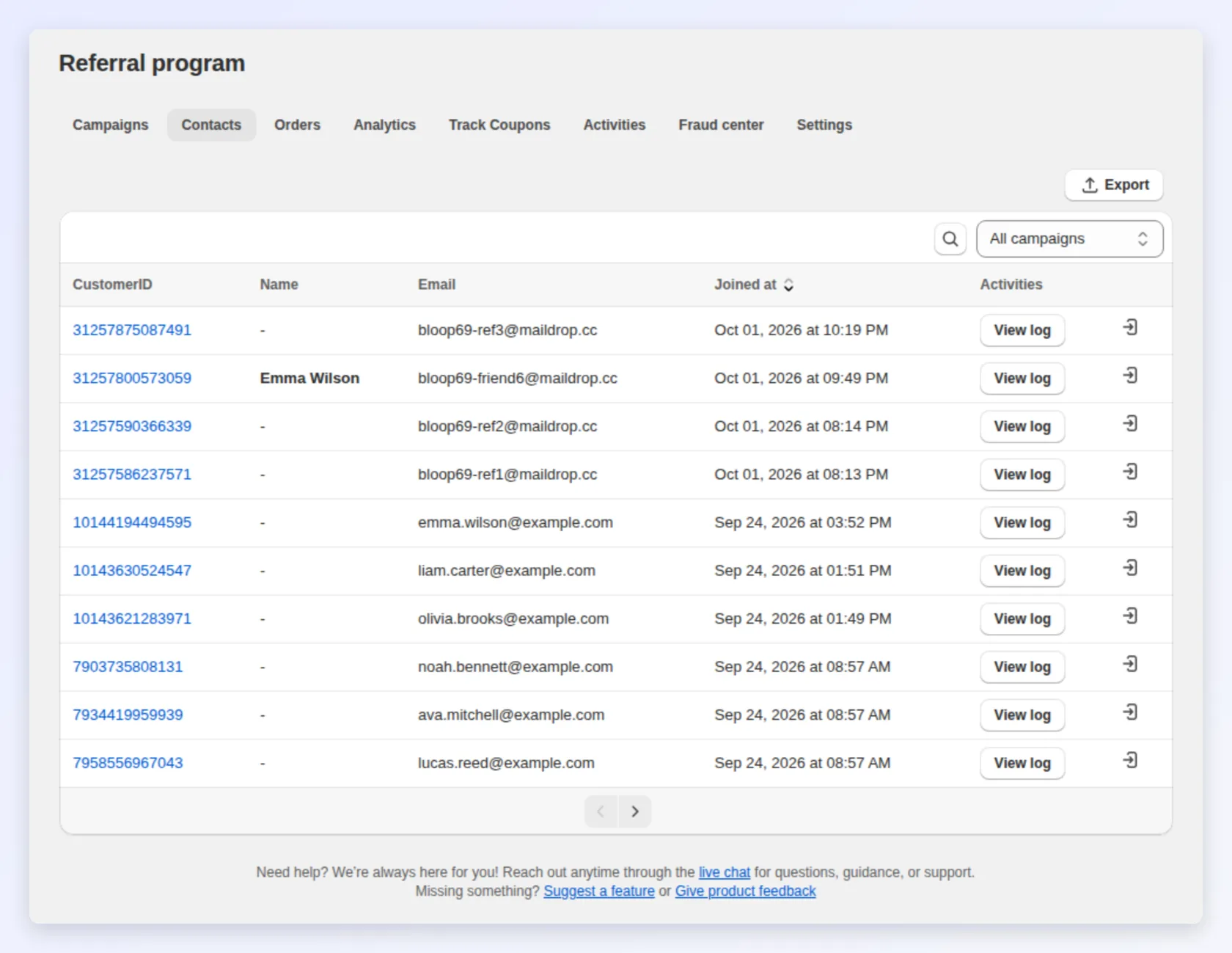
In Referral program, the Contacts tab lists your referrers: the customers who joined a campaign and can share a link or code. Use it to look up one person. To compare referrers by results, use the campaign’s Referrers page instead.
| I want to… | Do this |
|---|---|
| Find a referrer | Search by name or email in Contacts |
| See what they’ve done | Click View log on their row |
| See what the customer sees | Open the contact → Open referral hub |
| Stop someone abusing the program | Open the contact → Block contact |
| Delete a customer’s data on request | Open the contact → Remove contact |
Find a referrer
Section titled “Find a referrer”- Search (magnifier icon): find a referrer by name or email.
- Campaign drop-down: show one campaign’s referrers, if you run more than one. It starts on All campaigns.
- Joined at: sort newest or oldest first.
- Export: download the referrers of the selected campaign as a CSV.
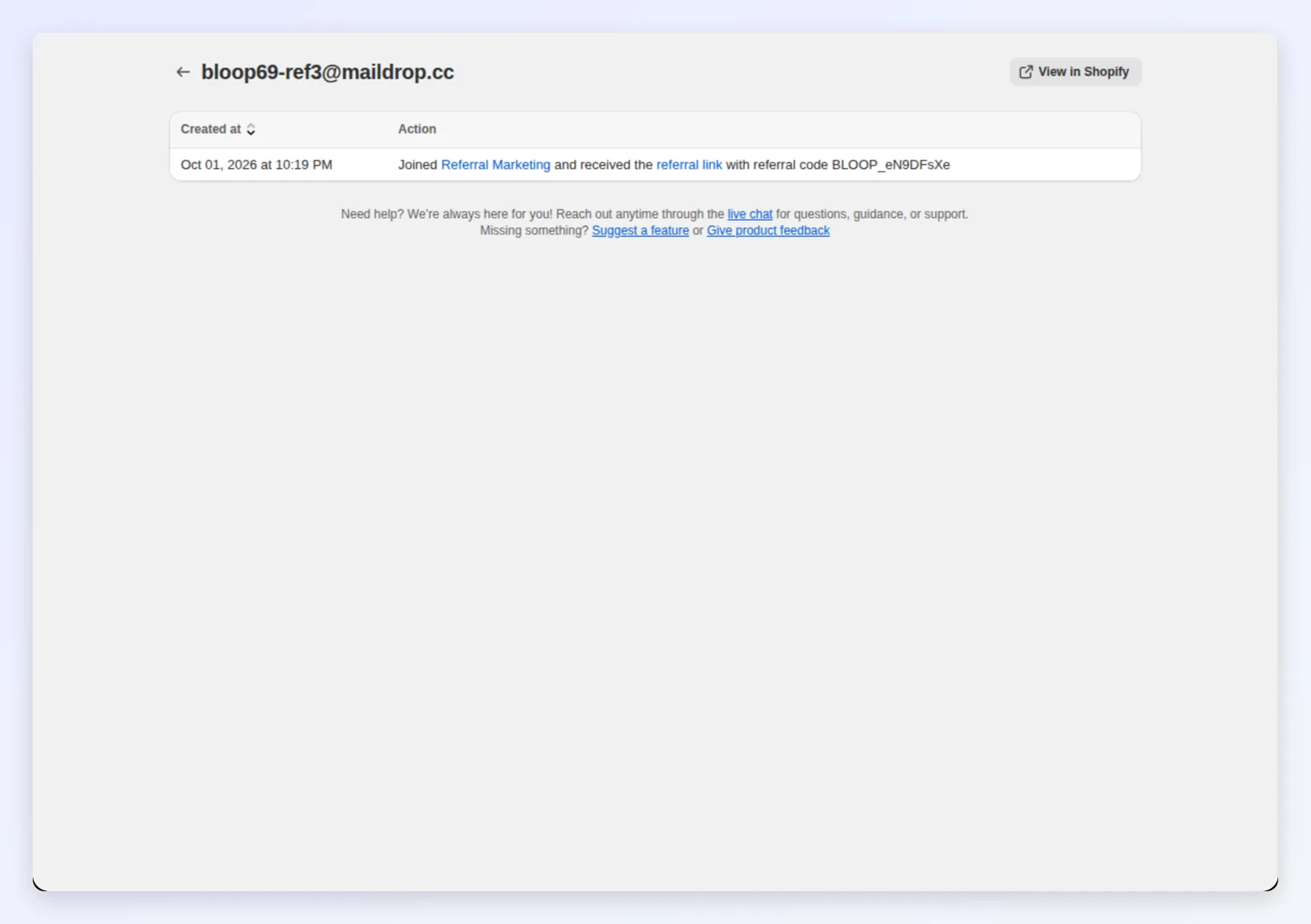
Click View log to see what that referrer has done, newest first: joining, sharing, claiming a reward, placing an order. For all referrers at once, see the activity log.
Open a customer
Section titled “Open a customer”Click a row in Contacts, or in the campaign’s Referrers list, to open the contact page. It answers “where did this customer come from, and what have they earned?” The actions are at the top: Open referral hub (1), Block contact (2) and Remove contact (3):

| Section | What it shows |
|---|---|
| Referrer information | Name, email and campaign status, with a copy button for the email |
| Referrals | Referral link and code (both copyable), invites, successful referrals and revenue |
| Referee list | Every friend they brought in: referral method, coupon code, whether it was used, order, revenue and status. Referrals you added by hand show Manually added |
| Referrer rewards | What they’ve earned, filtered by All, Discount code, Cash, Store credit or Custom. Discount codes show Active, Scheduled or Expired |
Orders and rewards link straight to Shopify, and a cash reward links to its payout in referral orders.
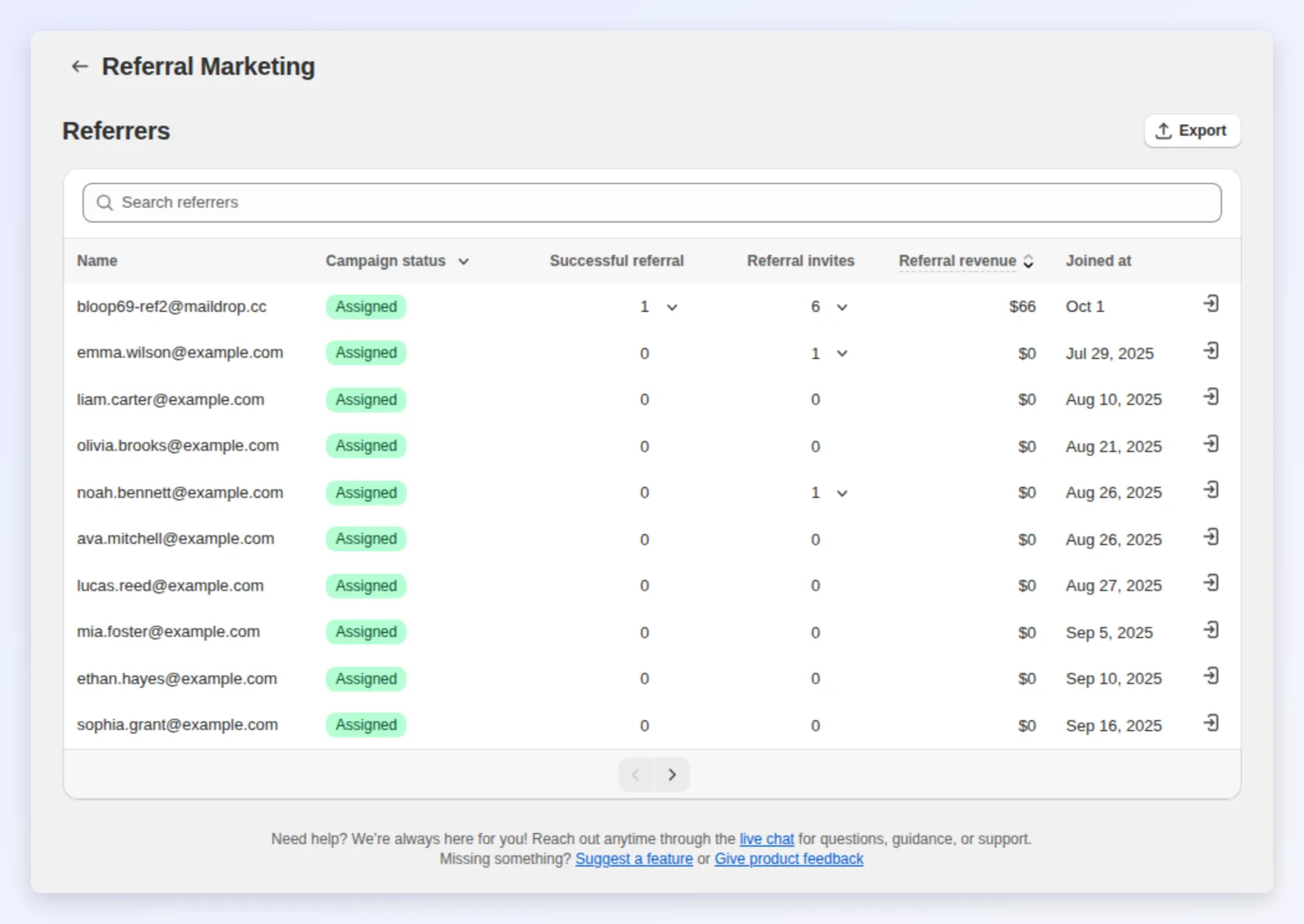
To compare referrers, open the campaign and choose Referrers on its Overview. It shows each referrer’s Successful referral, Referral invites, Referral revenue and Joined at, plus Reward tier when the campaign uses FlexiTiers:
Block or remove a contact
Section titled “Block or remove a contact”Both actions are at the top of the contact page (2 and 3 in the screenshot above).
| Block contact | Remove contact | |
|---|---|---|
| Use it when | Someone abuses the program, or asked not to take part | A customer asks you to delete their data |
| Their link and code | Disabled | Deleted |
| Unused reward codes (theirs and their friends’) | Deactivated | Deleted from Shopify, used or not |
| Pending referred purchases | Disqualified, no reward sent | Deleted with their referrals |
| Can they join again? | No, from any campaign, with that email or Shopify account | Yes, unless you also block them |
| History in Bloop | Kept, marked Blocked | Deleted |
| Undo | Click Unblock in Contacts → Blocked contacts. Everything above is restored | Not possible |
To keep someone out before they join, open Blocked contacts and click Block a contact by email.
When you remove a contact, the confirmation asks you to tick I understand this can’t be undone. Also block this contact so they can’t join the program again is ticked by default; untick it if the customer may come back later.
Common mistakes to avoid
Section titled “Common mistakes to avoid”- Removing a contact to stop abuse. It deletes the evidence and their friends’ codes. Block instead.
- Judging the program by its top referrer. One star advocate can hide a program nobody else joined. Read the whole Referrers list.
Related
Section titled “Related”- Referral activity log - every event across all referrers
- Referral orders - review referred purchases
- Fraud center - why an order was flagged
- Referrer and referee rewards - choose what referrers earn