

How to add referral blocks to customer accounts
Repeat customers are your most likely referrers, and the customer account is where they come back to check orders. Referral blocks there ask them on every visit, not just once after checkout. It is also the only place a referrer can enter the payment details a cash reward needs.
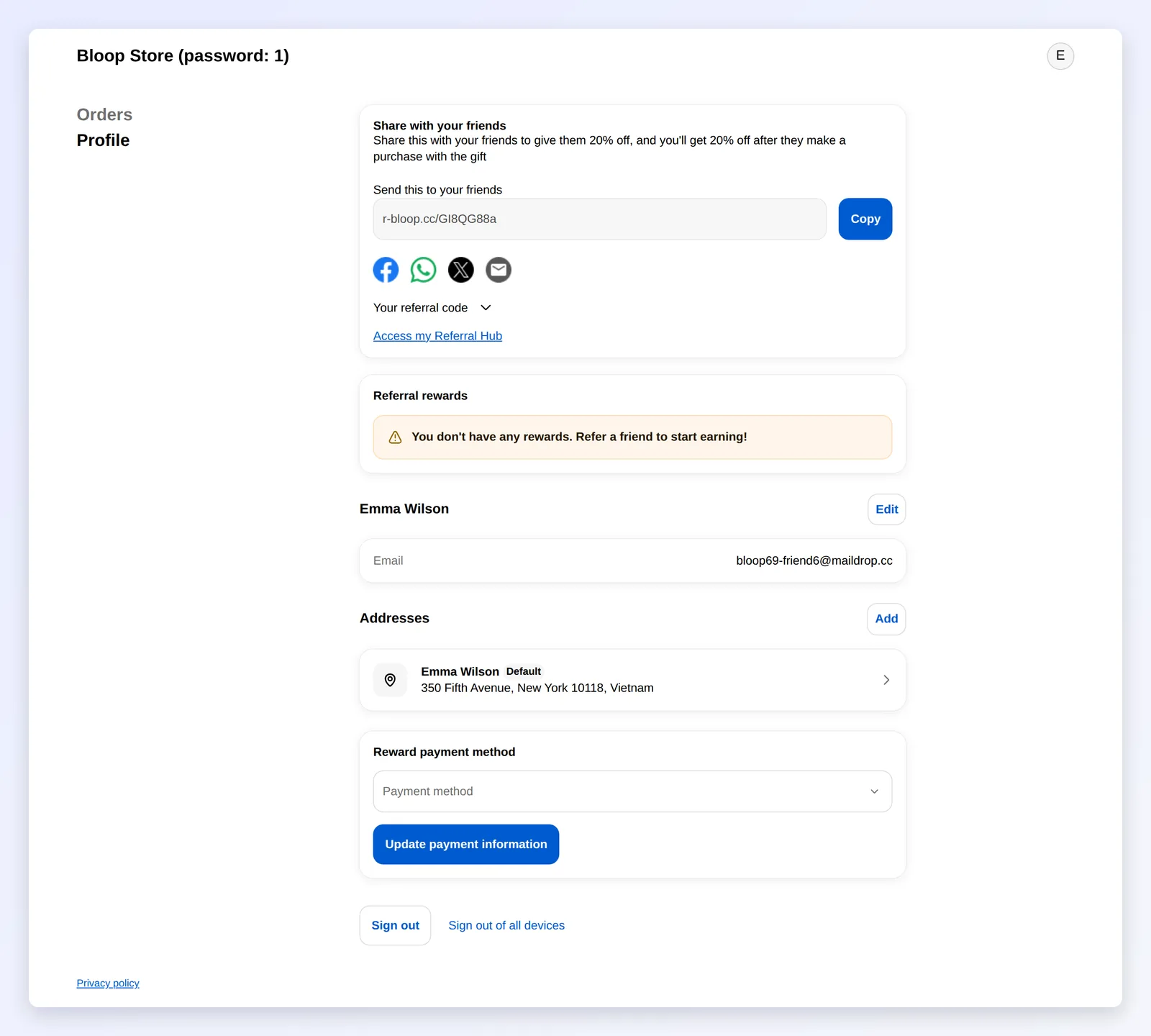
What you’ll set up
Section titled “What you’ll set up”| Block | Where it can go | What customers see |
|---|---|---|
| Referral Link | Profile, Orders, order status page | Their referral link and code, your share buttons, and a link to their referral hub |
| Referral Rewards | Profile | Every reward they’ve earned |
| Reward Payment Method | Profile | A form to choose how they get paid for cash rewards |
| Bloop: Referral Hub | Its own page in the account menu | Their full referral dashboard |
All four are added in Shopify’s customer account editor. Bloop adds nothing to your customer accounts until you do.
How to add referral blocks to customer accounts
Section titled “How to add referral blocks to customer accounts”-
Open the customer account editor
-
Open your campaign and go to Branding.
-
Pick your applied theme in the Theme selector at the top.
-
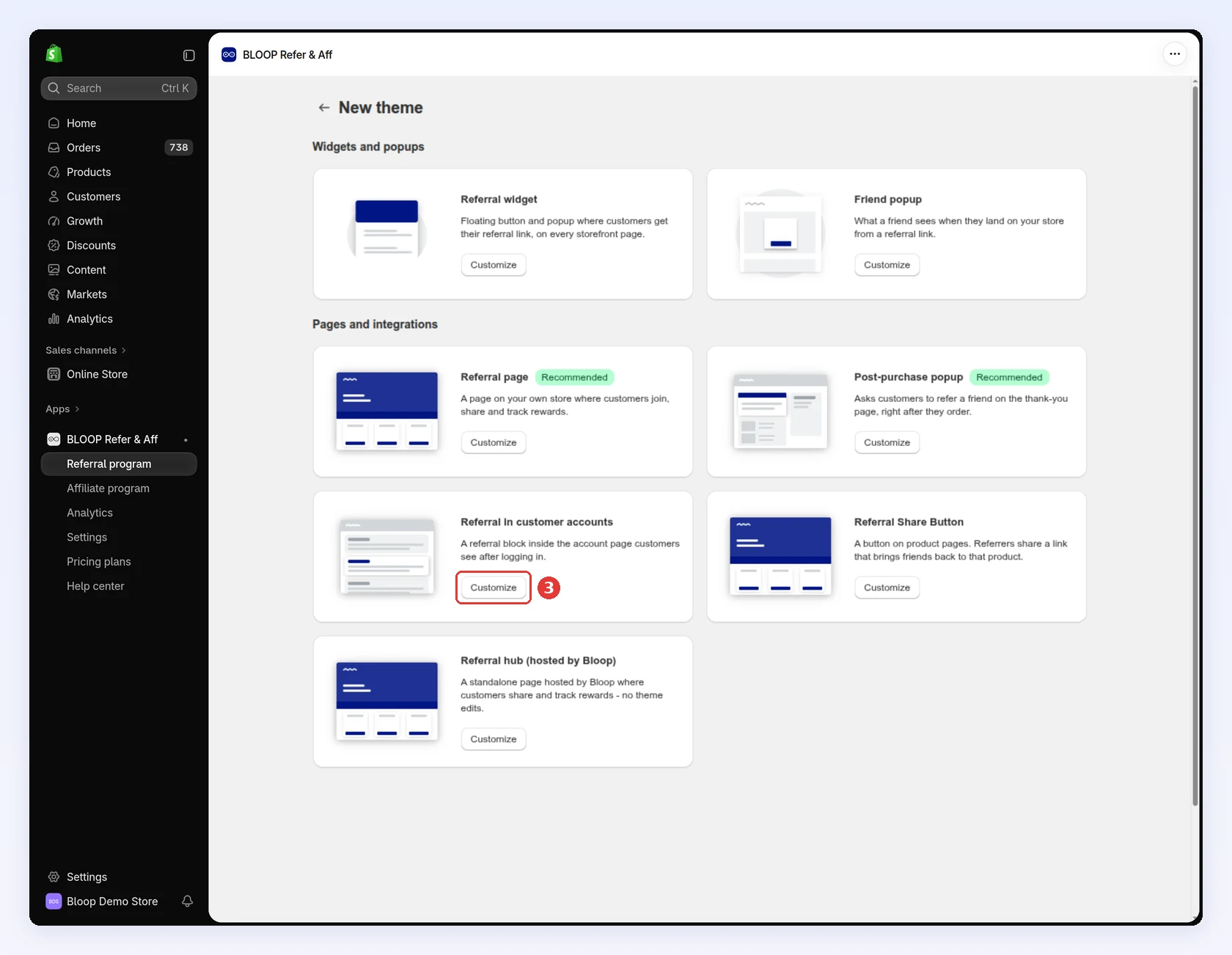
Click Customize on the Referral in customer accounts card:
-
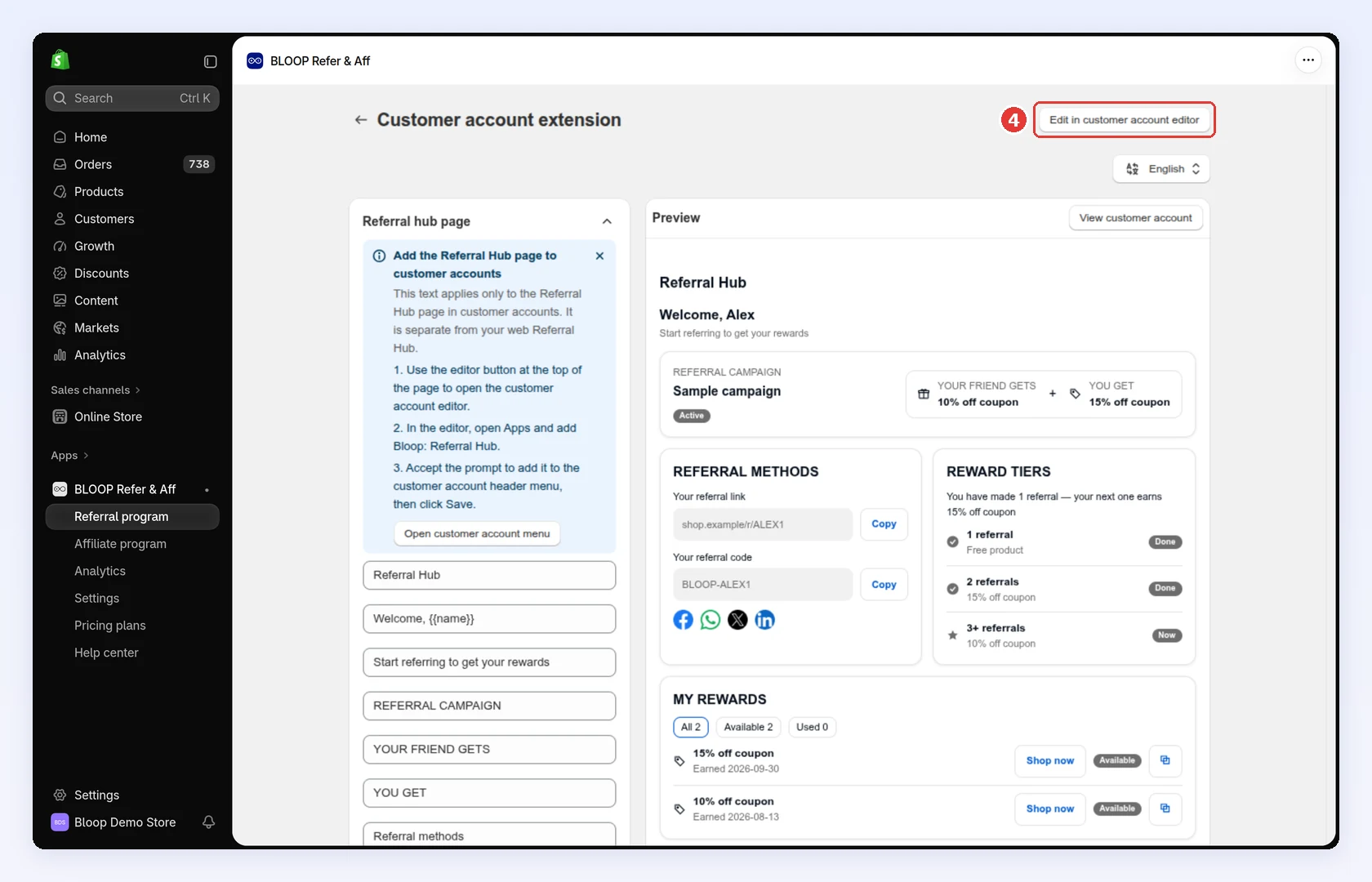
Click Edit in customer account editor. Shopify’s editor opens on the Profile page:
-
-
Add the blocks → Click Save
-
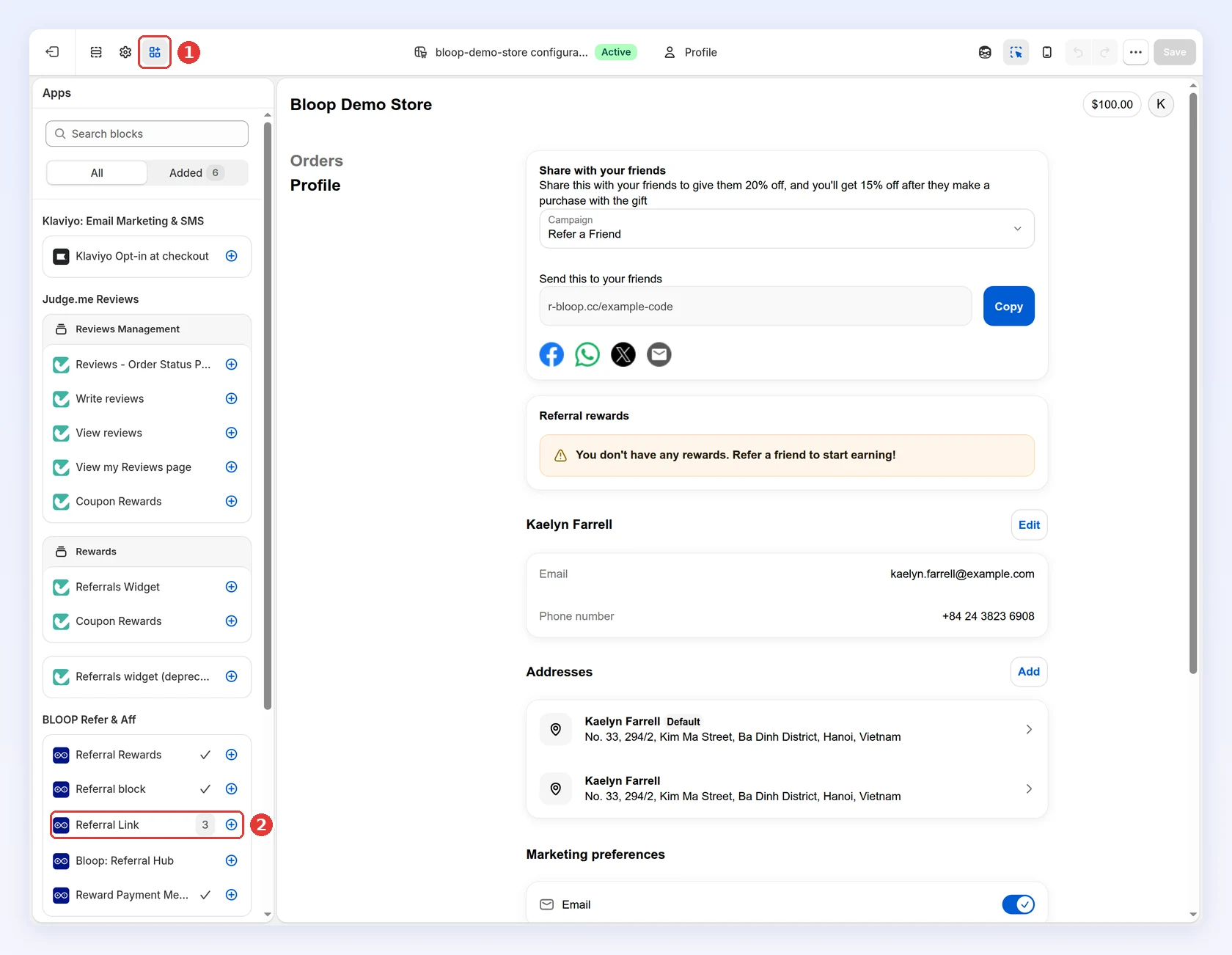
Click the Apps icon.
-
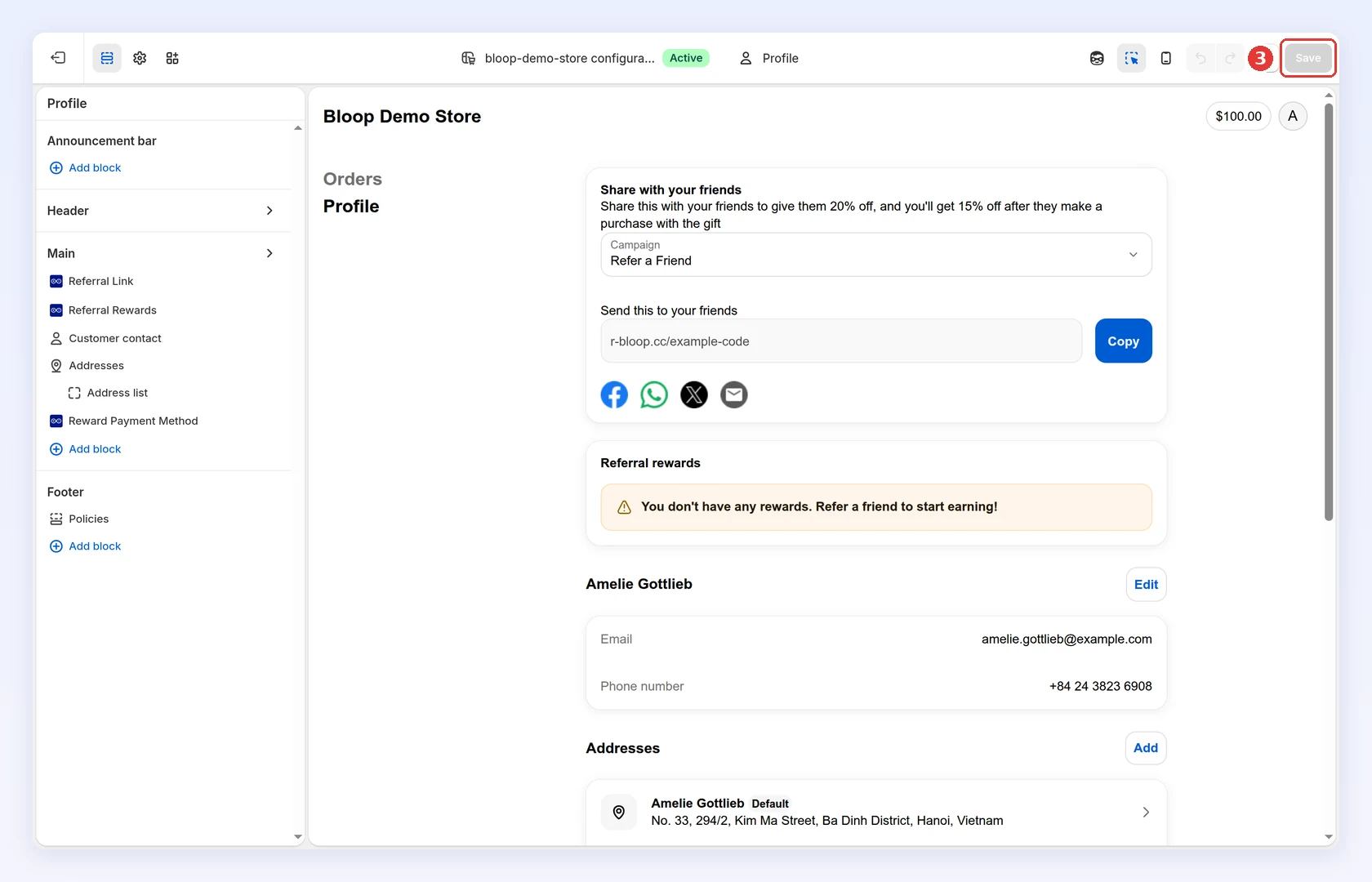
Under BLOOP Refer & Aff, click + next to Referral Link:
-
Repeat for Referral Rewards and Reward Payment Method.
-
The blocks appear in the Main list, where you can drag them into place. Click Save:
-
-
Add the Referral Hub page → Click Save
-
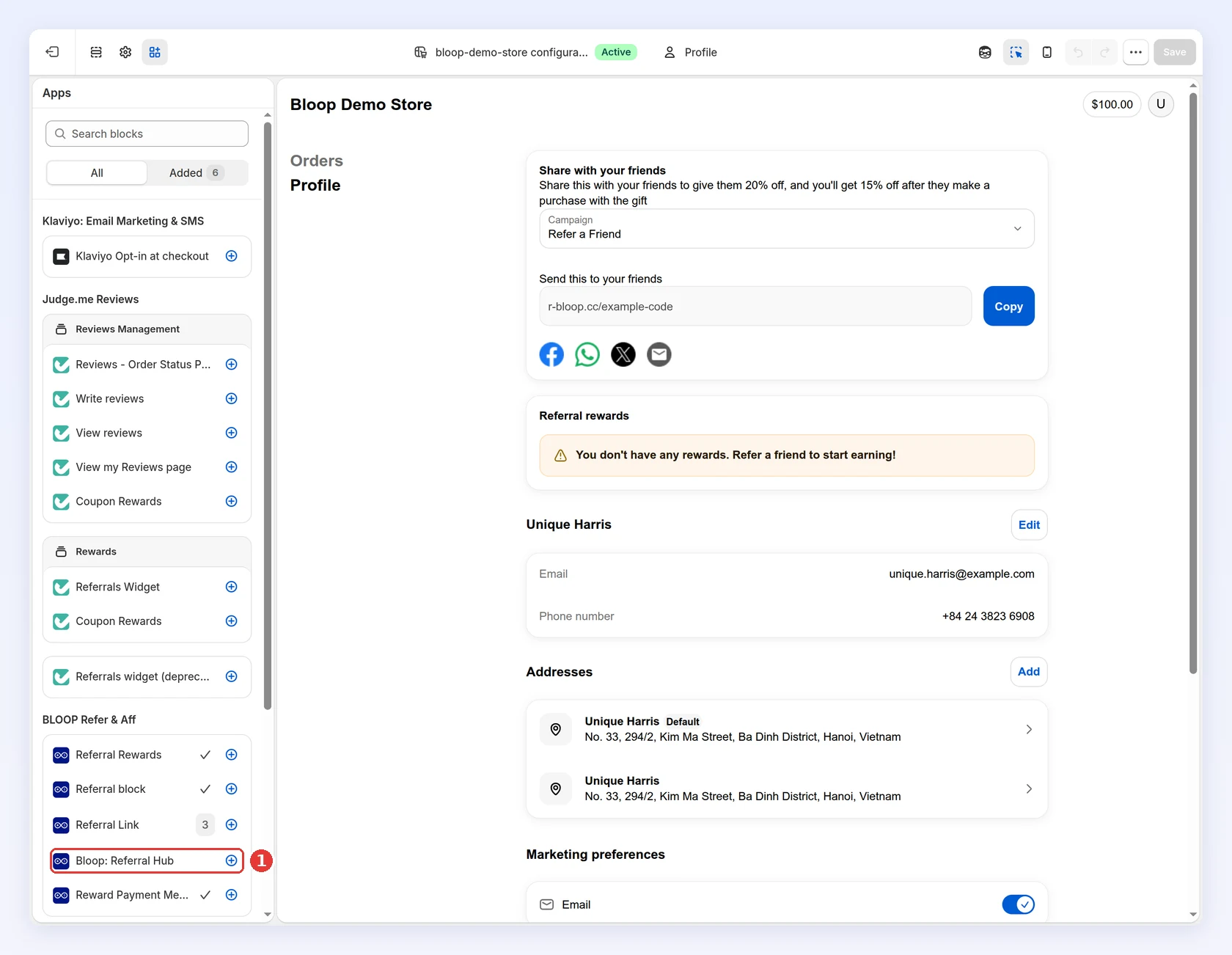
In the Apps panel, click + next to Bloop: Referral Hub:
-
Accept the prompt to add it to the customer account menu.
-
Click Save.
See what the page shows below.
-
-
Edit the wording → Click Save
-
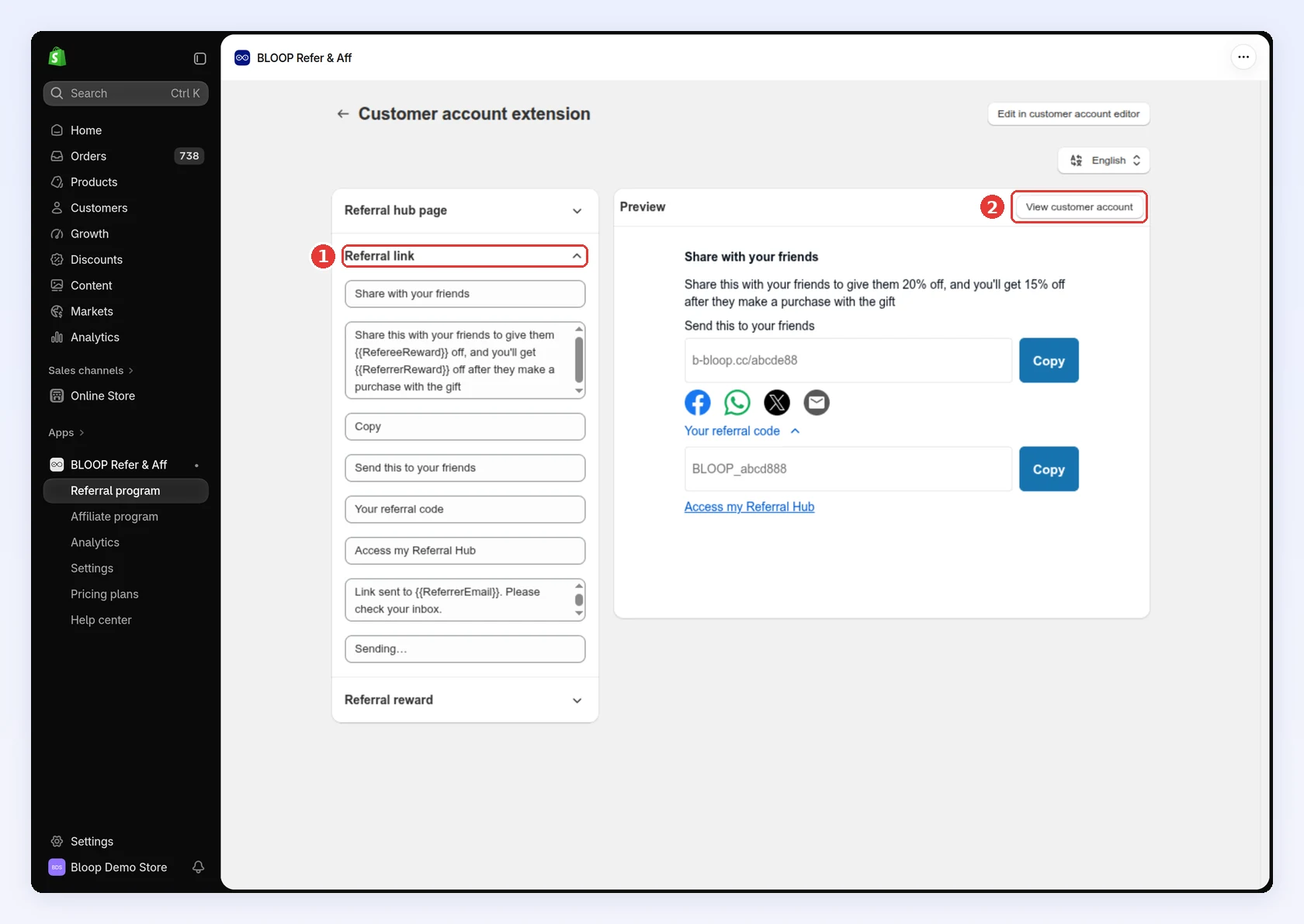
Back in Bloop, open a section: Referral hub page, Referral link or Referral reward. The preview on the right updates as you type.
-
Click View customer account to check it on your store:
-
Click Save.
Text is saved per language, like the rest of your campaign language settings. Switching language discards unsaved edits, so save first.
-
The Referral Hub page
Section titled “The Referral Hub page”Bloop: Referral Hub puts the whole referral hub inside the customer account: referral link and code, share buttons, tier progress, rewards and recent activity. Customers open it from the account menu like their orders, with no separate sign-in.
- Customers who haven’t joined yet see No Referral Hub yet, with a button to your referral page.
- Its wording is the Referral hub page section in Bloop, separate from your web referral hub’s text.
- It needs Shopify’s customer accounts, the version with the account editor. On legacy customer accounts, the blocks and the hub page can’t be added, so customers see nothing. Switch to new customer accounts in Shopify Settings → Customer accounts first.
The hub link
Section titled “The hub link”The Referral Link block ends with Access my Referral Hub, which opens the customer’s referral hub in a new tab. If they aren’t signed in to the hub on that device, Bloop emails a sign-in link to the address on their account.
Collect payment details for cash rewards
Section titled “Collect payment details for cash rewards”The Reward Payment Method block only offers the payout methods you turn on in Bloop.
-
Go to Settings → Referral → Payment method.
-
Tick each method you pay with. Use the pencil to edit one, or Add payment method for another. Click Save:
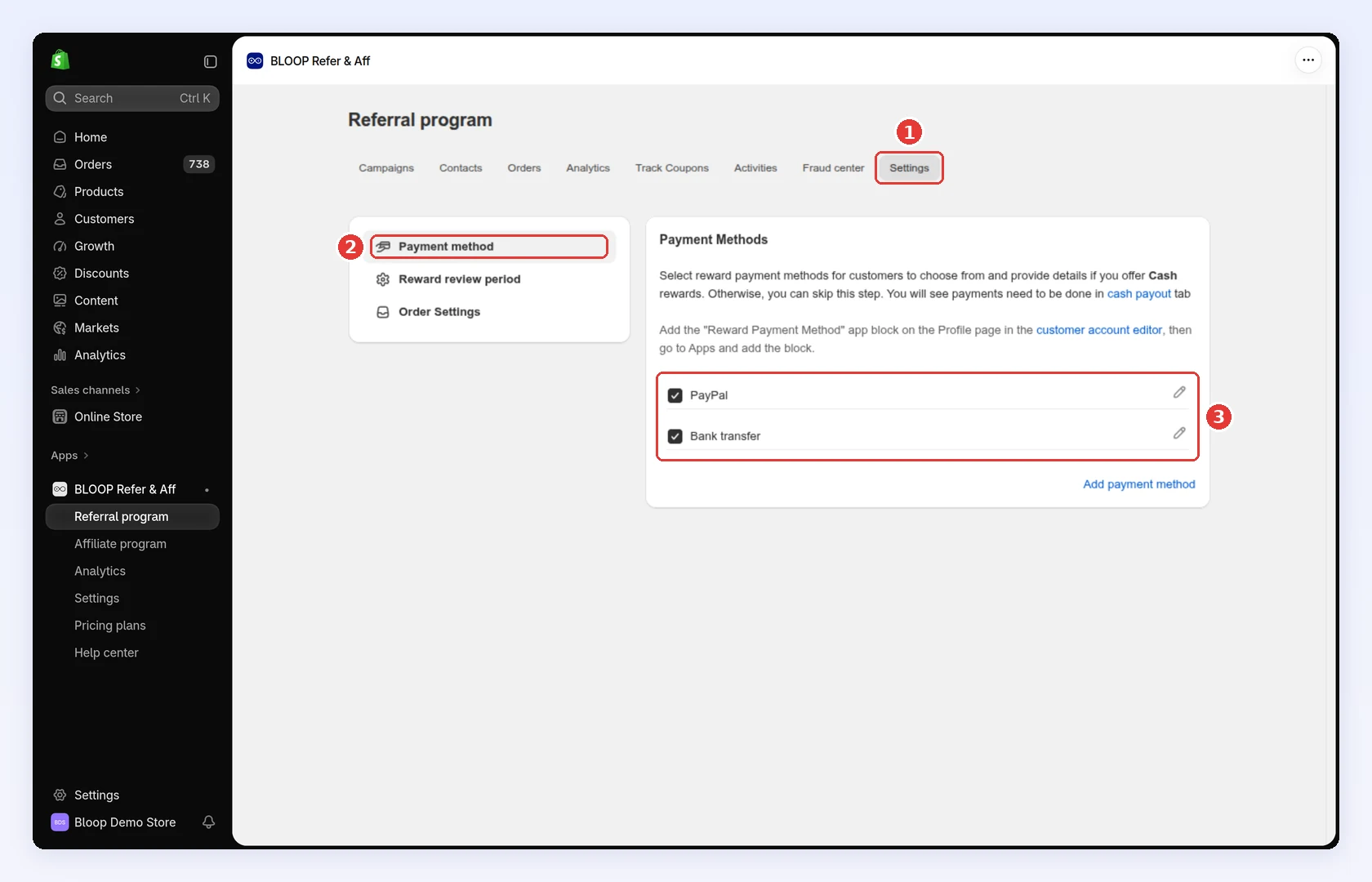
Referrers then pick a method and fill in its details in the block. You see them beside the referrer when you pay out. Until a referrer fills it in, their cash rewards wait in the payout queue with Referrer hasn’t added payment details yet.
Common mistakes to avoid
Section titled “Common mistakes to avoid”- Adding the blocks and never mentioning them. Nothing announces a new block in the account. Link to it from your welcome or reward emails.
Related
Section titled “Related”- Post-purchase popup - ask right after an order
- Referral hub - the full referrer dashboard
- Referrer and referee rewards - set up cash rewards
- Target audience - hide the program from customers outside it