

How to set up and brand your referral page
A referral page gives your program a permanent URL you can put anywhere: a menu item, a newsletter, an order email, a social bio. Bloop creates it as a real Shopify page on your own domain, so it inherits your theme and you style it in the theme editor like any other section.
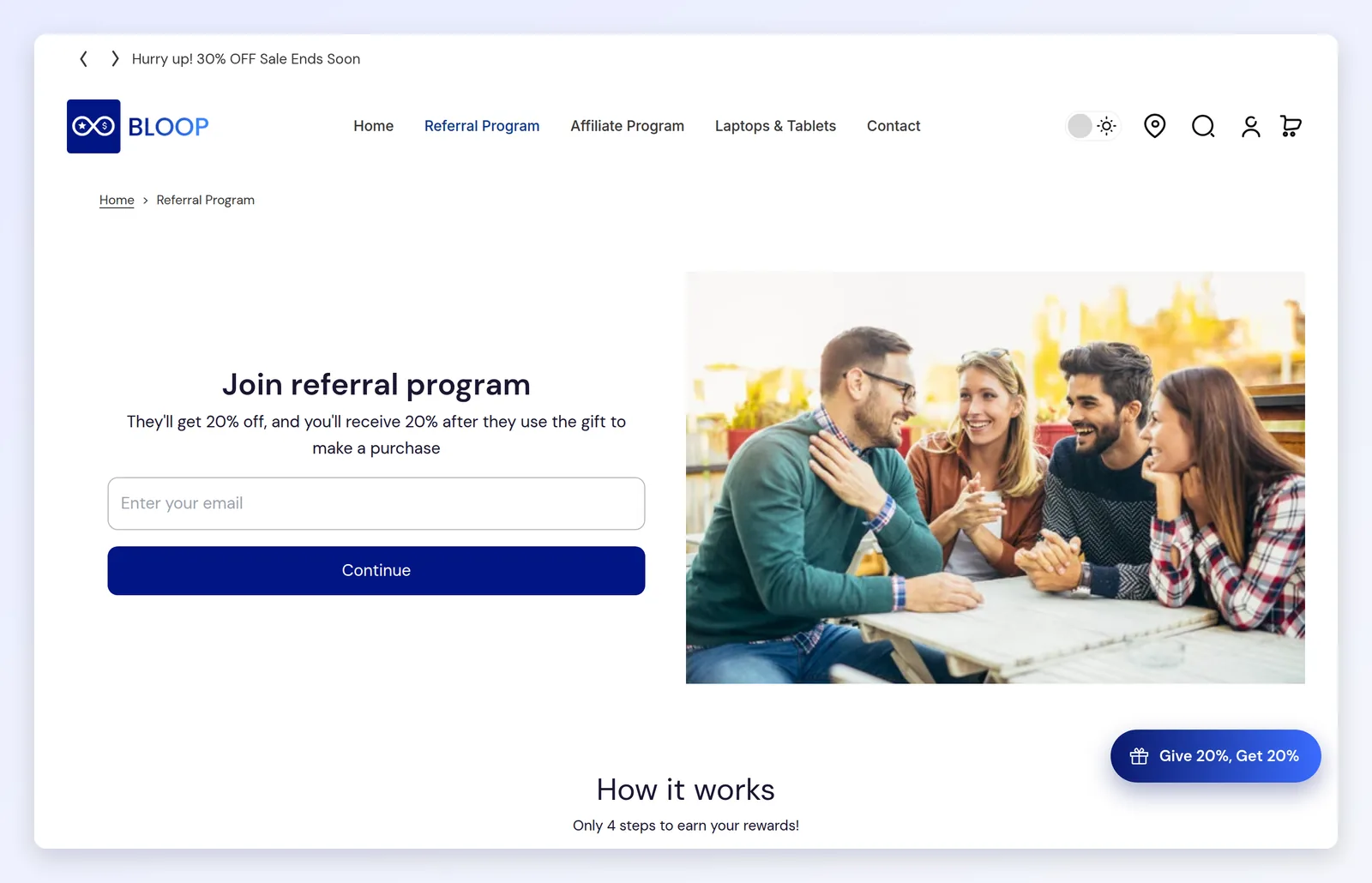
Reach for the page whenever the share has to start somewhere other than your storefront. If you only need to catch existing customers while they browse, the widget alone is enough.
What Bloop creates for you
Section titled “What Bloop creates for you”| Setting | Starts as |
|---|---|
| Page title | Referral Program |
| Page URL | /pages/referral-program (you can change it before you create the page) |
| Bloop block on the page | Not added. You add it in step 3 |
| Section order | Main, Guide, Reward |
| Main section image | Off |
| Section backgrounds | White for Main and Guide, light purple for Reward |
How to set up your referral page
Section titled “How to set up your referral page”-
Open the Referral page settings
-
Open your campaign and go to Branding.
-
Pick your applied theme in the Theme selector at the top.
-
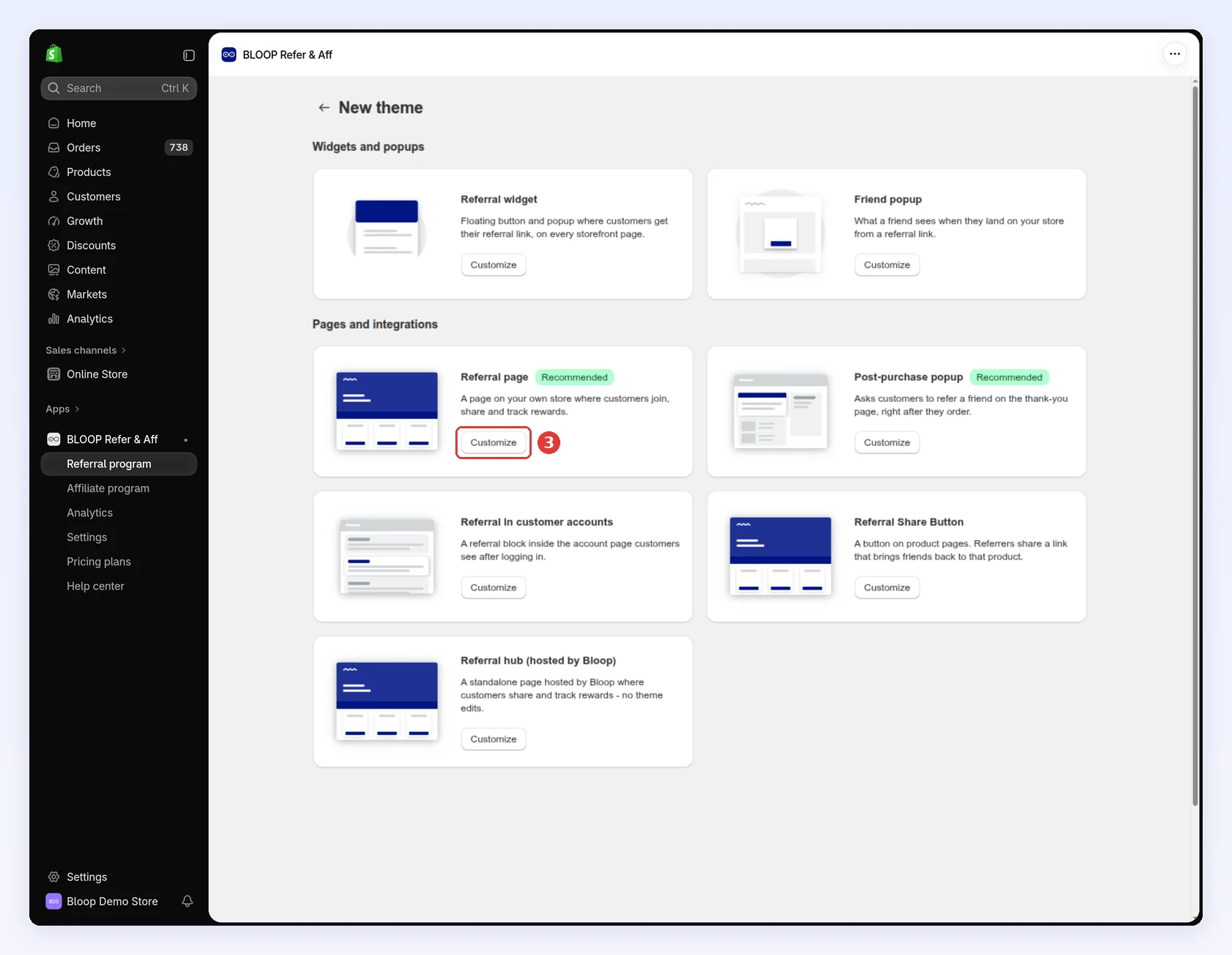
Under Pages and integrations, click Customize on the Referral page card:
-
-
Create the page
-
On the Setup tab, check the Landing page URL. Keep
referral-programunless you need another handle. -
Click Create:
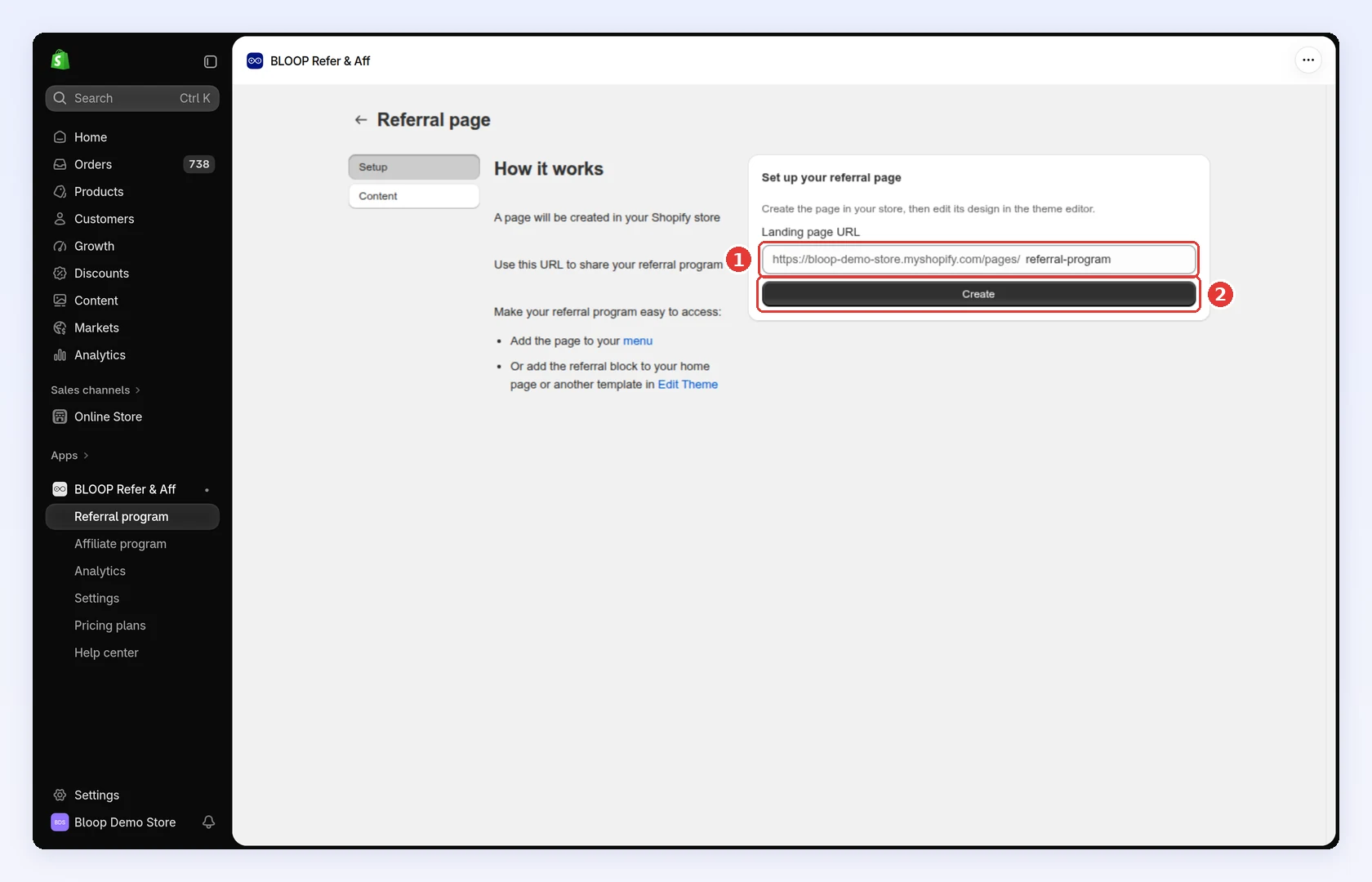
Bloop creates the page in your Shopify store, titled “Referral Program”. Handles must be unique; if one is taken, Bloop asks for another.
-
-
Add the Bloop block → Click Save
-
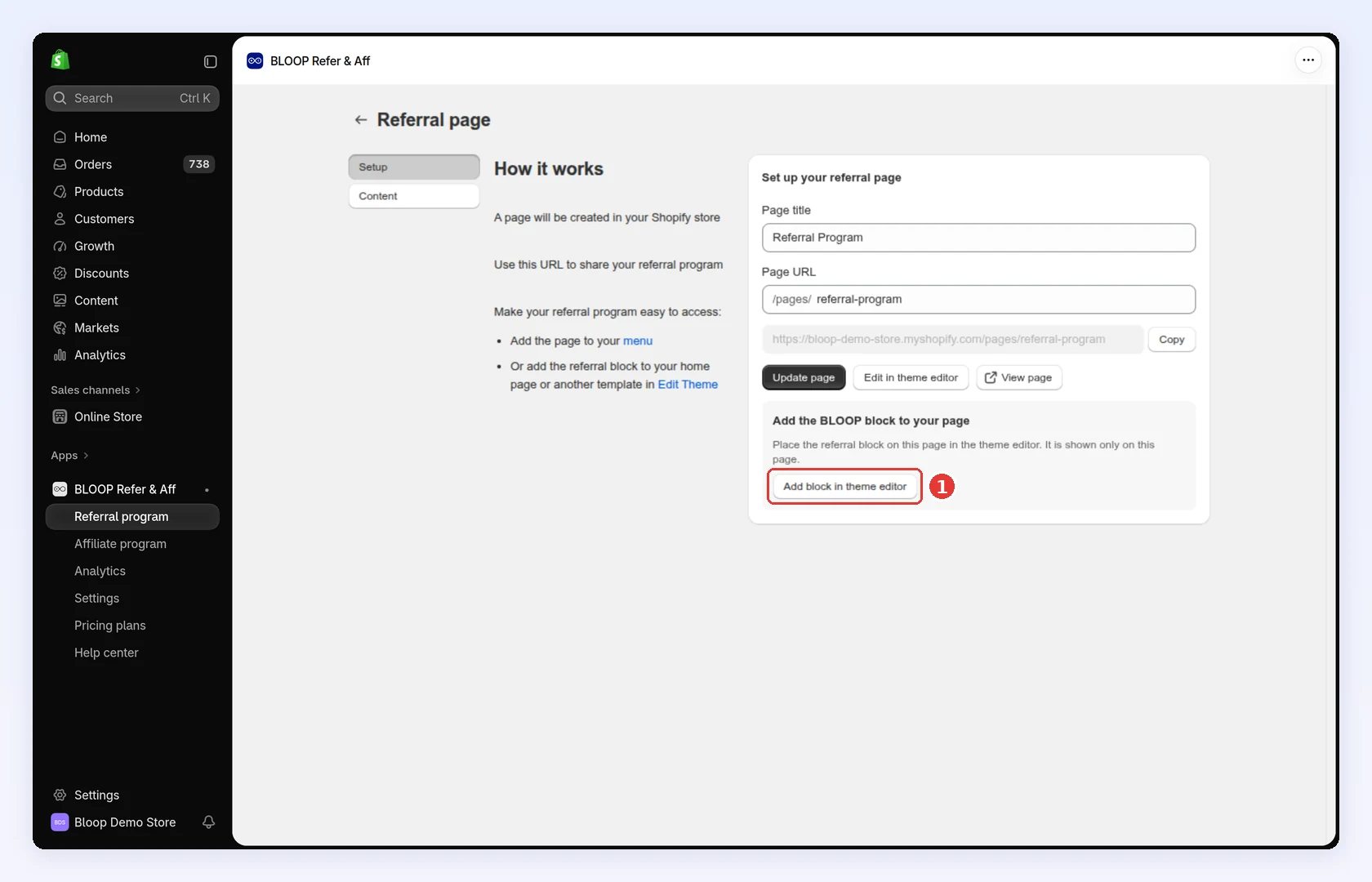
Under Add the BLOOP block to your page, click Add block in theme editor:
-
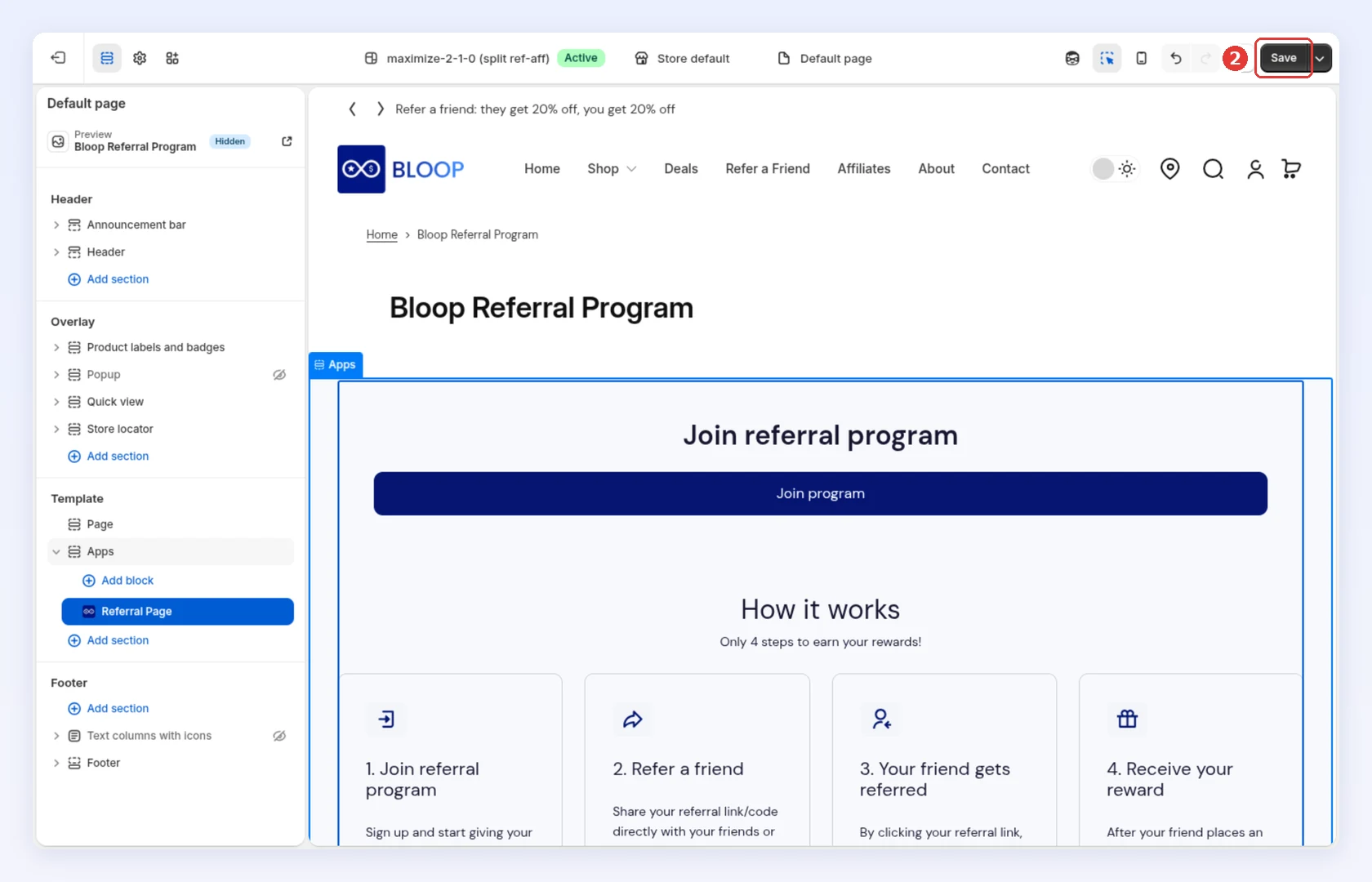
Shopify’s theme editor opens on your page with Referral Page added under Apps. Click Save:
-
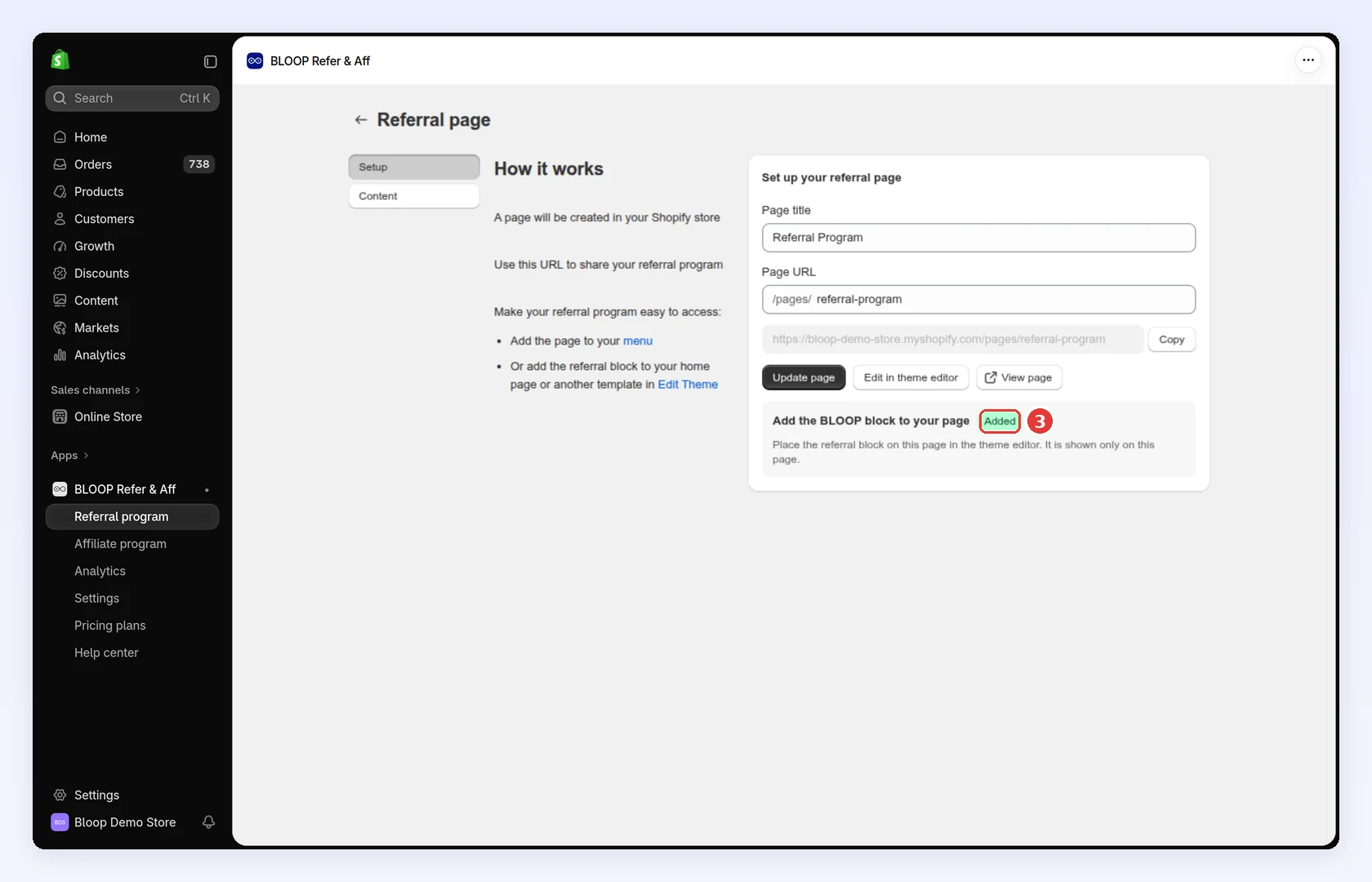
Back in Bloop, the step shows Added:
-
-
Write the content → Click Save
-
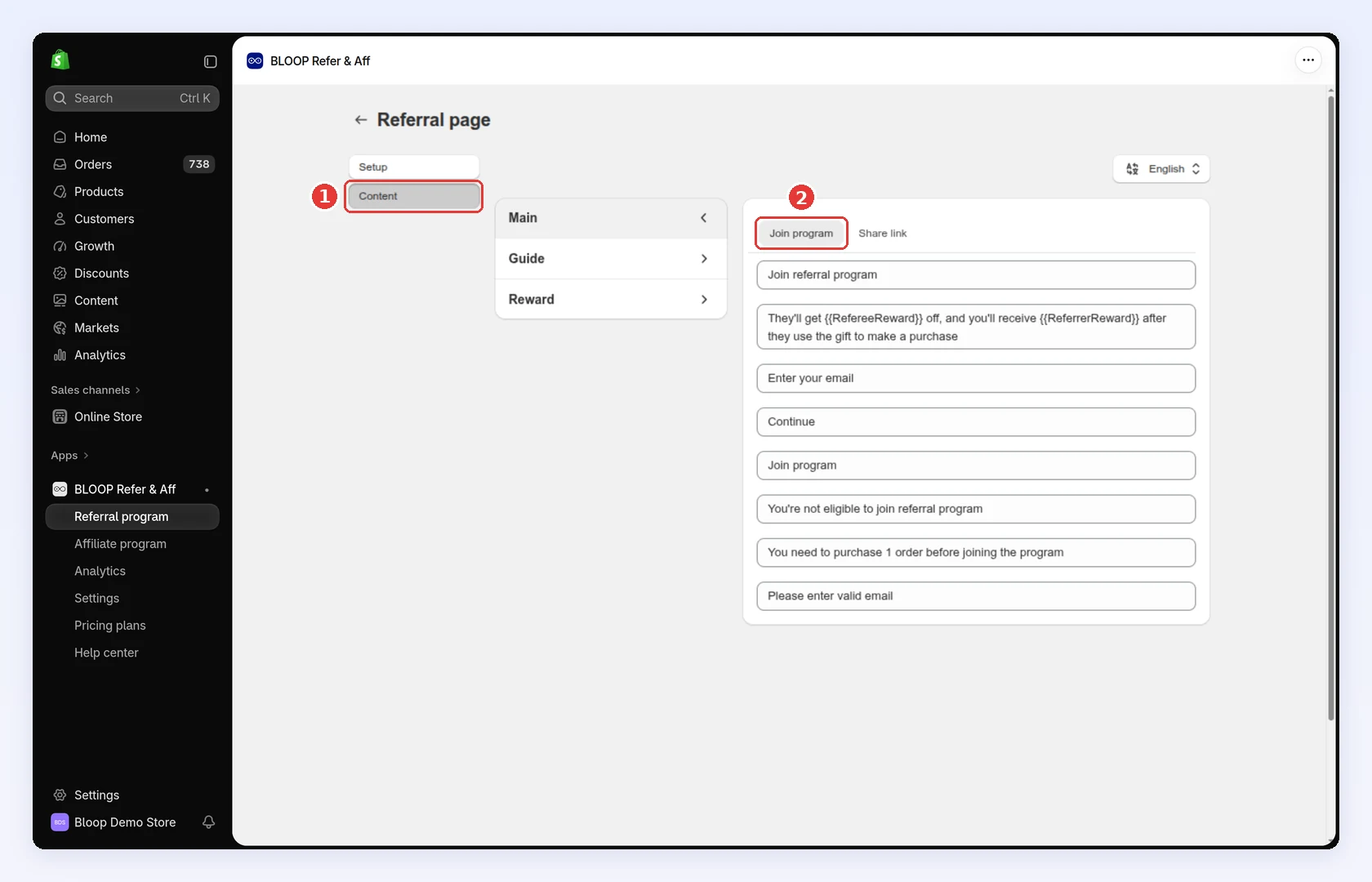
Click the Content tab.
-
Pick a section: Main, Guide or Reward. Main has two sub-tabs: Join program, what visitors see before they join, and Share link, what they see once they have a link to share:
-
Edit the text and click Save.
Text is saved per language. With automatic translation on for the campaign, each customer sees the text you wrote for their language, or Bloop’s built-in wording if you wrote none. With it off, everyone sees your default language. The language selector appears only when automatic translation is on; see campaign language settings.
-
-
Style the page → Click Save
- On the Setup tab, click Edit in theme editor.
- Under Apps, click Referral Page and change the settings (see Design settings below).
- Click Save in the theme editor.
-
Link to it from your store
-
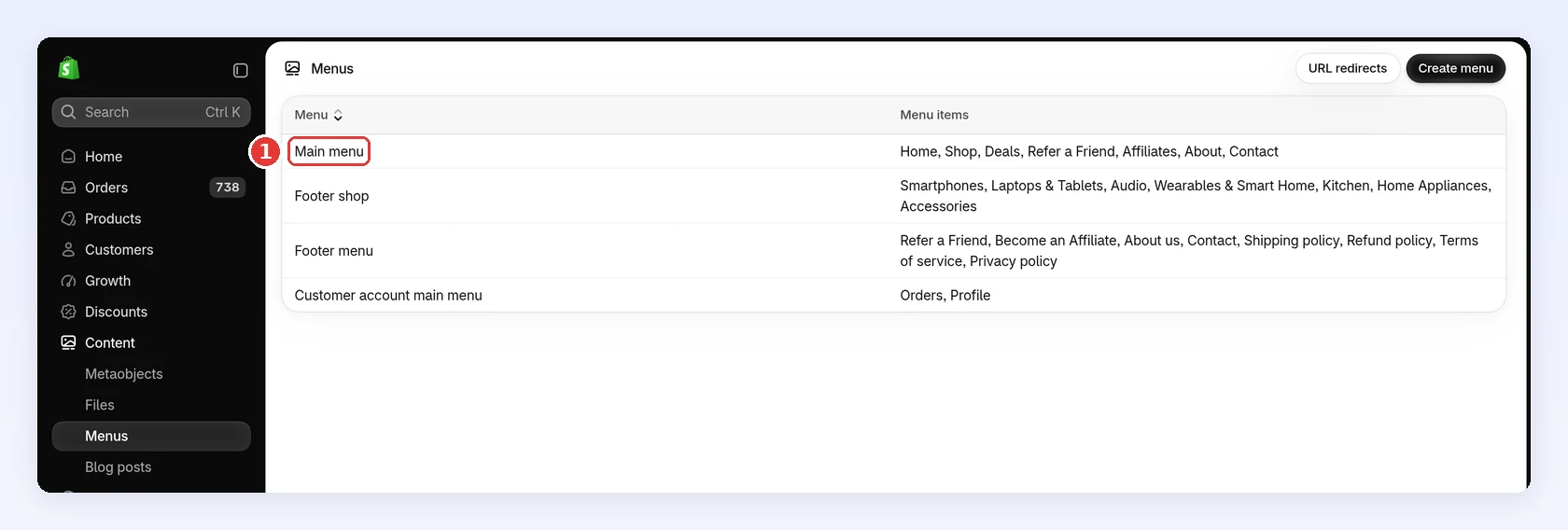
In your Shopify admin, go to Content → Menus and click Main menu (or your footer menu):
-
Click Add menu item, pick the Referral Program page, and click Save.
-
Design settings
Section titled “Design settings”The page is built from three sections: Main (the join-and-share block), Guide (how it works, always four steps) and Reward (the rewards the signed-in referrer has earned). The Referral Page block’s settings control all three:
| Setting | What it does |
|---|---|
| Section visibility | Hide the main, guide or reward section independently |
| Section order | Four arrangements, so you can lead with the guide instead of the form |
| Heading size | Small, medium or large, per section |
| Text / primary / background color | Per section |
| Padding top and bottom | 0–100 px per section |
| Image (main section) | Turn it on, pick the image, put it left or right, and set its width between 30% and 70% |
| Border radius | 0–10 px on the main block |
| Custom CSS | For the last detail the fields don’t cover |
Use Section order to lead with the guide when your program needs explaining, or with the main block when the reward speaks for itself. Turn on the main section image (a product shot at 40-50% width beside the signup block) so the page isn’t just a form.
Common mistakes to avoid
Section titled “Common mistakes to avoid”- Building the page and never linking to it. Menu, footer, newsletter, order emails: give it entry points on day one.
- Hiding sections you should reorder instead. If the guide is getting in the way, move it below the main block rather than turning it off.
Related
Section titled “Related”- Widget panel, launcher and referee popup - style the on-site widget
- Post-purchase popup - ask right after an order
- Customer account extension - reach logged-in repeat buyers
- Making your referral program visible - more entry points