

How to brand the widget panel, launcher and referee popup

The widget is what most customers meet: a launcher button on your storefront, the panel it opens, and the popup a friend sees when they arrive on a referral link. All three belong to a branding theme.
Open the widget editor
Section titled “Open the widget editor”-
Open Referral program, open your campaign and go to Branding. Pick the theme you’re working on in the Theme selector at the top.
-
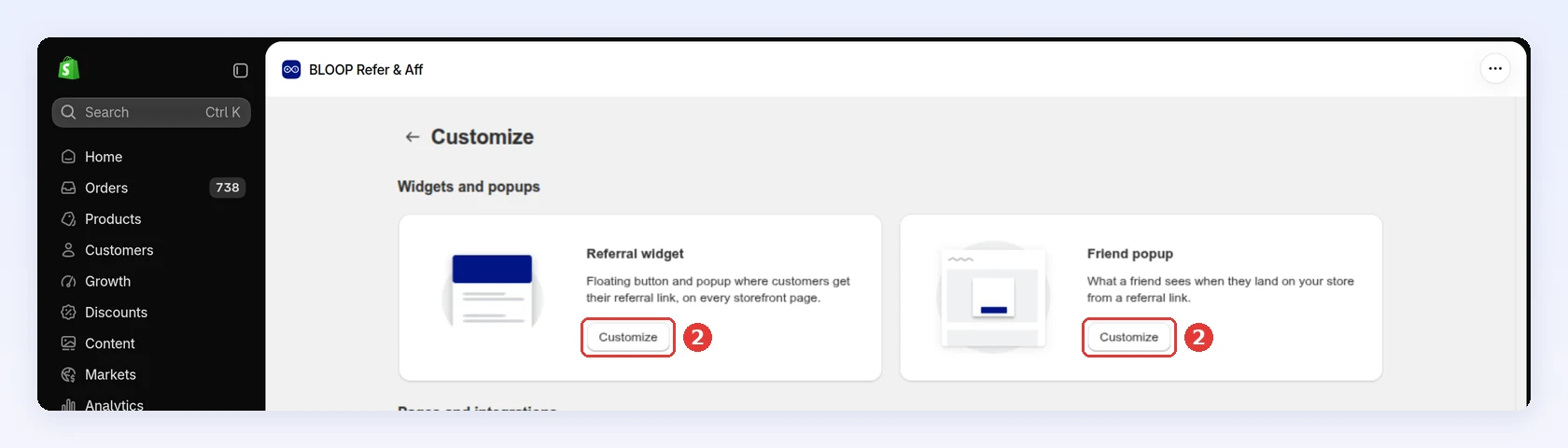
Under Widgets and popups, click Customize on Referral widget (the launcher and the panel) or on Friend popup (the referee popup):
Turn the widget on or off
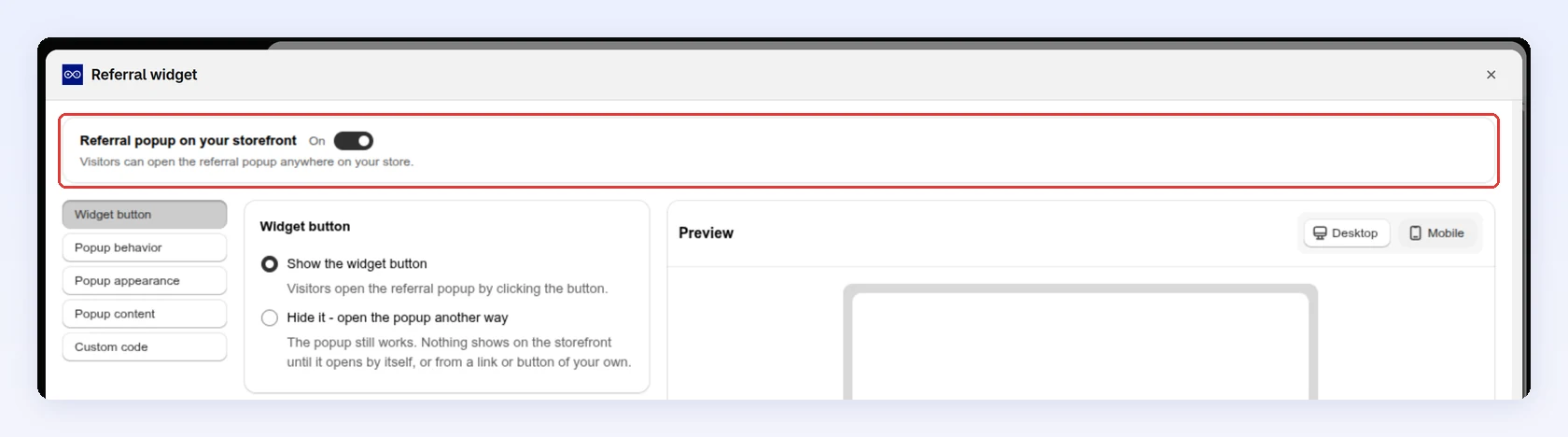
Section titled “Turn the widget on or off”The switch at the top of the Referral widget editor, Referral popup on your storefront, controls the widget on your whole store:
- On: visitors can open the referral popup anywhere on your store.
- Off: the button and page rules do nothing. The popup still opens for visitors arriving on a referral discount link, using your settings.
If your target audience is a customer segment or excludes segments, choose Hide the referral program completely under Customers outside the audience. Logged-in customers who don’t qualify then won’t see the popup, launcher, customer account block or thank-you page block. Logged-out visitors and your referral page are not affected.
Style the widget panel
Section titled “Style the widget panel”The Referral widget editor has five tabs: Widget button, Popup behavior, Popup appearance, Popup content and Custom code. The preview switches between desktop and mobile. The first two tabs are covered below.
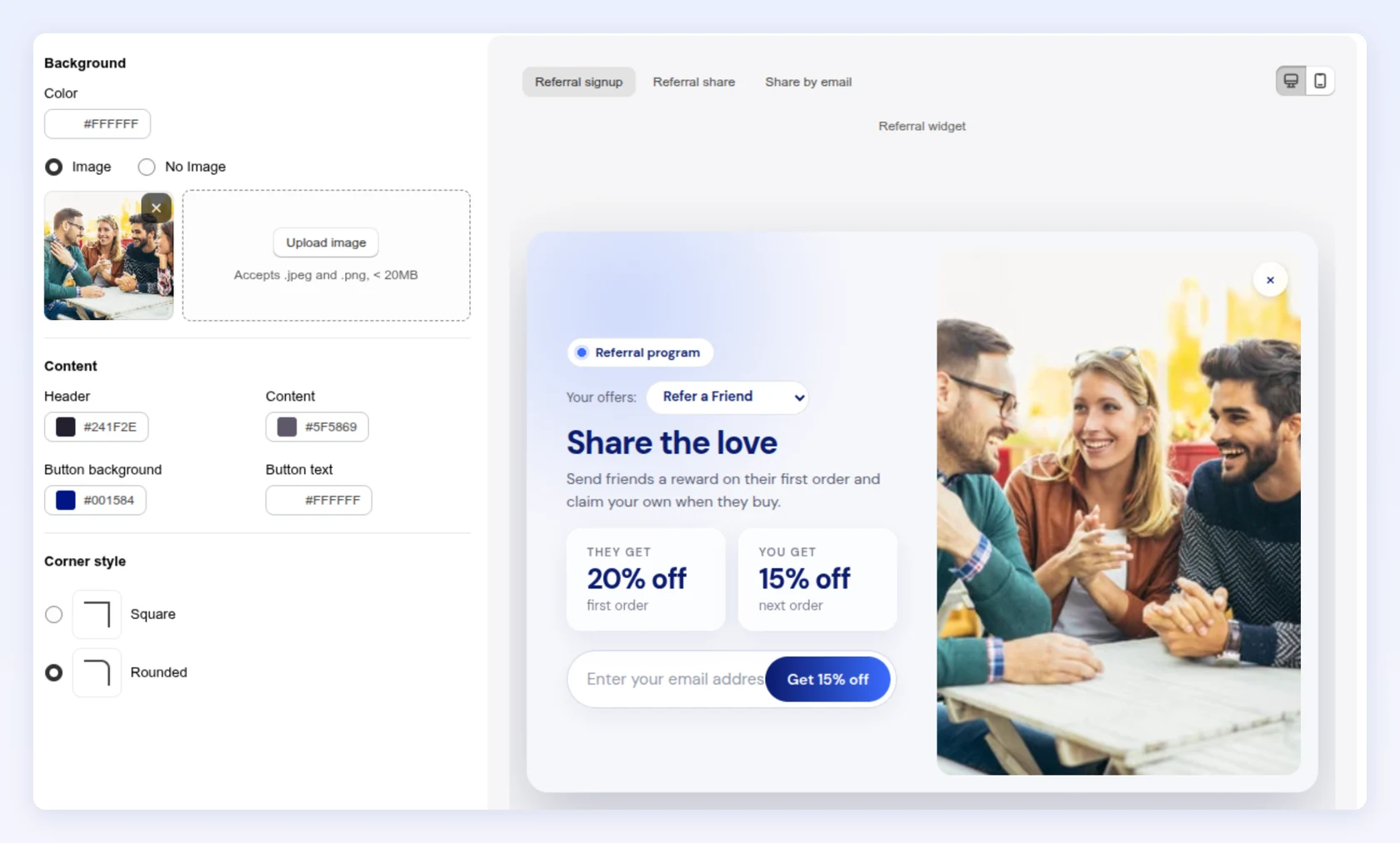
Popup appearance sets the look:
| Setting | What you set |
|---|---|
| Background | A Color, plus an optional Image (.jpeg or .png, under 20 MB). Choose No Image for a flat panel that loads fast and keeps attention on the reward |
| Content | Colors for the Header, Content, Button background and Button text |
| Corner style | Square or Rounded |
Popup content holds every text in the panel, grouped by step: Referral signup, Referral share and Share by email. Switch the preview to the same step to see your text in place.
Content saves per language. With automatic translation on, each customer sees the text you wrote for their language, or Bloop’s built-in wording if you wrote none. With it off, everyone sees your default language. The language selector only appears when automatic translation is on; see campaign language settings.
Custom code adds CSS and JavaScript to the widget button and popup on your live store, up to 50 KB each. Preview runs it in the editor only; save to apply it to your store.
If your code shows its own text, put that text in Custom text slots so it is translated like the rest of the popup.
Configure the widget launcher
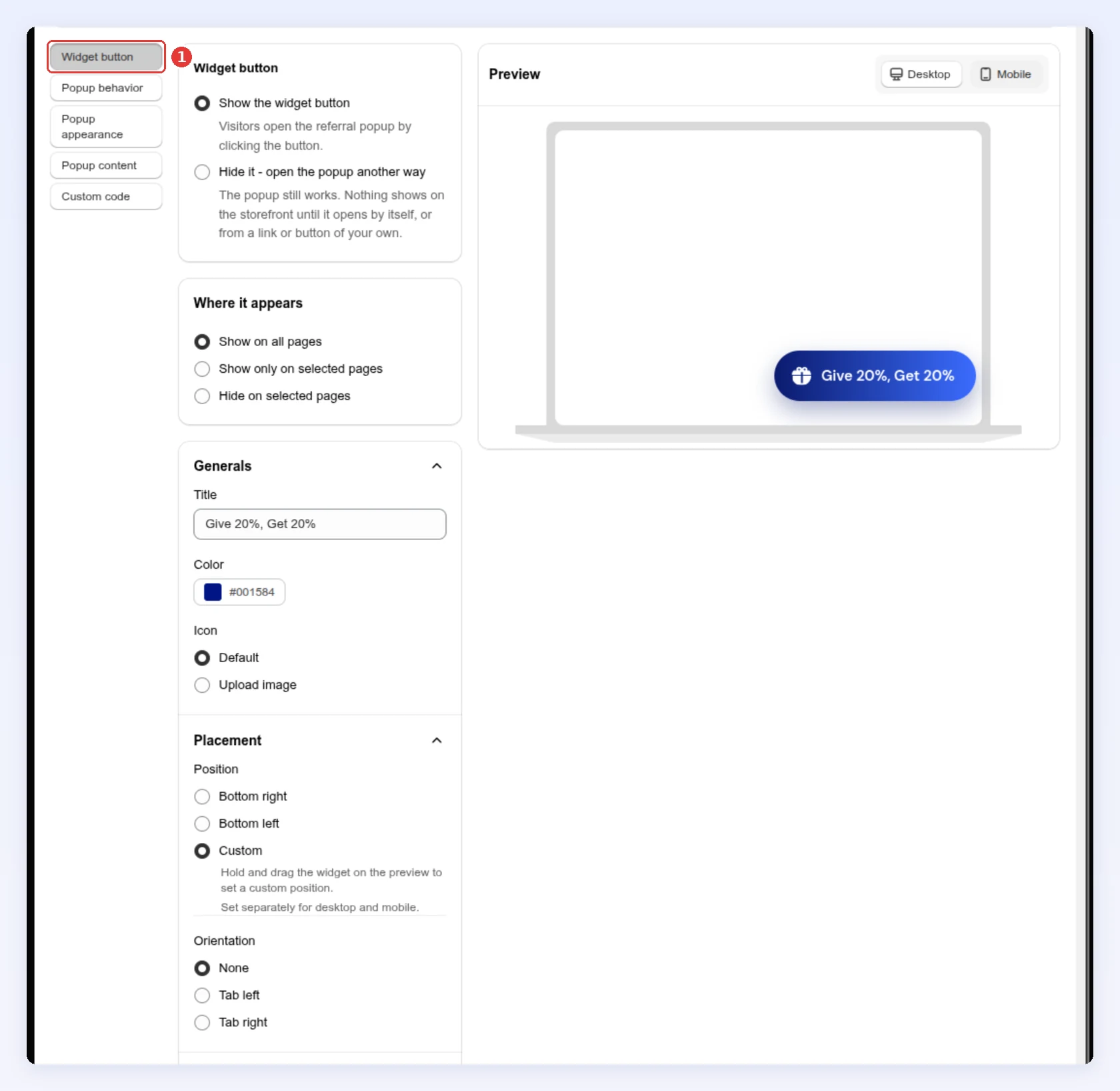
Section titled “Configure the widget launcher”The Widget button tab sets whether the launcher shows and how it looks. Open Customize on the Referral widget card (see the steps at the top); Widget button (1) is the first tab:
| Section | What you set |
|---|---|
| Widget button | Show the widget button or Hide it - open the popup another way |
| Generals | Title, Color, and Icon: Default or Upload image (.jpeg, .png, .ico, under 20 MB) |
| Placement | Position: Bottom right, Bottom left or Custom (drag it on the preview, set separately for desktop and mobile). Orientation: None, Tab left or Tab right to make it a side tab |
| Display | Icon and Text, Only icon or Only text, set separately for desktop and mobile |
| Border | Square or rounded corners |
On some older plans, the Custom position, a separate Mobile display and the rounded border are locked.
To start a share from a product page, add the Referral Share Button. It opens this same popup.
Open and close the popup by itself
Section titled “Open and close the popup by itself”The Popup behavior tab controls what happens without a click:
| Setting | What it does |
|---|---|
| Auto-open popup on page load | Opens the popup when the page loads |
| Wait before opening | Seconds to wait before it opens (shown when auto-open is on) |
| Close the popup automatically | Closes the popup after the seconds you set, if the visitor hasn’t closed it |
Auto-open is the most intrusive setting. Pair it with a short delay and an auto-close, on the pages where it earns its place.
Choose which pages show the launcher
Section titled “Choose which pages show the launcher”Where it appears is on both the Widget button and Popup behavior tabs:
| Mode | Use it when |
|---|---|
| Show on all pages | Your storefront isn’t crowded and you want maximum reach |
| Show only on selected pages | You want it only where intent is high, such as cart and product |
| Hide on selected pages | You want it sitewide except a few pages, such as landing pages |
Pick from Home page, Cart page, Product page, Collection page and Search page, or add a Specific URL. With the button hidden, these rules decide where the popup can open at all: on an excluded page, your own link or button won’t open it either.
Customize the referee popup
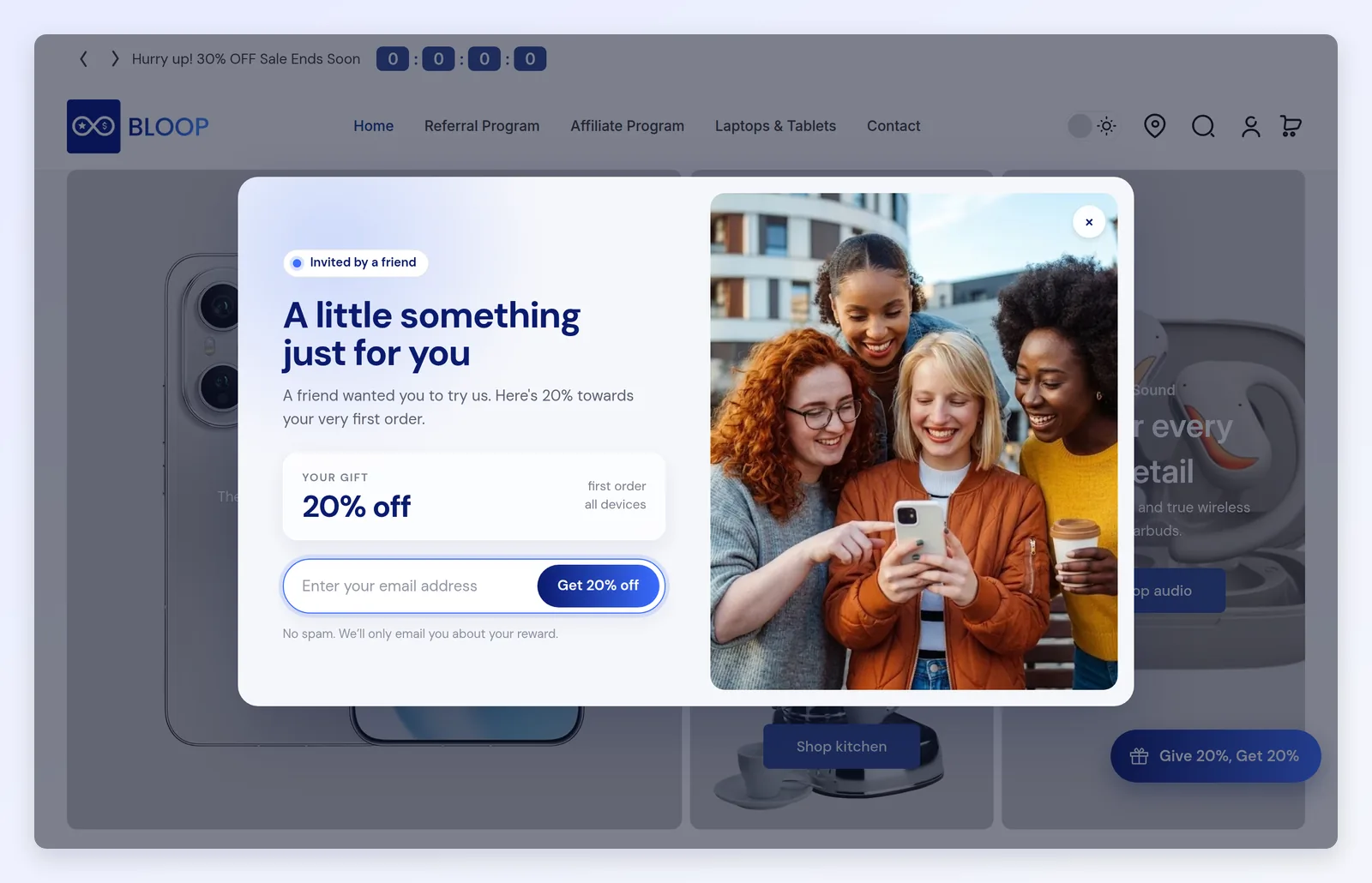
Section titled “Customize the referee popup”Friend popup is what a friend sees when they land on a referral link, often their first impression of your store:
-
On the campaign’s Branding step, with your theme picked, click Customize on the Friend popup card.
-
In Appearance, set the background, colors and corner style.
-
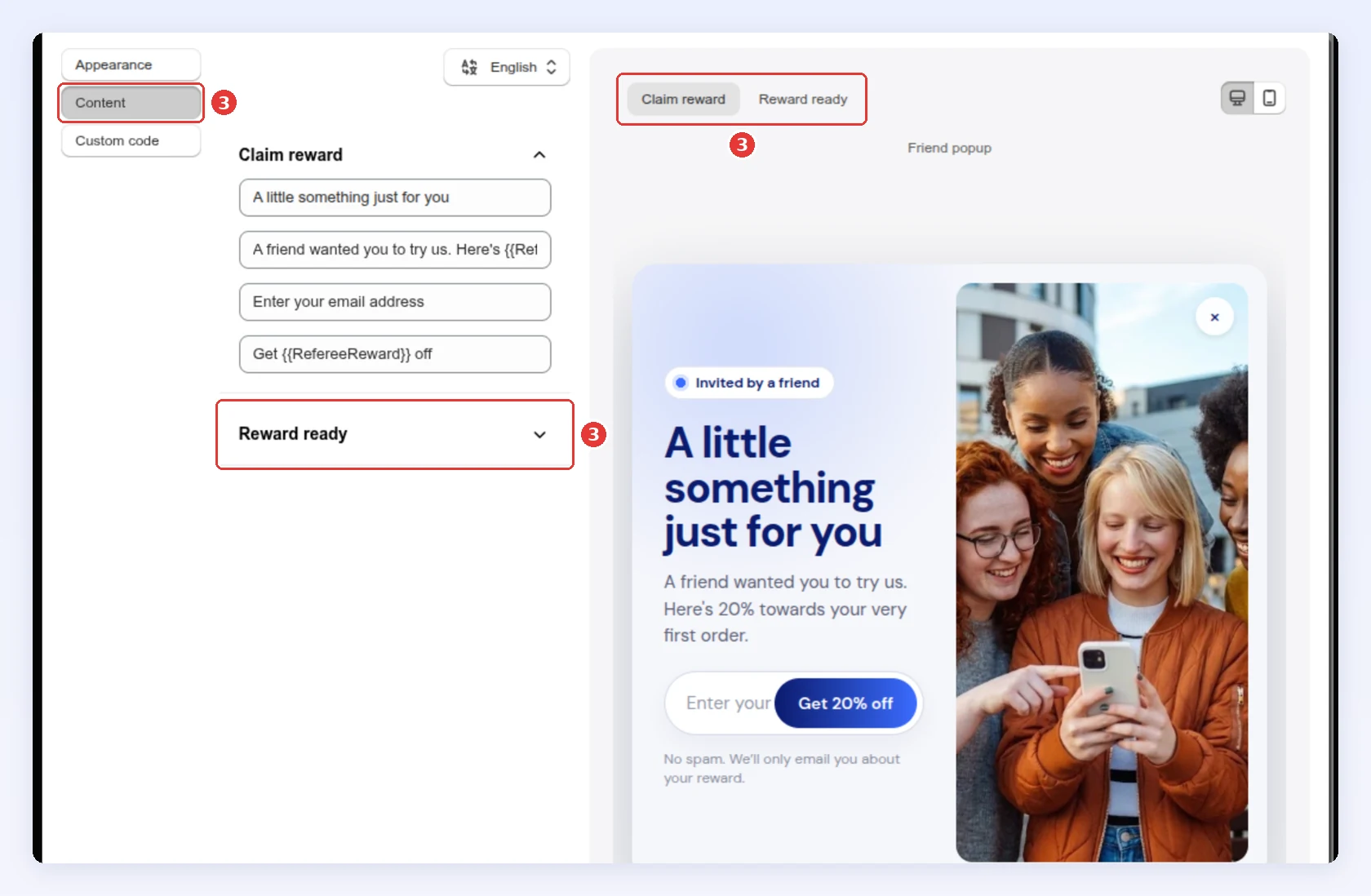
In Content, edit the text for each step. Claim reward shows first, when the friend enters their email. Reward ready shows next, with their discount code to copy. Switch the preview to the same step to check your text:
-
Click Save.
Say a friend sent the reward, and keep the popup to one button.
Best practices
Section titled “Best practices”- Lead with the reward. Put the value in the launcher title (“Give $10, get $10”, not “Rewards”) and in the panel headline, and show the friend’s reward first.
- Keep the panel clean: a light background and product-focused images over lifestyle photos.
- Test a copy of the theme. Duplicate the applied theme, change the copy, and apply it when you’re happy. See branding themes.
These are common patterns, not Bloop measurements. Confirm them on your own traffic with an A/B test.
Common mistakes to avoid
Section titled “Common mistakes to avoid”- Over-branding the panel. A crowded, heavily styled popup converts worse than a clean one.
Next steps
Section titled “Next steps”- Manage and apply themes in Branding themes.
- Give customers a permanent destination with the referral page.
- Prompt buyers right after checkout with the post-purchase popup.
- Confirm a design or copy change with A/B testing.