

How to write tier-specific text in referral emails
Tiers often hand out different rewards: store credit at the lower ones, a free product at the milestone. A sentence written for credit reads badly next to a gift. Conditional blocks let one template read right at every tier.
This applies to the Referral progress email, and to the tier table on the Welcome and Referral progress emails. You need FlexiTiers turned on.
What you’ll set up
Section titled “What you’ll set up”- A paragraph that changes with the tier the referrer reaches
- A sentence that changes only at the reward, inside the same line
- A check of every tier in the preview before you go live
How to add a tier-specific paragraph
Section titled “How to add a tier-specific paragraph”-
Put the cursor where the paragraph belongs.
-
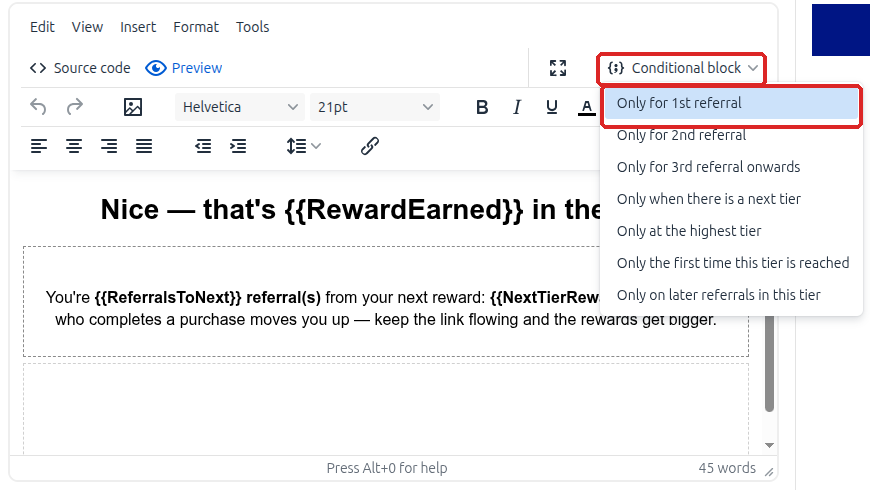
Select Conditional block in the toolbar, and pick a condition:
-
Type inside the empty box that appears. The grey tag shows the condition and is never sent.
-
Repeat for each tier that needs its own wording.
Anything you leave unmarked is sent every time, exactly as before.
| Condition | Sent when |
|---|---|
| Only for a tier | The referral landed the referrer on that tier |
| Only when there is a next tier | The tier has another one above it |
| Only at the highest tier | The top tier, with nothing after it |
| Only the first time this tier is reached | The referral that moved them into the tier |
| Only on later referrals in this tier | The 2nd, 3rd and later referrals inside the same tier |
On a Loop cycle, the highest-tier condition is replaced by Only when the cycle starts over. It fires on the referral that sends the referrer back to tier 1.
Conditions combine. A block for a tier and a block for the first time in that tier both appear on the same email when both are true.
Blocks sit next to each other, never inside each other. If the cursor is inside a block and you pick a second condition, the new block goes after it.
How to change a few words instead
Section titled “How to change a few words instead”-
Select the words.
-
Select Conditional block in the toolbar, and pick a condition:
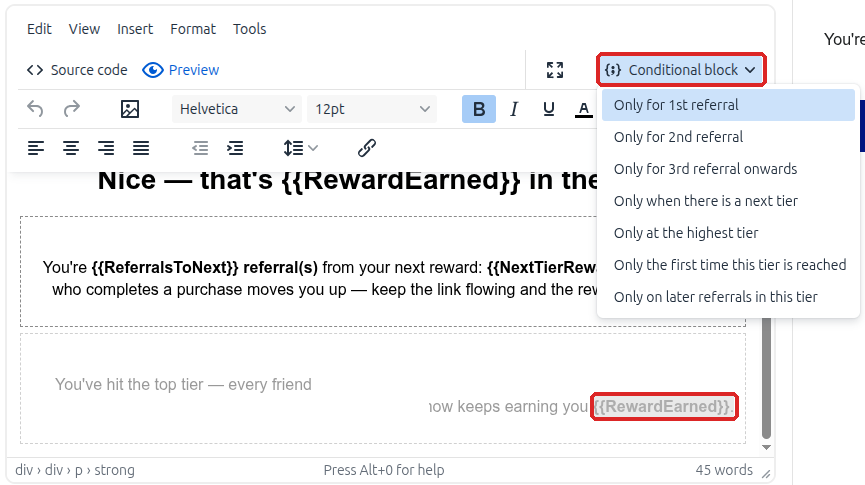
The selection stays in its sentence and is highlighted rather than boxed. Everything around it is sent every time.
For example, you can write one sentence that changes only at the reward: You have earned $5 store credit or a free product for this referral. Each highlighted part goes to its own tier, and the reader sees one line.
How to check every tier
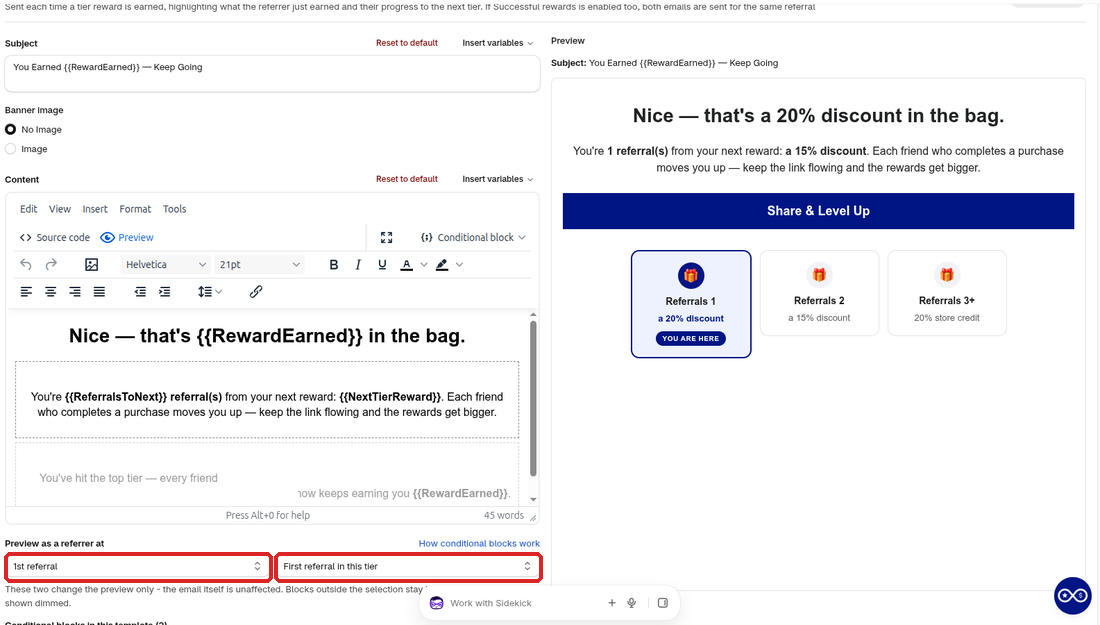
Section titled “How to check every tier”The two Preview as a referrer at selectors under the editor set who the preview pretends to be. They change the preview only. The email itself is untouched.
-
In the first selector, pick a tier.
-
In the second, pick first or later referral in that tier:
-
Click Preview to see the finished email with the non-matching blocks removed.
-
Repeat for every tier. A tier with nothing to say is easier to spot here than in a customer’s inbox.
There’s no separate selector for the next tier, because it follows from the tier you pick. Choose the last tier, and the “next tier” blocks drop out while the “highest tier” blocks appear.
The editor itself shows every block, dimmed when it falls outside the current selection, so you can see the whole template. Under the selectors, Bloop lists the blocks in your template. Click one to jump to it.
Warnings you may see
Section titled “Warnings you may see”| Warning | What to do |
|---|---|
| A block points at a tier that no longer exists | You deleted or replaced that tier, so the block can never be sent. Remove it, or point it at a live tier |
| The highest-tier block is never sent | Your Loop cycle is made of single-referral steps, so nobody sits inside the highest tier. Use Only when the cycle starts over instead |
Reordering tiers is safe. Blocks follow the tier itself, not its position in the list.
How to style the tier table
Section titled “How to style the tier table”The Welcome and Referral progress emails show a table of your tiers. At the end of each editor, the collapsed Tier reward style section lets you change it:
| Field | What it controls |
|---|---|
| Custom code | A <style> block for the table’s CSS, and one <img> tag to replace the default gift icon. Nothing else is allowed. The editor shows the size budget as you type |
| Referral range label and “You are here” label | The wording on each tier row, and the marker on the referrer’s current tier |
| Discount, store credit, cash and free product text | How each reward type reads in the table. Keep the {{amount}} placeholder where the value belongs |
Next steps
Section titled “Next steps”- Read How to configure referral email notifications for the full list of emails and timing.
- Set the tier rewards in FlexiTiers.