

How to read your referral analytics
Analytics tells you whether your referral program pays, and where it leaks: who saw the offer, who shared, on which channel, and which friends bought. On this page, a friend is the person a referrer invites; the app calls them the referee.
What you’ll do
Section titled “What you’ll do”- Open the report that answers your question, for the dates you care about.
- Read the few numbers that matter in each report, and what to change when one is low.
- Know why a number may not match Shopify or the Orders tab.
How to read a report
Section titled “How to read a report”-
Open a report → Set the range and filters
-
In the app menu, click Analytics. If your store also runs an affiliate program, pick Referral in the Referral | Affiliate switch above the list. Bloop remembers your last choice in that browser. For affiliate reports, see How to read your affiliate analytics.
-
Pick a report on the left. On a phone, pick it from Report. My dashboards, under the reports, holds dashboards you built yourself:
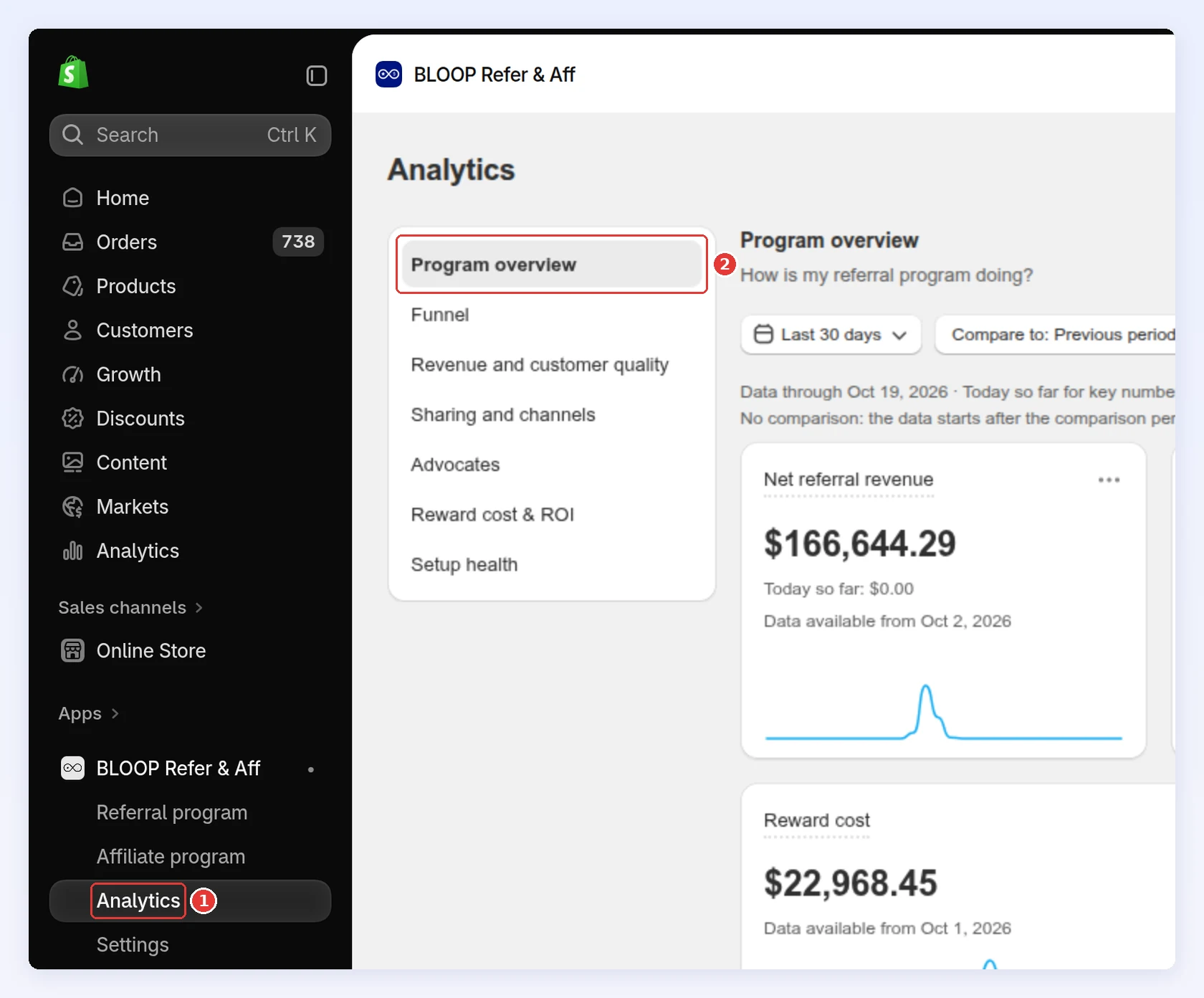
-
Set the date range, Compare to, Group by, and the Campaign, Entry point, Device and Country filters.
-
In Revenue, keep Net (the default: order subtotal after discounts and refunds, without tax and shipping) or pick Gross (the total at payment, including tax and shipping, before refunds). The choice applies to every report, Home, the campaign summary, referrer lists and A/B tests, for everyone in your store. Revenue tiles change their names to match, such as Gross referral revenue.
-
Click Definitions, or hover a tile’s title, for the exact meaning of a number.
-
Click ··· on a tile to Export CSV, View definition or Copy value:
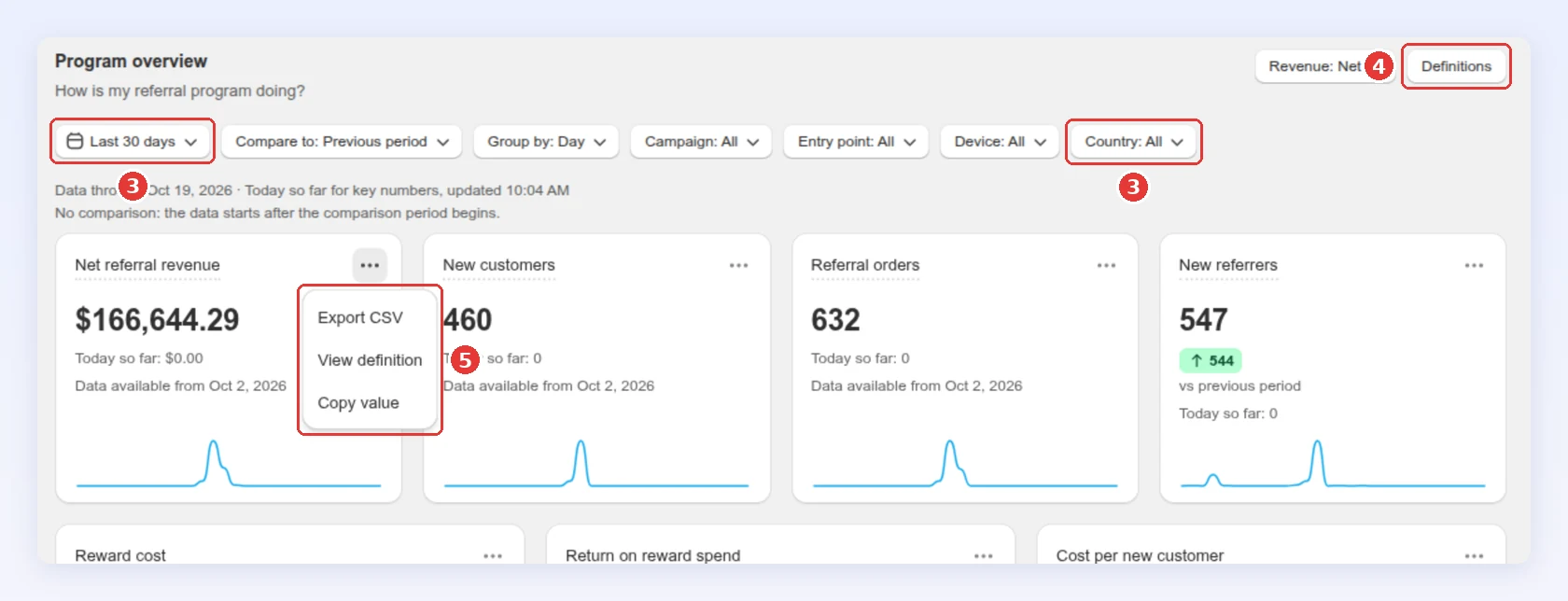
The page address keeps the report, range and filters, so you can bookmark a view or send it to a colleague.
-
The reports
Section titled “The reports”| Report | The question it answers |
|---|---|
| Program overview | How is my referral program doing? |
| Funnel | Where do people drop off before they refer or buy? |
| Revenue and customer quality | How much revenue do referrals bring, and how good are those customers? |
| Reward cost & ROI | What do rewards cost, and what do they bring back? |
| Sharing and channels | Which share channels bring visitors and customers? |
| Advocates | Who are my best referrers, and who needs a nudge? |
| Setup health | Is everything set up so referrals are tracked? |
| Fraud | How many referrals were flagged, and how were they resolved? |
| Emails | Are referral emails going out and getting opened? |
| Campaigns and A/B | Which campaign earns the most, and is the A/B test settled? |
| Time to convert | How long does a friend take from claiming a reward to ordering? |
| Cohorts | Do referrers who join in a month keep bringing customers? |
| Tiers | Where do my referrers stand in my tiers, and who is close to the next one? |
The page opens on Program overview once your store has had a referral order, and on Setup health before that.
Program overview
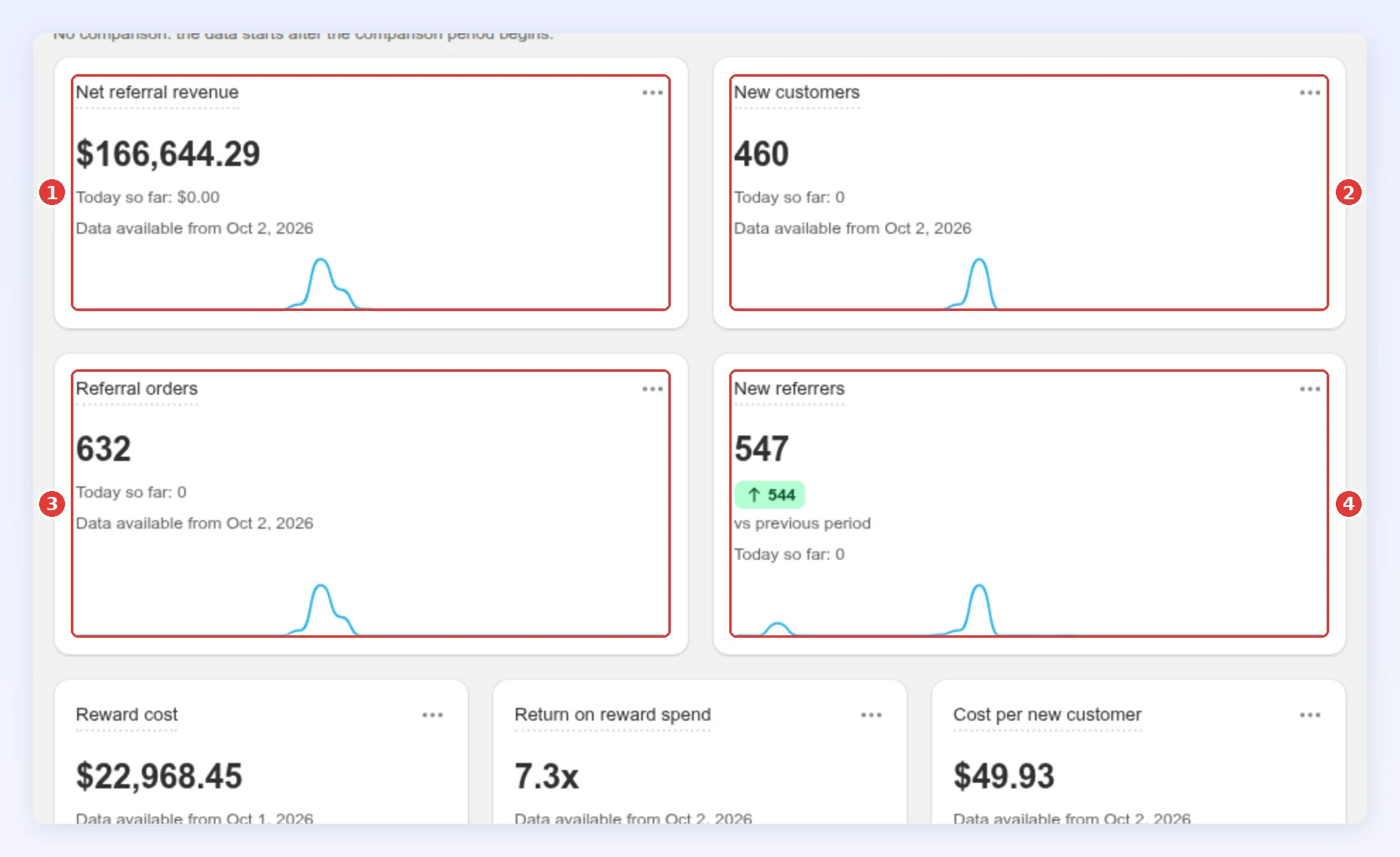
Section titled “Program overview”The four headline numbers, reward cost, revenue over time, the short funnel and the same numbers By campaign. Start here, then open the report behind any number that moved:
| # | Metric | What it means and what to watch |
|---|---|---|
| 1 | Net referral revenue | Money from referral orders after discounts and refunds, without shipping. It includes every later order by referred customers and subscription renewals, see what counts |
| 2 | New customers | Friends who placed their first order through a referral. Each friend counts once, however many orders they place. This is the real growth the program brings |
| 3 | Referral orders | All orders counted in net referral revenue: first orders, repeat orders, renewals and reward-code orders. That’s why it’s higher than New customers |
| 4 | New referrers | Customers who joined the program in the range. Someone in several campaigns counts once. A drop means fewer people see or join the offer |
Today so far under a number is today’s value, shown on its own and not added to the total. The badge such as ↑ 544 is the change against the period you picked in Compare to.
Each campaign’s Overview shows the same four numbers for that campaign, for the Last 7 days or Last 30 days, with a Branding status card below: a flat share count usually means your widget or referral page is off. View details opens Analytics filtered to the campaign.
Funnel
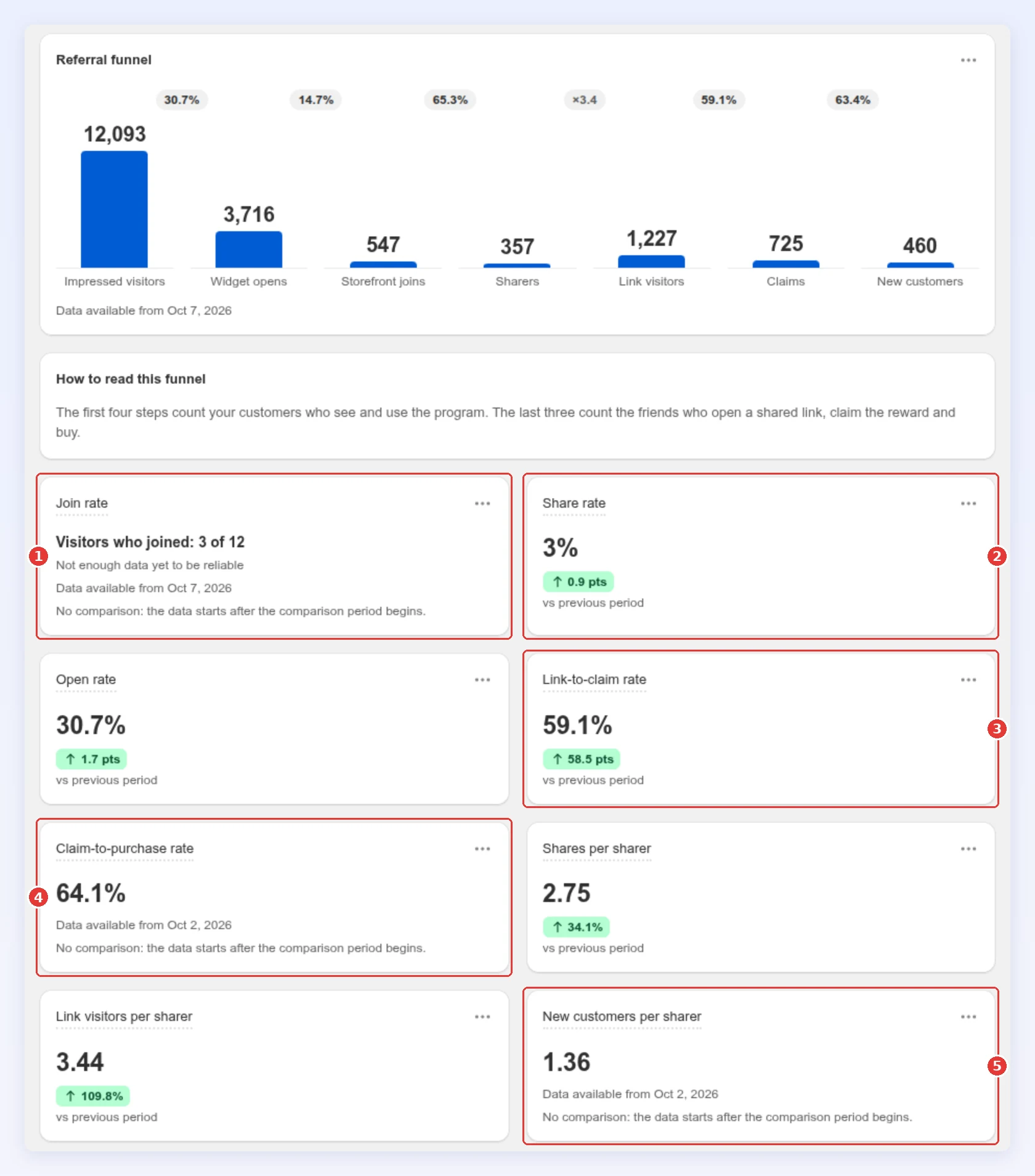
Section titled “Funnel”Shows where people drop off, from seeing the offer to a friend’s first order:
| # | Rate | How it’s worked out | If it’s low, try |
|---|---|---|---|
| 1 | Join rate | Storefront joins ÷ impressed visitors | Widen the target audience, or make the widget lead with the reward |
| 2 | Share rate | Sharers ÷ impressed visitors | A stronger reward, with the friend’s reward first in the copy |
| 3 | Link-to-claim rate | Claims ÷ link visitors | Make the friend’s offer clearer where the link lands |
| 4 | Claim-to-purchase rate | New customers ÷ claims | Check the friend discount works at checkout, or drop a minimum spend |
| 5 | New customers per sharer | New customers ÷ sharers | Put private channels first in sharing channels |
All funnel steps and rates
| Metric | What it counts |
|---|---|
| Impressed visitors | Visitors who saw a referral entry point on your storefront |
| Widget opens | Visitors who opened the referral popup or viewed the referral page |
| Storefront joins | Customers who joined from a storefront entry point, such as the popup, referral page or app block |
| Sharers | People who shared their referral link at least once |
| Share actions | Times a link was shared or copied. One referrer copying their link five times is five share actions but one sharer |
| Link visitors | Friends who opened a shared link |
| Claims | Times a friend claimed the friend reward |
| Open rate | Widget opens ÷ impressed visitors |
| Shares per sharer | Share actions ÷ sharers |
| Link visitors per sharer | Link visitors ÷ sharers |
By entry point splits the funnel by where the customer joined: Referral popup, Referral page, App block, Post-purchase popup, Customer account or Product page. Not from storefront means another way, such as an admin invite or an import.
Revenue and customer quality
Section titled “Revenue and customer quality”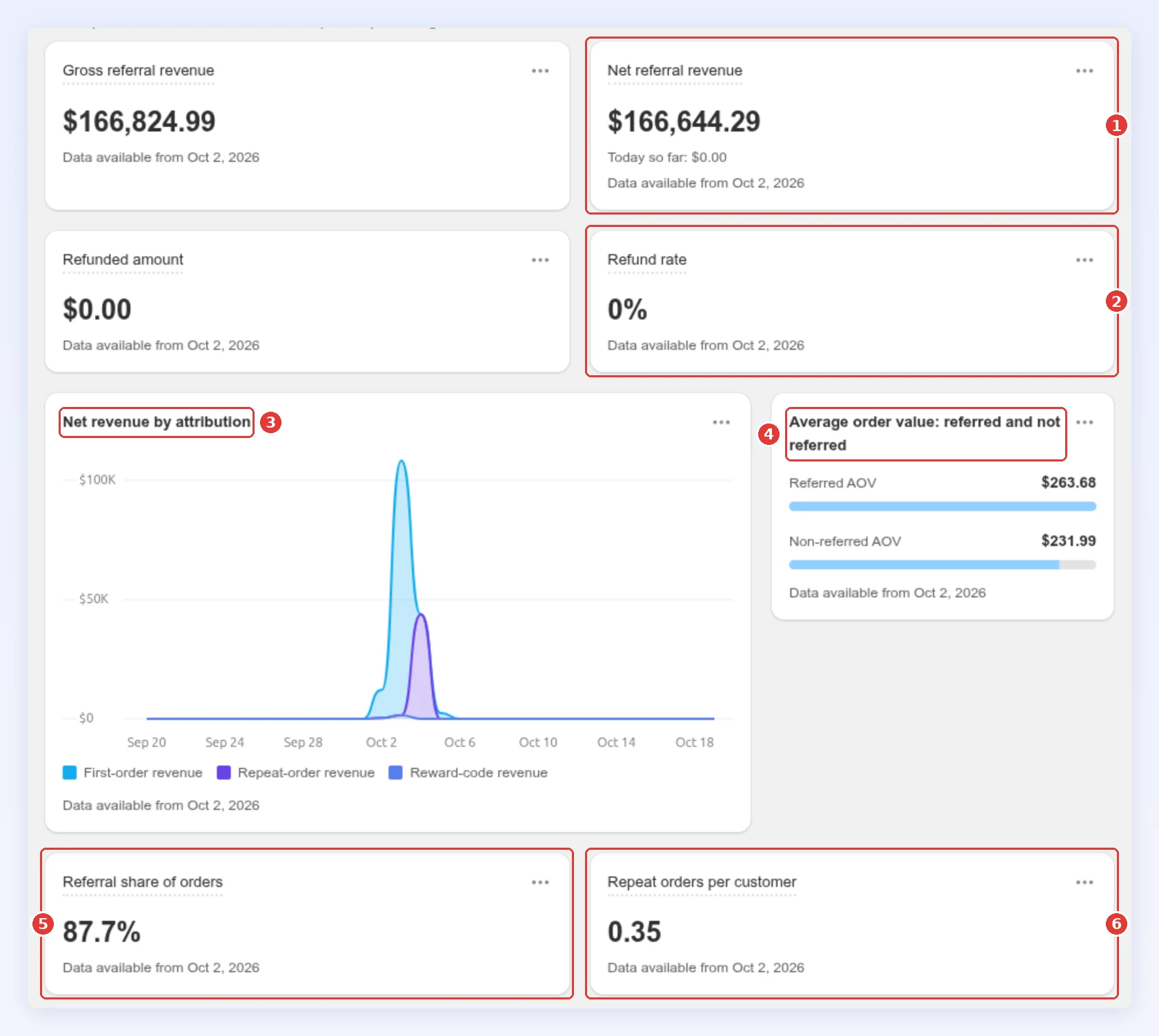
| # | Metric | What it means and what to watch |
|---|---|---|
| 1 | Net referral revenue | Same as on Program overview. See what counts |
| 2 | Refund rate | The share of referral orders refunded. Well above your store’s normal rate can point to reward abuse |
| 3 | Net revenue by attribution | Net revenue split into first, repeat and reward-code orders. If repeat revenue stays near zero, referrals bring one-off discount hunters |
| 4 | Referred vs non-referred AOV | Average order with and without a referral. Much smaller referred orders? Try a minimum spend on the friend reward |
| 5 | Referral share of orders | Referral orders as a share of all paid orders in your store |
| 6 | Repeat orders per customer | Repeat orders by referred customers ÷ new customers. Shows whether friends keep buying |
All revenue metrics
| Metric | What it counts |
|---|---|
| Gross referral revenue | The total paid at checkout, including tax and shipping, before refunds |
| Refunded amount | Money refunded on referral orders |
| First-order revenue | Net revenue from a friend’s first order, placed with a friend code or share code |
| Repeat-order revenue | Net revenue from every later order by referred customers, renewals included |
| Reward-code revenue | Net revenue from orders where a referrer used their reward code |
Reward cost & ROI
Section titled “Reward cost & ROI”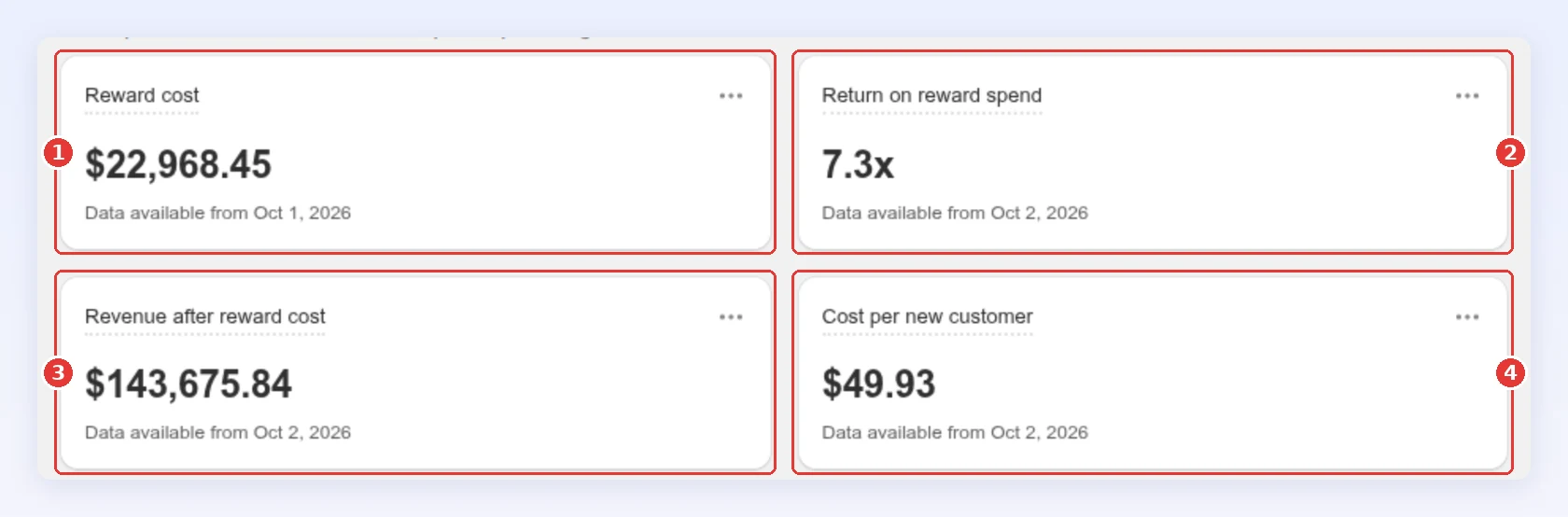
| # | Metric | What it means and what to watch |
|---|---|---|
| 1 | Reward cost | Discounts and free products when used, store credit when issued, cash when marked paid. Custom rewards aren’t included |
| 2 | Return on reward spend | Referral revenue ÷ reward cost |
| 3 | Revenue after reward cost | Referral revenue minus store credit and cash rewards. Discounts and free products are already taken out of referral revenue, so they are not subtracted again |
| 4 | Cost per new customer | Reward cost ÷ new customers. Compare it with what a new customer costs you through ads |
For example, with $166,644 net referral revenue, $22,968 reward cost and 460 new customers: return on reward spend is 166,644 ÷ 22,968 = 7.3x, and cost per new customer is 22,968 ÷ 460 = $49.93.
More reward metrics
| Metric | What it counts |
|---|---|
| Reward code redemption | Share of referrer reward codes issued in the range that have been used. A low rate means referrers earn rewards but don’t come back to spend them |
| Custom rewards given | Custom rewards created in the range. Count them separately, since they’re not in reward cost |
Sharing and channels
Section titled “Sharing and channels”Shows which share channels bring buyers, not just clicks:
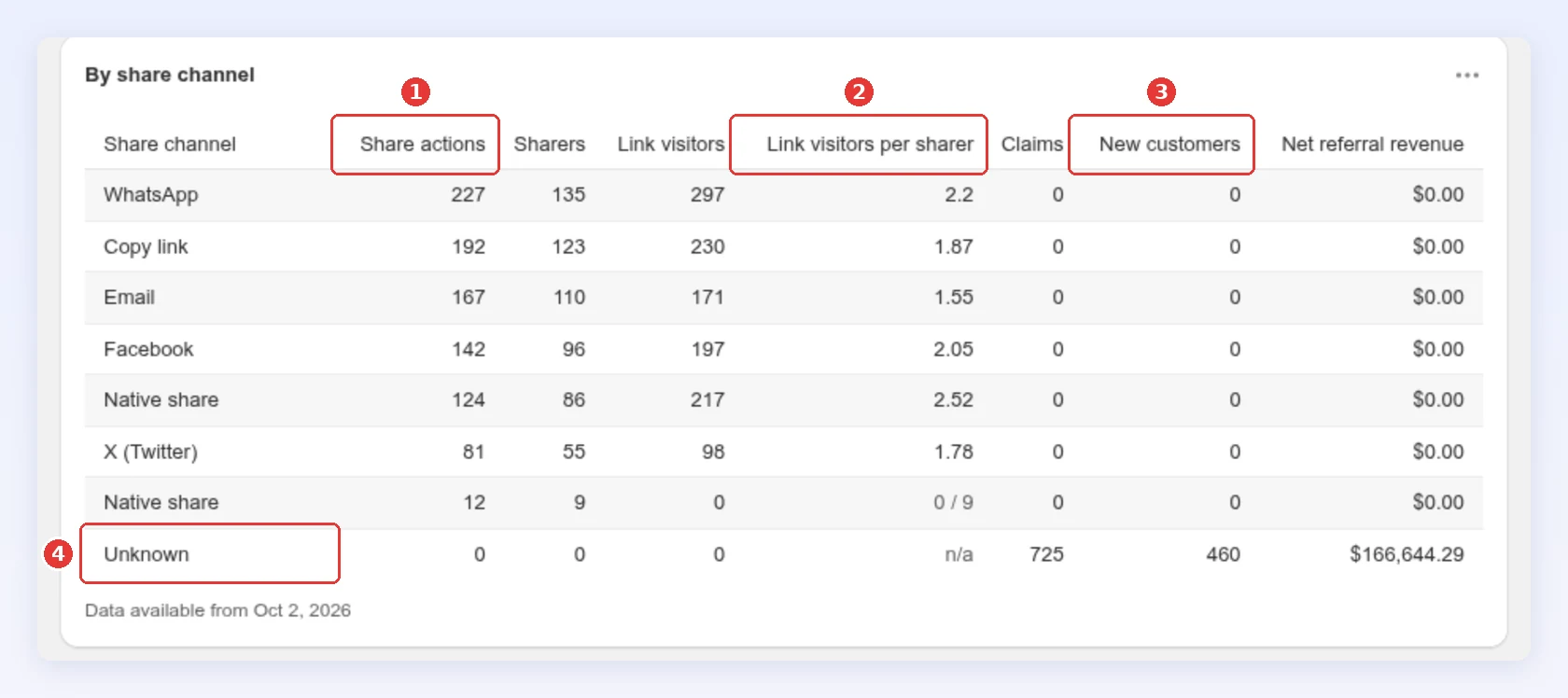
| # | Column | What it means and what to watch |
|---|---|---|
| 1 | Share actions | Times a link was shared or copied on that channel. High shares with few link visitors means friends ignore that channel |
| 2 | Link visitors per sharer | How many friends open the link, per person who shared on that channel. The higher, the better the channel reaches people |
| 3 | New customers | Friends who placed a first order after claiming through that channel. Put the channels with the most buyers first in sharing channels |
| 4 | Unknown | Claims, orders and revenue Bloop can’t tie to a channel. Repeat orders and reward-code orders always land here, because only a friend’s claim records a channel. A large Unknown row is normal; compare channels on the rows above it |
Advocates
Section titled “Advocates”Shows who your best referrers are, and who needs a nudge:
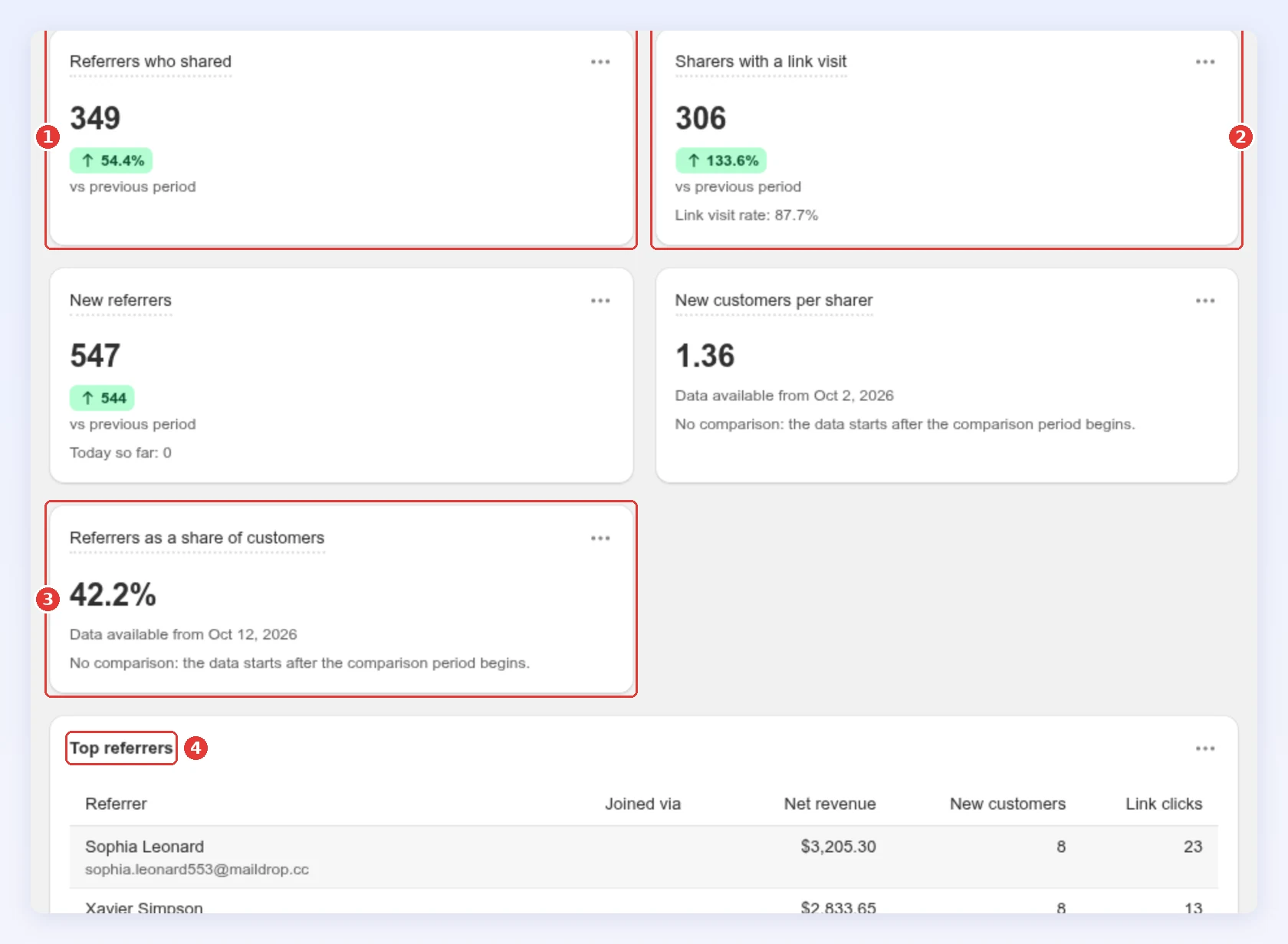
| # | Metric | What it means and what to watch |
|---|---|---|
| 1 | Referrers who shared | Referrers who shared at least once in the range. If it’s far below New referrers, people join but don’t share: remind them with a referral email |
| 2 | Sharers with a link visit | Referrers whose link was opened at least once. The Link visit rate under it shows the share. A low rate means links go to people who don’t click |
| 3 | Referrers as a share of customers | Referrers as a share of all customers in your Shopify store, read once a day |
| 4 | Top referrers | Your best referrers by revenue, new customers and link clicks, and where each joined. Thank them, or move them to a bigger reward with FlexiTiers |
Referred buyers who refer and Second generation revenue show whether referred customers go on to refer others.
Below the top referrers, Referrers with clicks but no customers is your list for a nudge. A referrer with far more link clicks than shares is marked Link may be posted on a coupon site: check them in the fraud center.
Setup health
Section titled “Setup health”If your numbers look low or empty, check here first.
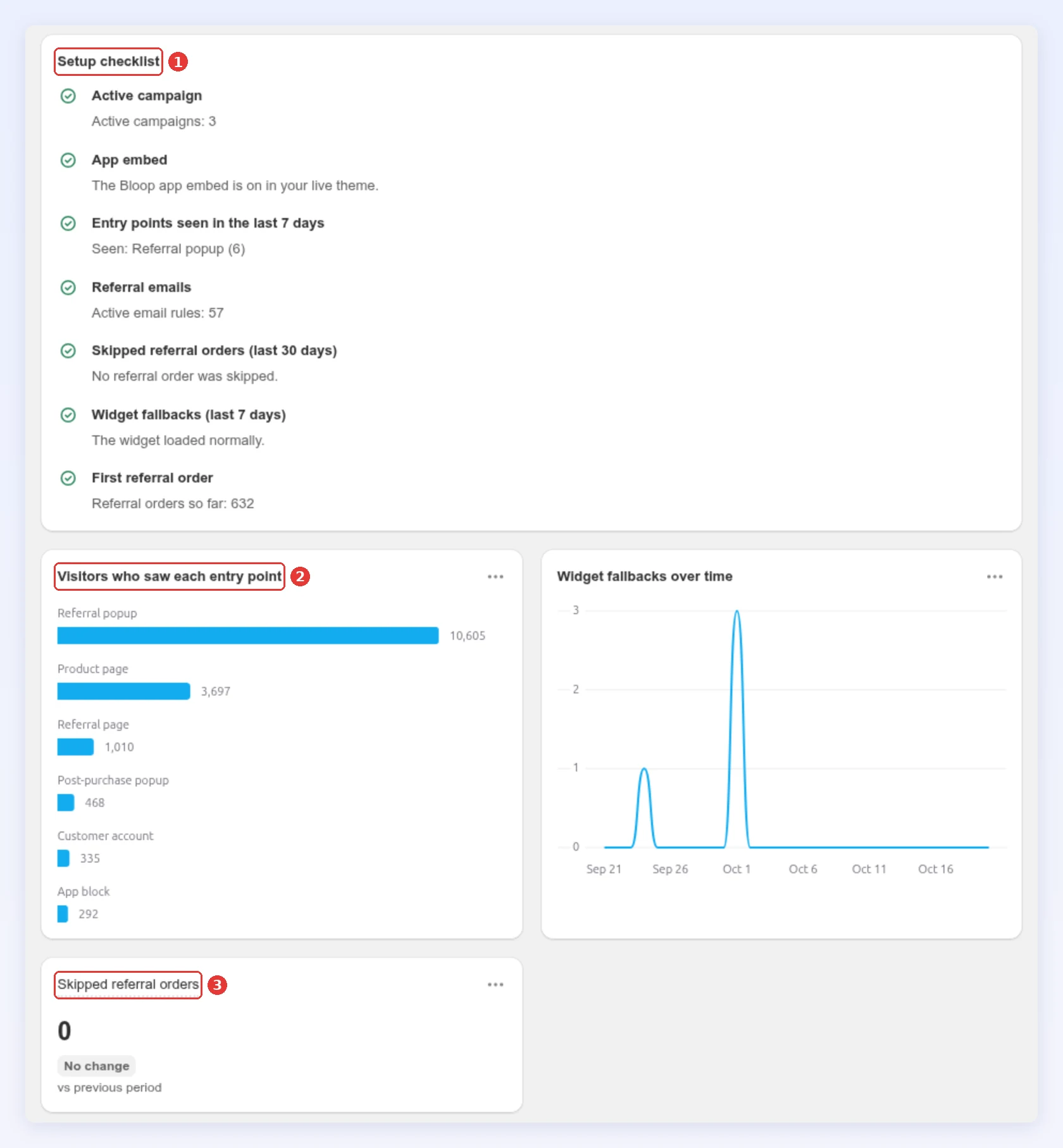
| # | What it shows | What to do |
|---|---|---|
| 1 | Setup checklist: active campaign, app embed, entry points seen, referral emails, skipped orders, widget fallbacks, first referral order | Any item that isn’t green has a button to fix it |
| 2 | Visitors who saw each entry point | An entry point with few visitors needs a better place on your store, see making your program visible |
| 3 | Skipped referral orders | Orders with a referral that weren’t counted, for example because a rule blocked them. If this grows, check your rewards rules |
Counts Flagged referrals, Confirmed as fraud, Waiting for review, the revenue on flagged referrals and the Average time to resolve, by detection rule, status and campaign. Use it next to the fraud center: a rule that flags a lot but rarely confirms is one to relax.
Emails
Section titled “Emails”Shows Emails sent, Email open rate (estimated), Email failure rate and Emails skipped, by email type, with the reason for each skip. Open rates are estimates, because Apple Mail opens every email it receives.
Campaigns and A/B
Section titled “Campaigns and A/B”Compares your campaigns on revenue, referral orders, claim-to-purchase rate, reward cost and return on reward spend, and shows your recent A/B tests with the chance that A beats B. The read-out appears once each variant has 100 claims and the test has run for 7 days. View test opens it.
Time to convert
Section titled “Time to convert”Measures the time from a friend claiming the reward to their order: Median time to convert, Ordered within 7 days and Friends who ordered, spread from under an hour to 30 days or more. A long tail means friends need a reminder, and a short reward expiry would cut them off: check reward timing.
Cohorts
Section titled “Cohorts”Groups referrers by the month they joined and follows the new customers and revenue each group brings over the next 12 months. New customers per new referrer, first 30 days and first 90 days sit on top. A month with fewer than 10 referrers shows a dash, and the current month is underlined because it’s still filling.
Shows where referrers stand in your FlexiTiers: Referrers in tiered campaigns, One referral from the next tier, At the top tier and Tier upgrades, with a Tier breakdown of revenue and new customers per tier. Referrer counts are today’s standing; revenue, new customers and upgrades follow your dates. Without tiers, the report shows Set up tiers.
Why your numbers may differ
Section titled “Why your numbers may differ”What counts as a referral order
Section titled “What counts as a referral order”Referral orders and Net referral revenue count more than a friend’s first order:
Counted:
- A friend’s first order with a friend code, a share code or a referral link.
- Every later order by that friend, for as long as they shop with you, including subscription renewals, POS and draft orders.
- Orders where a referrer uses their own reward code.
Not counted: test orders, cancelled orders, orders in a currency other than your store currency, and orders without a customer (guest checkout).
- Subscription stores: each renewal from a referred customer is a referral order, so Referral orders, Net referral revenue and Referral share of orders grow every billing cycle, even with no new referrals. To see new business only, use New customers and First-order revenue.
- Rejected orders still count. When you reject an order in Orders, for example as fraud, the referrer gets no reward, but the order stays in Referral orders, Net referral revenue and New customers, and that friend’s later orders keep counting. Only cancelling the order in Shopify removes it. If you reject many orders, check the Rejected tab in Orders to see how many are inside your numbers.
- Cancelled orders and the share of orders: a cancelled order leaves the referral side but stays in your store’s total, so if you cancel many referral orders, Referral share of orders reads slightly low.
Compared with Shopify and the Orders tab
Section titled “Compared with Shopify and the Orders tab”| Compared with | Why it differs |
|---|---|
| Shopify sales reports | Net referral revenue leaves out shipping, so it’s lower than Shopify’s sales for the same orders. Guest orders don’t count, and ranges end yesterday |
| The Orders tab | Orders lists only friends’ first orders. The closest number here is New customers |
When the numbers update
- Overnight. The line under the report title shows Data through the last processed day. A refund on an older order can still change past days in the next run. A new store sees Data is being prepared. Check back tomorrow.
- Today isn’t in the range.
- Small numbers show as counts. A rate needs at least 30 behind it before it shows as a percentage. Below that you see, for example, Visitors who joined: 3 of 12 with Not enough data yet to be reliable. Wait for more data before acting on it.
- Storefront activity (impressions, opens, shares, link visits) is kept for 13 months. Older ranges show Data available from a date. Reward cost, fraud and tier upgrades start from the day Bloop began recording them for your store, so older ranges show that date too.
- Cohorts can trail the rest of the page by a day. The report then says Cohorts updated through and the date.
- Snapshots. Some numbers are today’s standing, not the dates you picked, such as how many referrers sit in each tier. Their footnote says As of and the time.
Best practices
Section titled “Best practices”- Watch share rate and new customers per sharer first. Totals tell you how you’re doing; these two tell you what to change.
- Compare against your own trend, not a benchmark from another industry. Use Compare to.
- Give a range real volume before you act. A few days of data is noise.
- Test fixes that cost money, such as a bigger reward, with an A/B test.
Related
Section titled “Related”- Referrer and referee rewards - change the incentive
- A/B testing - confirm a fix before rolling it out
- Build your own dashboard - keep the tiles you check every week on one page
- Making your referral program visible - add entry points