

How to choose sharing channels and write the share message
Most referrals travel through a private message to one friend, not a public post. You choose which share buttons referrers see, in what order, and the message each one sends.
What you’ll set up
Section titled “What you’ll set up”- The share buttons for desktop and for mobile, in the order you want.
- The message and image for each channel, in each language you sell in.
What Bloop creates for you
Section titled “What Bloop creates for you”Every new campaign starts with these buttons, top to bottom:
| List | Starts as |
|---|---|
| Desktop | Facebook, WhatsApp, X, Mail App |
| Mobile | Native Share, Facebook, WhatsApp, X, Mail App |
| Messages | Bloop’s default text and image for every channel |
The defaults work, so change only what you want to.
How to set up sharing channels
Section titled “How to set up sharing channels”-
Pick the channels → Click Save
-
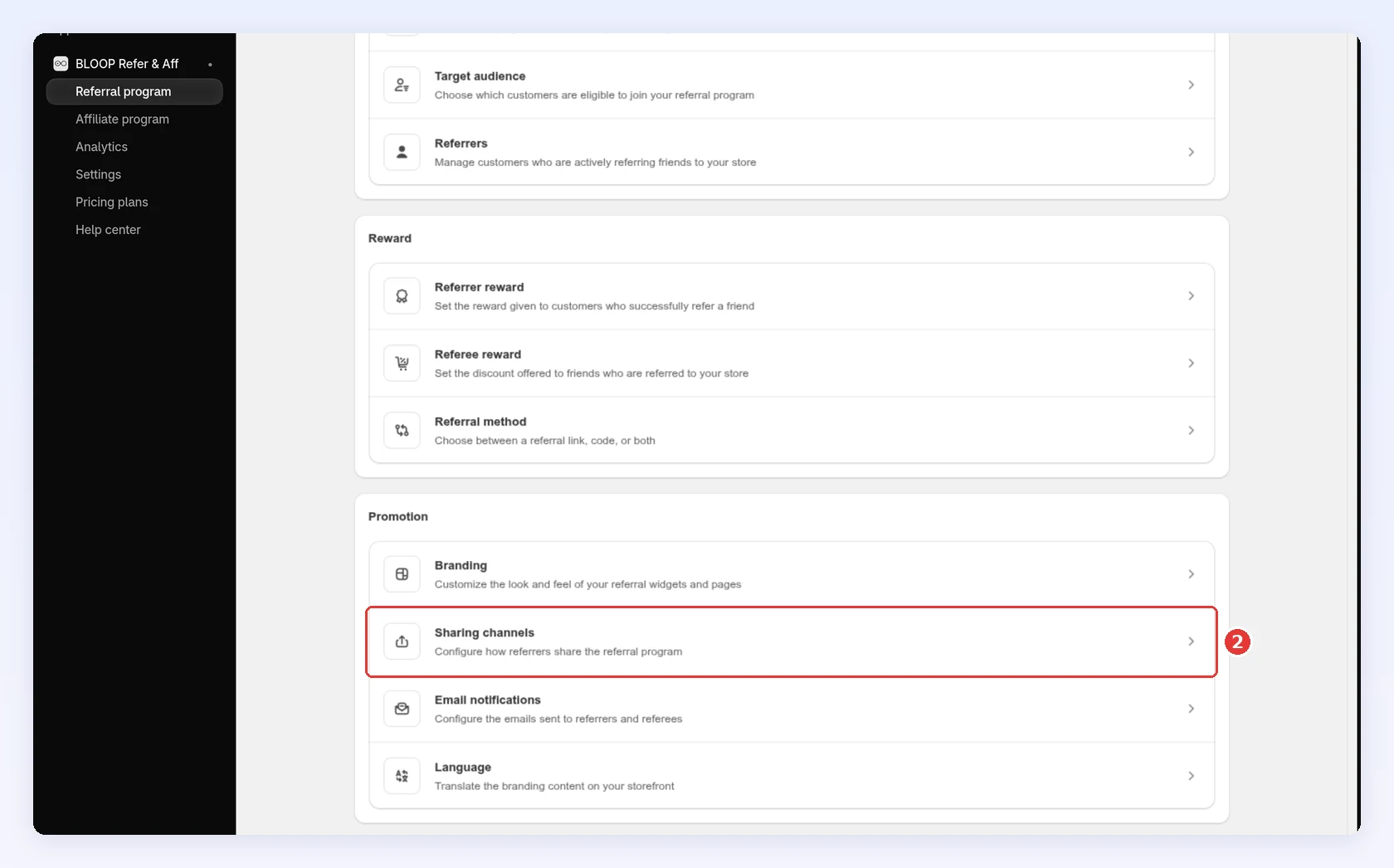
Open Referral program and open your campaign.
-
Open Sharing → Channels and messages:
-
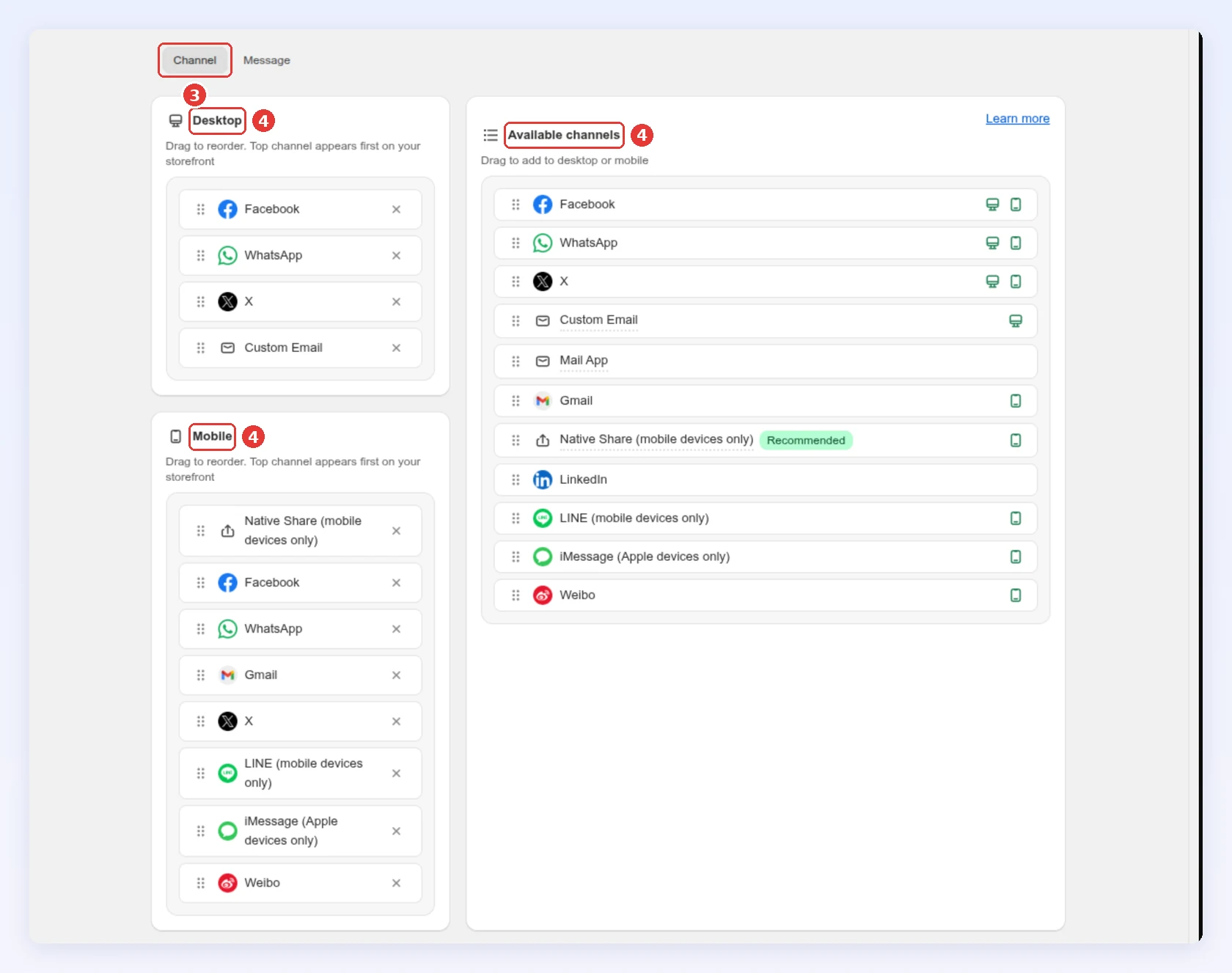
Stay on the Channel tab.
-
Drag a channel from Available channels into Desktop or Mobile, and drag inside a list to reorder it. The top channel shows first on your storefront:
-
To remove a channel, click the X next to it.
-
Click Save.
-
-
Write the messages → Click Save
-
Click the Message tab.
-
If automatic translation is on, pick a language in the selector first. Each customer sees the text for their language, or Bloop’s built-in wording if you wrote none.
-
Open a channel card and edit its fields. The Preview updates as you type.
-
Click Insert variables to add the store name, the friend’s reward, the referral link or the code. Use variables instead of typing the reward, so the message stays right when your offer changes.
-
Under Image, keep Default image or choose Custom image and upload a
.jpegor.pngunder 20 MB and 20 MP: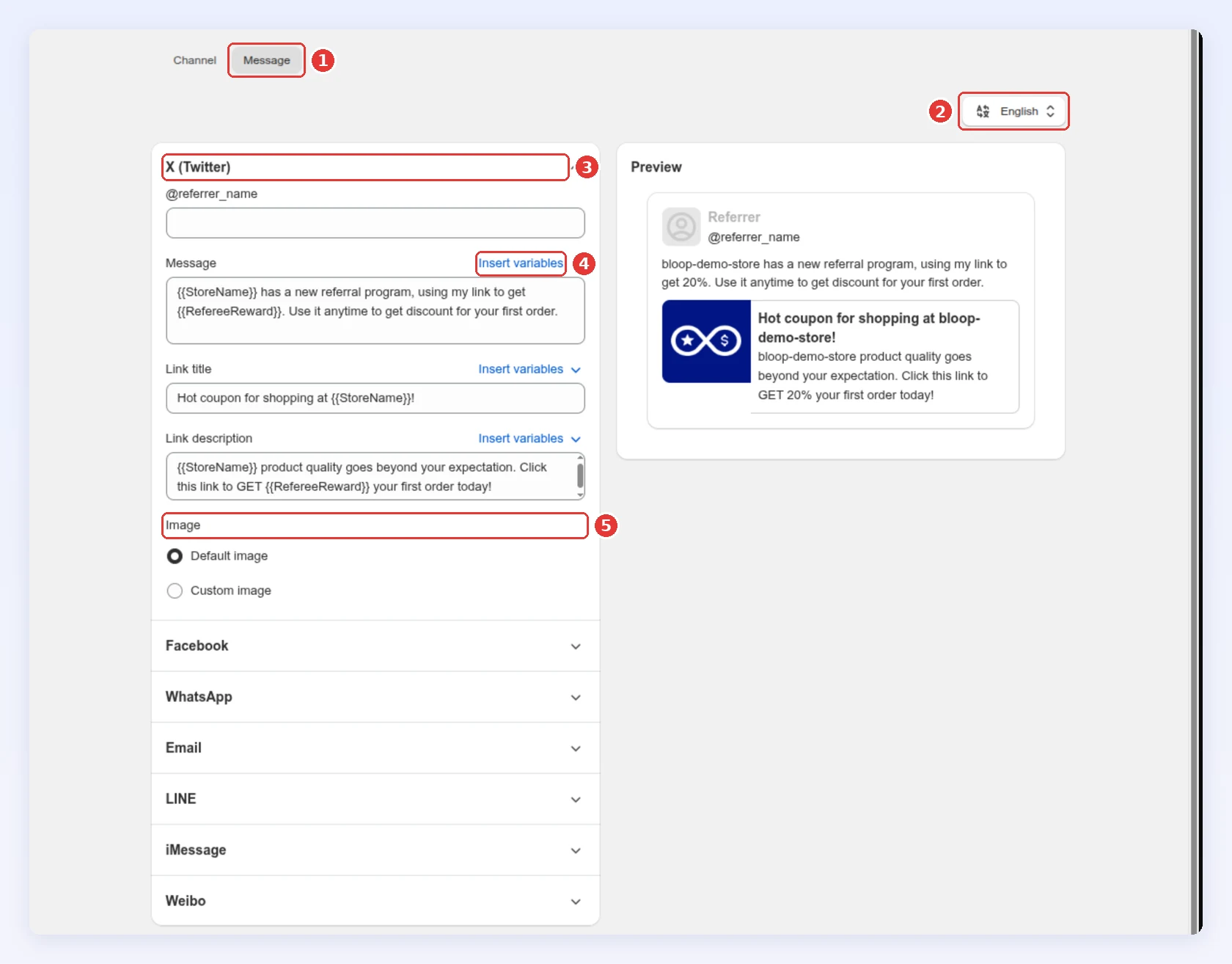
-
Click Save.
-
Channels and their message cards
Section titled “Channels and their message cards”| Channel | What it does | Message card fields |
|---|---|---|
| One-to-one sharing, mobile-first | Message, Link title, Link description, Image | |
| Native Share | Mobile only. Opens the phone’s share sheet so the customer picks any app. Marked Recommended | No card |
| Custom Email | Bloop sends your Email invitation from referrers template. Edit it in Emails | No card |
| Mail App, Gmail | Opens the customer’s mail app or Gmail with your message | Email card: Message |
| X | Public post with your link preview | X (Twitter) card: @referrer_name, Message, Link title, Link description, Image |
| Public post with your link preview | Link title, Image (1200 × 630 px works best) | |
| Shows your store page’s own link preview | No card, it ignores custom messages | |
| LINE | Mobile only | Message, Image |
| iMessage | iPhone, iPad and Mac only | Message, Image |
| Public posts, for visitors in China | Message, Image |
The LINE, iMessage and Weibo cards show once the channel is in one of your lists. Images and the X handle are the same in every language.
How it looks on your store
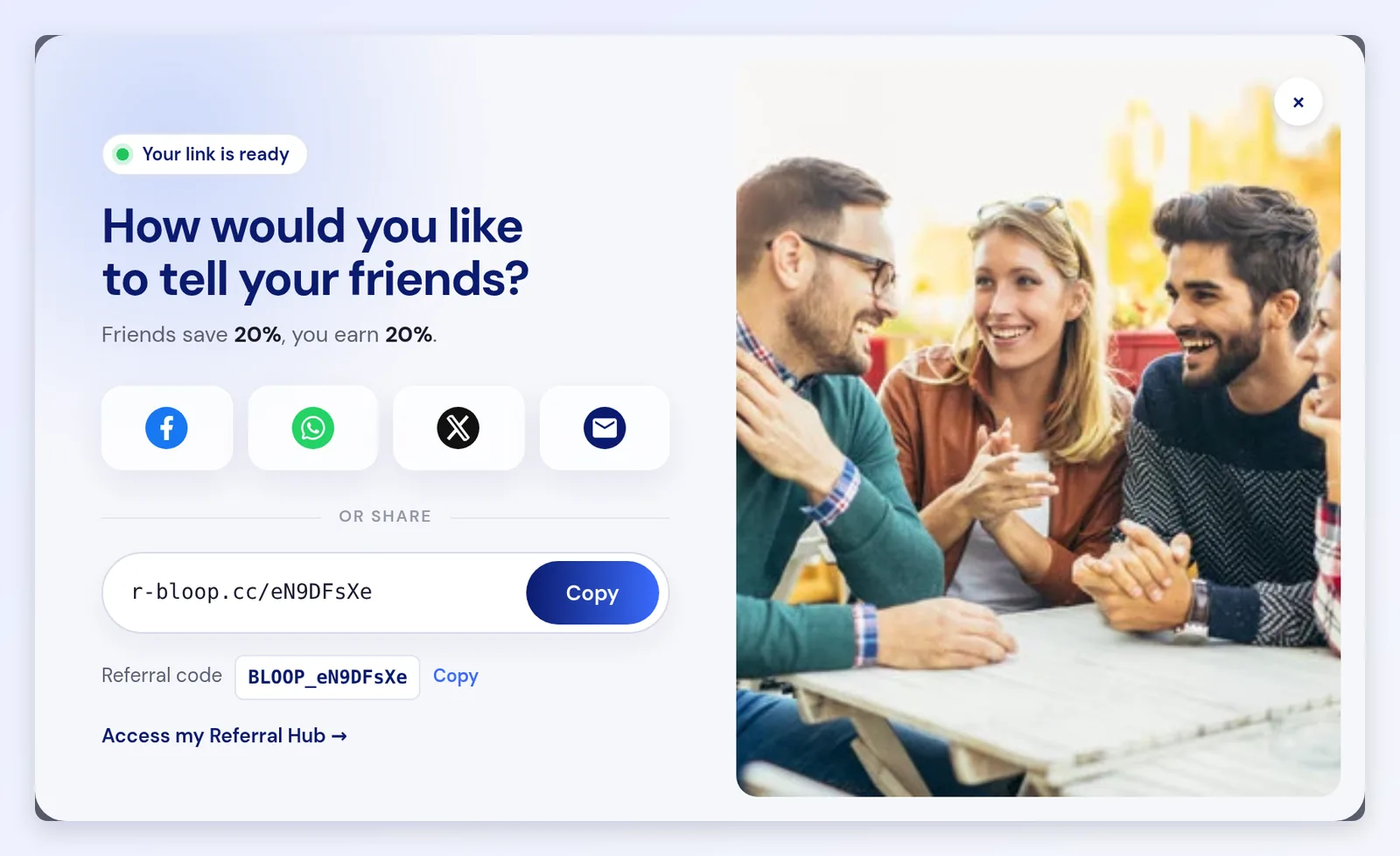
Section titled “How it looks on your store”The referral popup, the referral page, the thank-you page block and the customer account show your Mobile list on screens narrower than 768 px, and your Desktop list on wider ones. The referral hub shows both lists combined.
Best practices
Section titled “Best practices”- Put a private channel first: WhatsApp or Native Share on mobile, email on desktop. Keep the row short.
- Name the reward first, in the customer’s voice. “I love these, here’s 15% off” beats “Shop our referral program”.
- Write every language you sell in. Otherwise those customers get Bloop’s built-in wording.
These are common patterns, not Bloop measurements. Check your channel order with an A/B test.
Related
Section titled “Related”- Referral methods - share a link, a code or both
- Reward display - how the reward value reads in your messages
- Emails - the invitation that Custom Email sends
- Widget panel, launcher and referee popup - where most shares start