

Understanding your referral branding surfaces

Your referral program shows up in several places: your storefront, your customers’ accounts and their inboxes. A theme sets the look across all of them. Each surface below decides where the program appears.
The surfaces
Section titled “The surfaces”| Surface in the app | Use it when |
|---|---|
| Branding theme | First. A theme is the look every other surface uses |
| Referral widget and Friend popup | You want an always-on button and popup on every page. Most customers meet this one |
| Referral page | You need a permanent link for a newsletter, menu or social bio |
| Post-purchase popup | A customer has just bought. The thank-you page is your highest-intent moment |
| Referral in customer accounts | Logged-in repeat buyers see the program every time they return |
| Referral hub | You want a page hosted by Bloop, with no theme edits |
| Sharing channels | A referrer is ready to share and you want to choose where the link travels |
| Referral Share Button | You want a referral to start from the product someone is already viewing |
Where to start
Section titled “Where to start”Set the theme first, because everything else uses it. Then turn on the referral widget and the post-purchase popup. Together they cover the always-on moment and the peak-intent moment, which is most of the value. Add the rest when you have a reason. Relying on one place is the most common reason a program underperforms. See making your referral program visible.
Add the Referral Share Button to product pages
Section titled “Add the Referral Share Button to product pages”The button puts a share link on your product pages. It opens the referral popup, and the link a referrer shares sends friends straight to that product.
-
Open your campaign, go to Branding and pick your theme in the Theme selector.
-
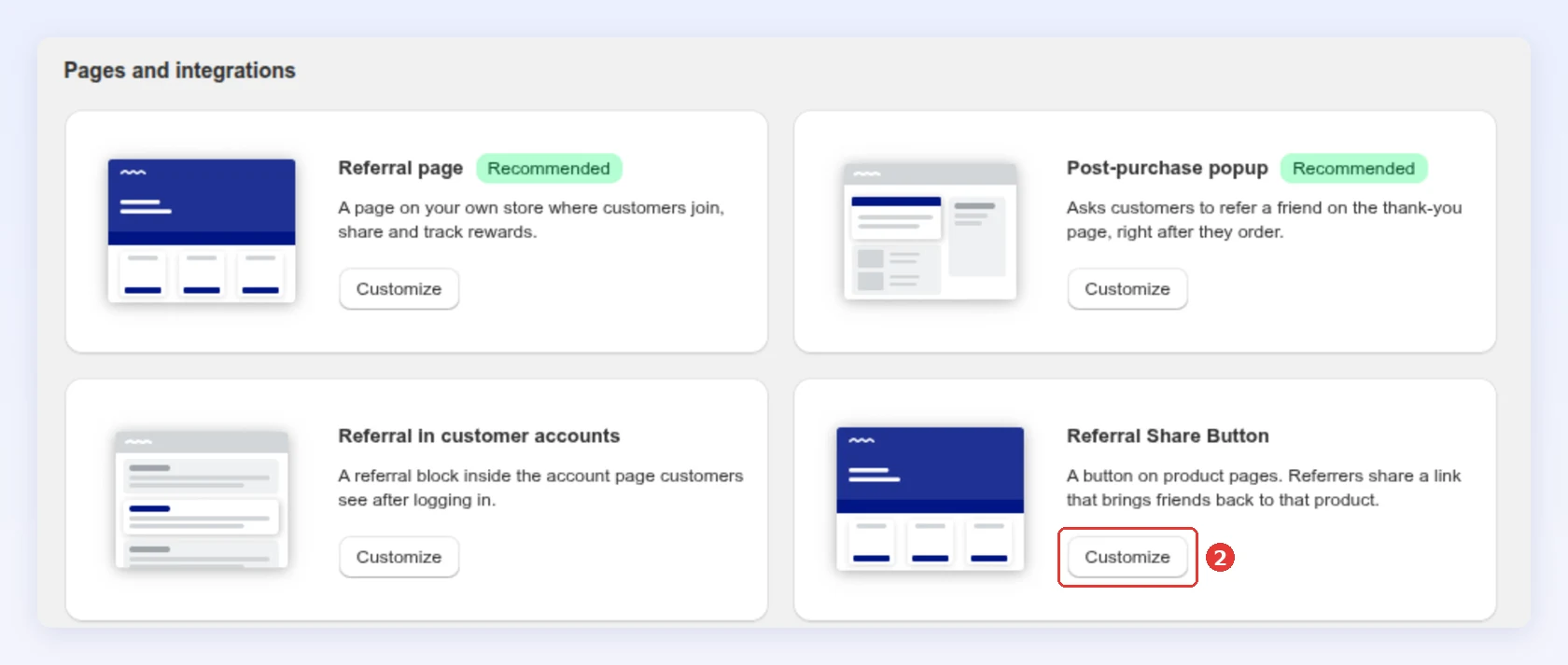
Under Pages and integrations, click Customize on the Referral Share Button card:
-
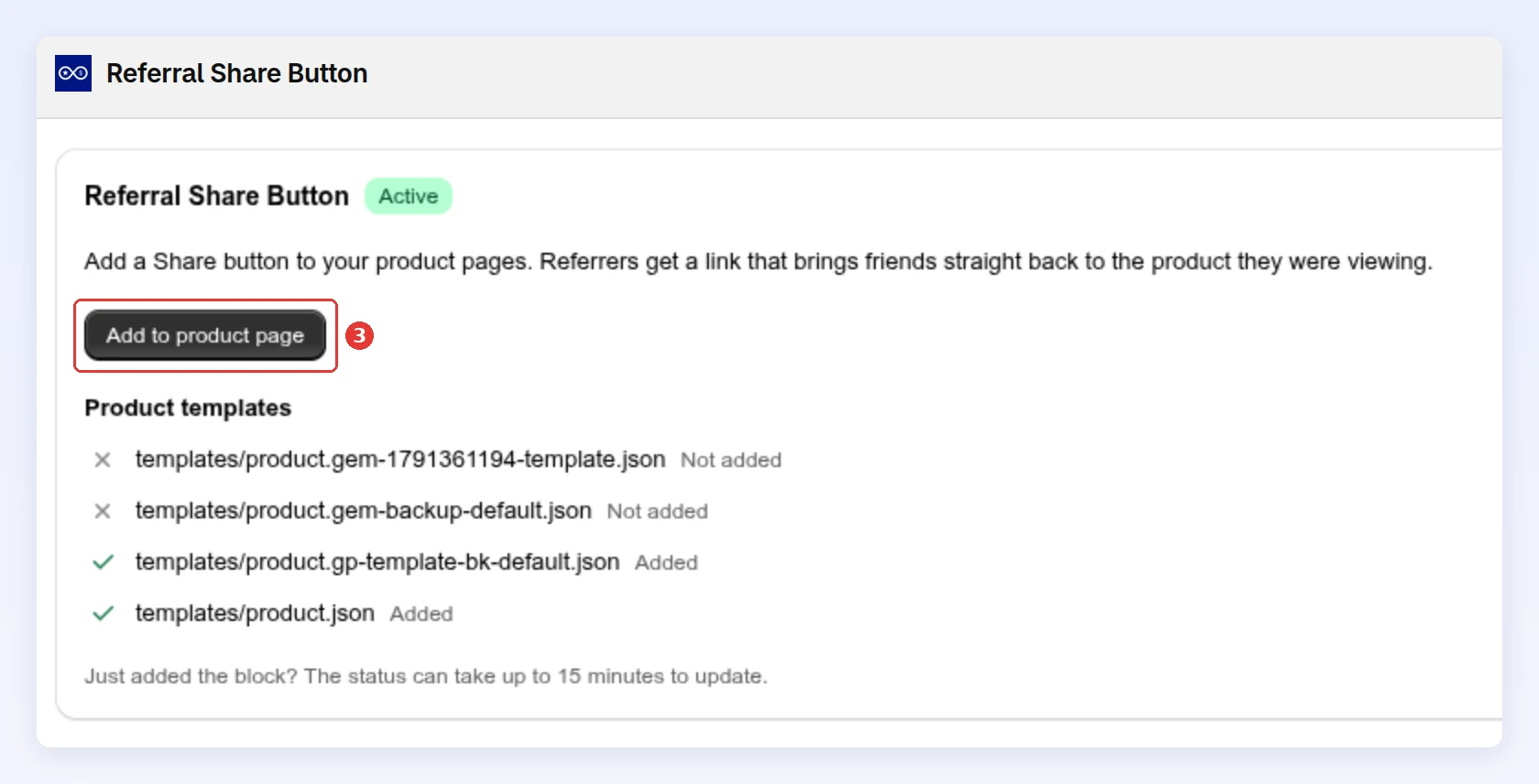
Click Add to product page. Shopify’s theme editor opens on your product template with the block added:
-
Place the block where you want it and click Save.
The panel lists your product templates as Added or Not added. A new block can take up to 15 minutes to show as Added.
Style the block in the theme editor:
| Setting | What it does |
|---|---|
| Button text | Your own wording. Leave it blank to use Bloop’s default in the shopper’s language |
| Show share icon | Shows or hides the icon beside the text |
| Text color | Color of the text and icon |
| Font size | 10 to 24 px |
| Alignment | Left, center or right |
Related
Section titled “Related”- How to create and configure a referral campaign: the campaign each theme belongs to
- How to control how a reward reads to customers: the words the reward shows on every surface