

How to let friends refer by name
Not every friend gets a link. Some hear about your store over coffee, see a post, or forget the code. With Refer by name, a new customer types the name of the friend who sent them, right in the cart. They get their welcome reward, and the referrer is credited when they order.
It works next to the referral link and code, not instead of them. A friend who arrives with a link never sees it.
What you’ll set up
Section titled “What you’ll set up”- Turn on Refer by name for a campaign.
- Choose where the invitation shows: the cart page, the cart drawer, checkout, or several.
- Check how many of your referrers can already be found by name, and help the rest add one.
- Optionally, change the wording customers see.
What Bloop creates for you
Section titled “What Bloop creates for you”| Setting | Starts as |
|---|---|
| Refer by name on a campaign you create | On |
| Refer by name on a campaign that was already running when the feature arrived | Off, until you turn it on |
| Show the invitation on | Cart page and Cart drawer |
| Referrer names | Copied from Shopify for referrers who have both a first and last name in their customer profile |
| Name fields when joining | Shown in the referral popup and on the referral page while Refer by name is on |
| Text customers see | Bloop’s default wording, translated into every language your campaign uses |
How to turn on Refer by name
Section titled “How to turn on Refer by name”-
Open Link and code
-
In your Shopify admin, click BLOOP Refer & Aff → Referral program, then open your campaign.
-
In the Campaign setup list, click Sharing → Link and code (1).
-
Find Refer by name (2) and turn it on:
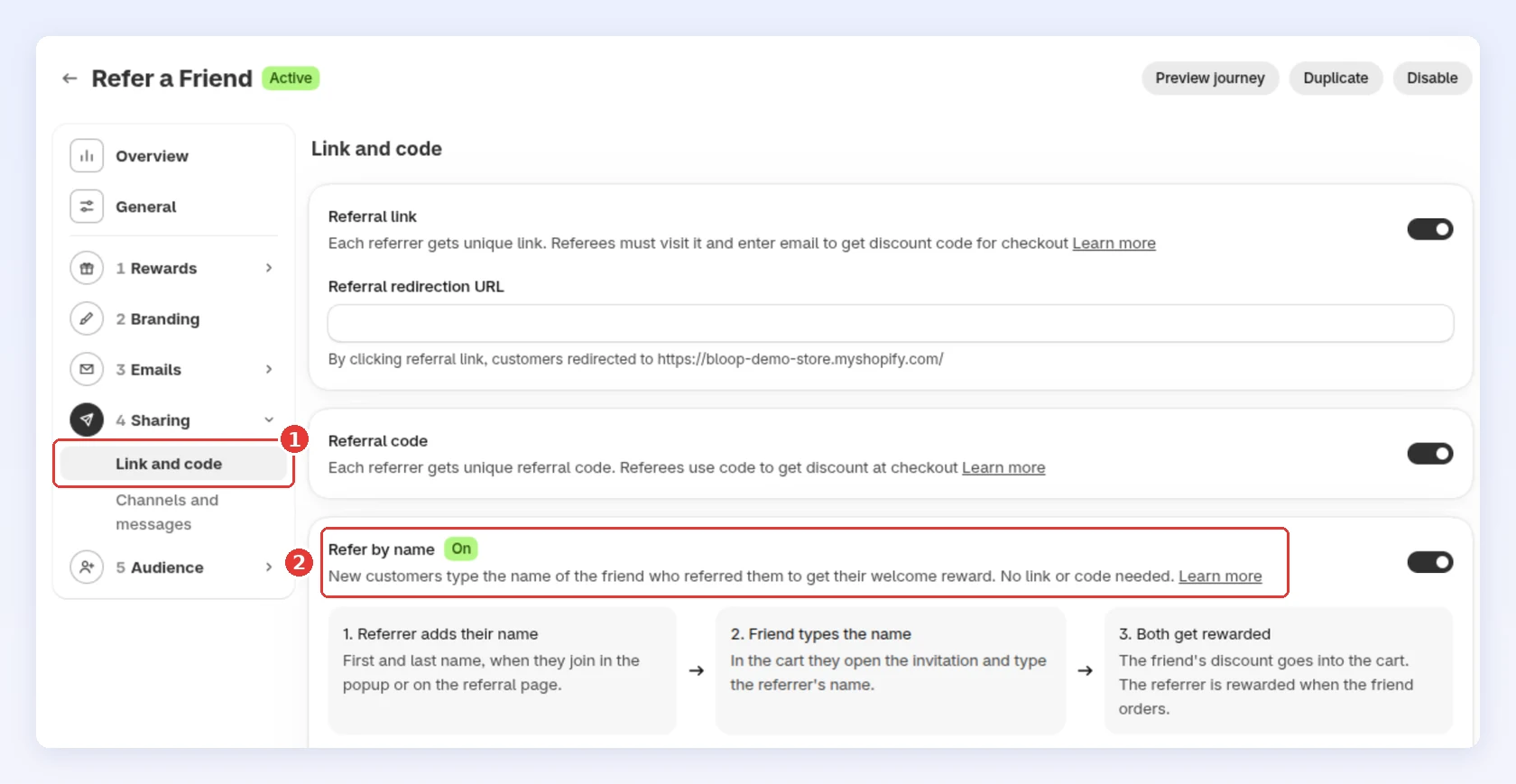
The three steps under the switch sum up the flow: Referrer adds their name, Friend types the name, Both get rewarded.
-
-
Choose where the invitation shows → Click Save
-
Under Show the invitation on, tick one or more places:
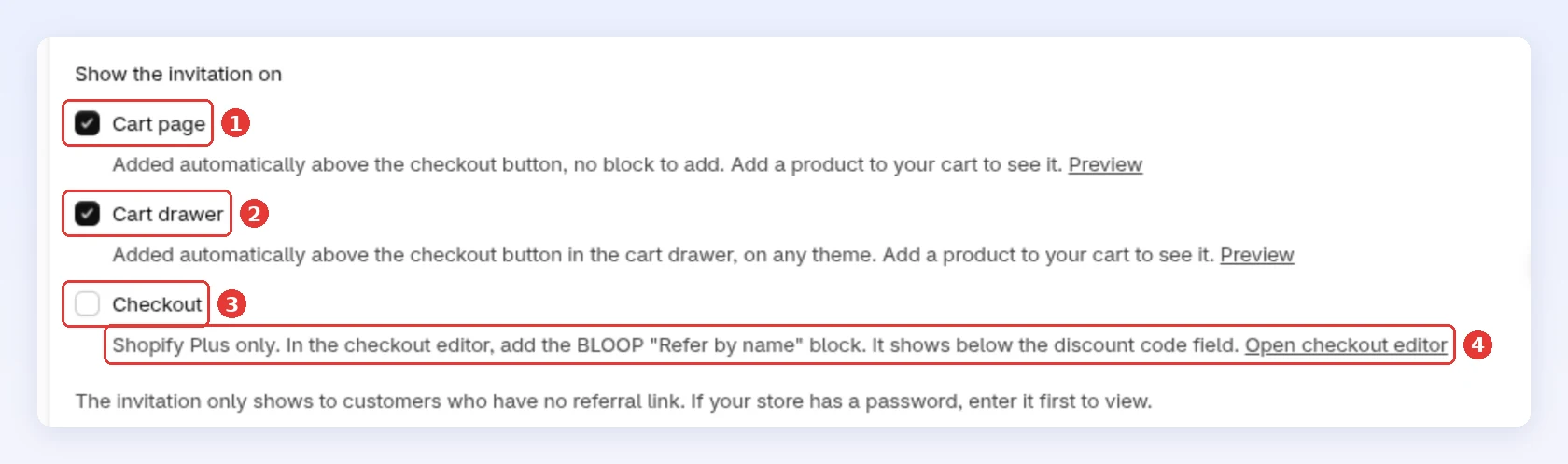
Place What happens Cart page (1) A line appears above the checkout button on your cart page. No block to add Cart drawer (2) The same line appears above the checkout button in the slide-out cart, on any theme Checkout (3) Shopify Plus only. The invitation shows below the discount code field at checkout -
If you ticked Checkout, click Open checkout editor (4), add the BLOOP Refer by name block and save the checkout. Without the block, nothing shows at checkout.
-
Click Preview next to Cart page or Cart drawer to open your store and see the invitation. Add a product to your cart first.
-
Click Save in the bar at the top of the page.
-
-
Check who can be found by name
-
Below What customers see, read the count, such as 10 of 723 referrers in this campaign can be found by name.
-
Click See who has no name (2) to open the campaign’s referrers, filtered to the ones still missing a name:
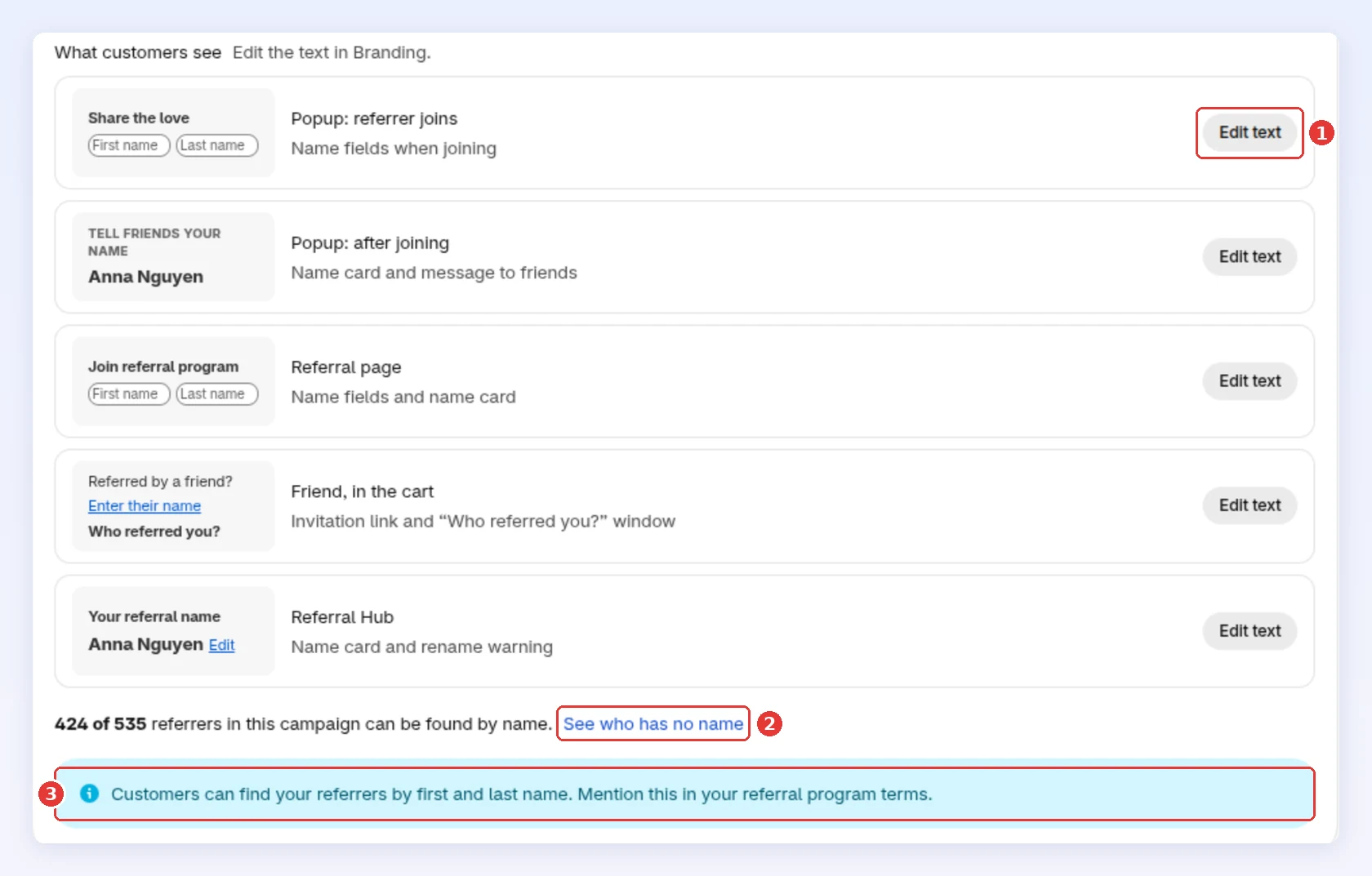
Referrers without a name aren’t left out for long. They’re asked to add one in the referral popup and in their Referral Hub. You can also add a name for them. See Add or change a referrer’s name.
-
-
Change the wording (optional)
-
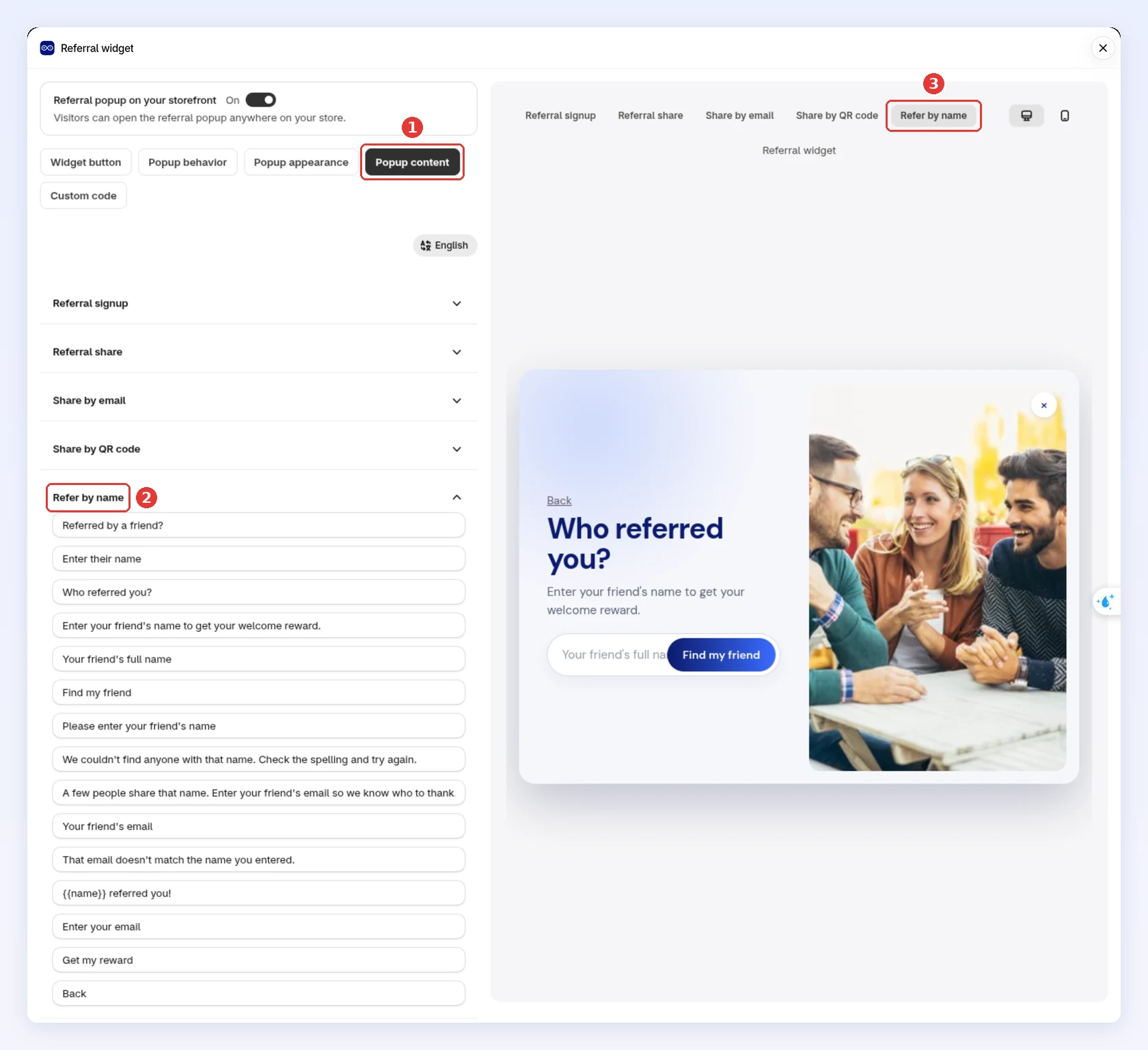
Under What customers see, click Edit text (1) next to the screen you want to change:
Screen What it holds Popup: referrer joins The first and last name fields when someone joins Popup: after joining The name card and the message referrers send to friends Referral page The name fields and name card on your referral page Friend, in the cart The invitation link and the “Who referred you?” window Referral Hub The name card and the warning shown when a referrer changes their name -
The editor opens on that screen’s text. For Friend, in the cart, it opens Referral widget on Popup content (1), with the Refer by name section open (2) and the preview switched to Refer by name (3):
-
Change the text and click Save. Keep the placeholders, such as
{{RefereeReward}},{{ReferrerName}}and{{CartLink}}. Bloop fills them in for each customer.
-
How it works for your customers
Section titled “How it works for your customers”The referrer adds their name
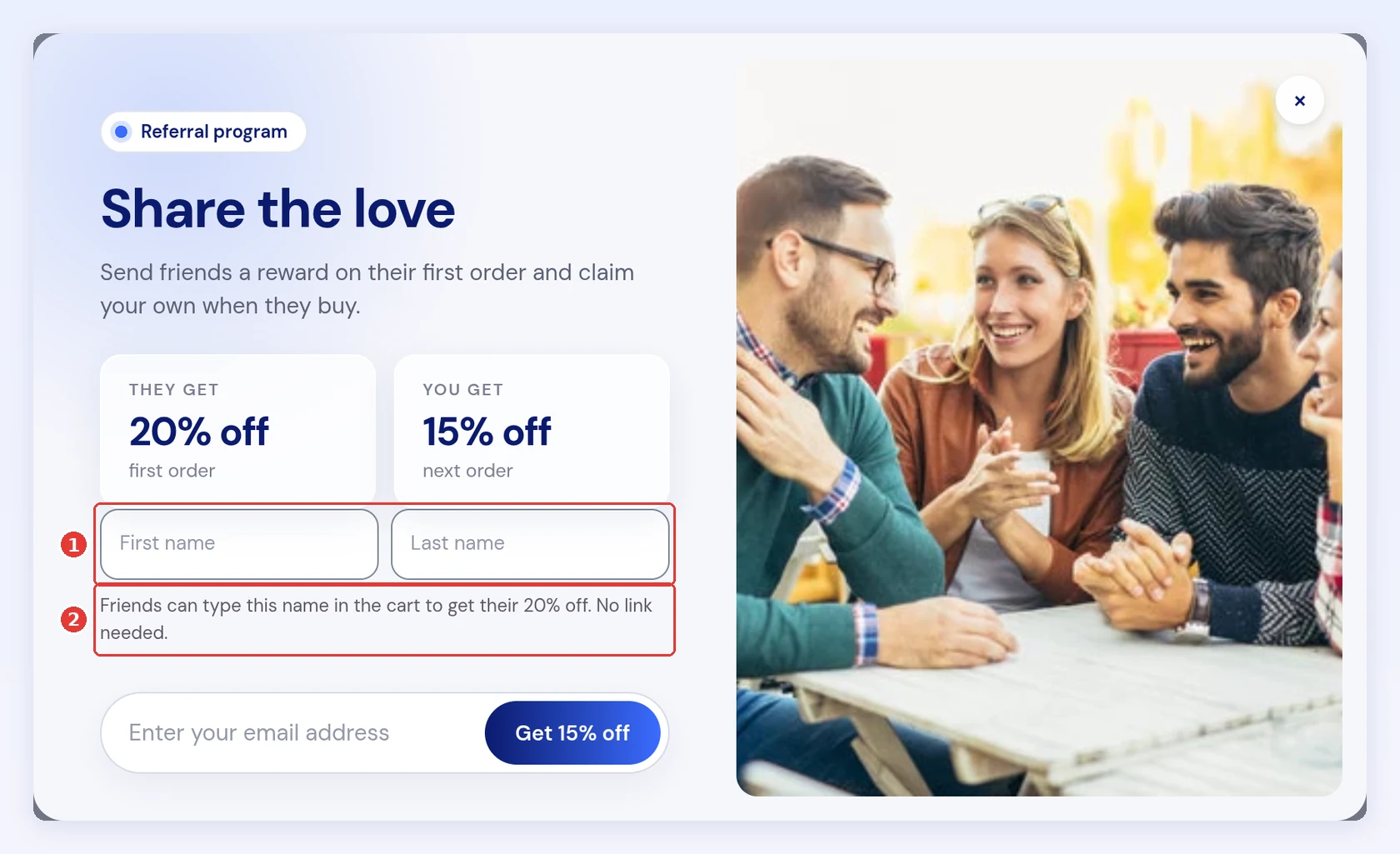
Section titled “The referrer adds their name”When Refer by name is on, the referral popup and the referral page ask for a First name and Last name (1) next to the email when someone joins. A hint under the fields (2) says friends can type this name in the cart to get their reward, no link needed:
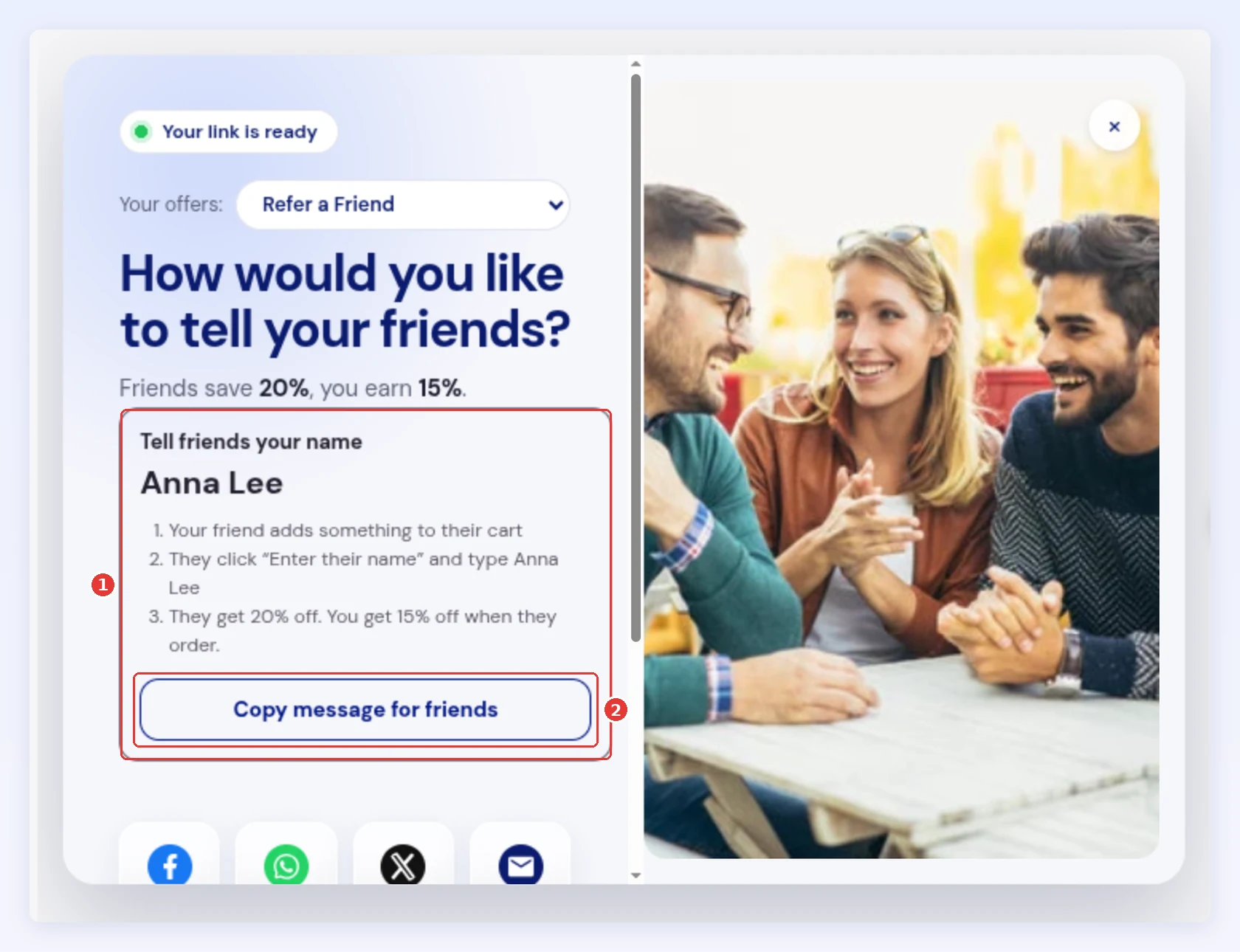
After joining, the popup shows a Tell friends your name card (1) with three short steps and a Copy message for friends button (2). The message reads like: “Get 10% off at your store! Add something to your cart, click “Enter their name” and type my name: Anna Lee.”
Referrers who joined before you turned the feature on and have no name see an Add your name so friends can find you card in the popup instead, with a Save my name button.
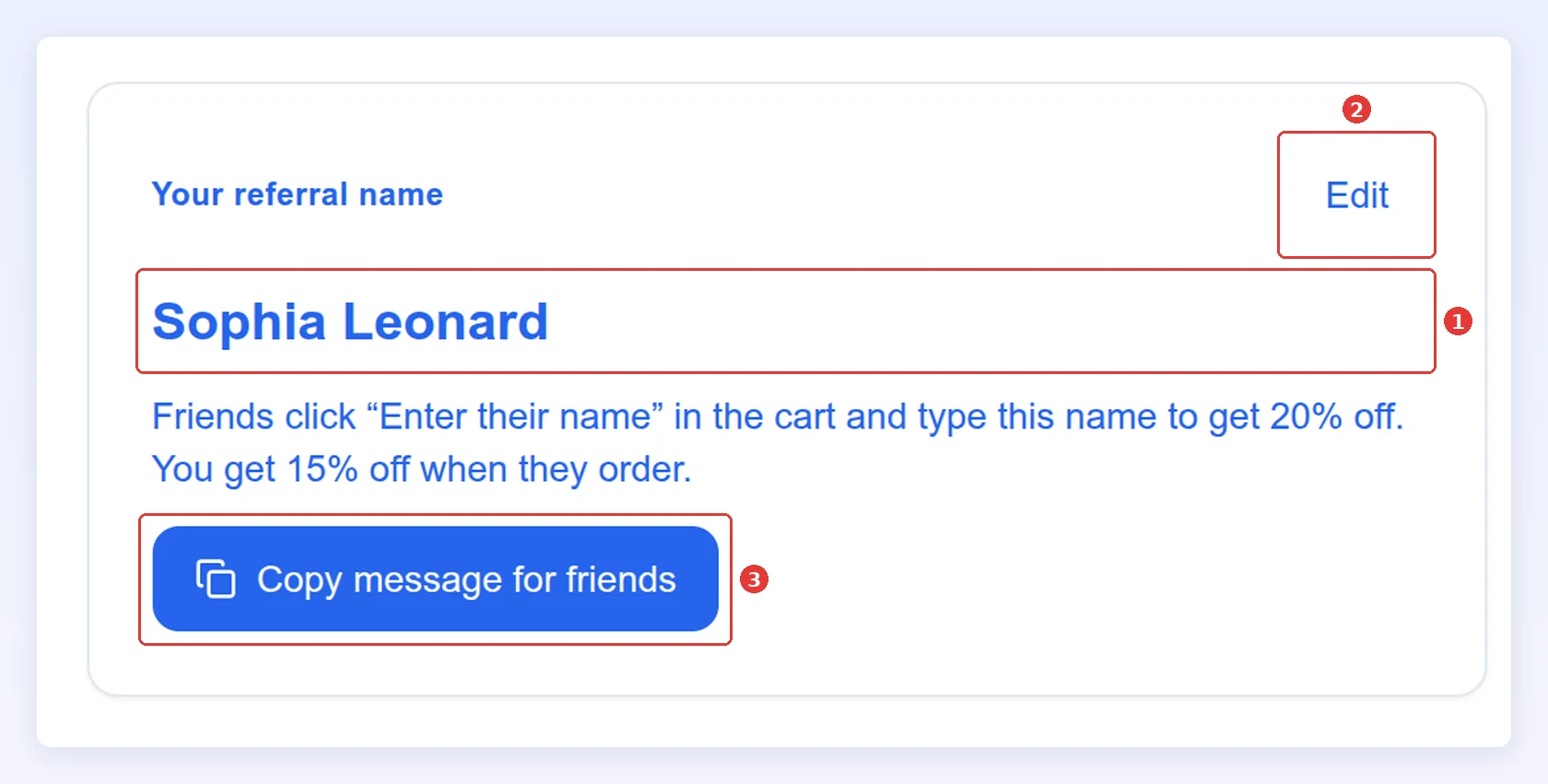
In the Referral Hub, referrers see Your referral name with their name (1), an Edit link (2) and the same copy button (3). Before they save a new name, the hub warns them that friends who know the old name need the new one. The same card is on the Referral Hub page in customer accounts.
The friend types the name
Section titled “The friend types the name”-
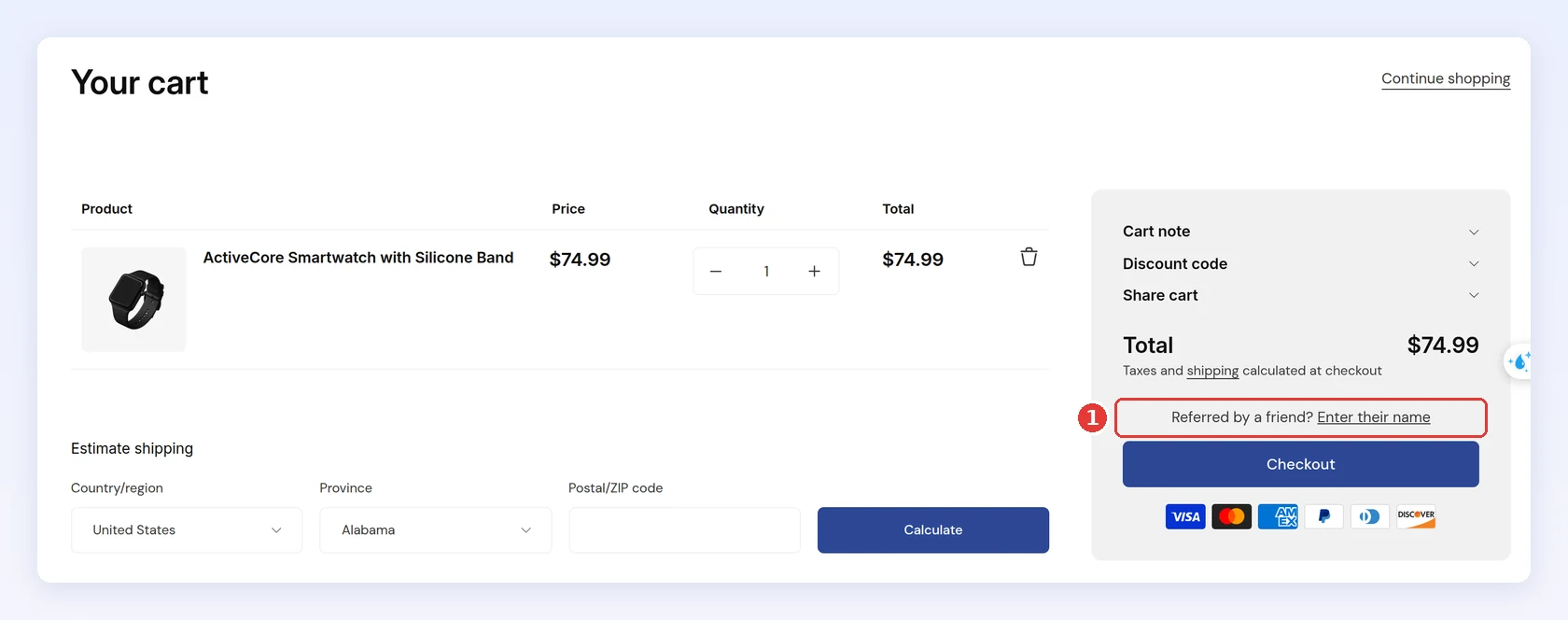
The friend adds something to their cart and clicks Enter their name (1) above the checkout button:
-
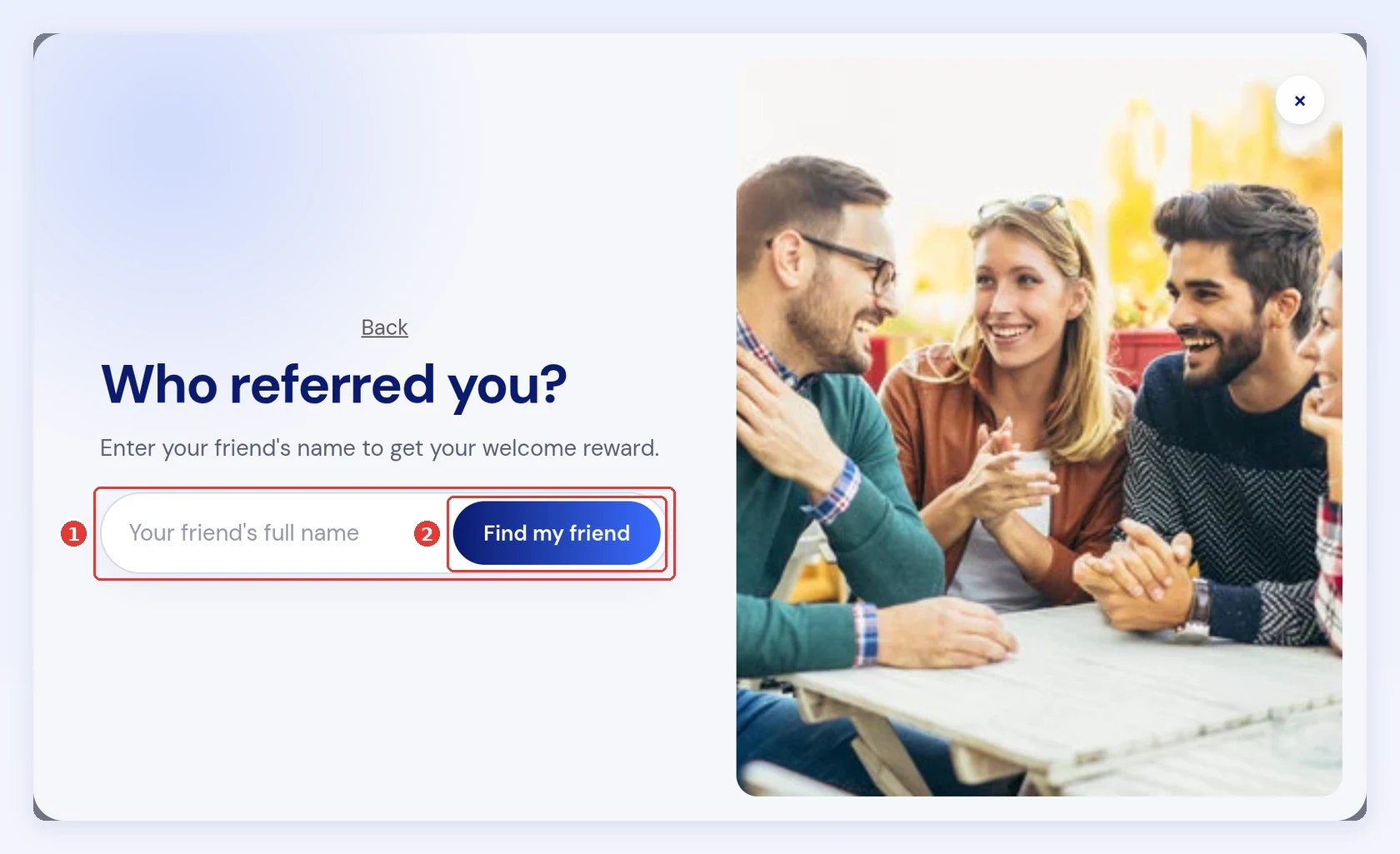
In Who referred you?, they type their friend’s full name (1) and click Find my friend (2):
-
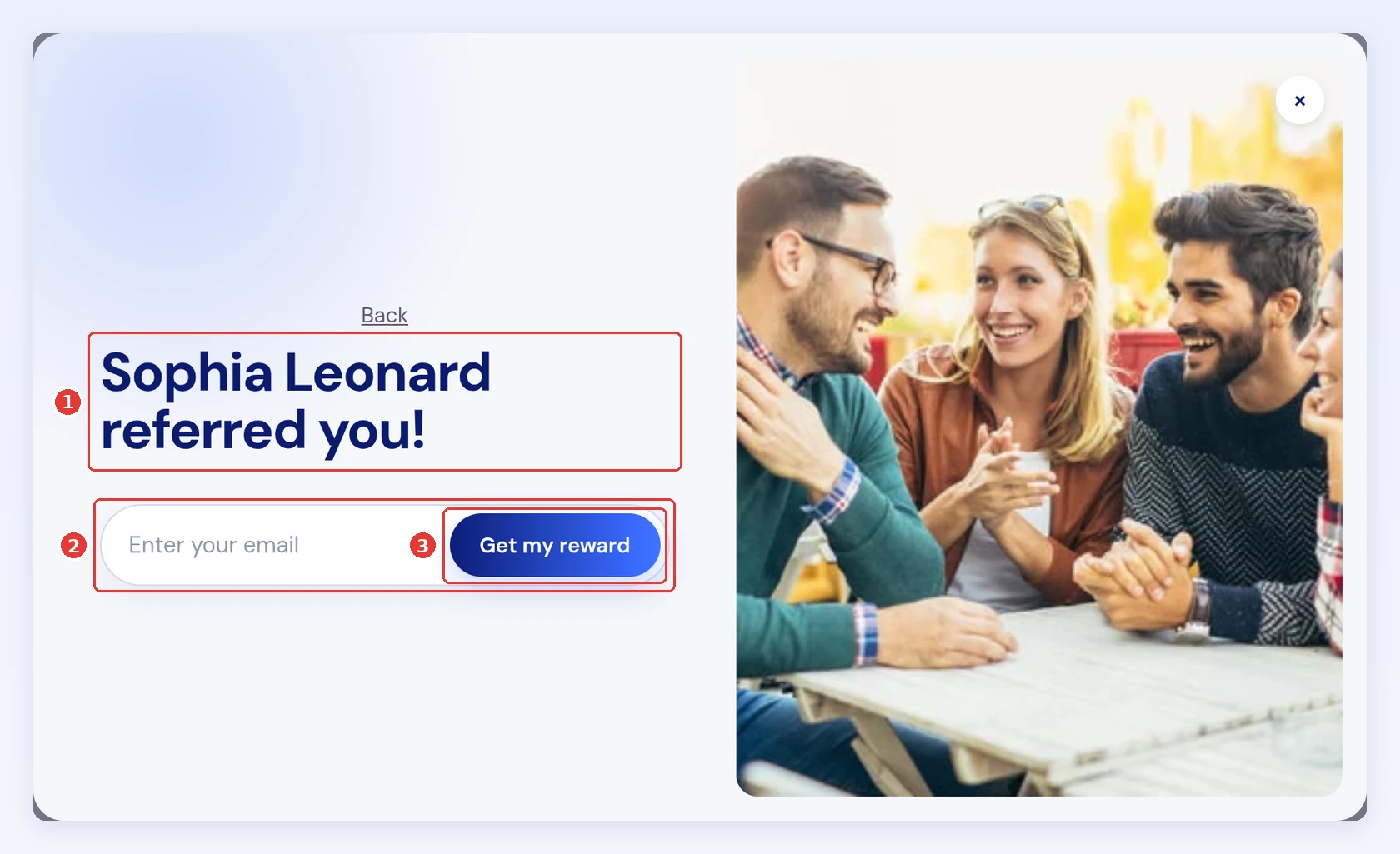
When Bloop finds one match, it shows who referred them (1). The friend enters their own email (2) and clicks Get my reward (3):
-
The discount goes into the cart, and the friend checks out as usual.
If two or more referrers share the name, or the friend only typed initials, Bloop asks for Your friend’s email to tell them apart. A wrong email shows That email doesn’t match the name you entered. The email only picks between people with that name: Bloop never finds a referrer by email alone.
The referrer is rewarded when the friend’s order goes through, exactly as with a link. The order shows the Refer by name channel in Analytics, and the friend’s claim shows as a Claimed entry in the activity log.
When the invitation shows
Section titled “When the invitation shows”The invitation only shows to customers who arrived without a referral link and haven’t claimed a friend’s discount yet. Once they claim, it disappears. It doesn’t show if Refer by name is off, if no place is ticked, or for a cart or checkout place you didn’t pick.
How Bloop matches a name
Section titled “How Bloop matches a name”Bloop looks for referrers in the same campaign whose first and last name match what the friend typed.
| The friend types | Result |
|---|---|
anna nguyen, ANNA NGUYEN |
Found. Upper and lower case don’t matter |
Anh Nguyen for “Ánh Nguyễn” |
Found. Accents don’t matter |
Nguyen Anna |
Found. Word order doesn’t matter |
Mrs Anna Nguyen |
Found. Titles such as Mr, Mrs, Ms, Miss, Dr and Prof are ignored |
Anna, when only one referrer in the campaign is called Anna |
Found |
A Nguyen, or a name two referrers share |
Bloop asks for the referrer’s email |
Ana Nguyen (typo) or a nickname |
Not found. The friend can check the spelling and try again |
Bloop also stops input that can’t be a name before it searches: an empty field, more than 100 characters or 6 words, two people at once (such as Anna and Tom), or something that looks like an email, a phone number or a referral code.
Rules and limits
Section titled “Rules and limits”- New customers only. The friend gets the same reward as through a link, under the same conditions, including any minimum order. Customers who have ordered before can’t claim it. See who can be referred.
- No self-referral. A referrer can’t claim their own reward by typing their name.
- One code per email. Claiming again with the same email gives the same code.
- Names are letters only. Each part of a name is up to 50 characters, with no numbers, symbols or links. Hyphens and apostrophes, as in Mary-Jane O’Neil, are fine.
- Searches are limited. Each visitor’s network can look up names up to 15 times an hour. This stops someone from guessing names to find referrers.
- A new name replaces the old one. After a referrer or you change a name, only the new name works in the cart and at checkout.
- Turning it off keeps names. When Refer by name is off, customers don’t see name fields, the name card or the invitation. Names already added are kept for when you turn it back on.
- Deleted customers lose their name. When Shopify deletes or redacts a customer’s data, Bloop removes their referral name too.
Add or change a referrer’s name
Section titled “Add or change a referrer’s name”Use this when a referrer asks you to fix their name, or to add one for a referrer friends can’t find yet.
-
Open the referrer
-
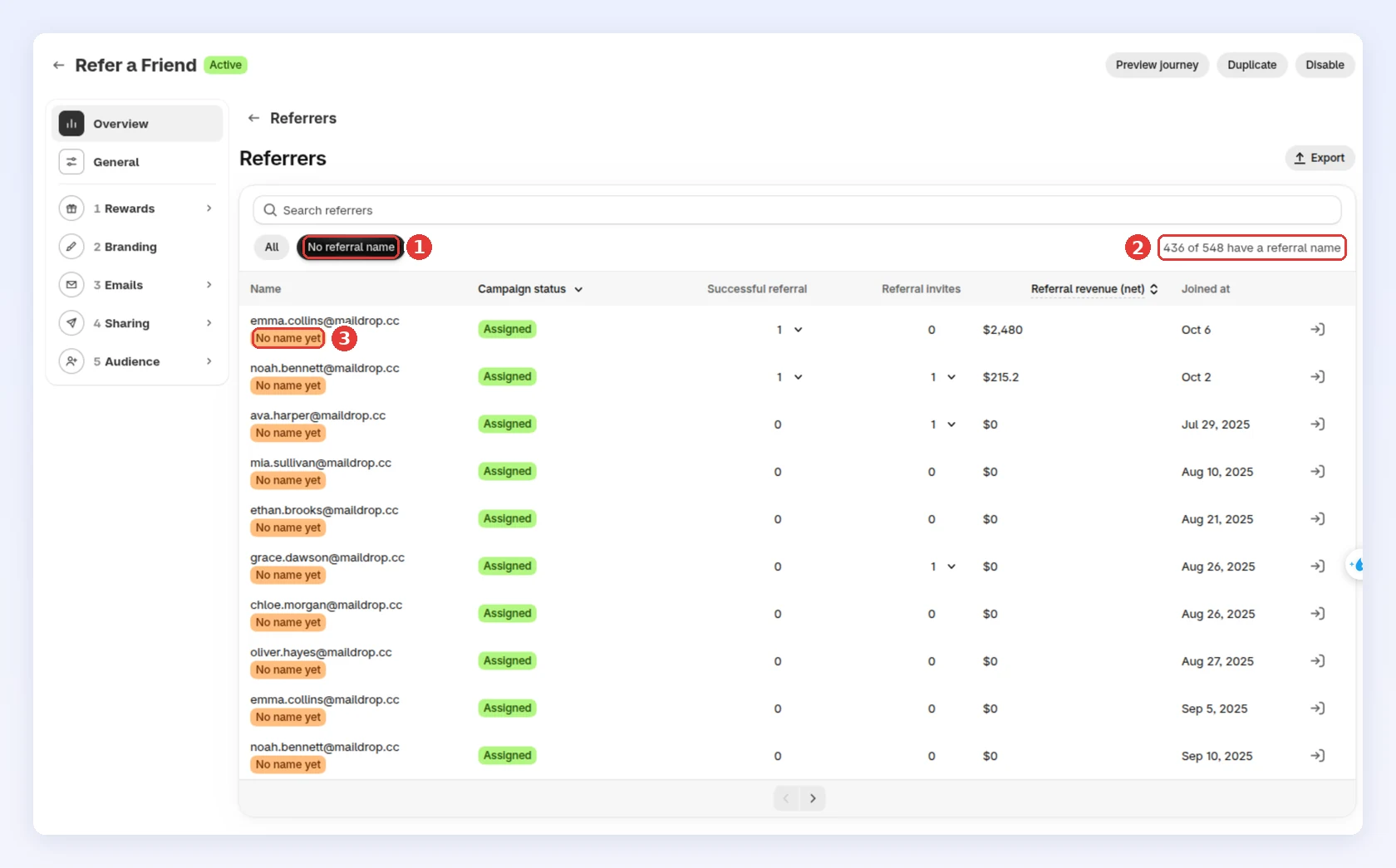
Open your campaign and choose Referrers on its Overview. Each referrer shows their referral name above the email, or No name yet (3).
-
Click No referral name (1) to list only referrers without one. The line next to it (2) counts how many have a name:
-
Click the referrer’s row.
-
-
Edit the name → Click Save
-
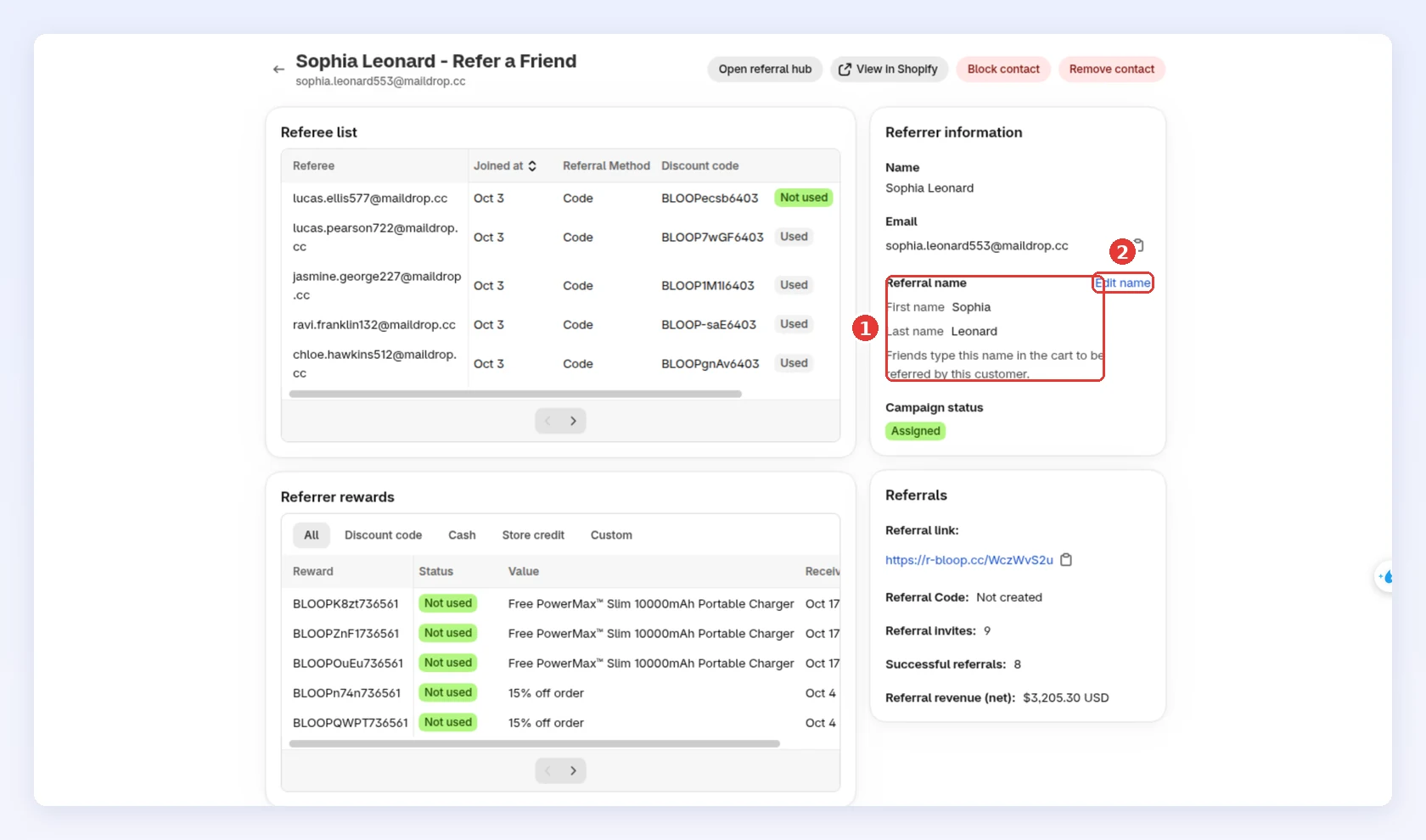
In Referral name (1), click Edit name (2), or Add name when there isn’t one yet:
-
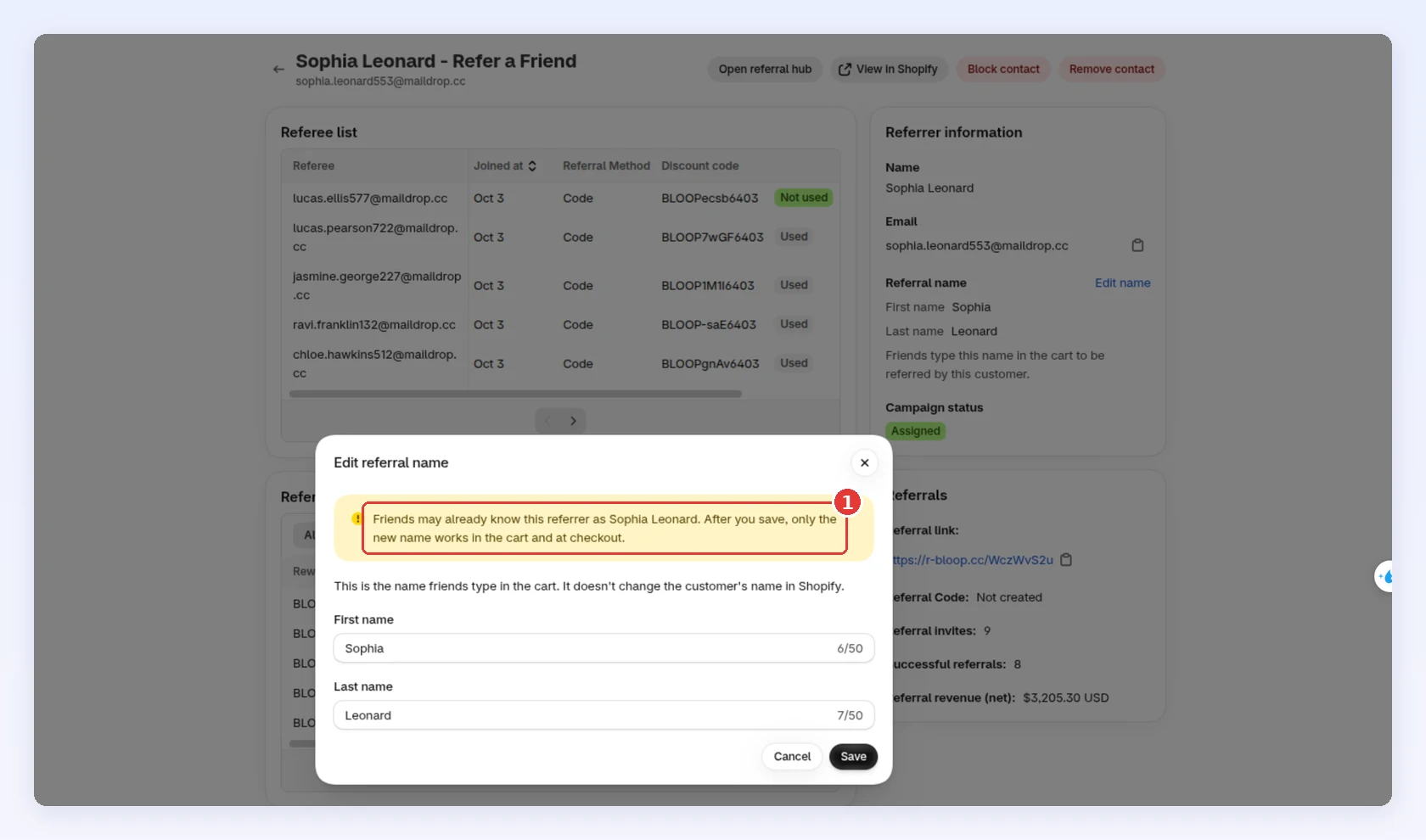
Enter the First name and Last name. If the referrer already had a name, the window warns that friends may know them by the old one (1):
-
Click Save. You’ll see Referral name saved.
This changes only the name friends type in the cart. It doesn’t change the customer’s name in Shopify.
-
Common mistakes to avoid
Section titled “Common mistakes to avoid”- Turning it on with the app embed off. The cart page and cart drawer stay empty. Turn on the BLOOP app embed.
- Ticking Checkout without the block. Add the Refer by name block in the checkout editor, or nothing shows at checkout.
- Testing with a referral link open. The invitation is hidden for anyone who came through a link or already claimed. Test in a private window.
- Forgetting your terms. Tell customers in your program terms that friends can find them by name.
Related
Section titled “Related”- Referral methods: the link and code that work alongside Refer by name.
- Understanding the Referral Hub: where referrers see and change their name.
- How to manage contacts: look up a referrer and their name.
- Troubleshooting referrals and rewards: when a friend can’t find a name or the invitation doesn’t show.
- How to claim your friend’s referral discount: a page for your customers.